Employee Documents
Employee documents are files attached to a specific person — a passport, a certificate, a signed contract. Before you add any, you set up the document types they fall into.
Step 1 — Set up document types
Open the Documents area → Documents → Document Types tab. IceHrm comes with a few common types (ID Copy, Degree Certificate, Driving Licence) that you can use or add to.
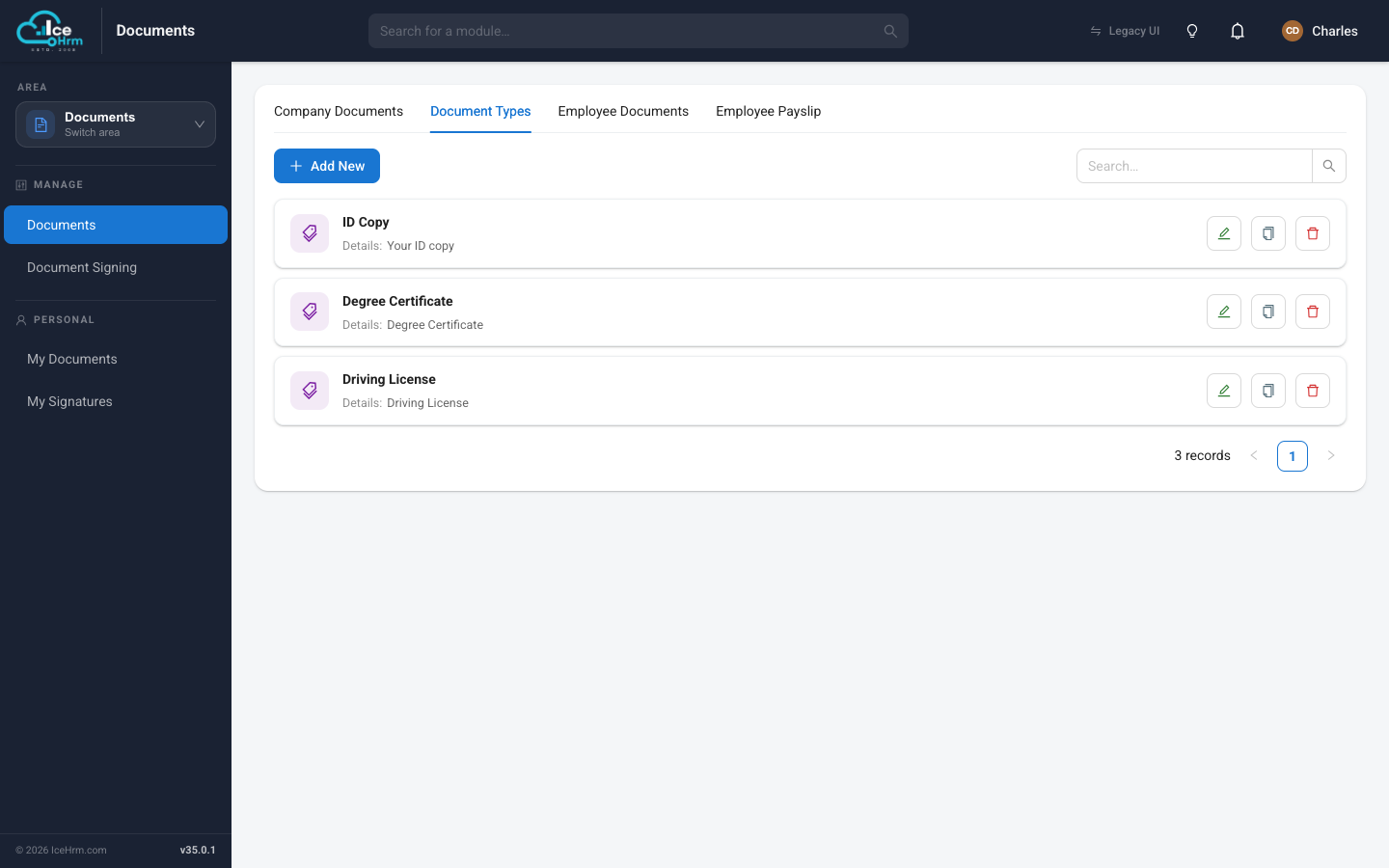
Click + Add New to create a type.
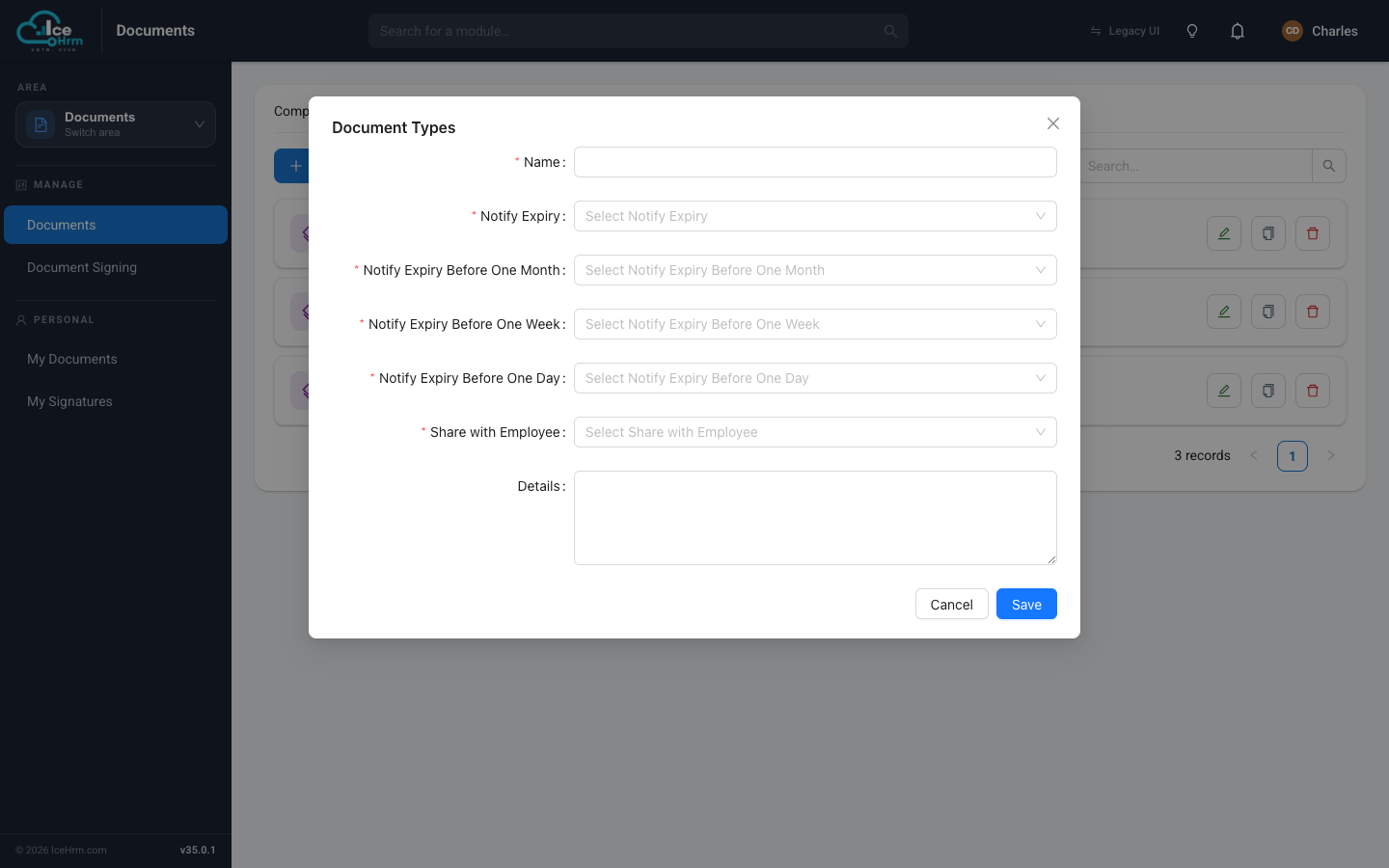
| Field | What it does |
|---|---|
| Name | The type's name, e.g. "Passport". |
| Notify Expiry | Whether to send expiry reminder emails for this type. |
| Notify Expiry Before One Month / One Week / One Day | Which reminders to send as the expiry date approaches. |
| Share with Employee | Whether the employee can see documents of this type at all (see visibility). |
| Details | An optional description. |
The expiry reminders are covered in Expiry notifications.
Step 2 — Add a document (Admin)
Open the Employee Documents tab and click + Add New.
When a manager opens Documents → Documents, they see only the Employee Documents tab, limited to their own team members' documents. It is view-only for managers — they can open documents but can't add, edit, or delete them. Adding and editing employee documents is done by admins.
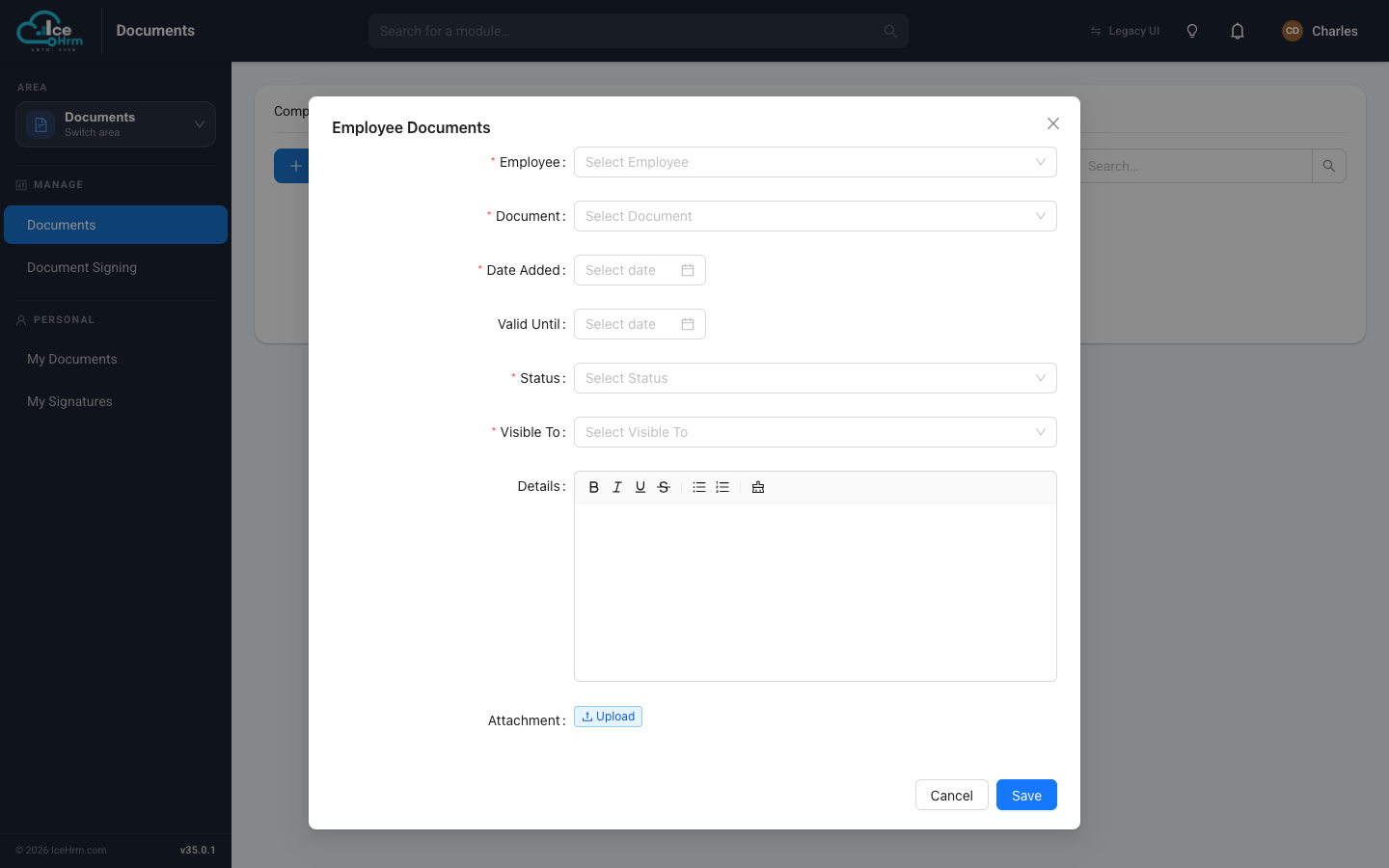
| Field | What to enter |
|---|---|
| Employee | Who the document belongs to. |
| Document | The document type (from Step 1). |
| Date Added | When it was filed. |
| Valid Until | The expiry date, if it has one. |
| Status | Active. |
| Visible To | Who can see it — see visibility. |
| Details / Attachment | Notes and the file itself. |
Click Save.
Employees adding their own documents
Employees can upload their own files too. They open Documents → My Documents → My Documents, click Add New, pick a document type, upload the file, and save.
Tips
- Set up document types first — you can't file a document without a type.
- Fill in Valid Until for anything that expires, so reminders can fire.
- Set Visible To carefully for sensitive files.