Managing Candidates
The Candidates module is your hiring pipeline. It holds everyone who has applied for a job — plus anyone you add by hand — and lets you move each person through the stages of your process, from first application to final offer.
Open the Recruitment area and click Candidates.
The hiring board
The default Board view shows your candidates as cards arranged in columns, one column per hiring stage: New, Short Listed, Interview, Offer, Hired, and Rejected. Each card shows the candidate's name, the role they applied for, their current sub-status, and the date. The number on each column tells you how many candidates are at that stage.
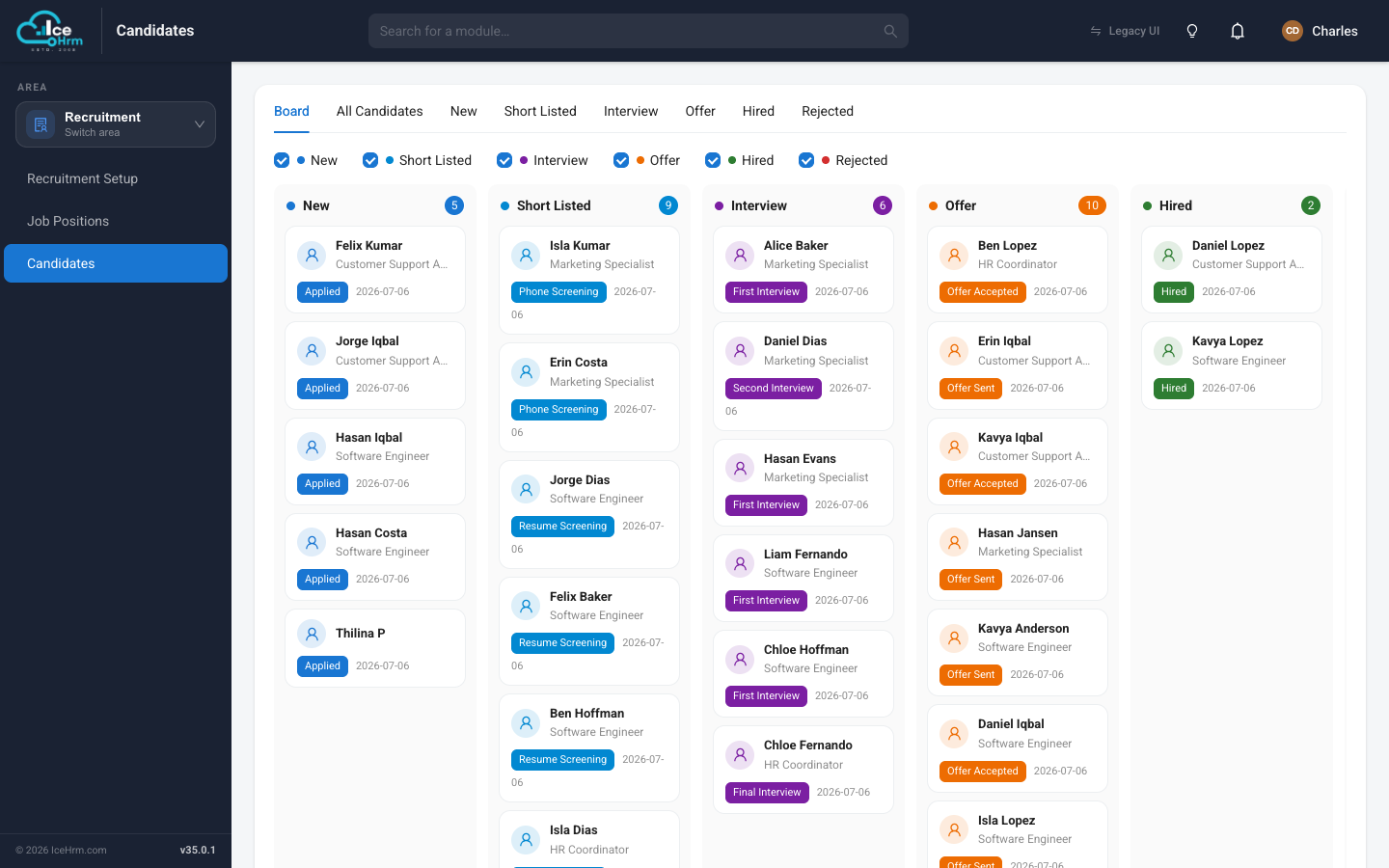
To move a candidate forward, drag their card from one column to the next — for example from Short Listed to Interview. This is the quickest way to keep your pipeline up to date at a glance.
The check-boxes at the top let you hide or show individual stages, so you can focus on just the columns you care about.
The list view
Prefer a straightforward list? Click the All Candidates tab. This shows the same people as a table, with a status badge, the position they applied for, their application date, and their email.
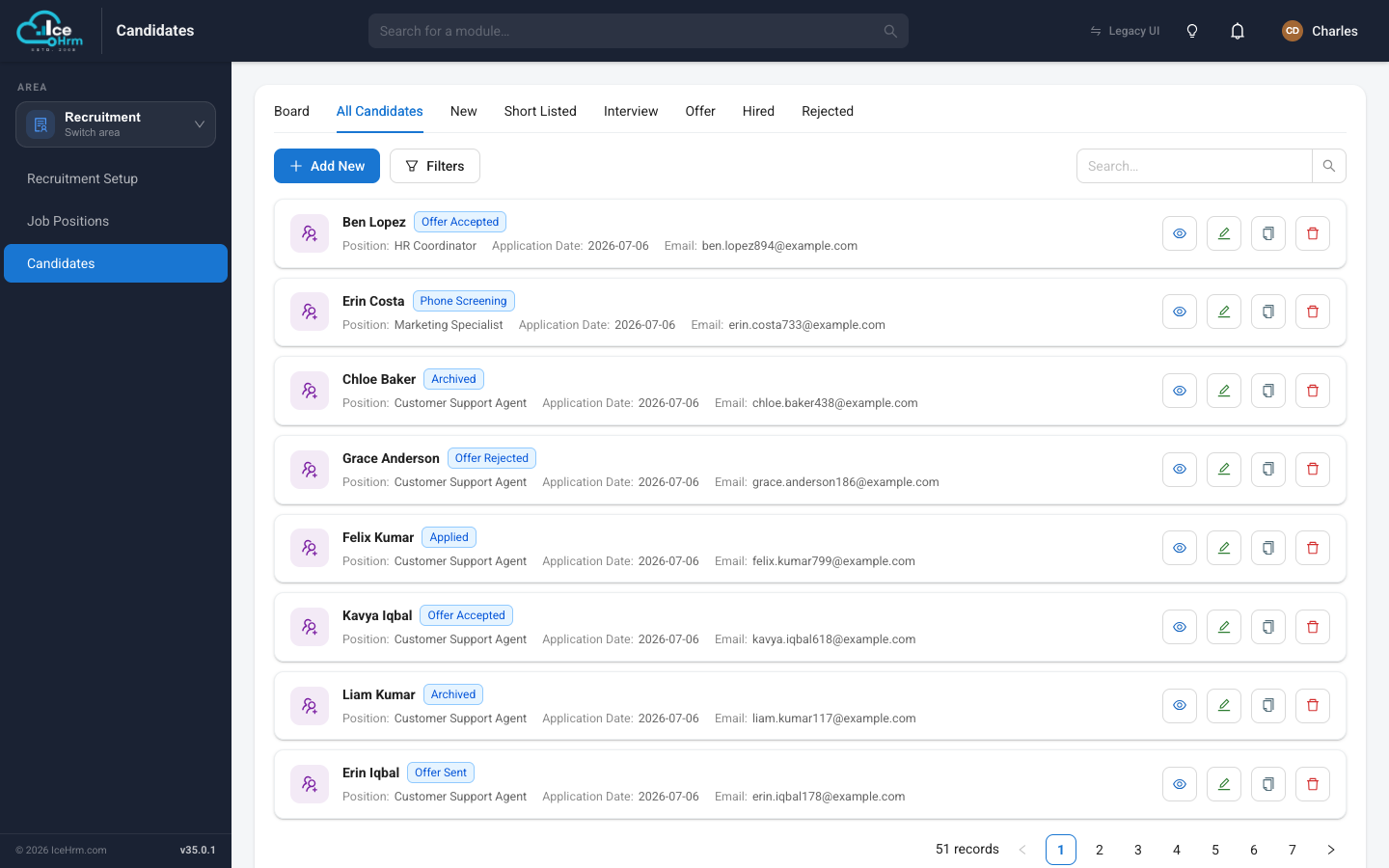
The tabs next to it — New, Short Listed, Interview, Offer, Hired, Rejected — are quick filters that show only the candidates at that one stage. Use the Filters button and the search box to narrow a long list further.
Adding a candidate by hand
Most candidates arrive automatically when they apply through a job link. But you can also add someone yourself — handy for a referral or a CV that came in by email.
-
On the All Candidates tab, click + Add New.
-
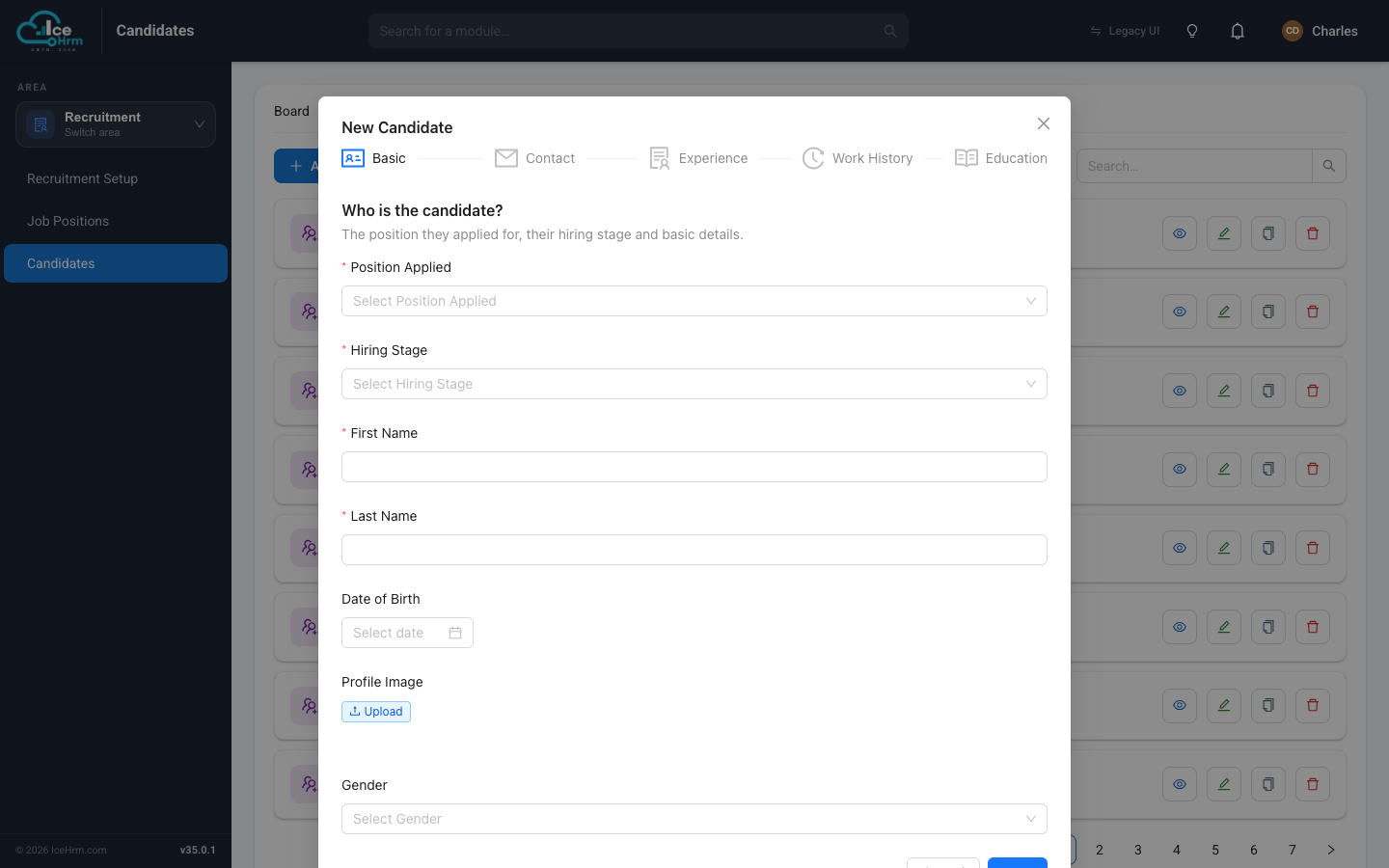
Fill in the New Candidate form. It's split into steps across the top — Basic, Contact, Experience, Work History, and Education — so you can add as much or as little as you have.
-
On the Basic step, the important fields are:
Field What to enter Position Applied The job this candidate is for Hiring Stage Where to place them (usually New) First Name / Last Name The candidate's name Date of Birth Optional Profile Image Optional photo Gender Optional -
Work through the remaining steps to add contact details, work experience, and qualifications, then click Save.
Opening a candidate's profile
Click the View (eye) button on any candidate to open their profile. Here you can see their contact details, the role and stage they're at, and download their CV.
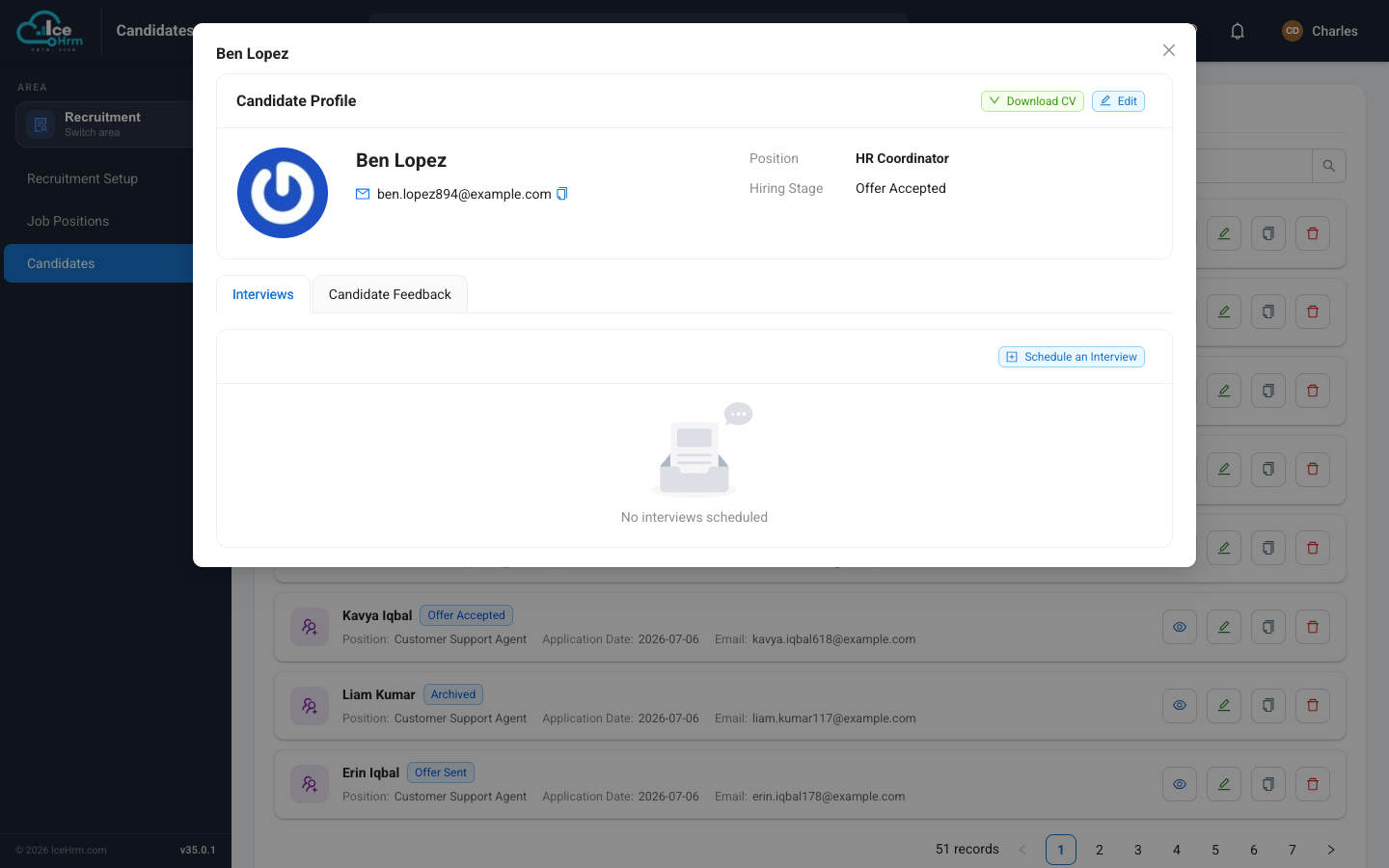
The profile has two tabs:
- Interviews — schedule and track interviews for this candidate. See Booking an interview.
- Candidate Feedback — record notes and assessments from your team so hiring decisions are based on everyone's input, not just one person's memory.
The Download CV and Edit buttons at the top let you grab their resume or update their details at any time.
Good habits
- Keep the board current — drag cards as things move so everyone sees the real state of the pipeline.
- Record feedback promptly — add notes right after each conversation while it's fresh.
- Use the stages consistently — agree with your team what "Short Listed" versus "Interview" means, so the columns stay meaningful.