Viewing Reviews (Supervisor)
As a supervisor or administrator you'll often want to open a review to read what's been submitted so far. Everything for one employee lives on a single, tabbed screen.
Opening a review
Go to Performance → Performance → Performance Reviews, find the employee, and click View.
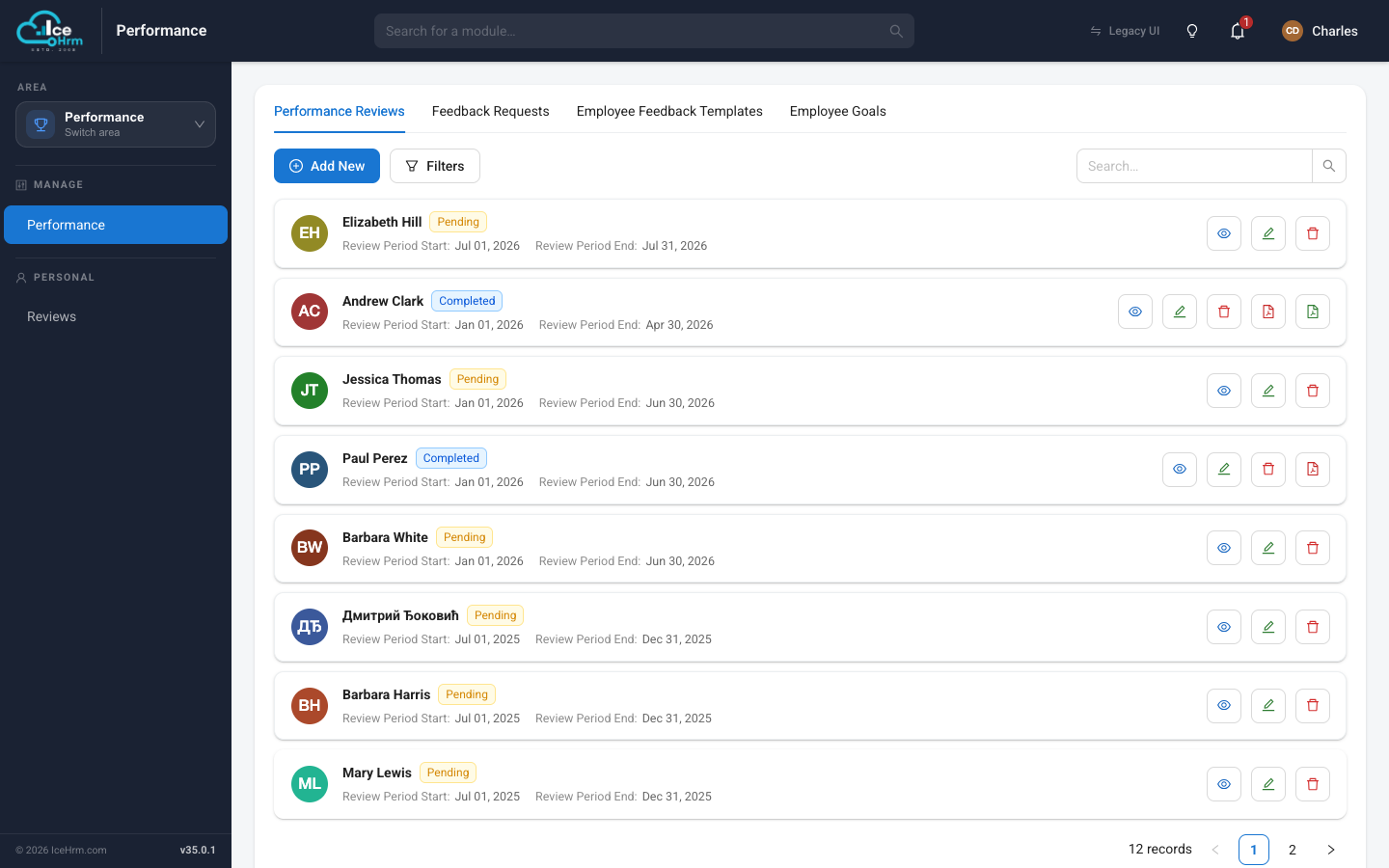
The tabbed review screen
The review opens with a header (employee, manager, status, and review period) and four tabs:
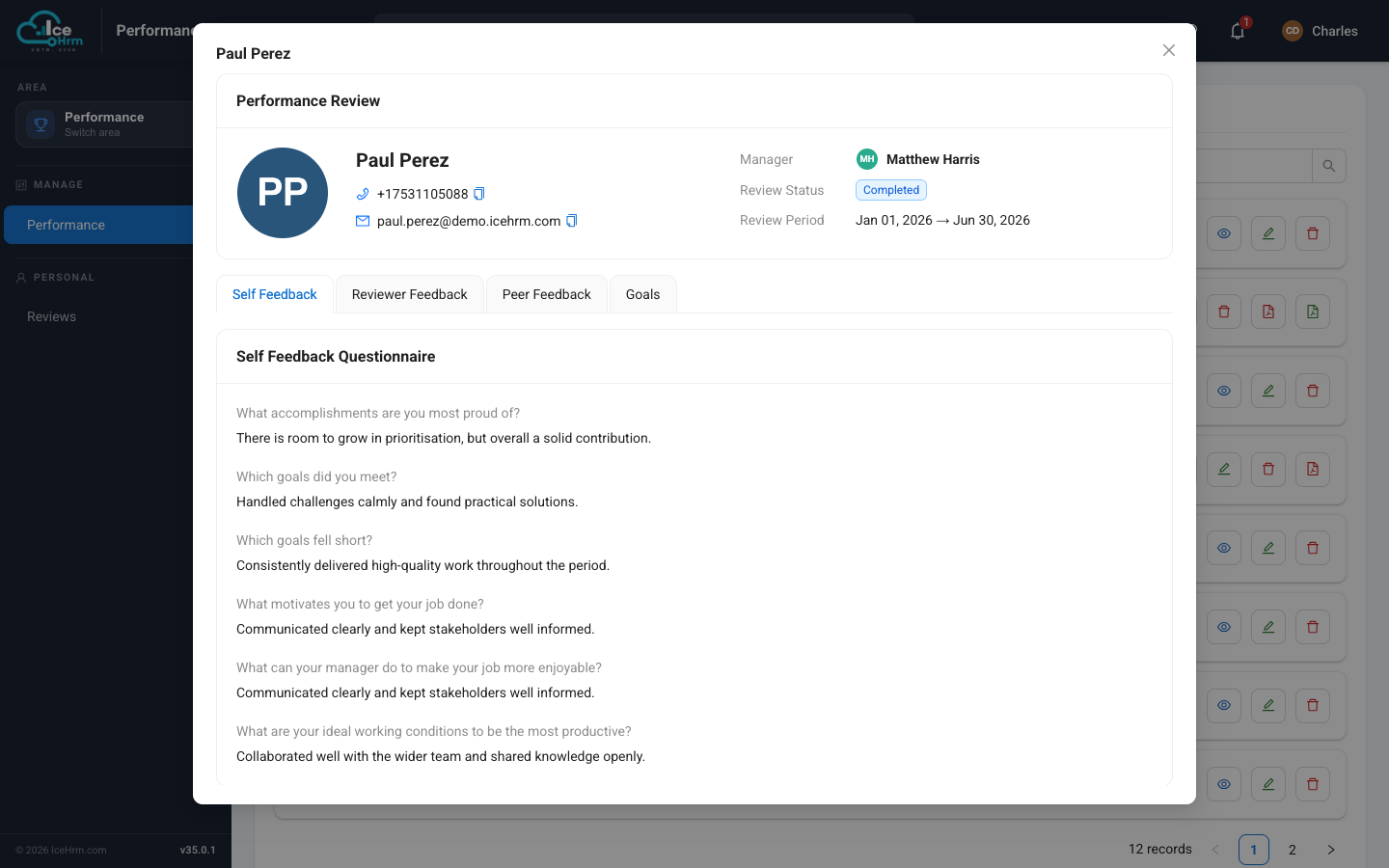
| Tab | What you'll find |
|---|---|
| Self Feedback | The employee's answers to the self-assessment questions. |
| Reviewer Feedback | The manager's written assessment. |
| Peer Feedback | Feedback cards from colleagues, each with a rating. |
| Goals | Each goal with the employee's and the manager's progress side by side. |
Switch between tabs to see the whole picture in one place. For a completed review, the list also offers a PDF export so you can save or share the finished appraisal.
As the manager, coordinator, or an admin you see the Peer Feedback tab and the Reviewer Feedback at every stage. The employee sees neither: they never see peer feedback, and they only see the reviewer feedback once the review is Completed. See Who can see what.
Related topics
- Who can see what — the review visibility rules
- Giving feedback as a supervisor
- Requesting peer feedback