Enrolling in a Course
Once a course is published, employees enroll themselves and work through it at their own pace. This page is written from the employee's point of view, with a note for managers at the end.
Finding available courses
Open the Learning area and click My Enrolments under Personal. The Courses tab shows the courses available to you as cards.
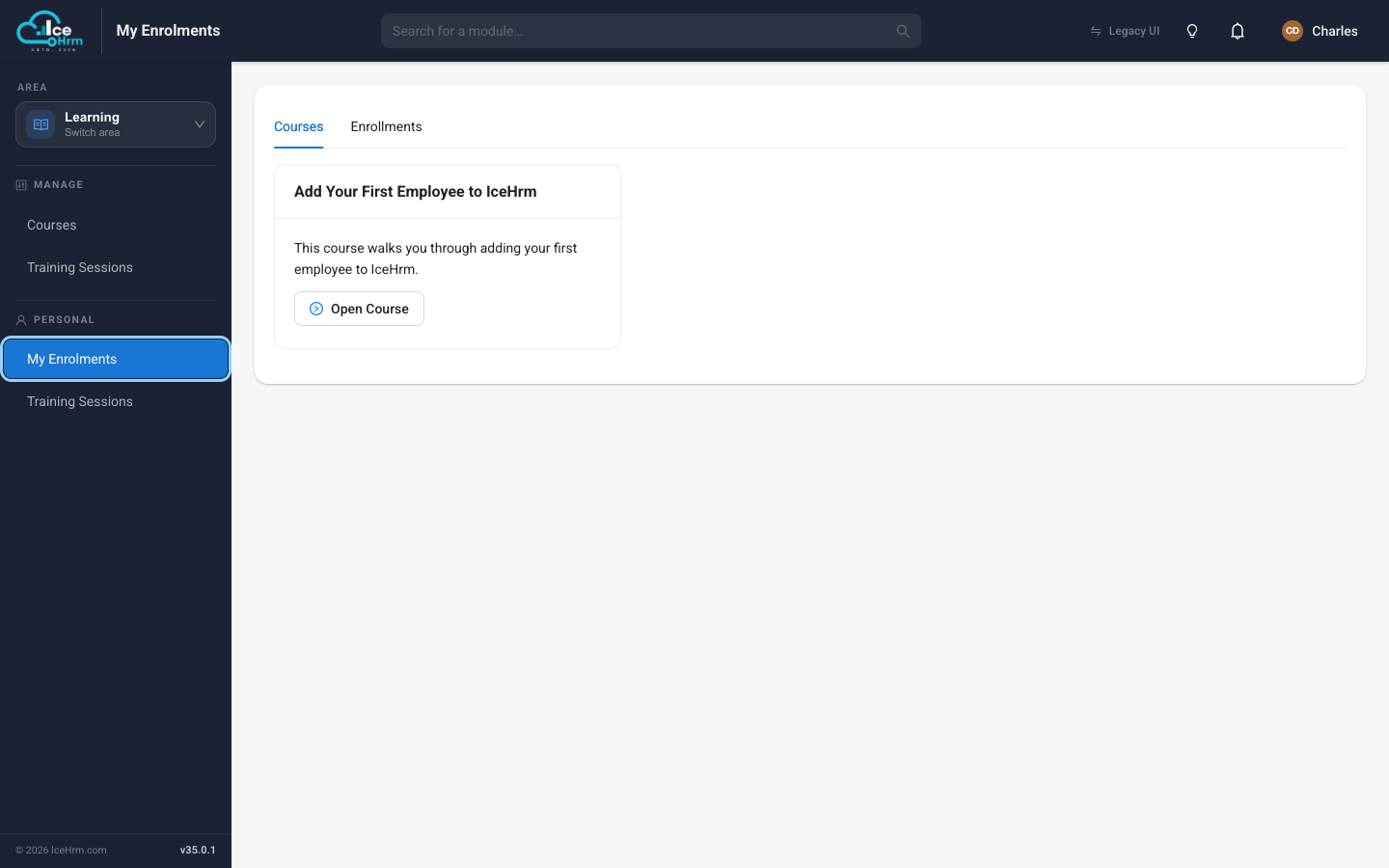
- If you haven't joined a course yet, its card shows an Enroll button. Click it to join.
- Once you're enrolled, the button becomes Open Course.
The Enrollments tab (next to Courses) lists the courses you've already joined along with your progress.
Taking a course
Click Open Course to start. The course opens in a reader with the lesson content on the left and, on the right, a progress ring and the list of Lessons.
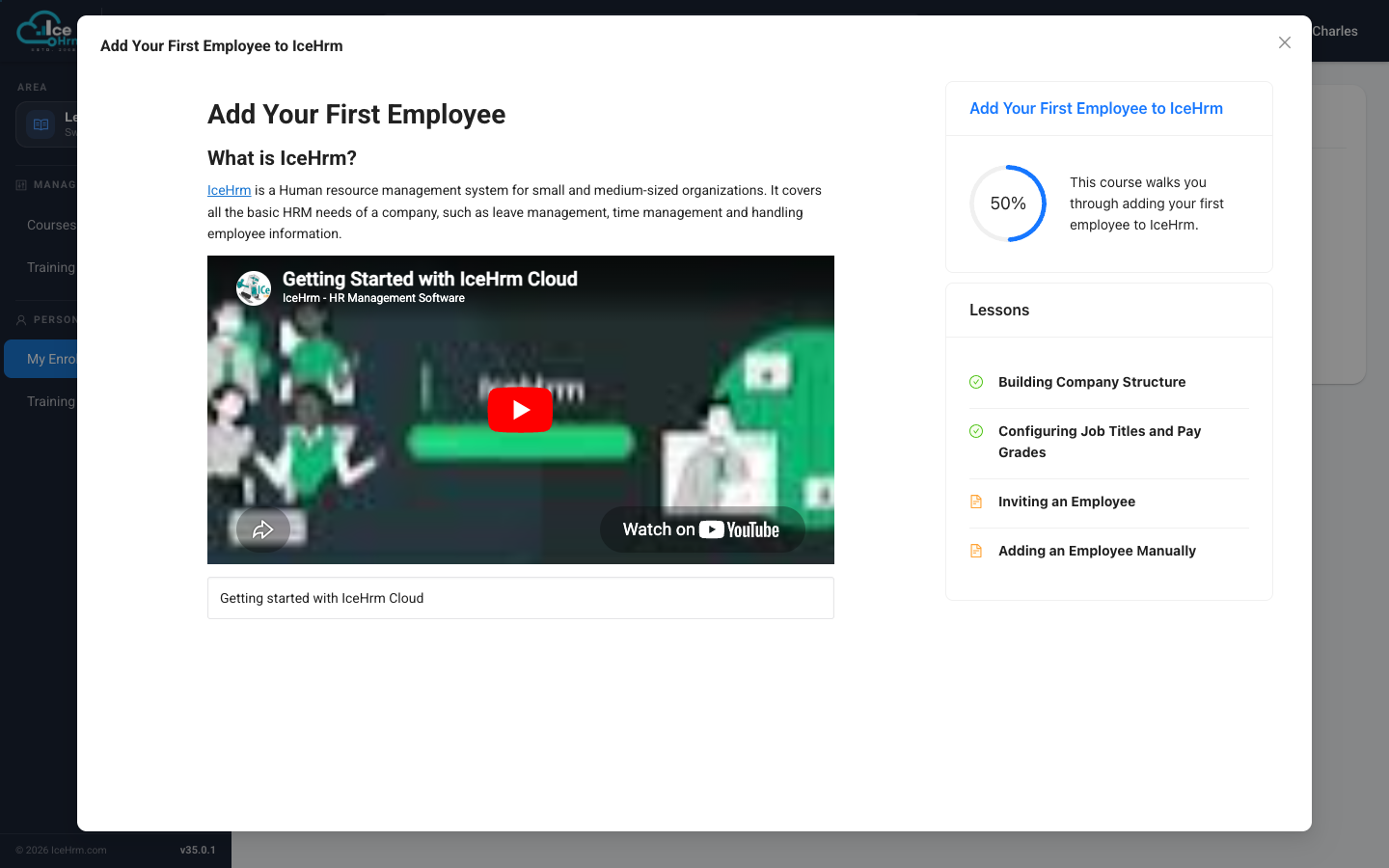
- Read (or watch) the content for each lesson on the left.
- The green tick next to a lesson means you've completed it; the plain icon means it's still to do.
- The percentage in the ring is your overall completion. As you finish lessons it climbs toward 100%.
Work through the lessons in order. If a lesson includes a quiz, answer it correctly to move on. When every lesson is done, the course is complete.
For managers: watching your team's progress
If people report to you, you can see how they're getting on. In the Courses module (under Manage), open the Enrollments of Direct Reports tab.
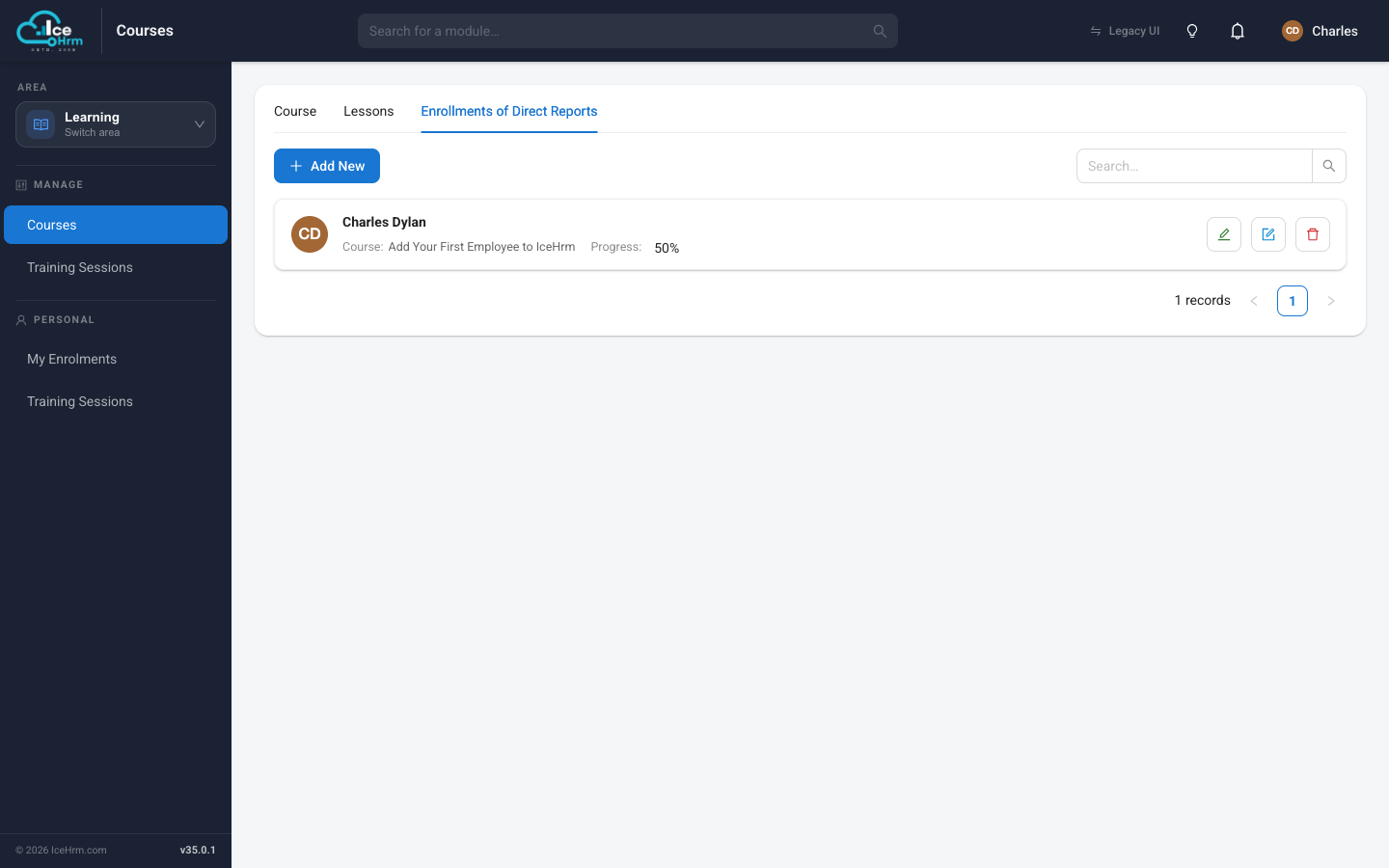
Each row shows a team member, the course they're enrolled in, and their progress percentage — a quick way to check who still needs to finish a required course.
Progress at a glance
| Progress | Meaning |
|---|---|
| 0% | Enrolled but not started |
| 1–99% | In progress — some lessons done |
| 100% | Completed — all lessons finished |
Tips
- Go in order — lessons build on each other.
- Finish before deadlines — especially for required or compliance courses.
- Revisit before a quiz — scroll back through the lesson if you're unsure.