Approving a Training Session
When one of your team members marks a training session as complete, it comes to you for approval. Approving confirms they genuinely attended and completed the session, so their training record is accurate.
Where approvals appear
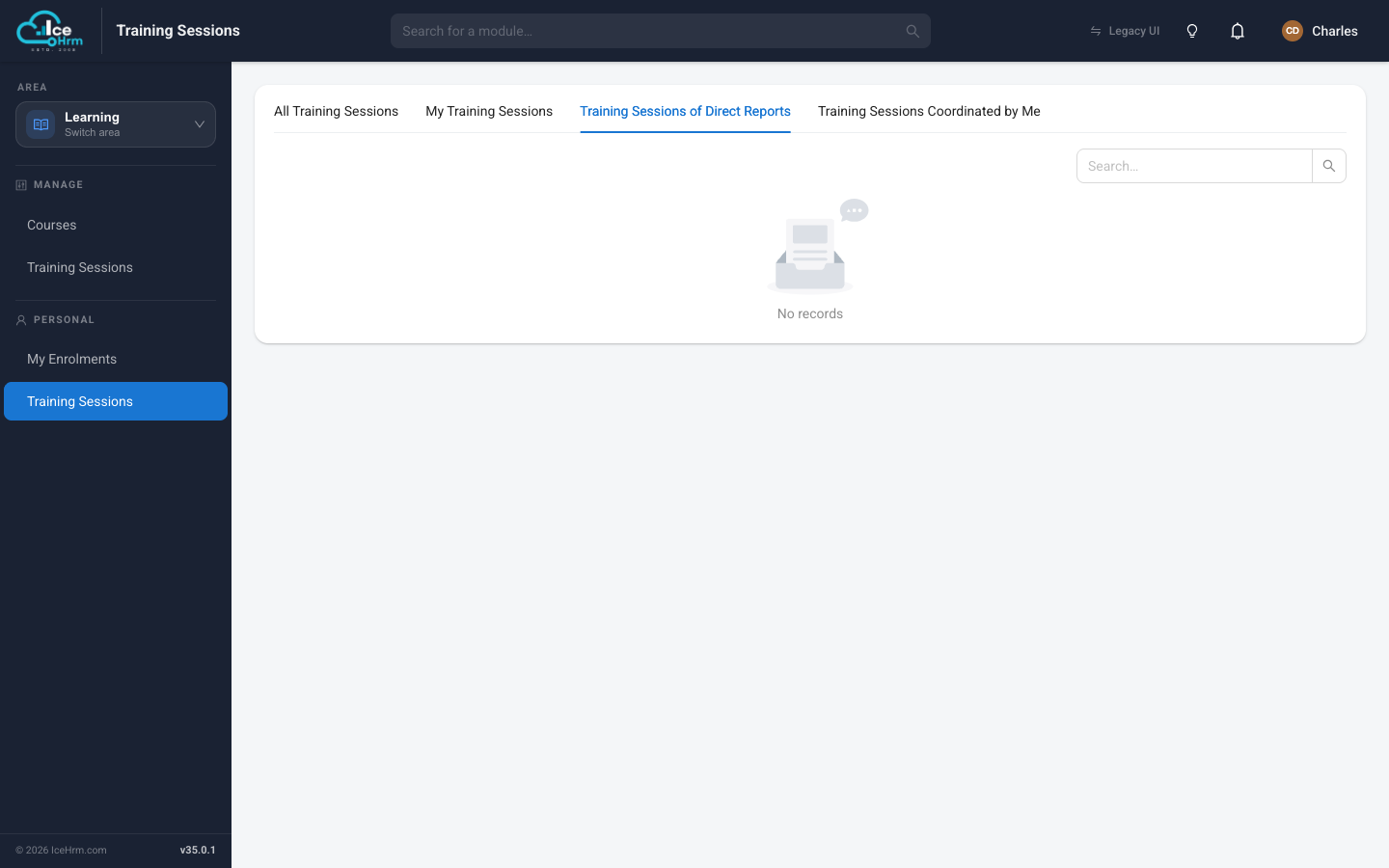
Open the Learning area and click Training Sessions under Personal, then open the Training Sessions of Direct Reports tab. Any session a report has marked complete and submitted appears here, waiting for your decision.
info
This tab only shows sessions once a direct report has completed and submitted one. If it says "No records", there's nothing waiting for your approval right now.
Making a decision
For each submitted session, review the details, then choose:
| Action | When to use it |
|---|---|
| Approve | The employee attended and completed the session. |
| Reject | The training wasn't completed, or the requirements weren't met. |
Before you approve, it's worth checking:
- Attendance — they actually attended the session.
- Proof — any required proof-of-completion document is attached.
- Details — the recorded date and hours look right.
How the whole flow fits together
Employee signs up  →  attends the session  →  marks it complete
        ↓
You (their manager) are notified
        ↓
You review under "Training Sessions of Direct Reports"
        ↓
Approve  →  employee's training record is updated
   or
Reject   →  employee is notified to correct and resubmit
Notifications
| Event | Who is notified |
|---|---|
| A report marks a session complete | You, their manager |
| You approve | The employee |
| You reject | The employee |
Tips
- Review promptly so training records stay up to date.
- Check the proof where your company requires it.
- Explain rejections so the employee knows what to fix.