

This is based on a customer inquiry. To add a holiday to IceHrm, log into the Admin account.
Go to Leave under Manage Module, then click on to the Holidays tab. Click on to Add New in order to add a new holiday.
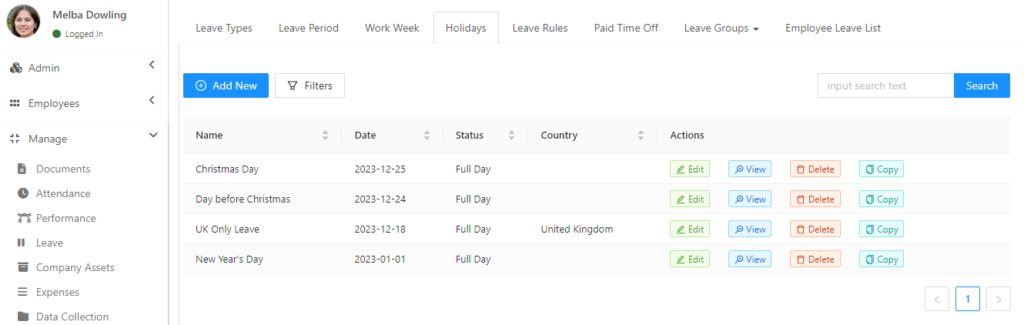
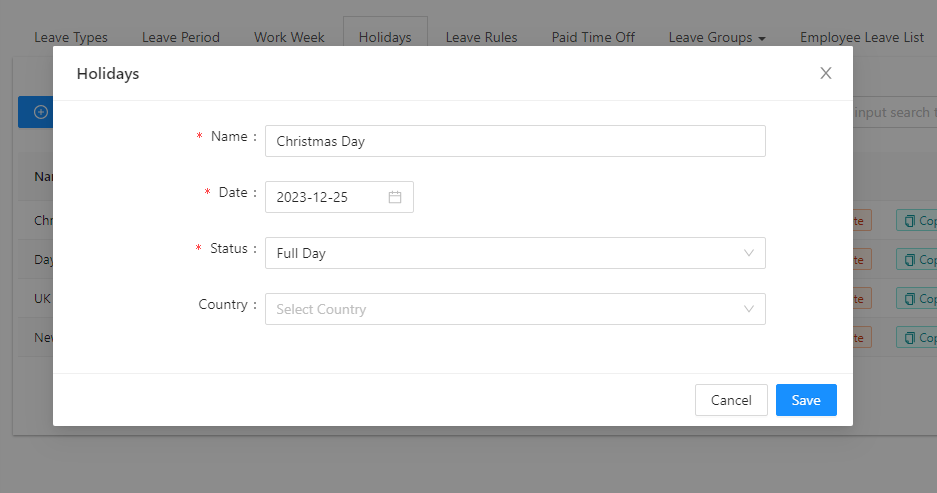
Give a meaningful name to the holiday then select the specific date. You can select whether it’s a full day or half-day and select a country and then Save.
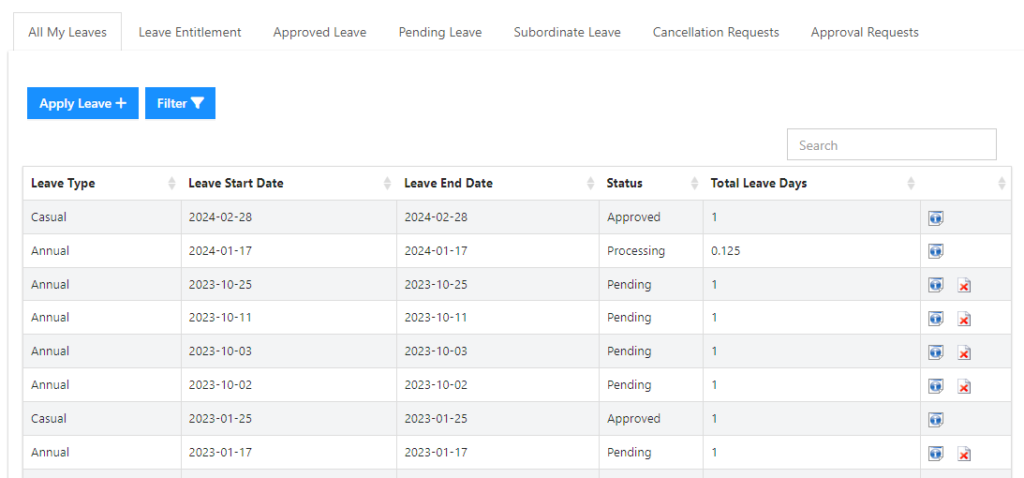
To check whether it’s correctly added to the system, log into one of your employees’ accounts. Then go to the Leave module and select Leave management. Go to the All My Leaves tab and click on Apply Leave.
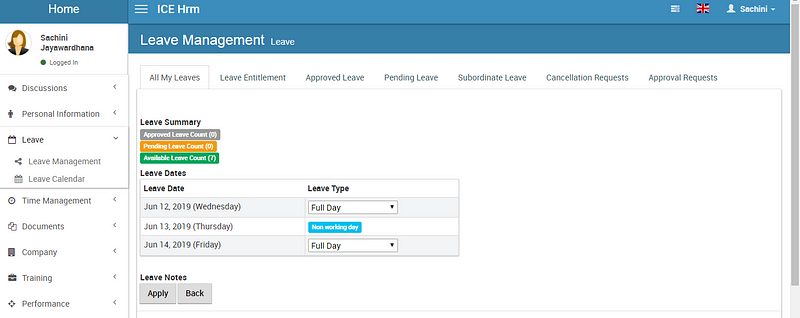
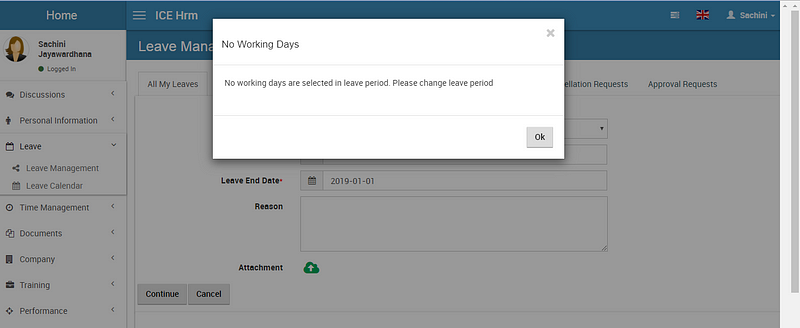
Enter the holiday date as the leave date and click on the continue button. If you have selected a holiday, you will receive an error as below.
When your employees are applying leaves for more than one day, and if there’s a holiday in between, the IceHrm system shows that as well. When they enter the date and continue it, holidays will show highlighted in blue.