Organization Overview Dashboard
The Organization Overview is the first page you see when you open the People area as an admin or manager. It gives you a live picture of your workforce without running any reports.
Open it from People > Organization Overview.
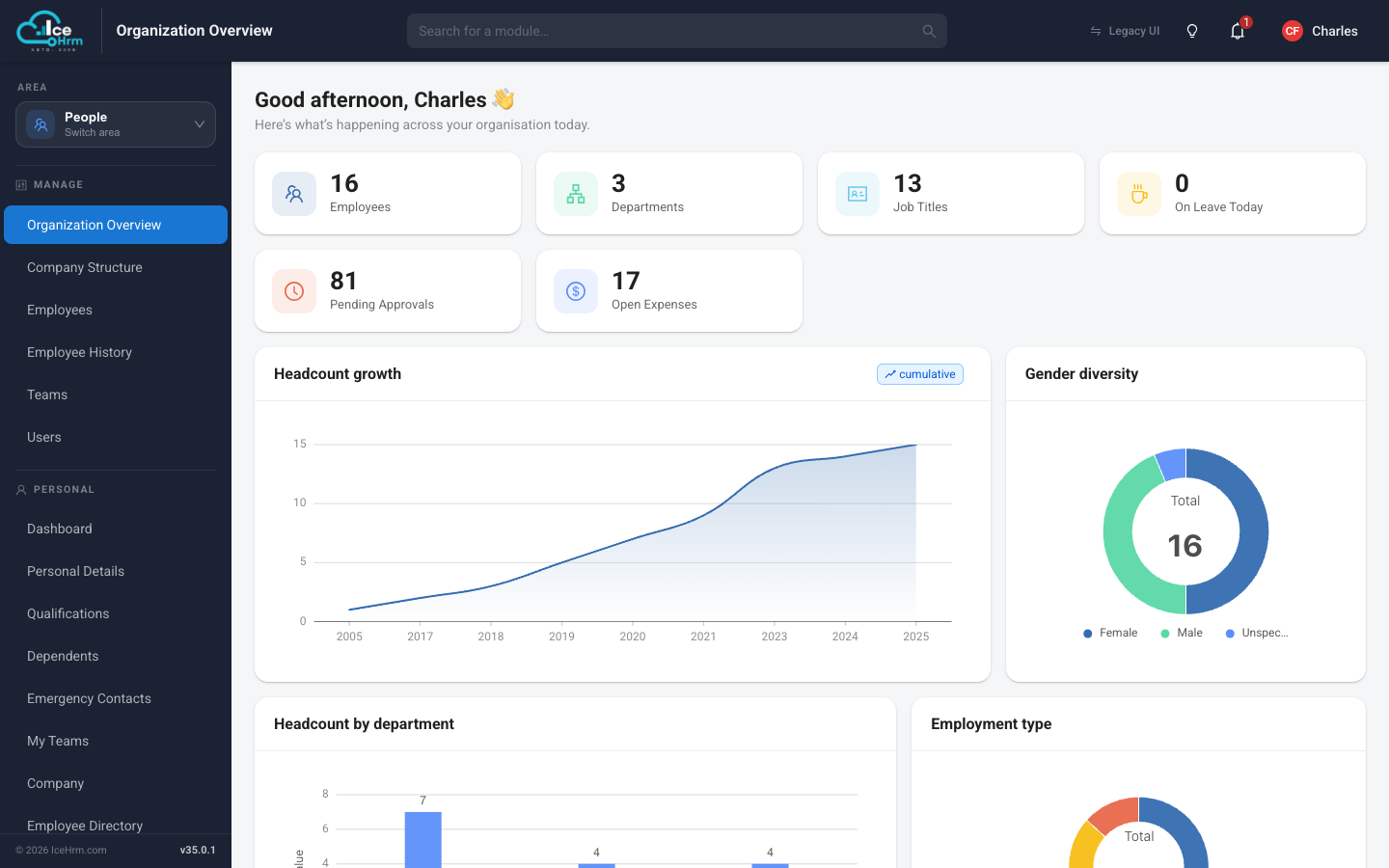
What the numbers at the top mean
- Employees — how many active employees you have. Click it to open the employee list.
- Departments — the number of departments in your company structure.
- Job Titles — how many job titles are defined.
- On Leave Today — how many people are away today.
- Pending Approvals — leave requests, timesheets, and other items waiting for someone's approval.
- Open Expenses — expense claims that have not been settled yet.
Each tile is clickable and takes you straight to the matching module.
Charts
Below the tiles you'll find charts that update automatically:
- Headcount growth — how your employee count has changed over the years. Use the cumulative toggle to switch between totals and per-year numbers.
- Gender diversity — the gender split of your current workforce.
- Headcount by department — how people are distributed across departments.
- Employment type — full-time, part-time, contract, and other employment statuses at a glance.
Activity widgets
Scroll down for day-to-day activity:
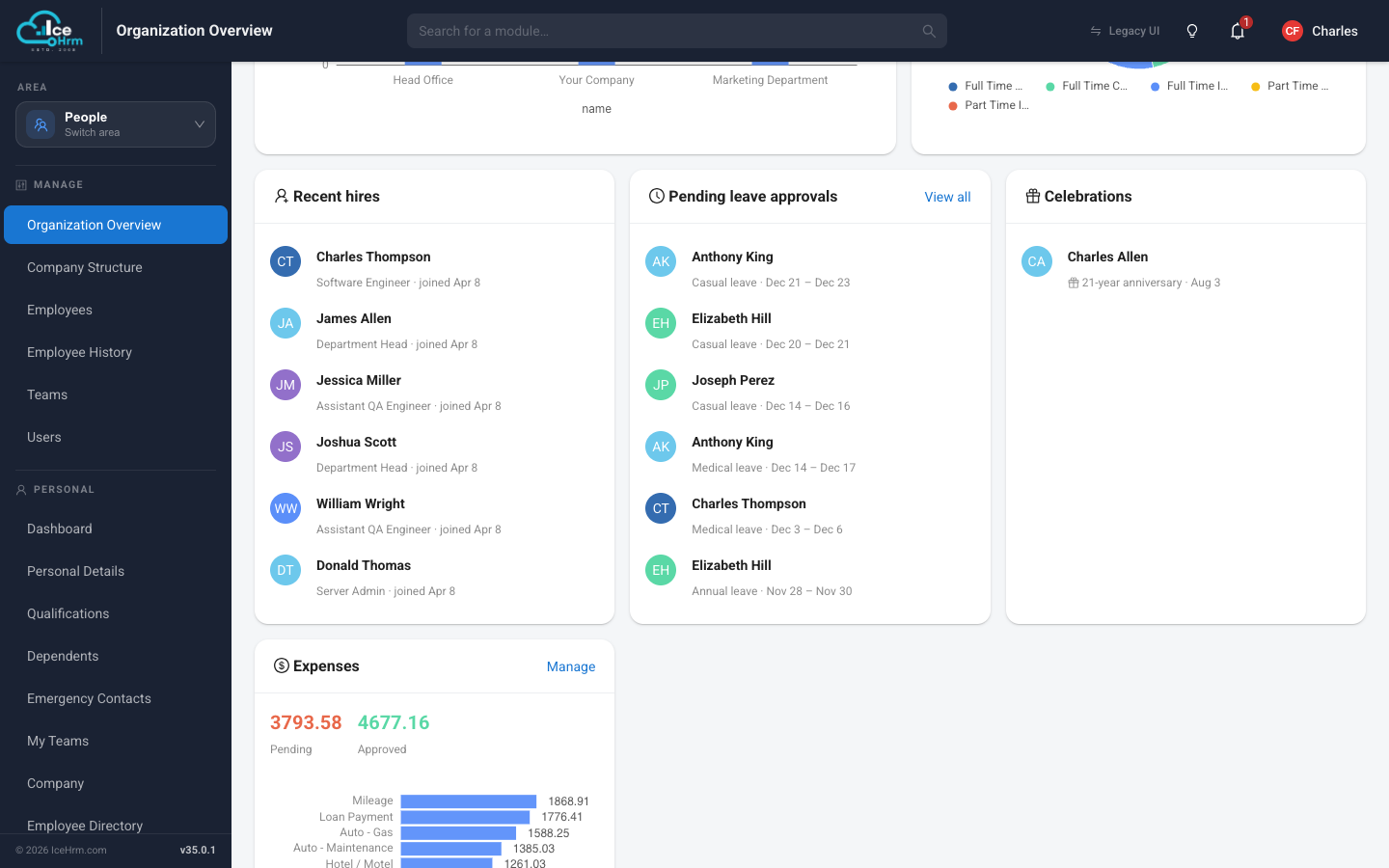
- Recent hires — the newest people to join, with their job titles and start dates.
- Pending leave approvals — leave requests waiting for a decision. Click View all to open the leave approval list.
- Celebrations — upcoming birthdays and work anniversaries, so nothing gets missed.
- Expenses — pending versus approved expense amounts, broken down by category.