Browsing and Updating Employee Records
People > Employees is where you view and maintain everything about an employee. Pick a person from the list on the left to open their profile on the right.
Reading a profile
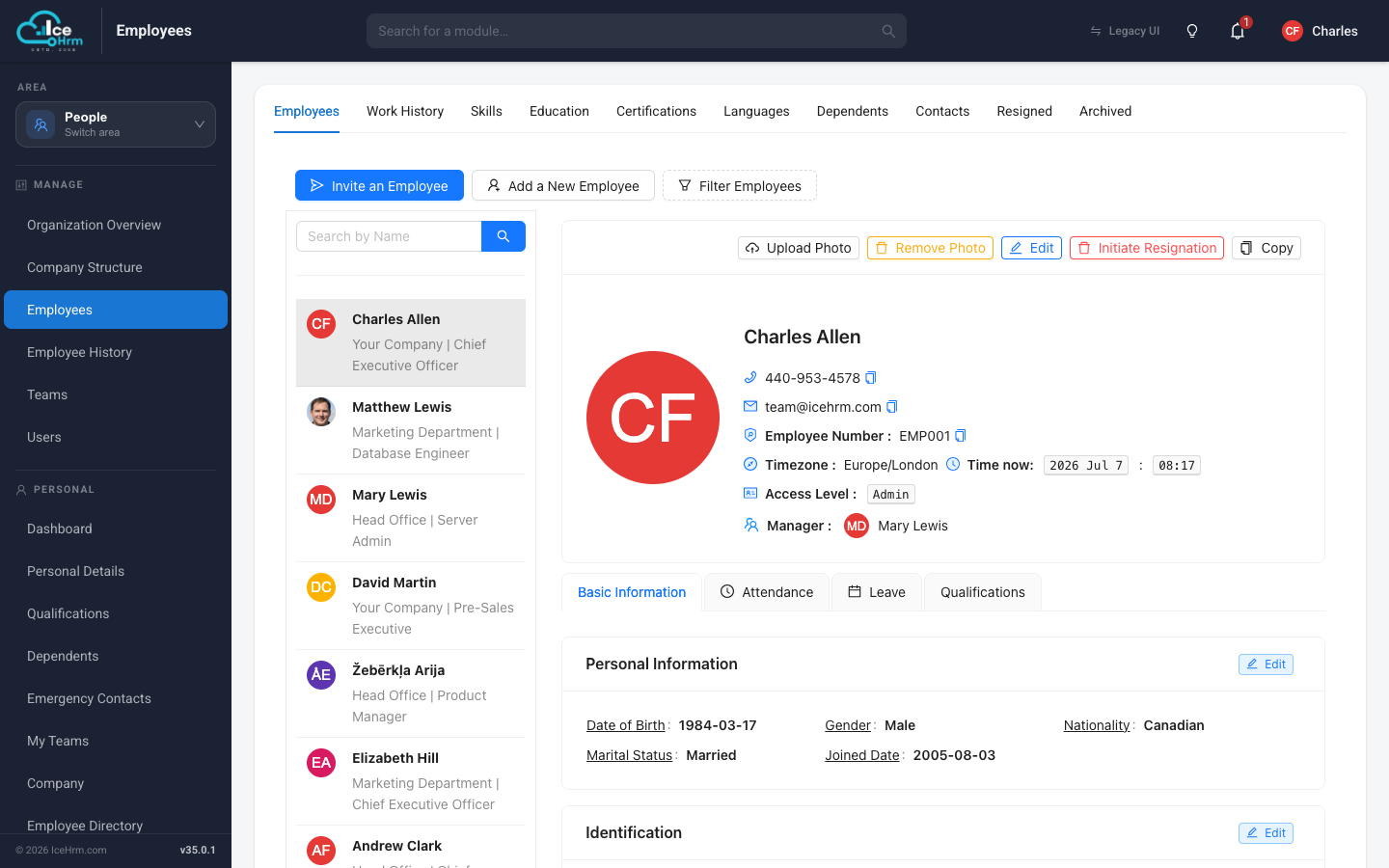
The profile header shows the essentials — photo, phone, email, employee number, time zone (with their current local time), access level, and manager.
Below the header, four tabs give you the full picture:
- Basic Information — personal information, identification, contact details, and job details. Each card has its own Edit button so you can change one section without opening the whole record.
- Attendance — their recent attendance records.
- Leave — leave entitlements and history.
- Qualifications — skills, education, certifications, and languages.
Actions on a profile
The buttons above the profile let you:
- Upload Photo / Remove Photo — manage the employee's profile picture.
- Edit — open the full six-step employee form.
- Initiate Resignation — start off-boarding (see Removing employees who leave).
- Copy — duplicate the record as a starting point for a similar employee.
- Switch to Employee — see IceHrm as this person sees it (see Switching to an employee).
Changing who an employee reports to
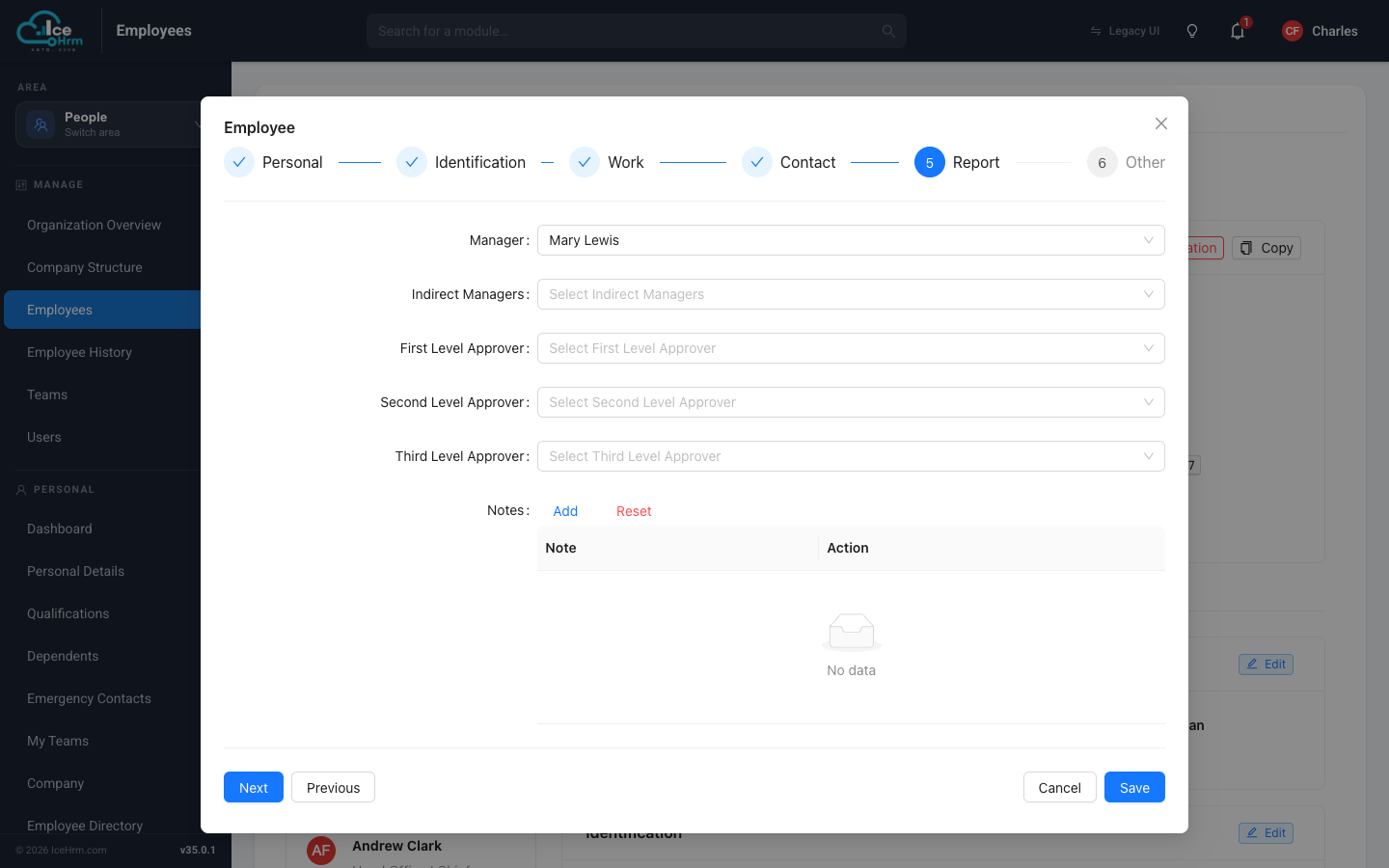
- Open the employee and click Edit.
- Go to the Report step.
- Set the Manager, and optionally Indirect Managers and up to three levels of approvers used by approval workflows.
- Click Save.
Finding people quickly
- Use the search box above the employee list to search by name.
- Click Filter Employees to narrow the list by department, job title, or other criteria.
The other tabs at the top
The tabs across the top of the module collect the same information for all employees in one place, which is useful for bulk review:
- Work History — past positions across the company.
- Skills / Education / Certifications / Languages — qualifications for everyone, in one list.
- Dependents / Contacts — family members and emergency contacts.
- Resigned / Archived — people who have left (see Removing employees who leave).