Users, User Levels & Managers
This page covers three ideas that make access control in IceHrm click: the difference between a user and an employee, what each user level can do, and how managers (supervisors) fit in.
Users vs employees
- An employee is an HR record — name, job, salary, leave balances, documents.
- A user is a login account — username, email, password, and a user level.
They are linked, but separate:
- A regular staff member needs both — an employee record and a user account linked to it.
- A system administrator only needs a user account (an employee record is optional).
- Someone kept for historical records needs only an employee record — no login.
Creating an employee record does not let that person log in. Create a user account for them, or use the invitation method which sets up both at once.
Managing users
User accounts live at People > Users. Each row shows the username, email, the employee it is linked to, and the user level.
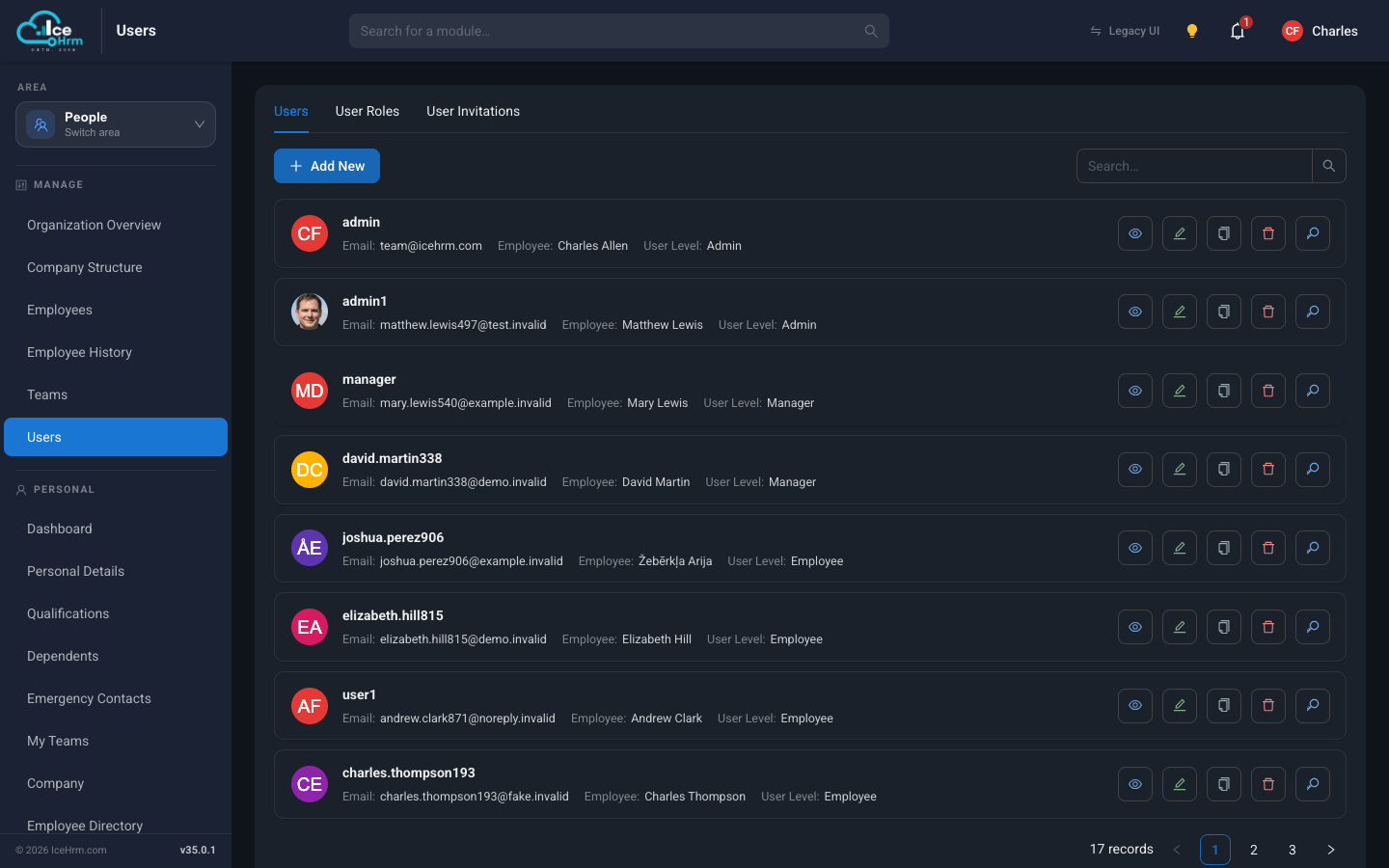
To create a user account:
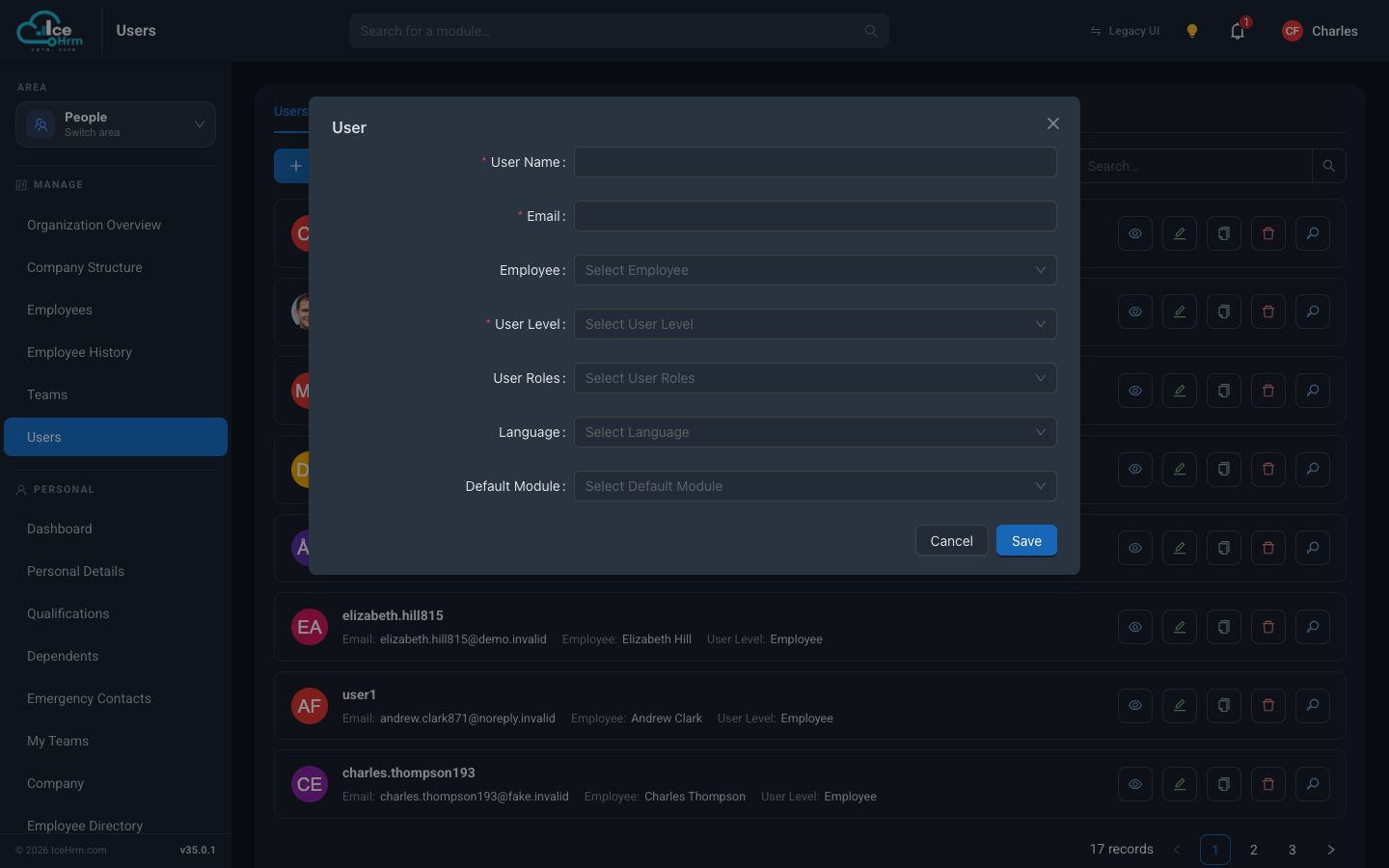
- Go to People > Users and click Add New.
- Fill in:
- User Name — a unique login name.
- Email — the person's email address; their login details are sent here.
- Employee — pick the employee record this account belongs to.
- User Level — usually Employee (see below).
- Click Save.
User levels
- Admin — full access to everything. For HR directors and system administrators.
- Manager — can see and manage their own team members and approve their requests. For department heads and team leaders.
- Employee — access to their own information and requests only. For regular staff.
- Restricted Admin / Restricted Manager / Restricted Employee — the same roles, but with no access by default: you grant exactly the modules and permissions they need. Useful for contractors, payroll assistants, or a recruitment-only manager. See Custom user permissions.
A quick example of the difference: with leave requests, an Admin sees every employee's requests, while a Manager only sees requests from people who report to them.
To change someone's level, edit their user at People > Users and pick a new User Level.
User roles
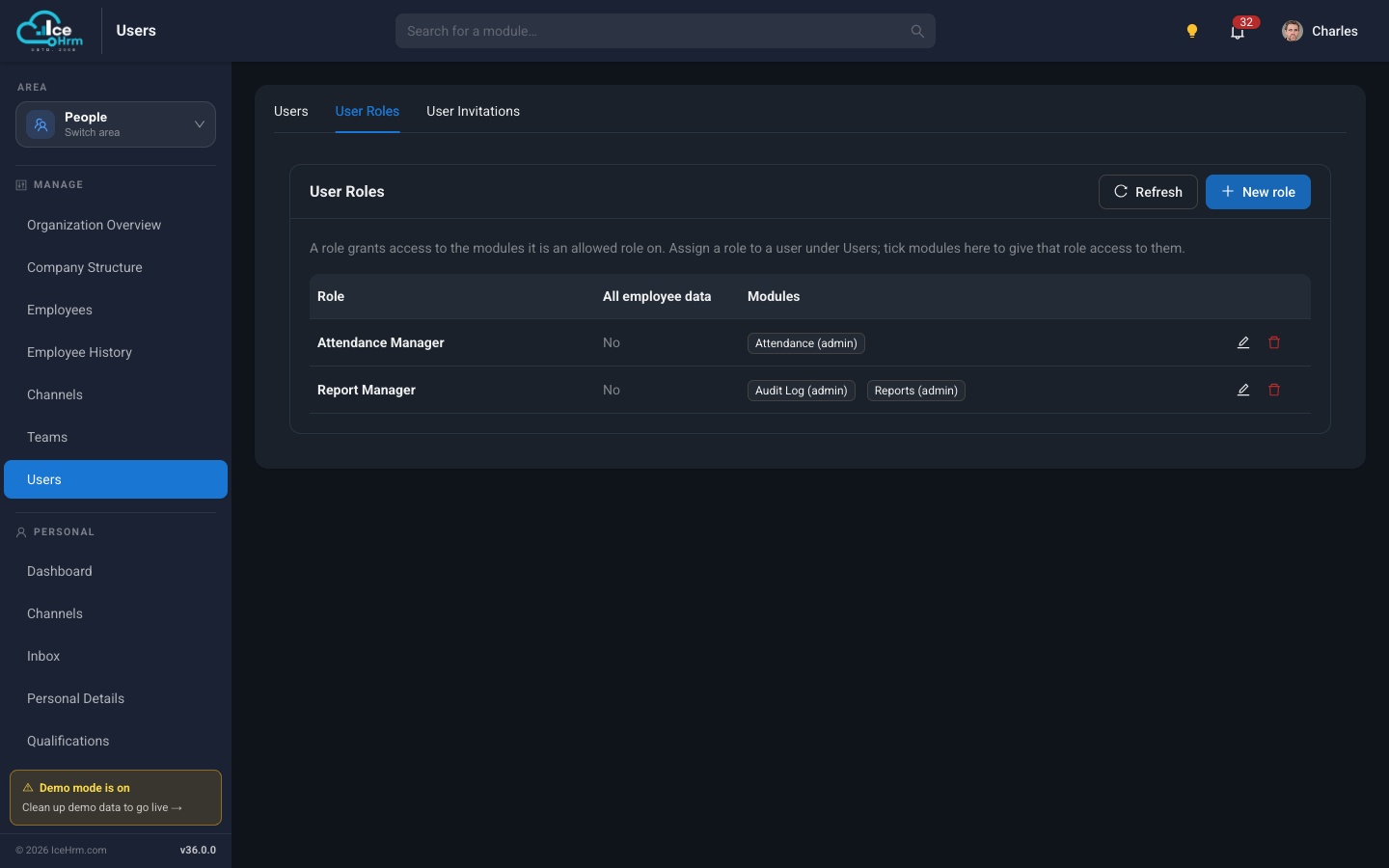
Beyond the built-in levels, the User Roles tab lets you define named roles (for example "Attendance Manager") with specific permissions, and attach them to users. This is an advanced feature covered in Custom user permissions.
Managers (supervisors)
The reporting relationship decides who approves an employee's leave, timesheets, and expenses, and whose records a manager can see.
To assign a manager:
- Go to People > Employees and open the employee.
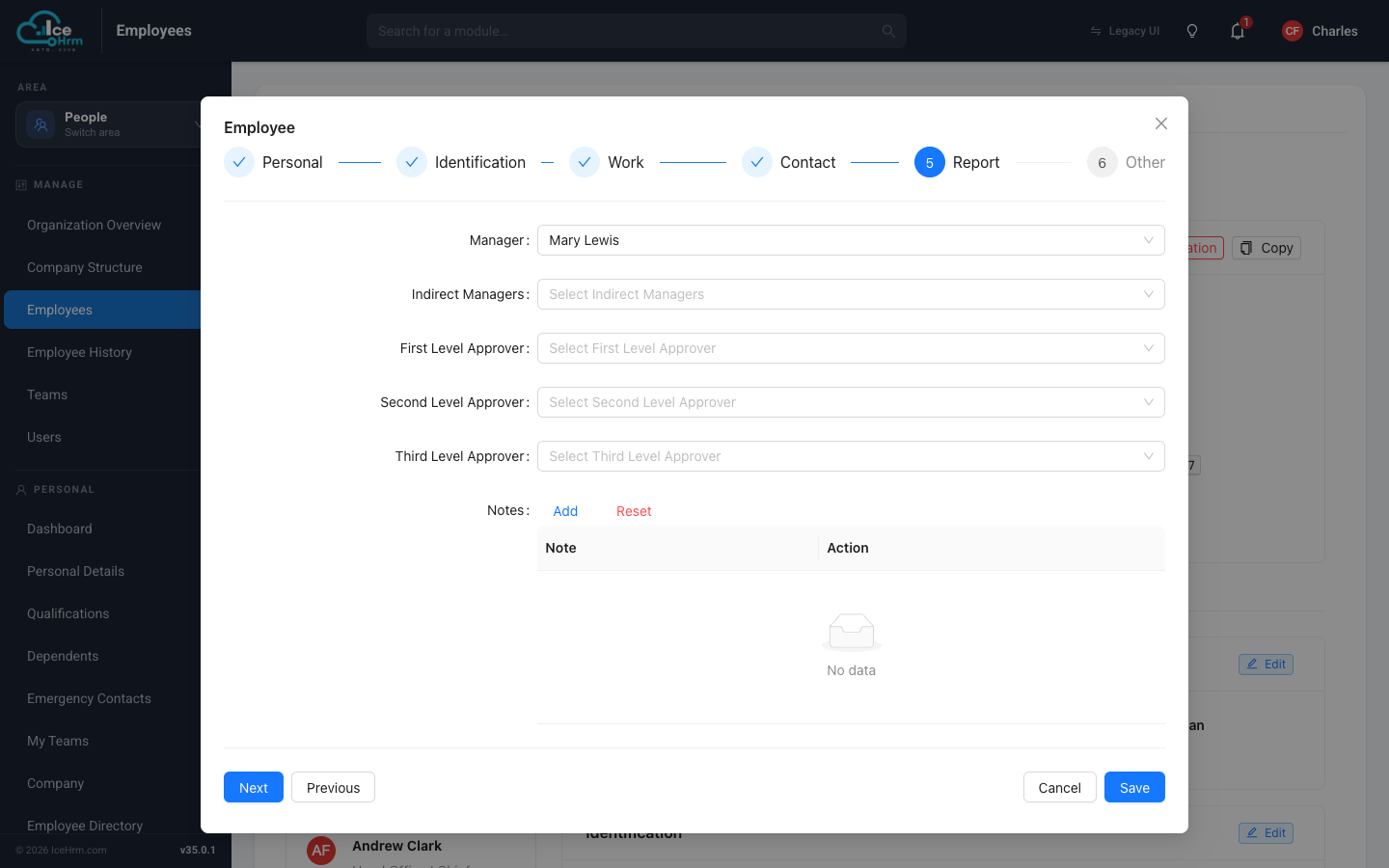
- Click Edit and go to the Report step.
- Choose their Manager.
- Optionally add Indirect Managers — additional people who can act on this employee's requests in approval workflows.
- Click Save.
For a manager to see their team members under People > Employees, their user account must have the Manager (or Admin) user level.
Checklist for setting up a new person
- Employee record created with a unique employee number
- User account created with a valid email
- User linked to the correct employee
- Correct user level chosen
- Manager assigned on the Report step
- Indirect managers added if your approval flow needs them