Defining a Head of Structure
Assigning someone as the lead of a company structure lets them see and manage all employees inside that structure, and optionally its sub-structures. Use it when a manager's responsibility follows the org chart rather than direct reporting lines.
When you need this
Imagine a company with two offices:
- The USA HR manager should see everyone — USA and UK.
- The UK manager should see only UK employees.
Solution: make the USA HR manager a lead of the top-level company structure, and the UK manager a lead of the UK office structure only.
Company (Lead: USA HR Manager)  ← sees everyone
├── USA Office
│   ├── Engineering
│   └── Sales
└── UK Office (Lead: UK Manager) ← sees only UK employees
    ├── Engineering
    └── Support
How to assign a lead
- Go to People > Company Structure.
- Click the edit (pencil) button on the structure.
- In the Leads field, pick one or more employees.
- Click Save.
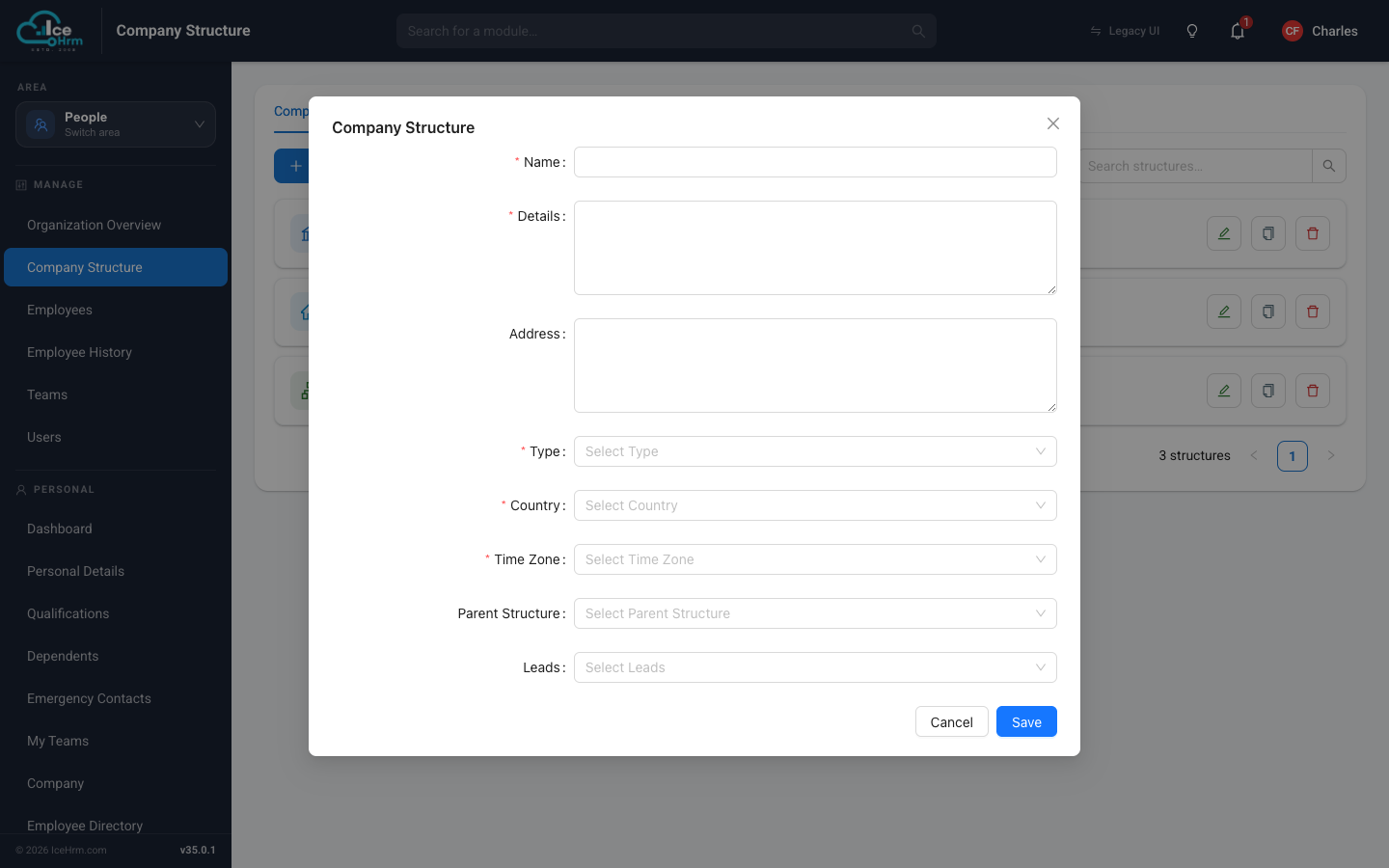
To actually see the employee list, the lead's user account must have the Admin or Manager user level — see Users, user levels and managers.
System settings that control this
Two settings under System > Settings > System decide whether a lead actually sees the employees in their structure. Both are off by default.
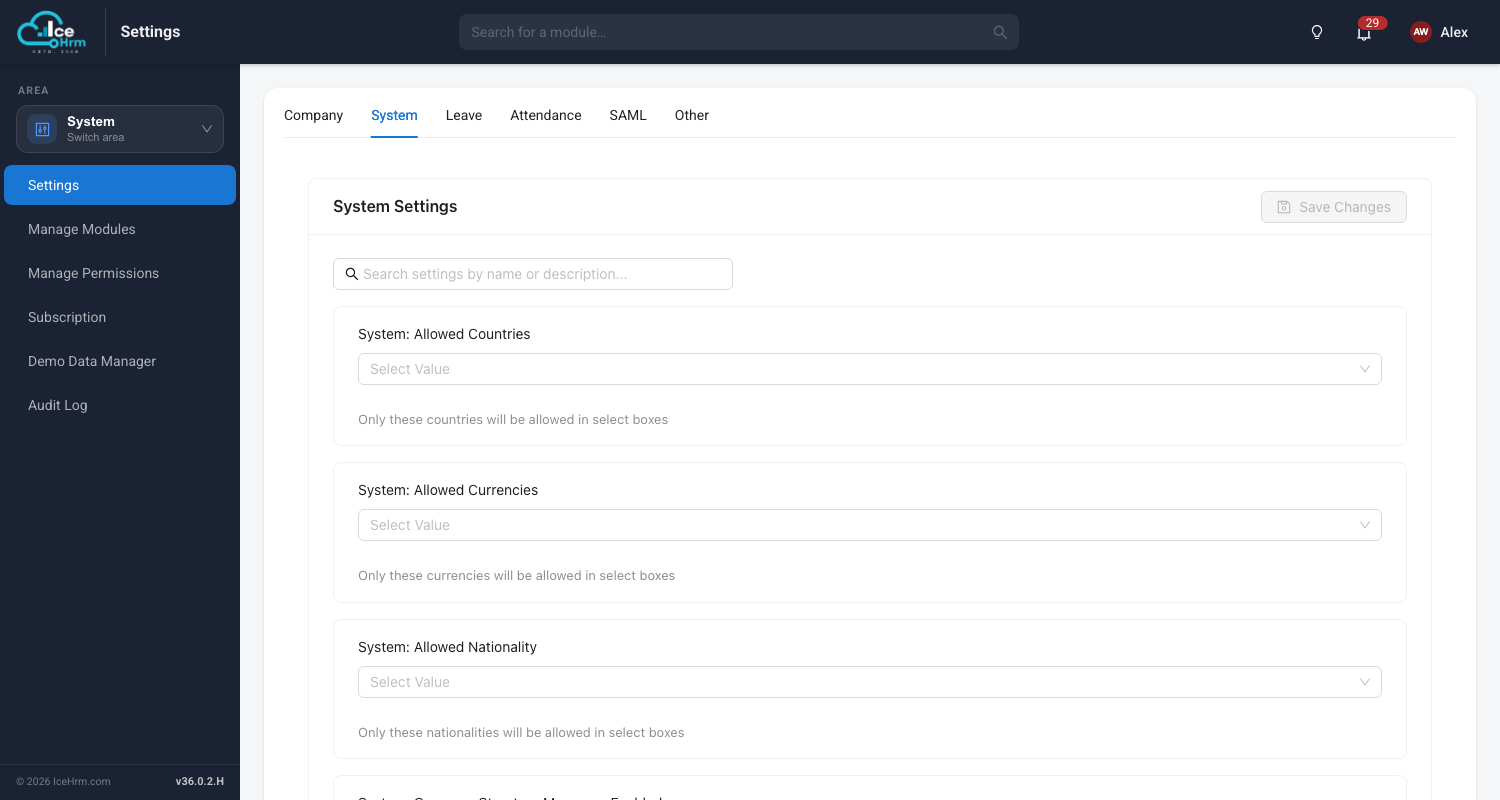
- System: Company Structure Managers Enabled — lets a lead view employees in the structure they are assigned to.
- System: Child Company Structure Managers Enabled — extends that to every structure beneath it as well.
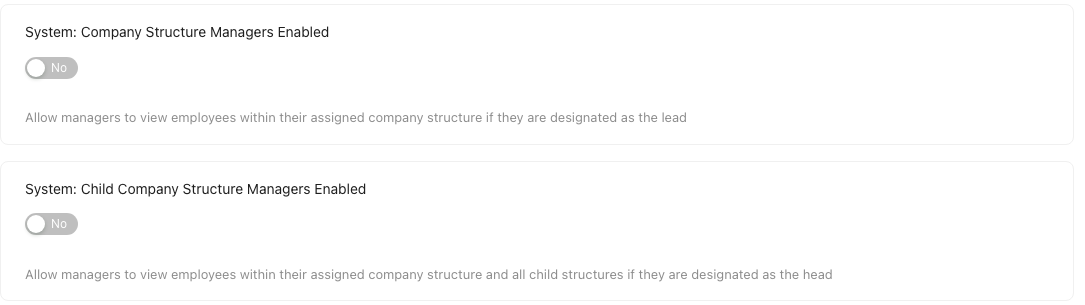
Turn on the first for a lead who should only see their own structure, and both for a lead whose responsibility covers the branches underneath it too.
What a lead can do
- See employees in the structure and all structures beneath it
- View reports scoped to their structure
- Approve requests (leave and similar) for those employees
Troubleshooting
- Lead can't see any employees — confirm they are set as a lead on the right structure, their user level is Admin or Manager, and System: Company Structure Managers Enabled is on.
- Lead sees too many people — they are probably a lead of a higher-level structure than intended; move the assignment to the more specific structure, or turn off System: Child Company Structure Managers Enabled if they should not see the structures beneath theirs.