Removing Employees Who Leave
IceHrm removes employees in three deliberate stages, so you always have a chance to recover data before it is gone for good:
Active → Resigned → Archived → Permanently deleted
- Resigned — fully recoverable with one click; all data intact.
- Archived — not recoverable, but the data can be downloaded as a file.
- Deleted — gone permanently.
Stage 1: Initiate resignation
When someone leaves:
- Go to People > Employees and select the employee.
- Click Initiate Resignation at the top of their profile.
- The employee moves to the Resigned tab.
What happens:
- The employee can no longer log in.
- All of their data stays intact.
- You can restore them at any time.
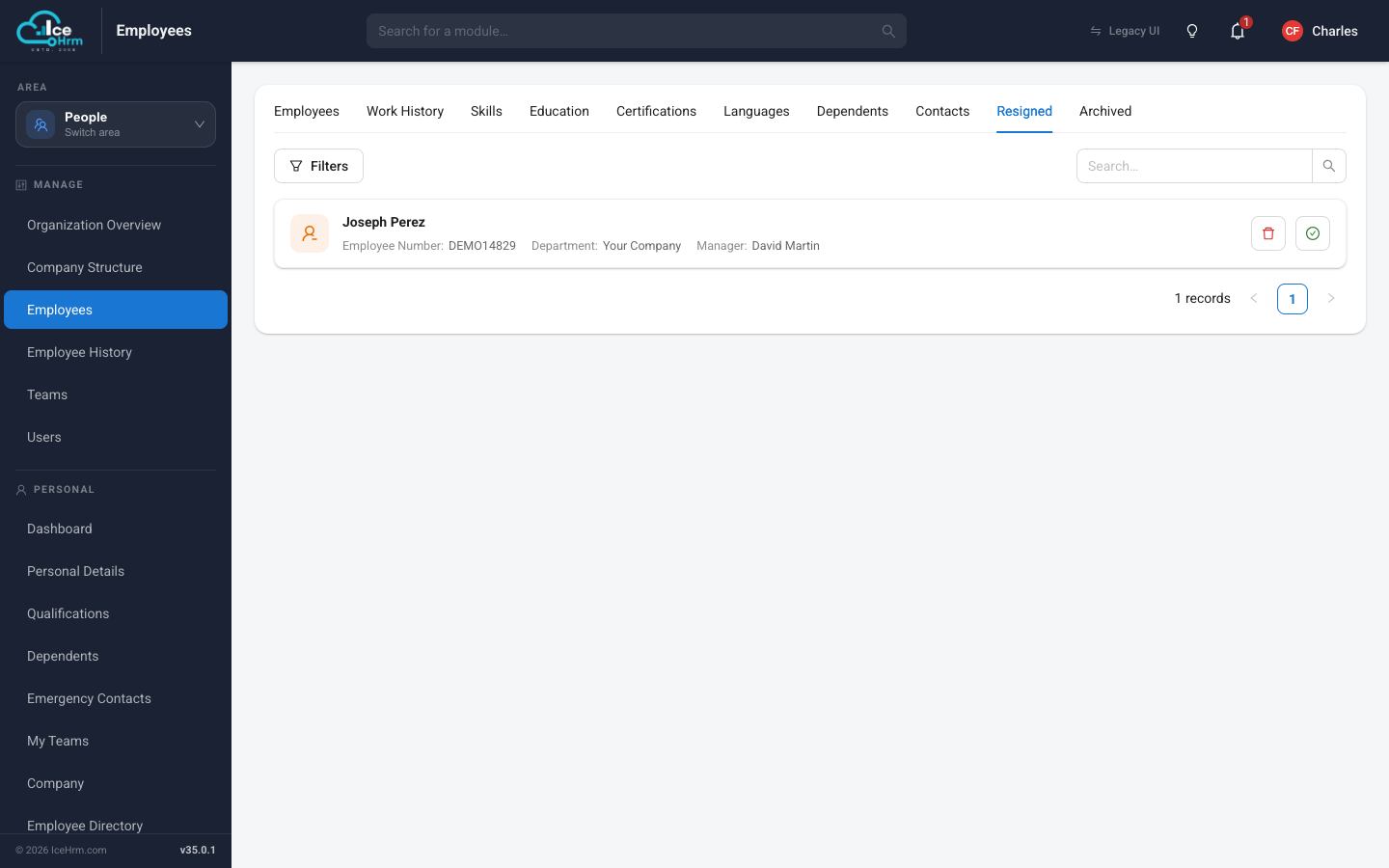
Changed your mind, or the person came back? Open the Resigned tab and click the green re-activate button on their card.
Stage 2: Archive
Deleting an employee from the Resigned tab moves them to the Archived tab.
- Go to People > Employees and open the Resigned tab.
- Click the delete (bin) button on the employee.
- They move to the Archived tab.
What happens:
- Their data can still be downloaded as a JSON file for your records.
- They can no longer be restored inside IceHrm.
Archive someone only when you are sure you won't need to reactivate them. Download their data first if you might need it.
Stage 3: Permanent deletion
Deleting an employee from the Archived tab removes their data permanently.
- Go to People > Employees and open the Archived tab.
- Click delete on the employee and confirm.
This cannot be undone.
Billing note for IceHrm Cloud
Both Active employees and employees on the Resigned tab count toward your bill. To stop paying for a former employee, archive or delete them from the Resigned tab. Archived and deleted employees are not billed.
Good habits
- Always resign first — it keeps a recovery window open.
- Download data before archiving — especially for senior staff or where retention rules apply.
- Clean up the Resigned tab periodically — it affects billing on cloud plans.
- Check your local data-retention rules before permanent deletion.