Custom User Permissions
If you are new to IceHrm you can safely skip this page and come back when you need to give someone unusual, limited access.
Sometimes the standard user levels are too broad. Custom user roles let you give a person access to exactly the modules they need — and nothing else.
How roles work
A user role is a named bundle of modules. When a module lists a role as an allowed role, everyone who holds that role gets access to that module and the records it manages. You then attach the role to a person under People > Users.
The amount of access a role gives is decided by the kind of module, so you never pick individual permissions like "add" or "delete" yourself:
- Admin modules (Employees, Leave, Audit Log, Reports, …) grant full management access to that module's records — view, add, edit and delete.
- Self-service modules (the ones under About You, such as Dependents or Qualifications) grant access to the person's own records only.
Earlier versions asked you to tick List / Get / Add-Edit / Delete for every record type on the role itself. That step is gone. A role now simply grants the modules you choose, at the access level the module implies — which is both simpler and safer.
The building blocks:
- User roles are created and edited under People > Users > User Roles. This is also where you choose which modules the role grants.
- Roles are attached to users under People > Users, usually together with one of the Restricted user levels (Restricted Admin / Manager / Employee), which start with no access at all — so the role is the only thing that opens anything up.
- Hiding a module from certain people (a deny list) is still done under System > Manage Modules.
The User Roles screen
Open People > Users and switch to the User Roles tab. Each role shows the modules it grants as tags, and whether it can reach all employee data.
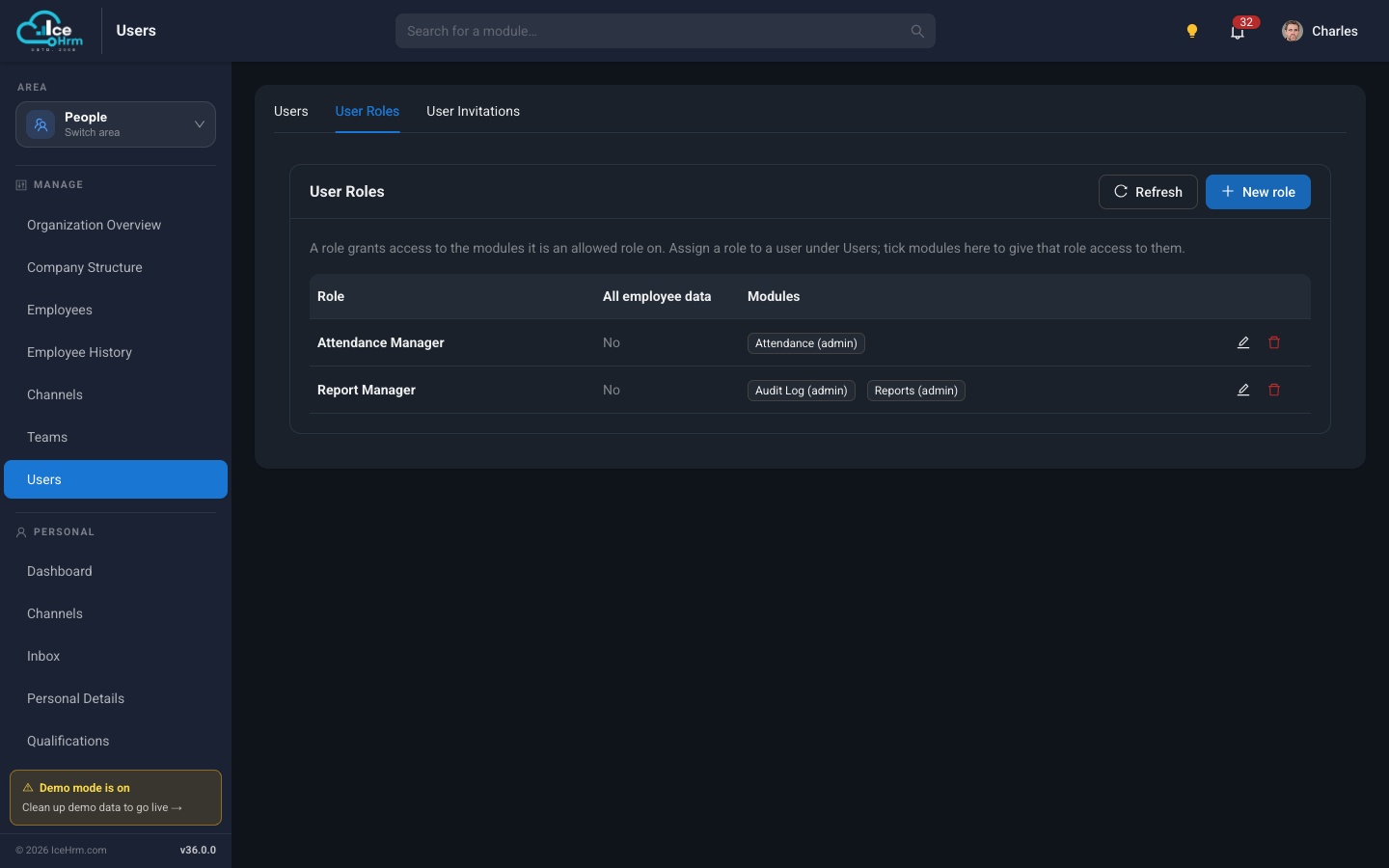
Click New role (or the edit pencil on an existing one) to open the role editor.
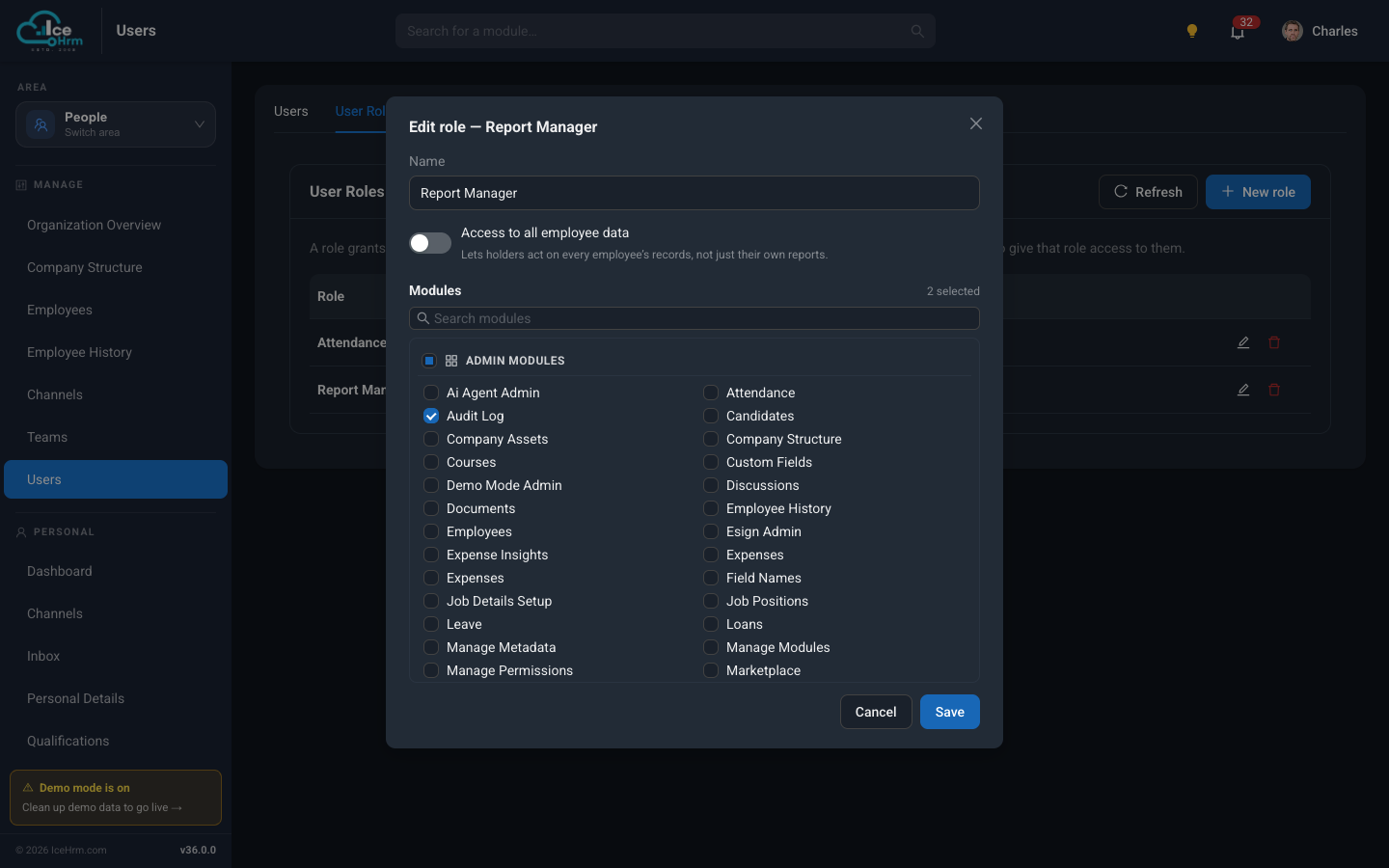
The editor has three parts:
- Name — what the role is for, e.g. "Report Manager".
- Access to all employee data — off by default. See Access to all employee data below.
- Modules — a searchable checklist, grouped into Admin modules and Employee modules. Tick every module the role should grant. The count at the top right shows how many are selected, and you can tick a whole group's heading to select all of its modules at once.
When you Save, IceHrm records the role against each module you ticked (and removes it from the ones you unticked). That is the same "allowed roles" setting you can see under System > Manage Modules — the role editor just lets you manage it from one place, per role, instead of opening every module one by one.
Access to all employee data
By default, a role attached to a Manager only reaches the records of the people that manager supervises — their own team. That is the right default for most people-data modules.
Turn on Access to all employee data when the role needs to act across the whole company — for example an HR assistant who must see everyone's leave, or a payroll clerk. With it on, the role's holders act on every employee's records, not just their own or their team's.
Admin/system modules that are not tied to a specific employee — such as Audit Log or Reports — always show all rows when granted, so you do not need this switch for them.
Example 1: a reports-only manager
Goal: a manager who can open the Reports and Audit Log modules and nothing else.
- Create the role
- Go to People > Users > User Roles and click New role.
- Name it "Report Manager".
- In the Modules list, tick Reports and Audit Log (both under Admin modules).
- Leave Access to all employee data off — these modules already show all rows.
- Save.
- Attach the role to the user
- Go to People > Users and edit the person.
- Set User Level to Restricted Manager (starts with no access).
- Add the "Report Manager" role.
- Set a Default Module (required — the page they land on after logging in), e.g. Reports.
- Save.
When this person logs in they see only Reports and Audit Log.
Example 2: an attendance-only employee
Goal: field staff who can only punch in and out.
- Go to People > Users > User Roles, click New role, and name it "Sales Person".
- In the Modules list, tick Attendance and Save.
- Go to People > Users, edit the user, set User Level to Restricted Employee, add the "Sales Person" role, and set Default Module to Attendance.
Example 3: an HR assistant who can see everyone's leave
Goal: someone who manages leave for the whole company, not just one team.
- Create a role named "HR Leave Admin" under People > Users > User Roles.
- Tick the Leave module.
- Turn Access to all employee data on — without it, the role would only reach the records of the people they directly manage.
- Save, then attach the role to the user (User Level Restricted Manager, Default Module Leave).
Example 4: hiding a module from certain people
Goal: keep the standard Employee access, but hide the Training module from a few people.
Blocking is the opposite of granting, and it still lives under System > Manage Modules:
- Create a role named "No Training Access" under People > Users > User Roles — it doesn't need to grant any modules.
- Go to System > Manage Modules, open the Modules tab, and edit the Training module.
- Add "No Training Access" to its Disallowed User Roles and save.
- Edit each affected user, keep their user level as Employee, and add the "No Training Access" role.
The Training module disappears from their menu the next time they log in.
Good habits
- Use a Restricted level for people who should only have role-based access — Restricted Admin / Manager / Employee start closed, so the role is the only thing that opens anything up.
- Set a Default Module for every restricted user — without one their home page cannot load.
- Only turn on Access to all employee data when it's really needed — leave it off so managers stay scoped to their own team by default.
- Name roles by what they do — "Report Manager", "HR Leave Admin", "No Training Access".
- Test with a real login — log in as the user (or use Switch to Employee) to confirm they see only what you intended.