Managing Teams
Teams let you group people across departments — a project squad, a committee, a shift crew. Unlike the company structure, an employee can belong to any number of teams.
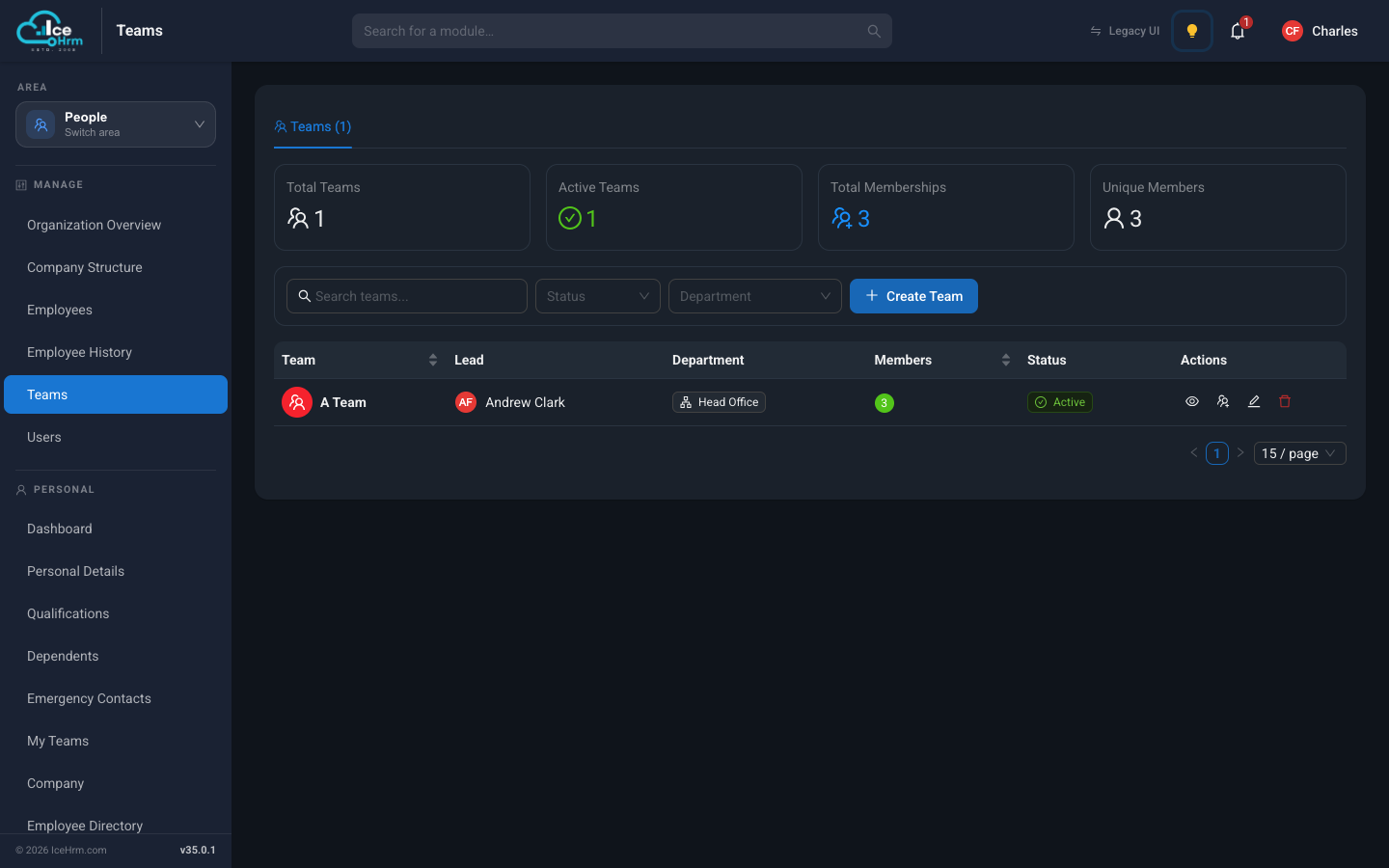
Open People > Teams. The summary cards show how many teams exist, how many are active, and how many people are members. Below them, the table lists each team with its lead, department, member count, and status.
Creating a team
- Click Create Team.
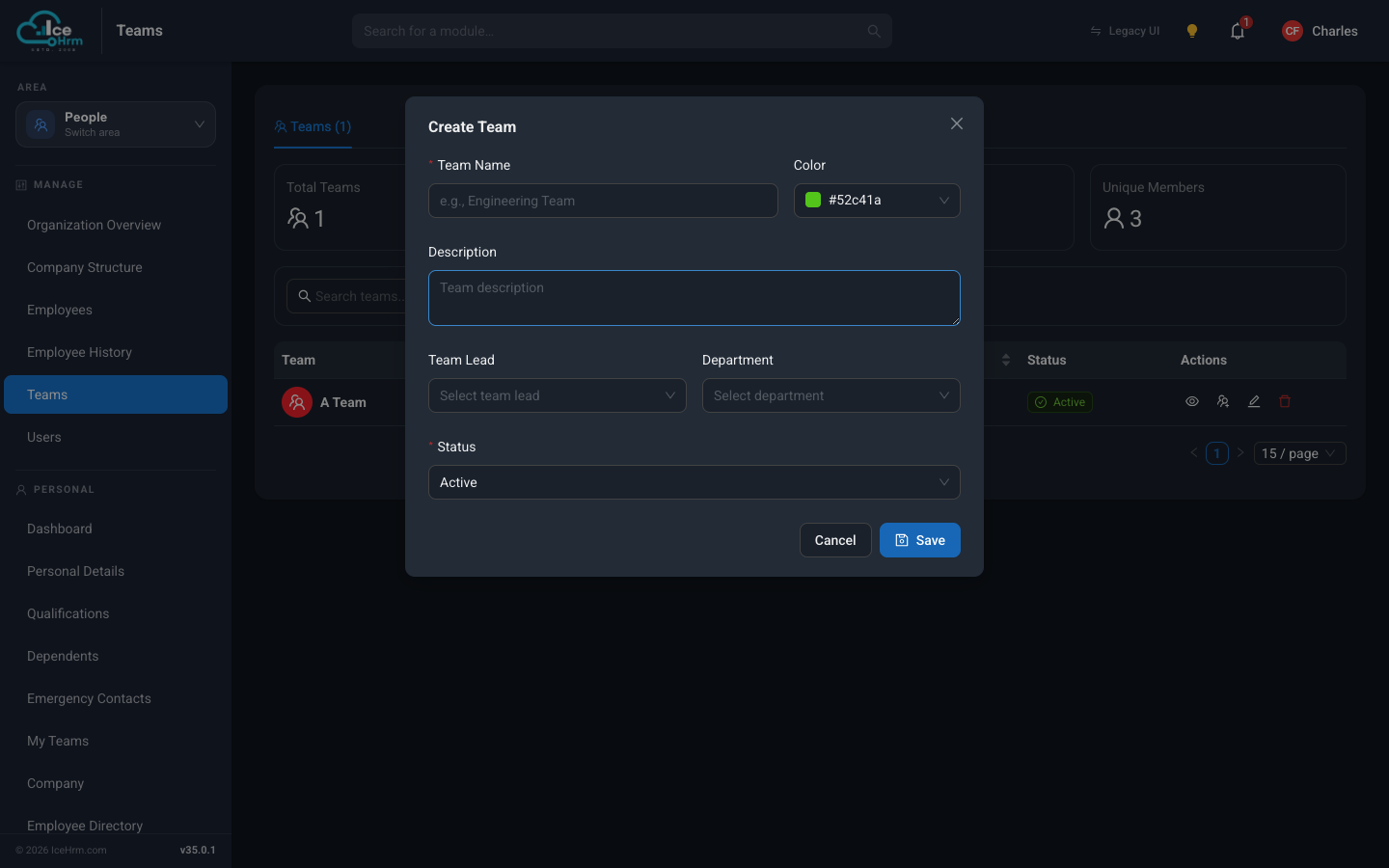
- Fill in:
- Team Name — for example "Website Relaunch Team".
- Color — used for the team's badge across the app.
- Description — what the team is for (optional).
- Team Lead — the person running the team.
- Department — the structure the team is attached to (optional).
- Status — Active or Inactive.
- Click Save.
Adding and managing members
Click the view (eye) icon on a team to open its details panel.
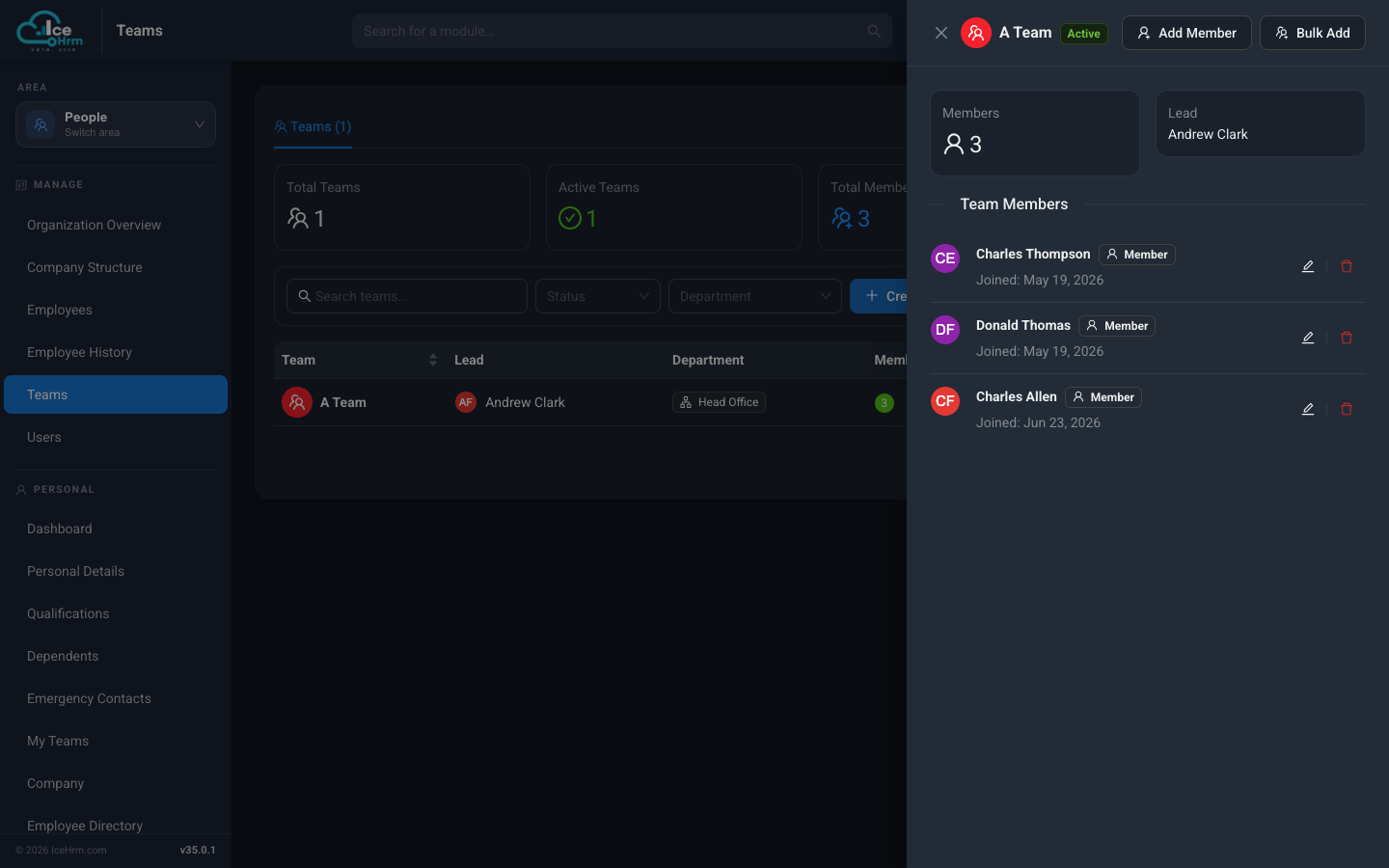
From here you can:
- Add Member — add one person at a time, with a role and joining date.
- Bulk Add — add several people at once.
- Edit or remove existing members using the icons next to each name.
Members can have different roles within the team (Member, Leader, Owner).
Editing or removing a team
Use the icons in the Actions column of the team list:
- Eye — open the team's details and members.
- Person+ — manage members.
- Pencil — edit the team's name, lead, department, or status.
- Bin — delete the team.
What team members see
Every employee has a My Teams page in their Personal menu showing the teams they belong to, their teammates' attendance, and upcoming team leave — see My Teams.