Switching to an Employee
Admins (and, if enabled, managers) can temporarily see IceHrm exactly as another employee sees it. This is the easiest way to help someone who is stuck, or to enter records on behalf of a person who doesn't use a computer.
While switched you can, for example:
- Apply for leave on the employee's behalf
- Add a missing attendance record
- Fill in or correct their timesheet
- Check what they can and cannot see
Who can switch?
- Admins can switch to any employee.
- Managers can switch to their own team members, if your system settings allow it.
How to switch
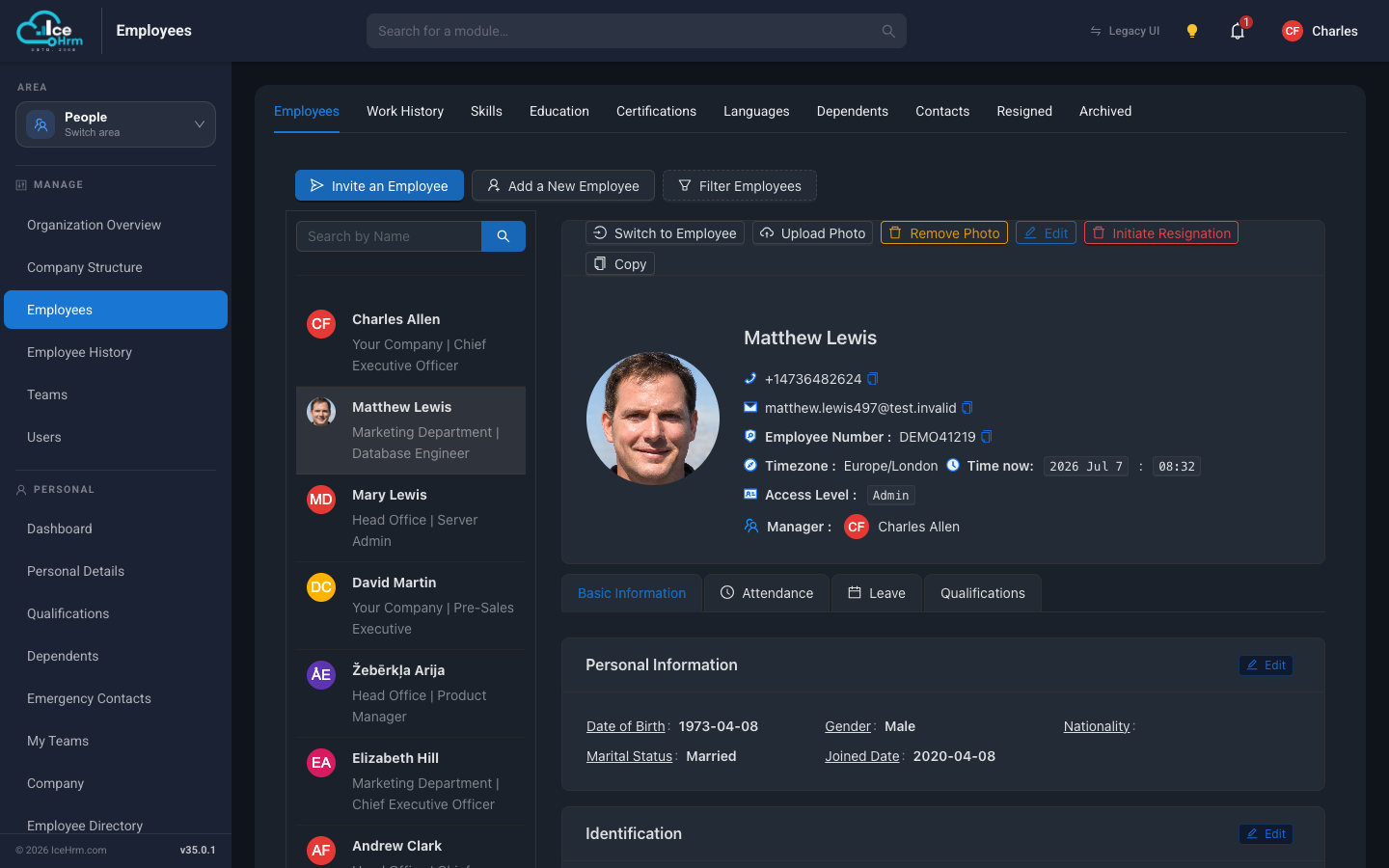
- Go to People > Employees.
- Select the employee in the list.
- Click Switch to Employee at the top of their profile.
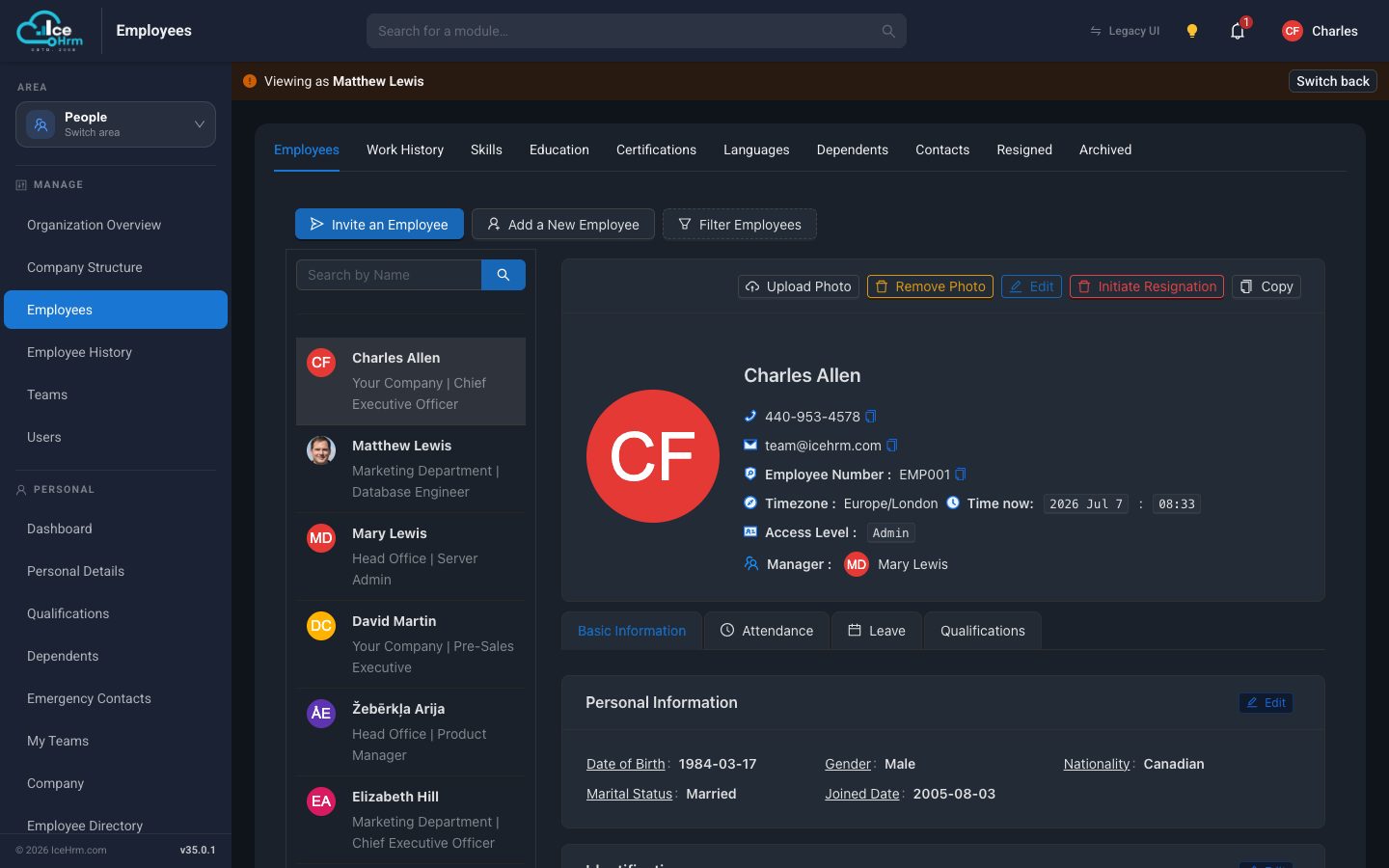
The page reloads, and a banner across the top reminds you that you are now viewing as that employee.
Switching back
Click Switch back on the right side of the banner. You return to your own account immediately.
Good habits
- Only switch when needed — for legitimate HR tasks.
- Tell the employee if you did something on their behalf.
- Switch back when done — don't keep working as someone else.
Troubleshooting
- No Switch to Employee button? You are either looking at your own record (you can't switch to yourself), or you don't have Admin/Manager access, or manager switching is disabled in your system settings.
- Something won't save while switched? Check the form for missing required fields, and confirm the employee actually has the entitlement you're using (for example, enough leave balance).