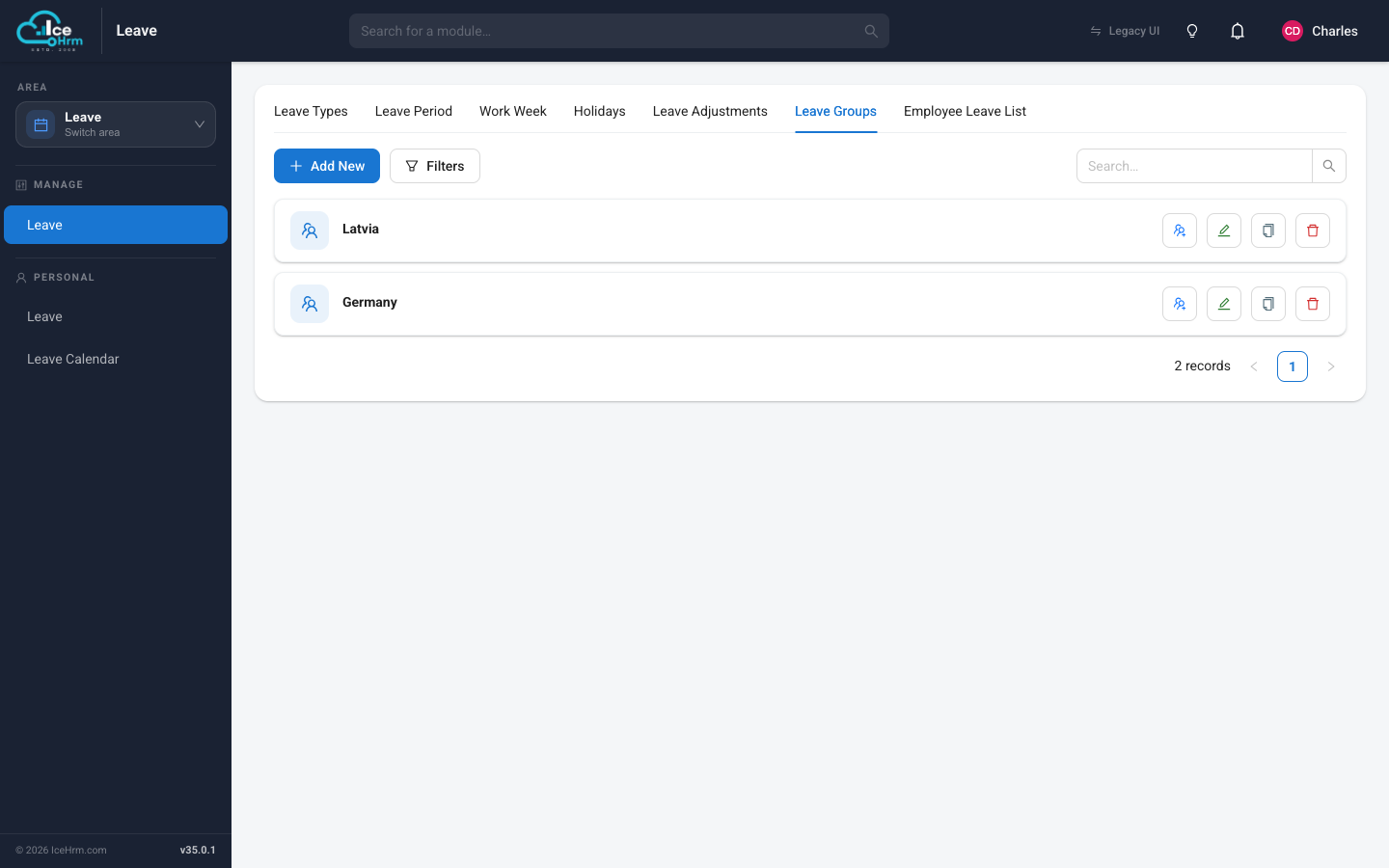
Creating Leave Groups

Leave groups allow you to organize employees and assign specific leave types to different groups. This is useful when certain leave types should only be available to specific employee segments.


What Are Leave Groups?

Leave groups serve two main purposes:

  1. Group employees and create leave rules affecting all employees in the group
  2. Restrict leave types to specific employee groups (e.g., maternity leave only for female employees)

Leave Groups


How to Create a Leave Group

Step 1: Create the Leave Group

  1. Go to Manage > Leave > Leave Groups > Edit Leave Groups

  2. Click Add New

  3. Enter the group details:

FieldDescription
NameDescriptive group name (e.g., "Female Employees")
DescriptionPurpose of the group
  1. Click Save

Step 2: Add Employees to the Group

  1. Go to Manage > Leave > Leave Groups

  2. Select the leave group you created

  3. Add the employees who should belong to this group

  4. Click Save

Step 3: Assign Leave Types to the Group

  1. When creating or editing a leave type, select the target group

  2. Only employees in that group will be able to apply for this leave type


Example: Maternity Leave for Female Employees

Scenario: Only female employees should be able to apply for maternity leave.

Step 1: Create a leave group called "Female Employees"

Step 2: Add all female employees to this group

Step 3: When creating the Maternity Leave type, assign it to the "Female Employees" group

SettingValue
Leave Type NameMaternity Leave
Leave GroupFemale Employees
Days Per Year90

Result: Only employees in the "Female Employees" group can see and apply for Maternity Leave.


Common Use Cases

Leave GroupLeave TypePurpose
Female EmployeesMaternity LeaveOnly females can apply
Male EmployeesPaternity LeaveOnly males can apply
ManagementExecutive LeaveAdditional leave for managers
Singapore OfficeSingapore Public HolidaysLocation-specific leave

Leave Groups vs Leave Rules

FeatureLeave GroupsLeave Rules
PurposeControl who can access a leave typeModify entitlements and conditions
Use whenA leave type should only be visible to certain employeesDifferent employees need different entitlements for the same leave type
ExampleOnly females see Maternity LeaveManagers get 25 days Annual Leave instead of 20
Combined Usage

Use leave groups and leave rules together for comprehensive control. First restrict access with a leave group, then customize entitlements with leave rules.


Quick Reference

TaskLocation
Create leave groupManage > Leave > Leave Groups > Edit Leave Groups
Add employees to groupManage > Leave > Leave Groups
Assign leave type to groupEdit the leave type and select the group

Setup Checklist

  • Identify which leave types need restricted access
  • Create leave groups for each employee category
  • Add employees to appropriate groups
  • Assign leave types to their target groups
  • Verify employees can only see their eligible leave types