Leave Lock Period and Notice Period

This guide covers two important leave restrictions: the lock period (waiting time after joining) and the notice period (advance notice required when applying for leave).


Leave Lock Period

The leave lock period specifies the number of months an employee should wait from their joined date before applying for a leave request.

Leave Lock Period


Method 1: Configure on Leave Type

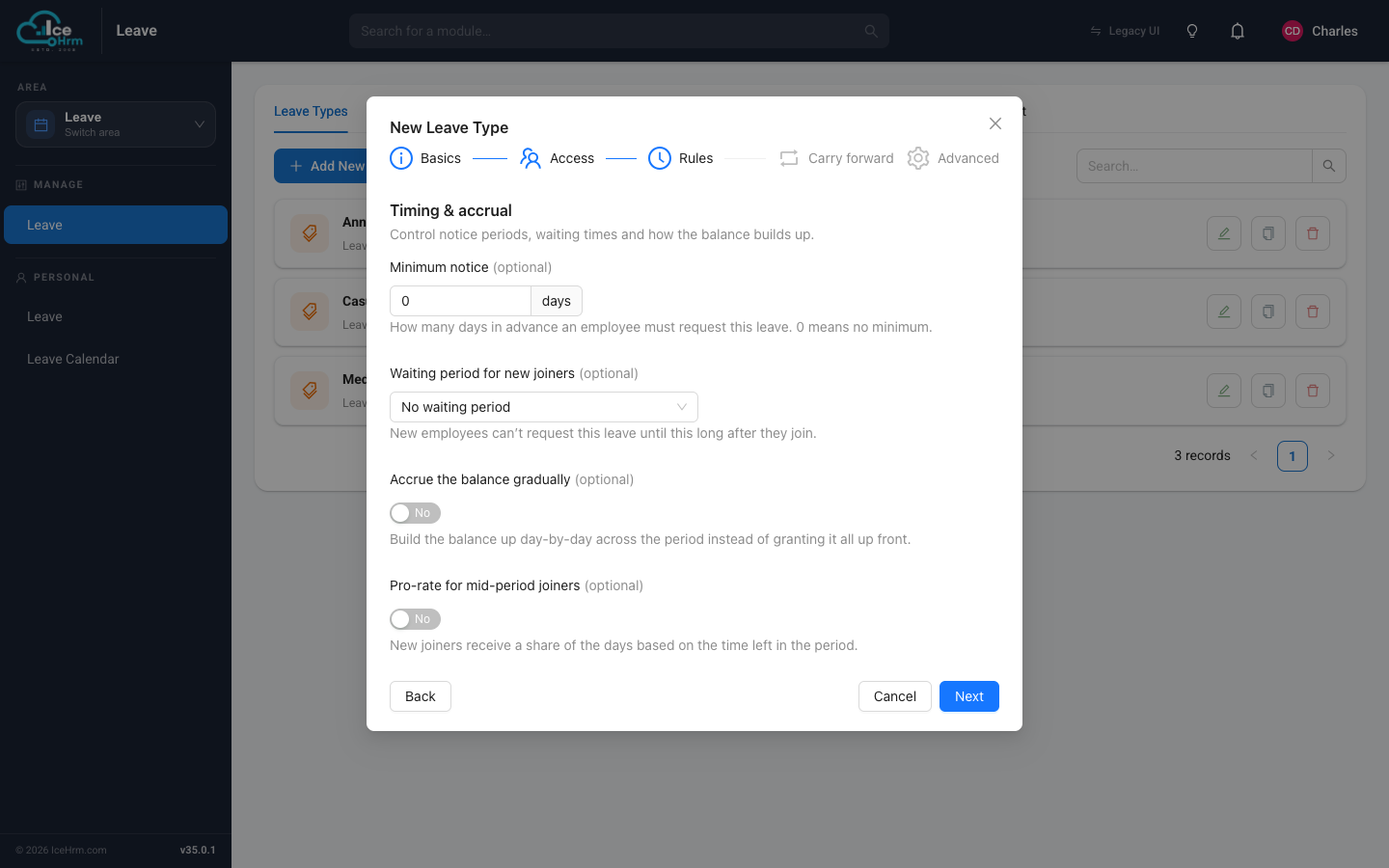
You can set the lock period when creating or editing a leave type.

  1. Go to Manage > Leave

  2. Click Add New or edit an existing leave type

  3. In the advanced section, specify the Leave Lock Period value

SettingDescription
Leave Lock PeriodNumber of months to wait before applying

Example: Setting a lock period of 1 month means employees cannot submit leave requests until 1 month after their join date.


Method 2: Global Setting

You can apply a lock period across all leave types using the global setting.

Settings Navigation

  1. Go to Settings > Leave

  2. Find Leave: Lock Period After Joined Date

  3. Set the number of months

Lock Period Global Setting


Priority Rule

Important

If you have specified the leave lock period when adding a leave type, the global leave lock period will be overridden by the leave type's lock period.

ConfigurationPriority
Leave type lock periodHigher (overrides global)
Global lock periodLower (default for all)

Lock Period Example

Employee Join Date: January 15, 2024
Lock Period: 1 month

Result: Employee cannot apply for leave until February 15, 2024

Leave Notice Period

The leave notice period specifies how many days in advance employees should apply for leave.

Leave Notice Period


How to Configure

  1. Go to Admin > Leave Settings > Leave Types

  2. Edit the leave type

  3. Set the Required Notice Days field

SettingDescription
Required Notice DaysNumber of days in advance required

Example: Setting a notice period of 7 days means employees must apply for leave at least 7 days before the leave start date.


What Happens When Notice Period is Not Met

If an employee tries to apply for leave without meeting the required notice period, they will receive an error message.

Notice Period Error

The system prevents the submission and displays a message indicating the leave request cannot be processed due to insufficient notice.


Manager Override

Override Option

Managers can bypass the notice period restriction by switching to an employee's account and submitting leave requests on their behalf. This is useful for emergency situations.


Comparison: Lock Period vs Notice Period

FeatureLock PeriodNotice Period
PurposeRestrict new employees from applyingRequire advance planning for leave
Based onEmployee's join dateLeave request start date
DurationMeasured in monthsMeasured in days
Applies toNew employees onlyAll employees
Typical useProbation period policyOperational planning

Configuration Examples

Example 1: New Employee Restrictions

Lock Period: 3 months
Notice Period: 7 days

New employee joins January 1:
- Cannot apply for any leave until April 1 (lock period)
- After April 1, must apply 7 days in advance (notice period)

Example 2: Different Settings by Leave Type

Leave TypeLock PeriodNotice Period
Annual Leave3 months14 days
Sick LeaveNoneNone
Personal Leave1 month3 days

Quick Reference

TaskLocation
Set lock period on leave typeManage > Leave > Edit Leave Type
Set global lock periodSettings > Leave > Lock Period After Joined Date
Set notice periodAdmin > Leave Settings > Leave Types > Required Notice Days

Best Practices

  1. Exempt Sick Leave - Don't apply lock or notice periods to sick leave (medical emergencies)
  2. Communicate Policies - Include lock period information in employee onboarding
  3. Reasonable Notice - Set notice periods that balance employee flexibility with operational needs
  4. Manager Training - Ensure managers know how to override for emergencies
  5. Regular Review - Audit settings annually to ensure they match company policy