Forms
Forms lets HR collect information from employees online. Pick a ready-made form or build your own, send it, and review the answers in one place. No paper and no email attachments.
Some examples of what you can collect:
- Emergency contacts, home address and contact details.
- Bank details for salary.
- Tax and payroll forms for many countries.
- Policy acknowledgements, such as a code of conduct.
- Surveys and check-ins, such as an exit interview or a training needs form.
When you approve a form, IceHrm can copy the answers straight into the employee's profile. You don't have to type anything twice.
Where to find it
Use the area switcher at the top of the left sidebar, click Switch area, and choose Documents.
- Forms (under Manage) is where HR builds forms, sends them, and reviews the answers.
- My Forms (under Personal) is where each employee fills in the forms sent to them.
How it works
- Choose a form. Use one of the standard form templates, or build a custom form. See Form templates.
- Send it. Pick one or more employees, and optionally add a due date and a message. See Sending and reviewing forms.
- The employee fills it in. They find it under My Forms, answer the questions, and submit. See Filling in forms.
- HR reviews it. Approve the answers, or send the form back with a note asking for changes.
- The profile is updated. Answers linked to profile fields are saved to the employee's profile when you approve.
What's on the Forms page
The Forms page has two tabs:
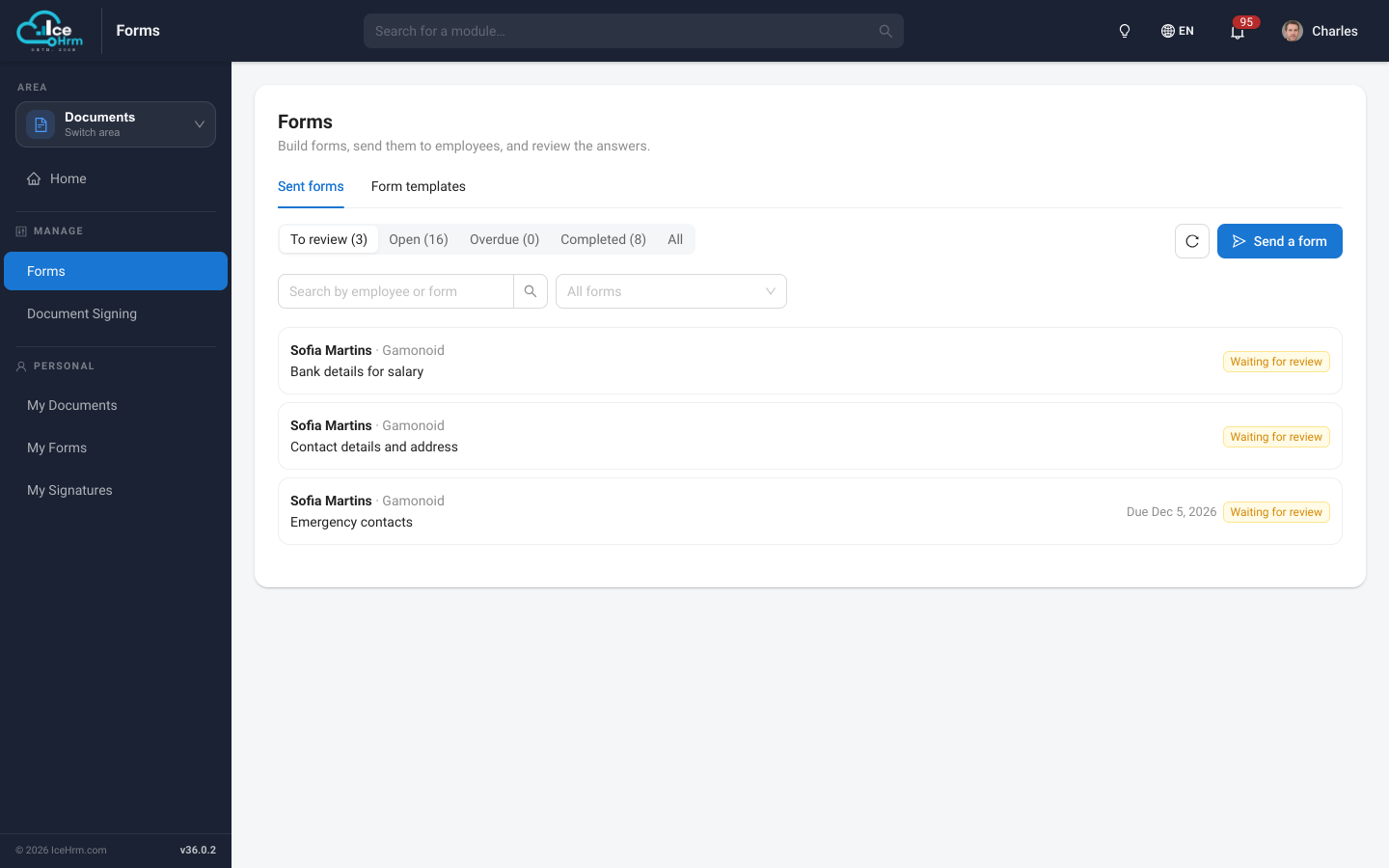
- Sent forms lists every form you have sent, with its status. This is where you review answers.
- Form templates has the standard templates that come with IceHrm, plus your own custom forms.
A sent form moves through these statuses:
- Not started: the employee hasn't opened it yet.
- In progress: the employee has started and IceHrm has saved a draft.
- Waiting for review: the employee submitted it.
- Changes requested: you sent it back with a note.
- Completed: you approved it.
- Cancelled: you cancelled it before it was finished.
Forms on the employee profile
Every employee profile has a Forms tab. It lists the forms sent to that person, split into open forms and completed or cancelled forms. Click Send a form there to send a form to that employee straight away.
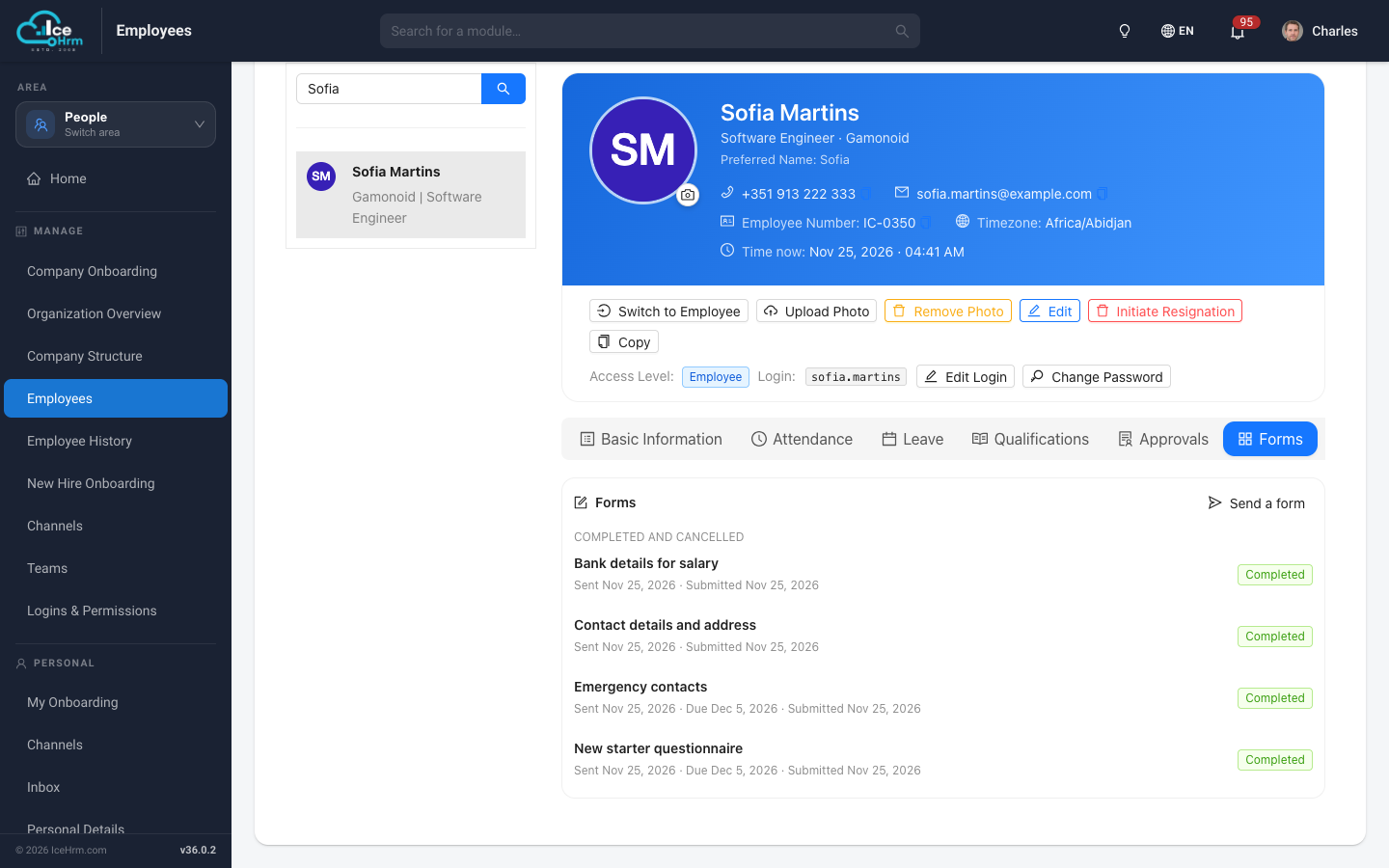
For a resigned employee, the Forms tab still lists their past forms. You can't send them new ones.