Filling in forms
When HR or your manager needs information from you, they send you a form. This page shows you how to find it, fill it in and send it back.
Find your forms
Use the area switcher at the top of the left sidebar to open Documents, then click My Forms under Personal.
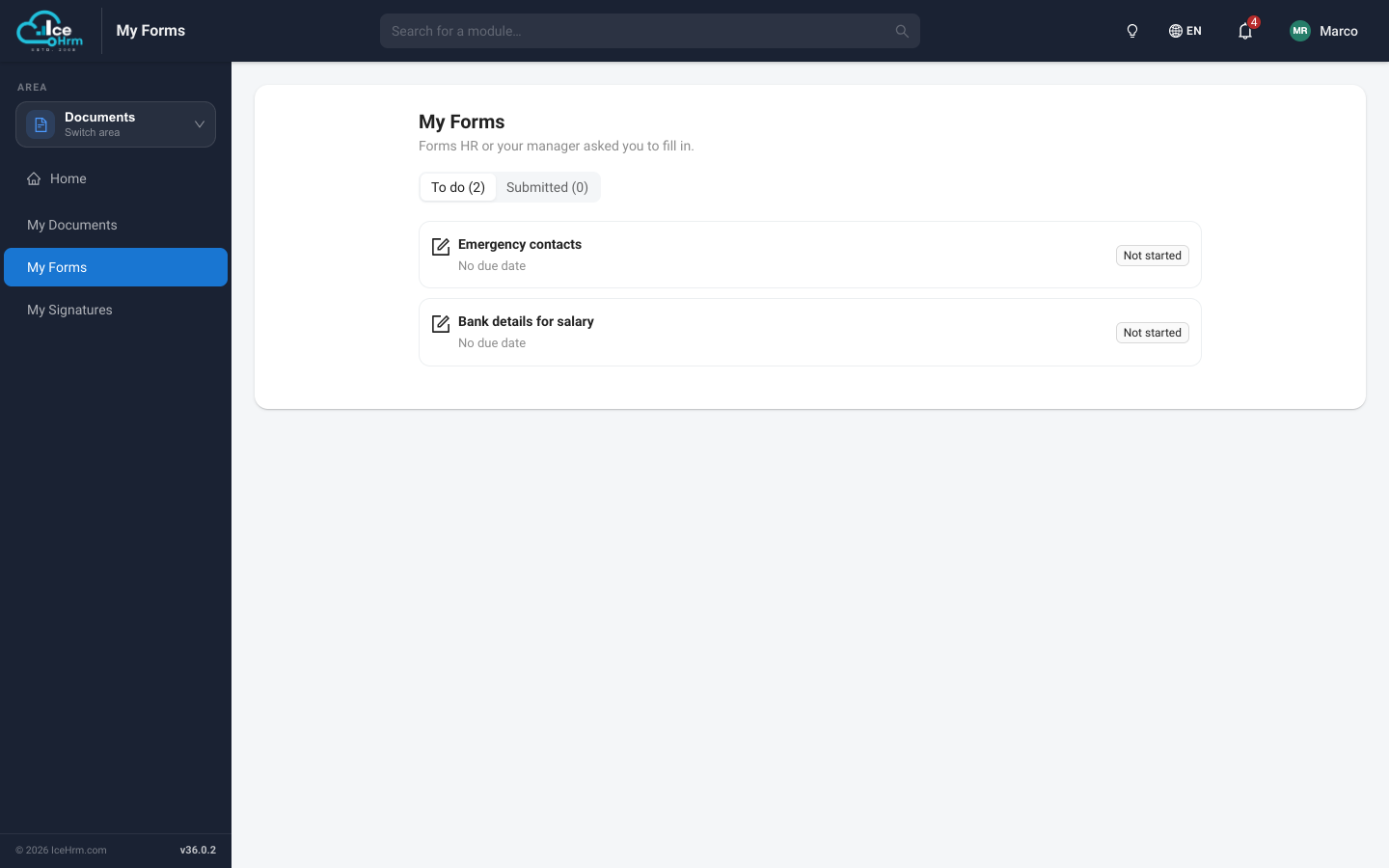
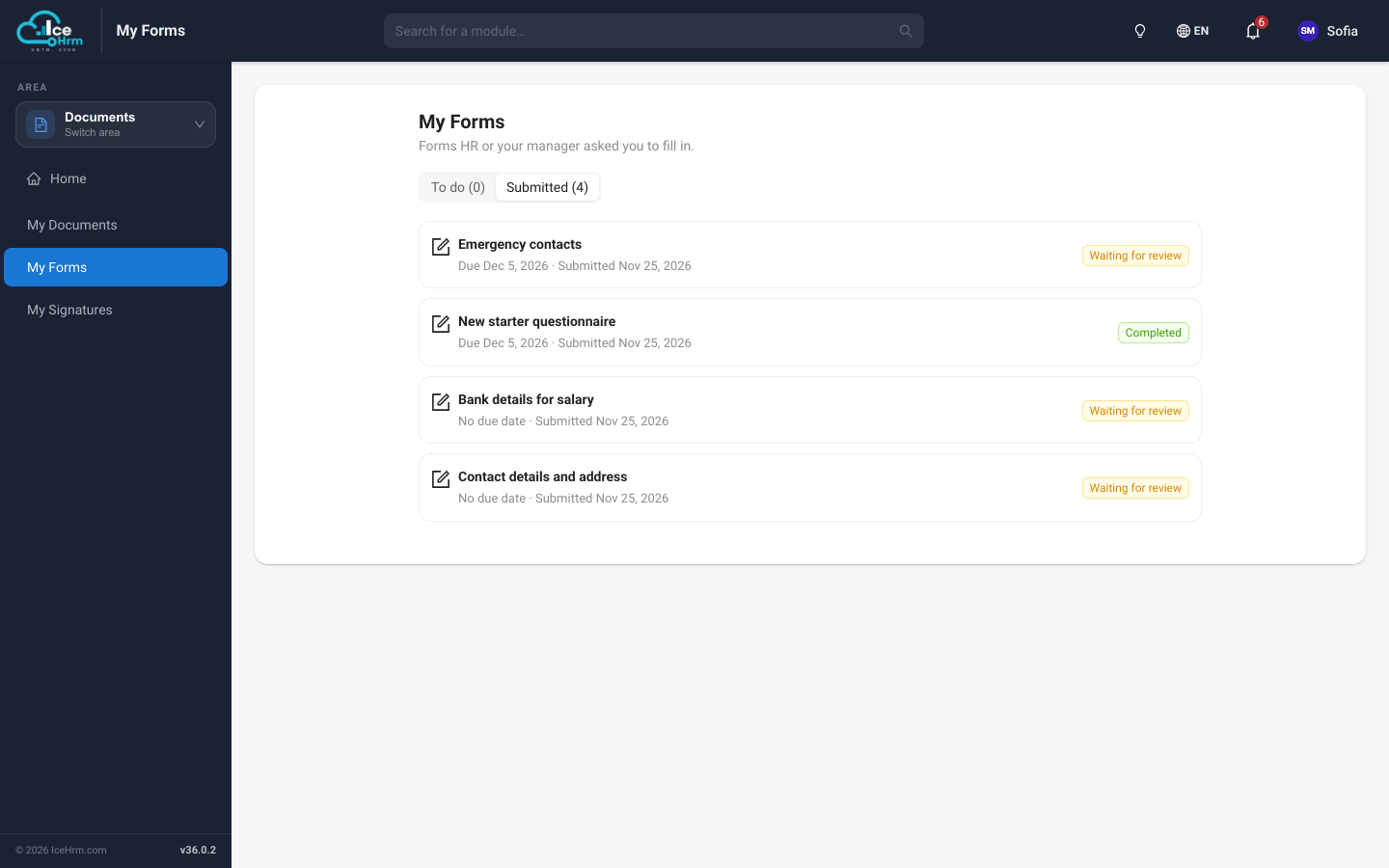
My Forms has two tabs:
- To do: forms you still need to fill in, or that HR sent back to you.
- Submitted: forms you have sent. Each one shows whether it is Waiting for review or Completed.
Each form shows its due date, if it has one, and its status.
Fill in a form
- Click the form to open it.
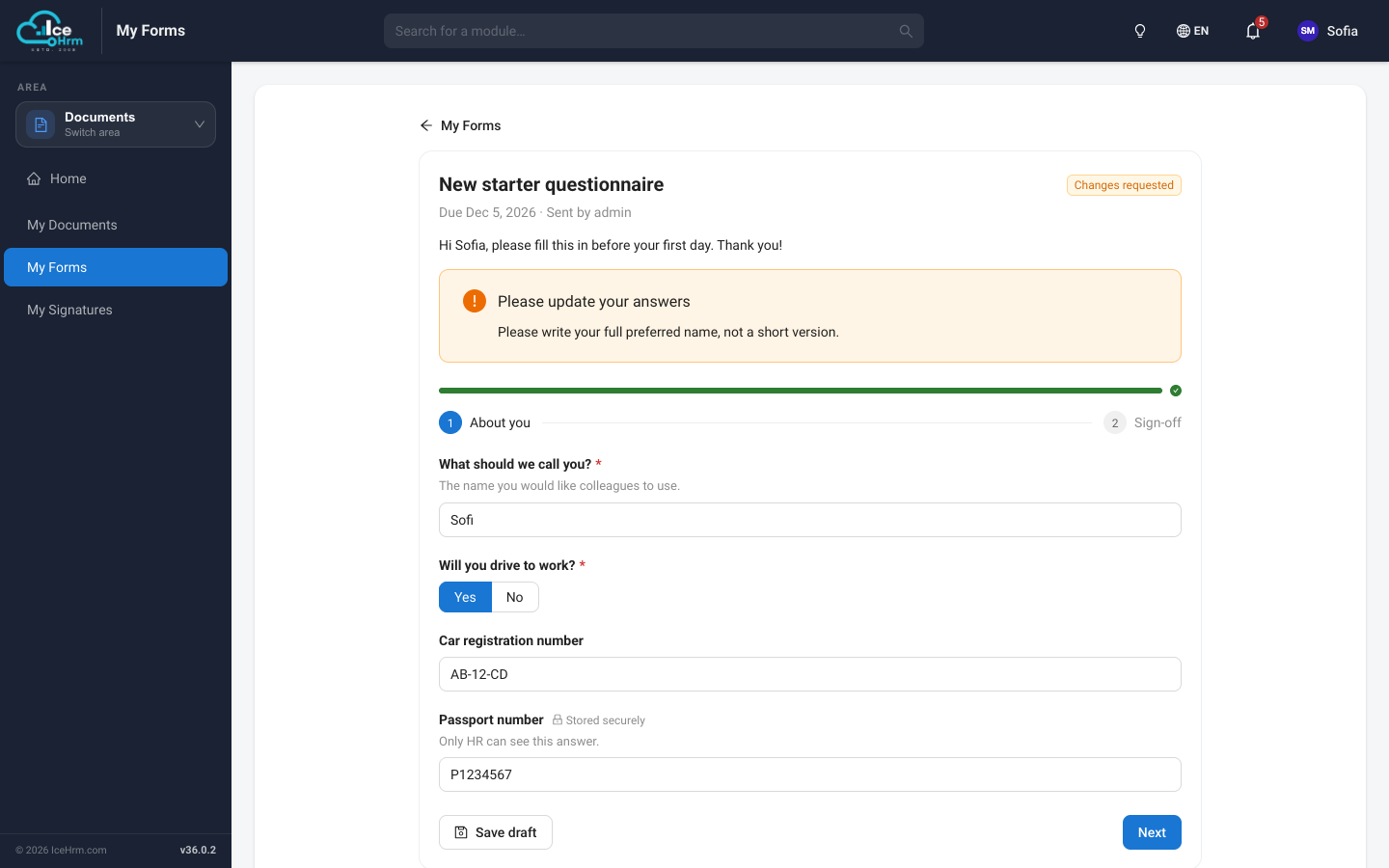
- Read the note at the top. It tells you who sent the form, when it is due, and includes any message from HR.
- Answer the questions. Questions marked with a red * are required.
- If the form has more than one step, click Next to move on and Back to go back. The steps are listed above the questions.
- On the last step, click Submit, then Submit again to confirm.
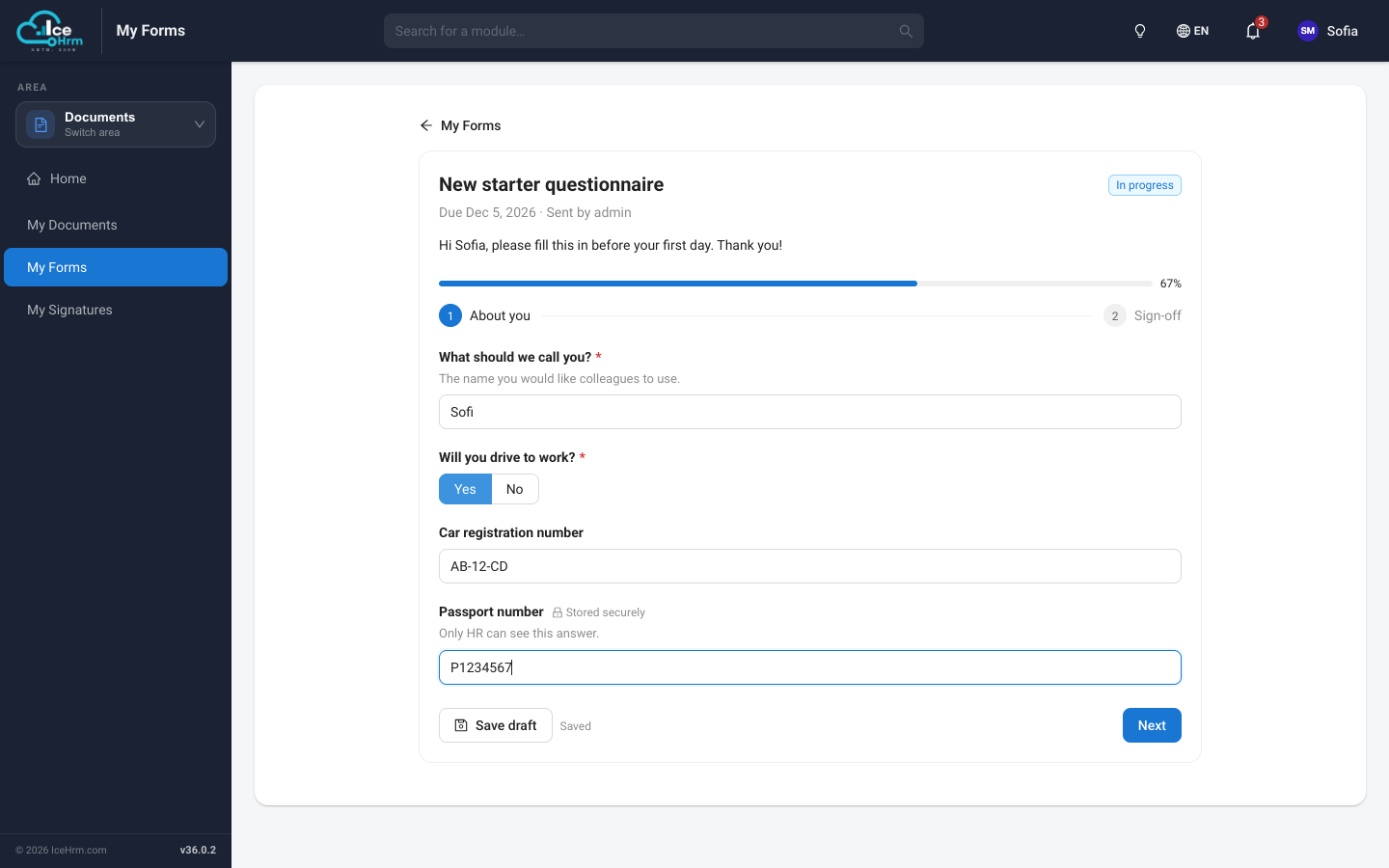
A few things to know:
- Your answers are saved as you go. You'll see Saved next to the Save draft button. You can close the form and come back later. Your answers will still be there. You can also click Save draft at any time.
- The bar at the top shows how much of the form you have filled in.
- Some questions appear only after you answer an earlier one. For example, a question about your car shows up after you answer Yes to Will you drive to work?
- Answers marked Stored securely are kept private. Only HR can see them.
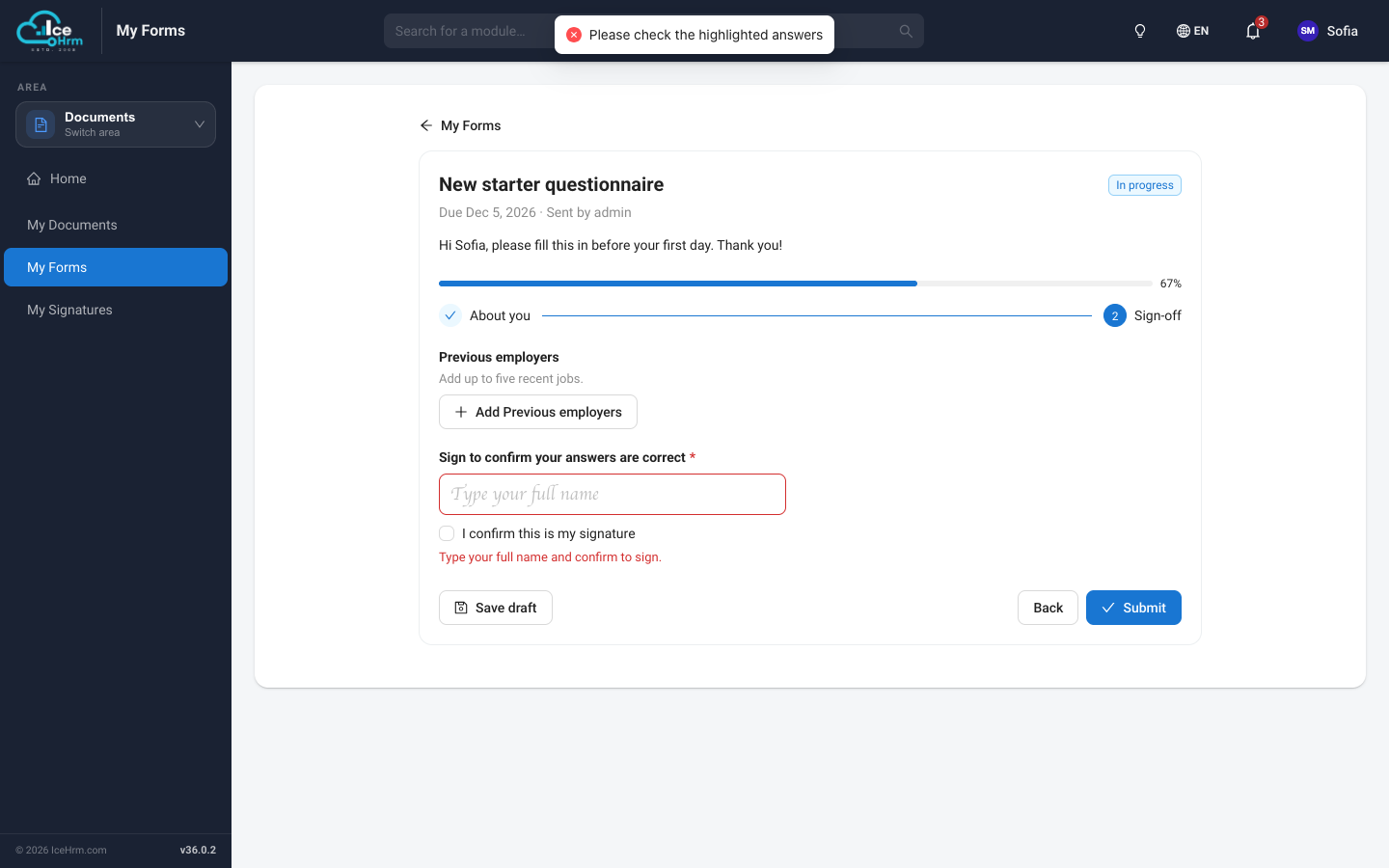
- For a list of things, such as emergency contacts or previous jobs, click Add an entry, then Add another entry for each one after that. Click Remove to delete one.
- To sign a form, type your full name in the signature box and tick I confirm this is my signature.
If something needs fixing
When you click Submit, IceHrm checks your answers. If something is missing or doesn't look right, for example a phone number or email address, the form shows Please check the highlighted answers. It then takes you to the step with the problem. Fix the answers marked in red: each message goes away as soon as you change that answer. Then submit again.
After you submit
You'll see a thank-you message, and the form moves to the Submitted tab.
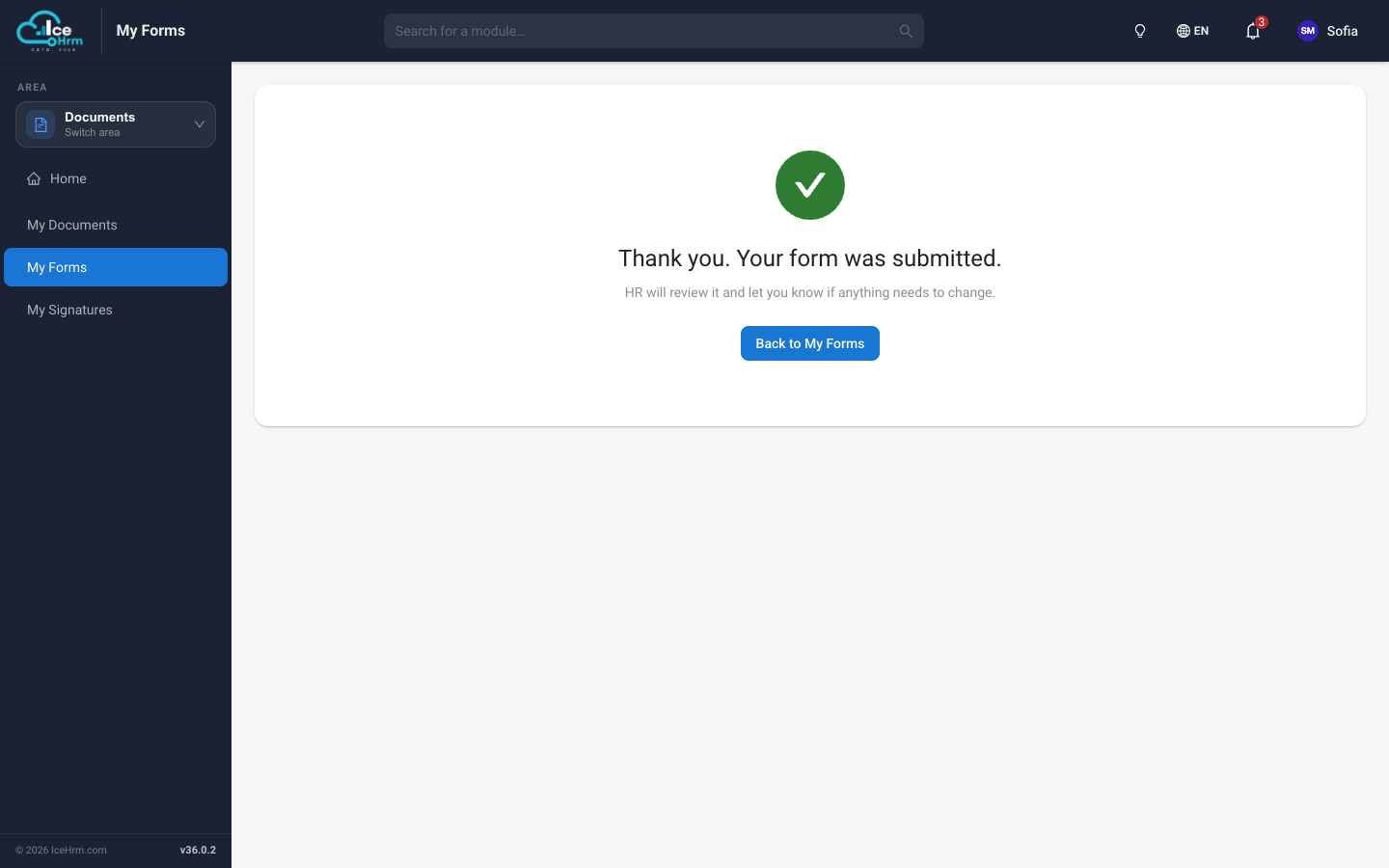
Once you submit, you can't change your answers unless HR sends the form back. HR then reviews it:
- If HR approves it, the form shows Completed. Answers linked to your profile, such as your address or bank account, are added to your profile.
- If HR asks for changes, the form moves back to To do with the status Changes requested.
When HR sends a form back
Open the form from To do. HR's note appears at the top under Please update your answers. Your earlier answers are still filled in, so you only need to change what HR asked for. Then submit the form again.
Bank details
The Bank details for salary form asks for different details depending on where your bank is. Choose Country of your bank first, then click Add an entry and fill in the fields that appear. For example, an Australian bank asks for the BSB and account number, and a bank in Germany asks for the IBAN.
After HR approves the form, you can see the account under People > Bank Accounts. Only the last four digits of the account number are shown.