Company Documents
Company documents are files you share across the organisation — a staff handbook, a policy, an announcement. You decide who sees each one.
Open the Documents area, click Documents under Manage, and stay on the Company Documents tab. Each document is listed with a status badge and, on the right, buttons to Edit, open its Content, and Delete.
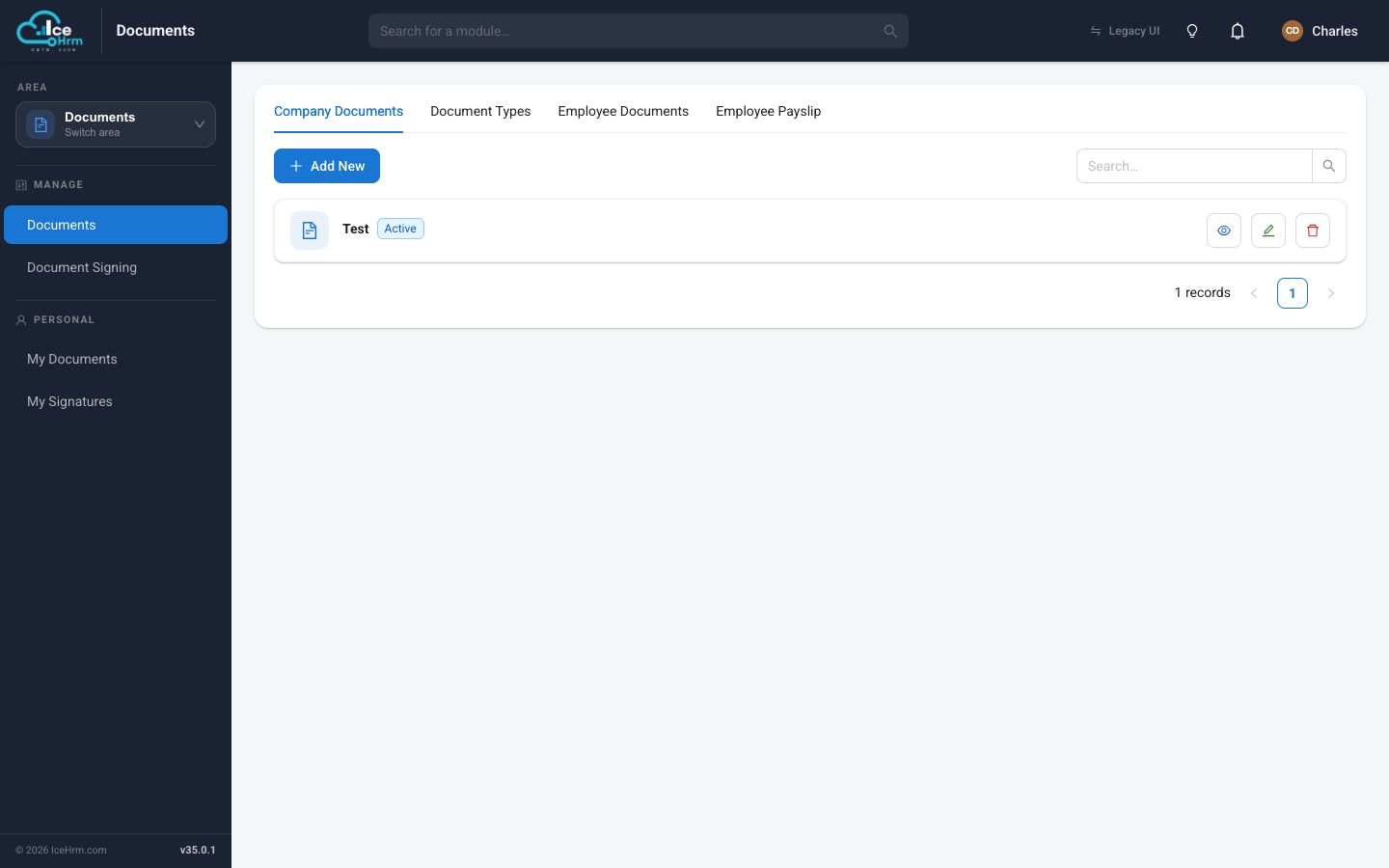
Adding a company document
Click + Add New to open the form and fill in:
- Name — a clear title, e.g. "Employee Handbook 2026".
- Description — a short summary of the document (plain text).
- Status — set to Active to make it available.
- Attachment — optionally Upload an existing file (PDF, Word, etc.).
- Share Departments — share with everyone in the chosen departments.
- Share Employees — share with specific individuals.
Click Save when done.
Choosing who sees the document (the two Share fields) is covered in detail in Sharing company documents.
Writing the document content
Beyond a short description or an attached file, each company document has its own rich Content document you can write directly in IceHrm. Click the Content button on a document to open the editor, where you can add headings, formatted text, lists, and images.
- Admins can edit the content.
- Managers and employees the document is shared with can open and read the content, but not change it.
So you can share a policy three ways — a short description, an uploaded file, or a written Content document — whichever suits.
Where employees see them
An employee finds the company documents shared with them under Documents → My Documents → Company Documents.
Good candidates for company documents
- Everyone: staff handbook, code of conduct, announcements
- A department: team policies, procedures, training material
- Specific people: a confidential memo for a named group
Tips
- Name clearly so documents are easy to find.
- Review who has access to sensitive files from time to time.
- Prefer an attachment for formal documents you already have as a PDF.