Form templates
A form template is the blank form you send to employees. IceHrm gives you two kinds:
- Standard form templates come with IceHrm and are kept up to date with each release. You can send them as they are, but you can't edit them.
- Custom form templates are your own. You build them from scratch or copy a standard template and change it.
To see them, open Documents > Forms and click the Form templates tab.
Standard form templates
IceHrm comes with more than 80 ready-made forms. They cover common HR needs, such as emergency contacts, bank details, a code of conduct acknowledgement and an exit interview. They also cover country forms for tax, payroll, pensions and right to work.
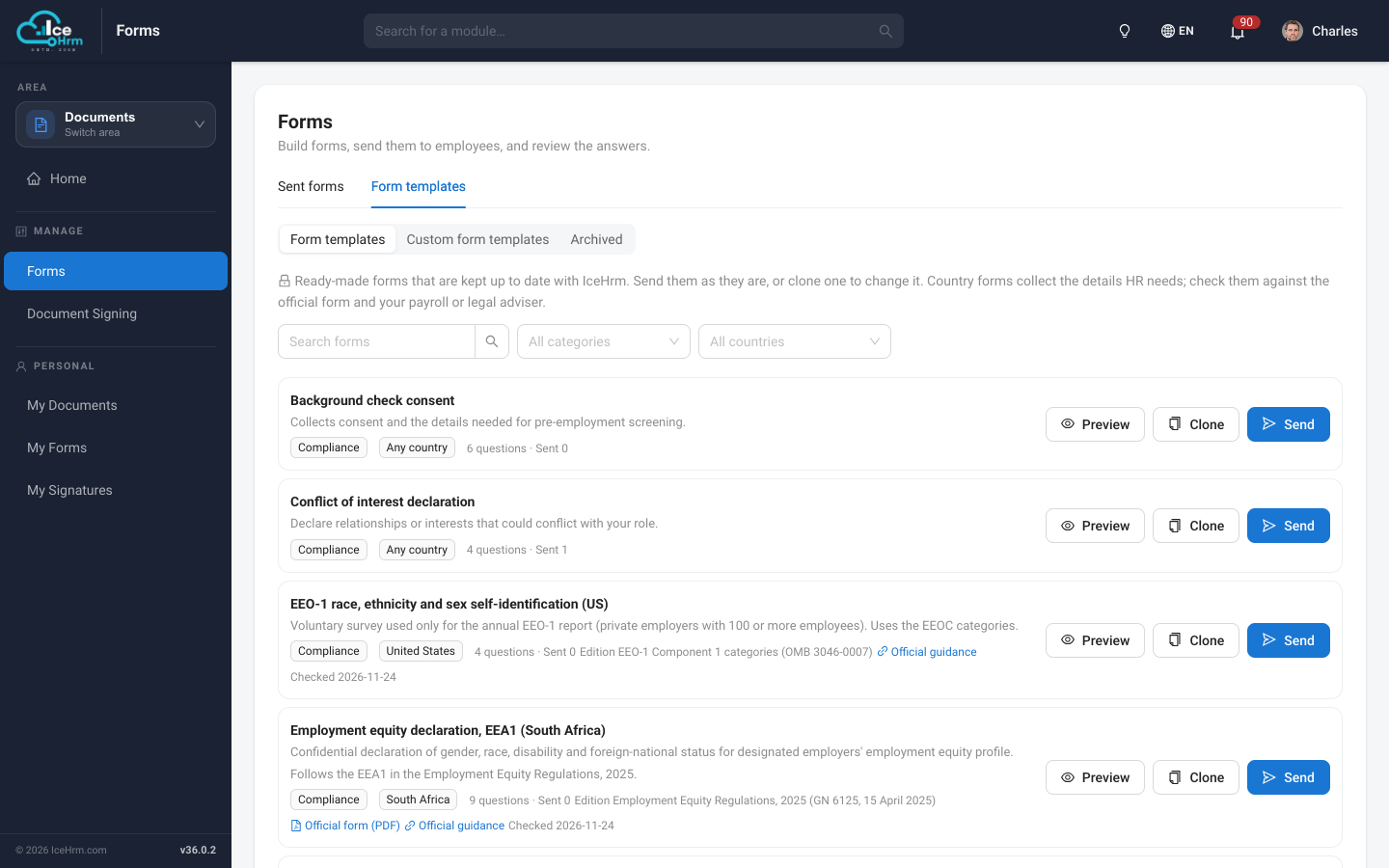
Each template shows:
- Its name and a short description.
- A category, such as Personal, Tax & payroll, Compliance, Policy, Onboarding, Offboarding or Survey.
- The country it is for, or Any country.
- How many questions it has, and how many times you have sent it.
Country forms also show the edition of the official form they follow, links to the Official form (PDF) and Official guidance where there is one, and the date the form was last checked.
Country forms collect the details HR needs. Always check them against the official form and with your payroll or legal adviser.
Find a template
Use the filters above the list:
- Search forms: type part of a name or description.
- All categories: show one category only.
- All countries: show the forms for one country, or Any country for forms that work everywhere.
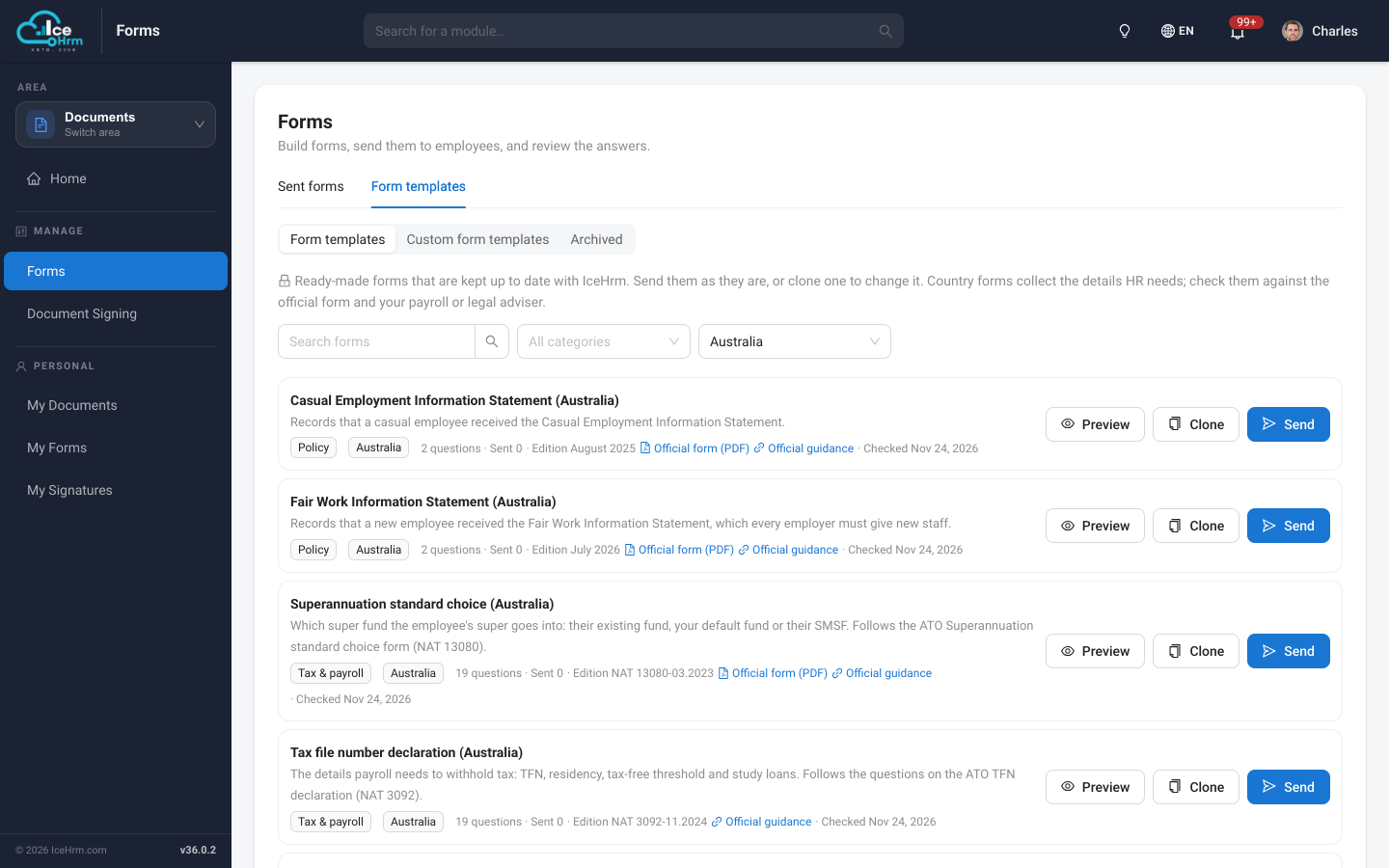
IceHrm has country forms for Australia, India, Israel, Jamaica, the Netherlands, New Zealand, the Philippines, Singapore, South Africa, Sri Lanka, the United Arab Emirates, the United Kingdom and the United States.
Preview a template
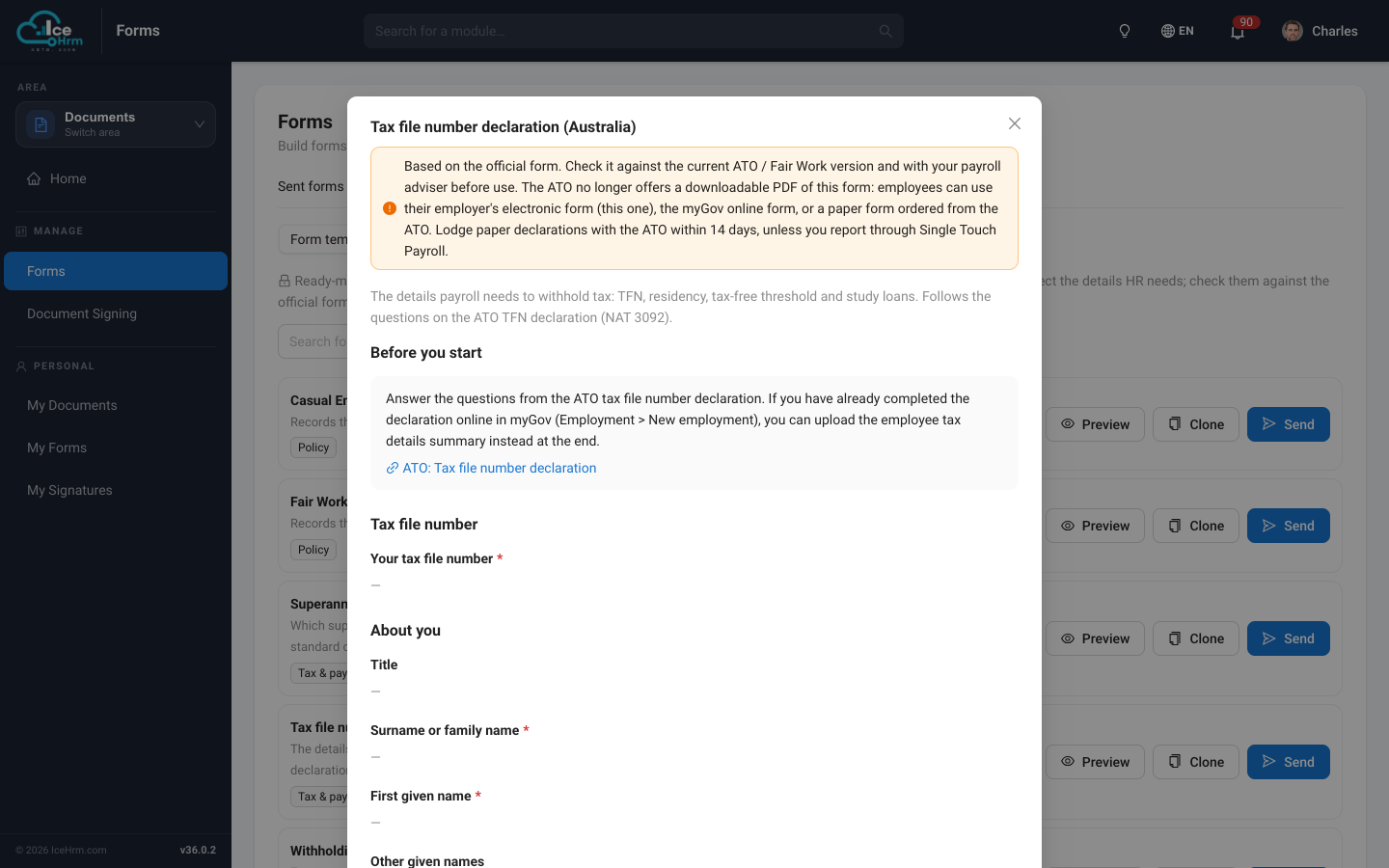
Click Preview, or click the template's name, to see every question. From the preview you can Clone to edit or Send.
Copy a template to change it
- Click Clone on the template.
- IceHrm makes a copy called "Name (custom)" and opens it in the form builder.
- Change what you need, then Publish it.
Your copy is listed under Custom form templates.
Build a custom form
- On the Form templates tab, click Custom form templates.
- Click New form.
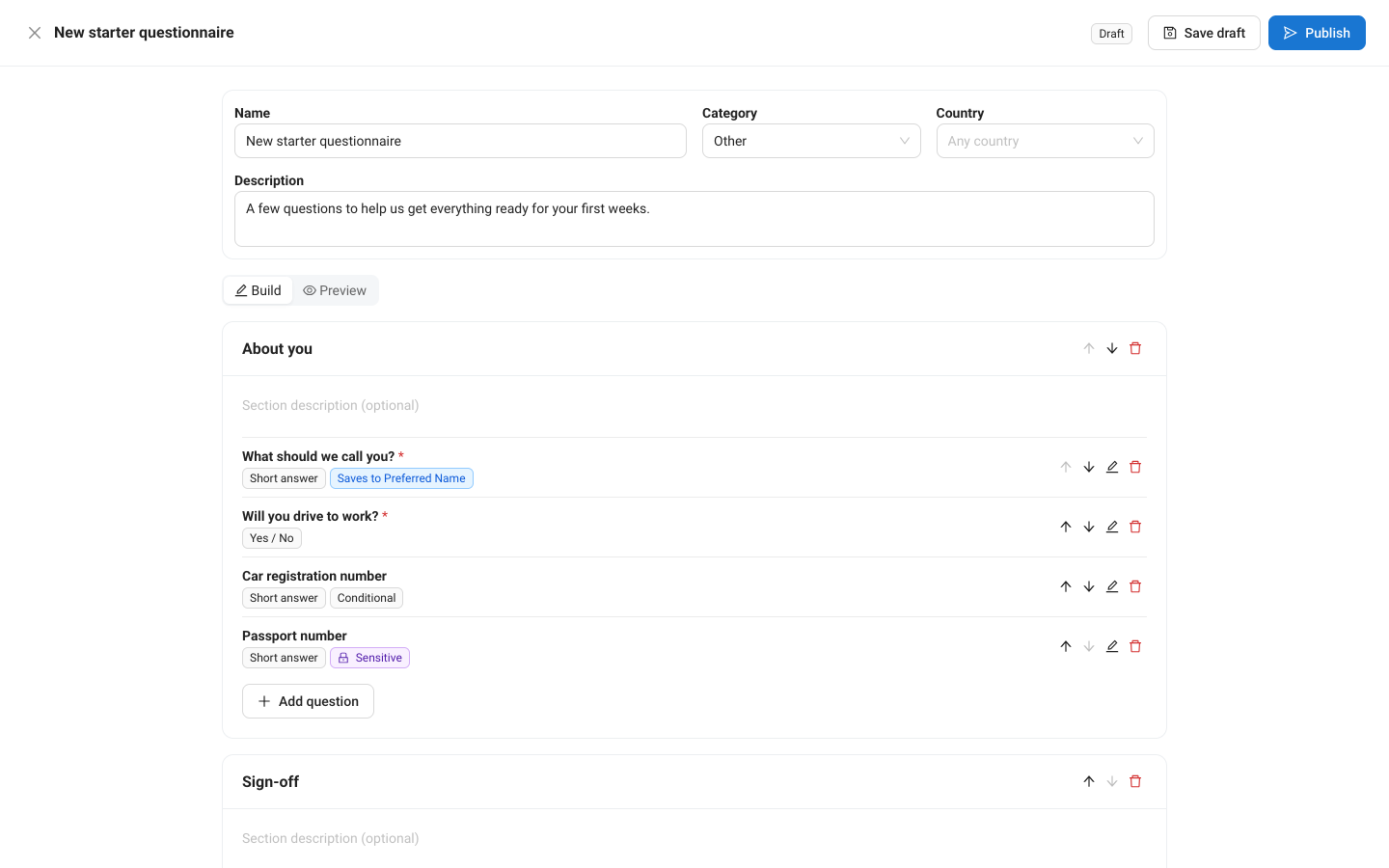
- Enter a Name, and choose a Category and a Country (or leave it as Any country).
- Add a Description. Employees see it above the form.
- Add your questions (see below).
- Click Save draft to save your work, or Publish when you are ready to send it.
Sections
A form starts with one section. Click the section title to rename it. You can also add a short section description.
- Click Add section to add another section. Employees fill in each section as a separate step.
- Use the up and down arrows to change the order, and the bin icon to delete a section.
Questions
Click Add question in a section and choose a question type:
- Short answer and Paragraph for text.
- Whole number and Number.
- Date, Email and Phone.
- Dropdown, Single choice and Multiple choice, with your own choices.
- Yes / No.
- Country.
- File upload.
- Signature.
- Text block, to show information without asking anything.
- Repeating group, for a list of entries (see below).
When you add a question, its settings open on the right. You can:
- Type the Question.
- Add Help text that appears under the question.
- Turn on Required so the employee must answer it.
- Add a Placeholder, or the Choices for a dropdown or choice question.
- Choose Save answer to profile to copy the answer to a field on the employee's profile when you approve the form. For example, save it to Preferred Name.
- Turn on Sensitive for private answers, such as a passport number. IceHrm stores the answer encrypted, and the employee sees a Stored securely label.
Click Done to close the settings. To change a question later, click it or click the pencil icon.
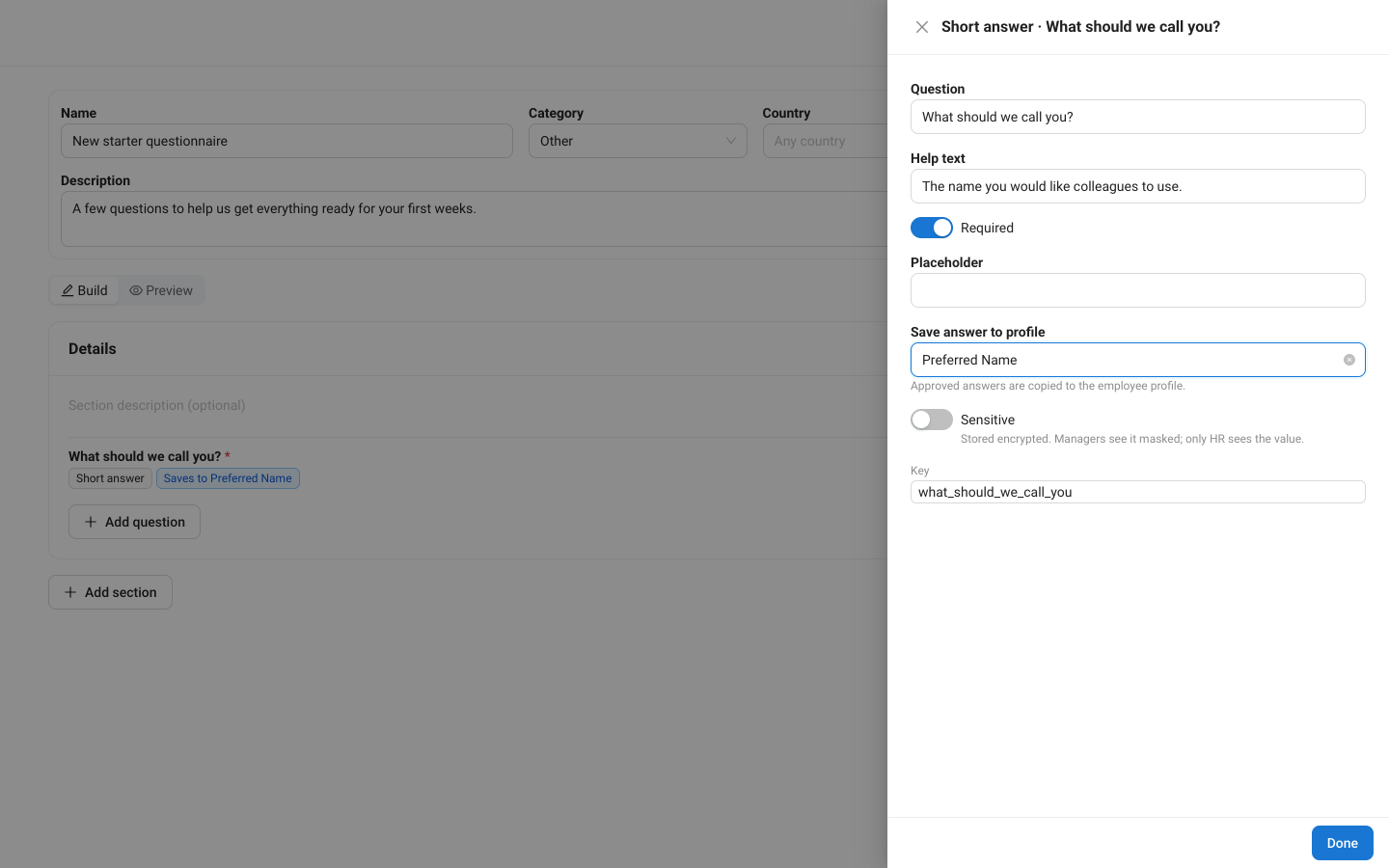
In the list, each question shows small tags: its type, Saves to … when it updates the profile, Sensitive, and Conditional.
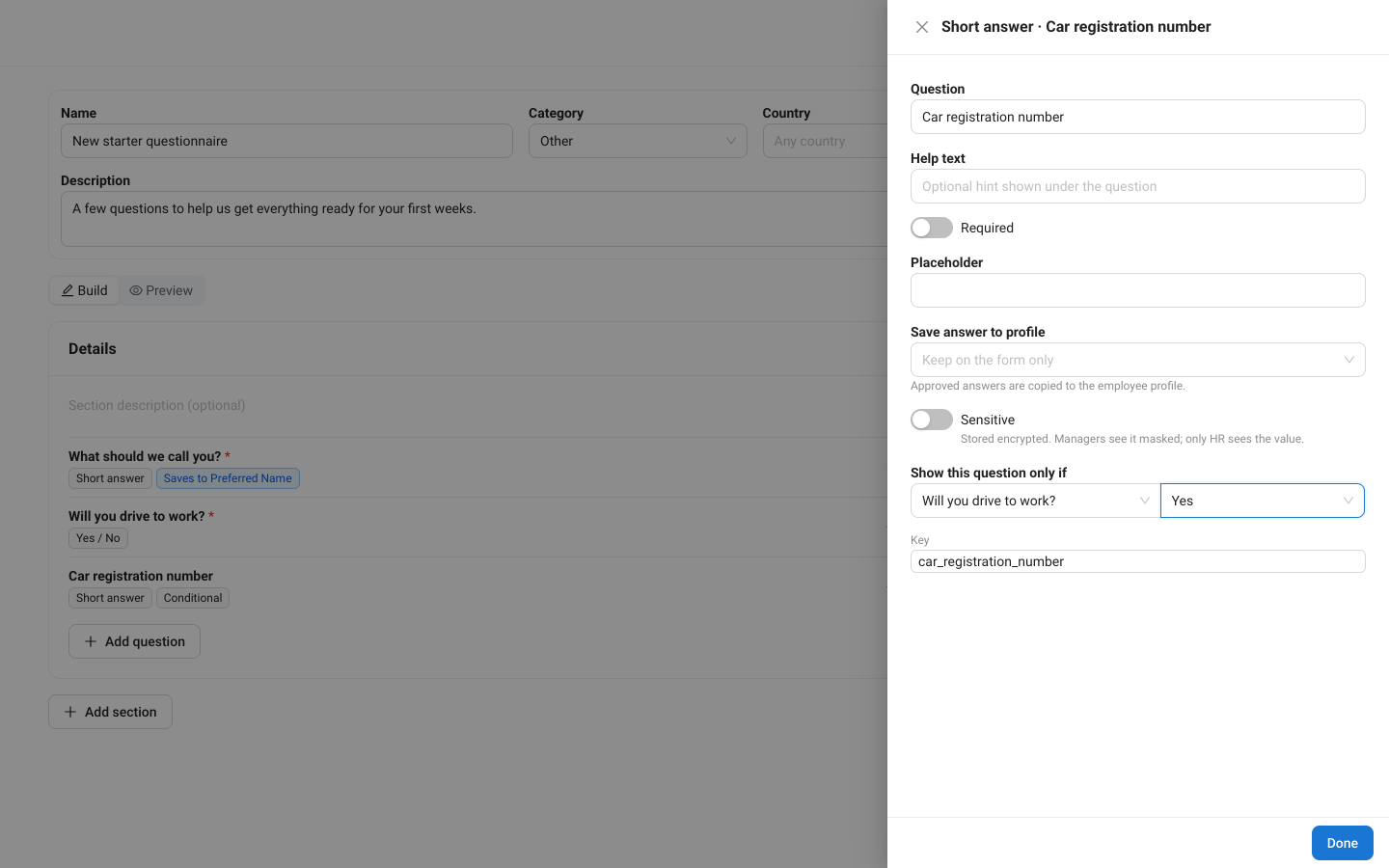
Show a question only when it's needed
Under Show this question only if, pick an earlier question and the answer that should show this one. For example, show Car registration number only when the answer to Will you drive to work? is Yes.
Repeating groups
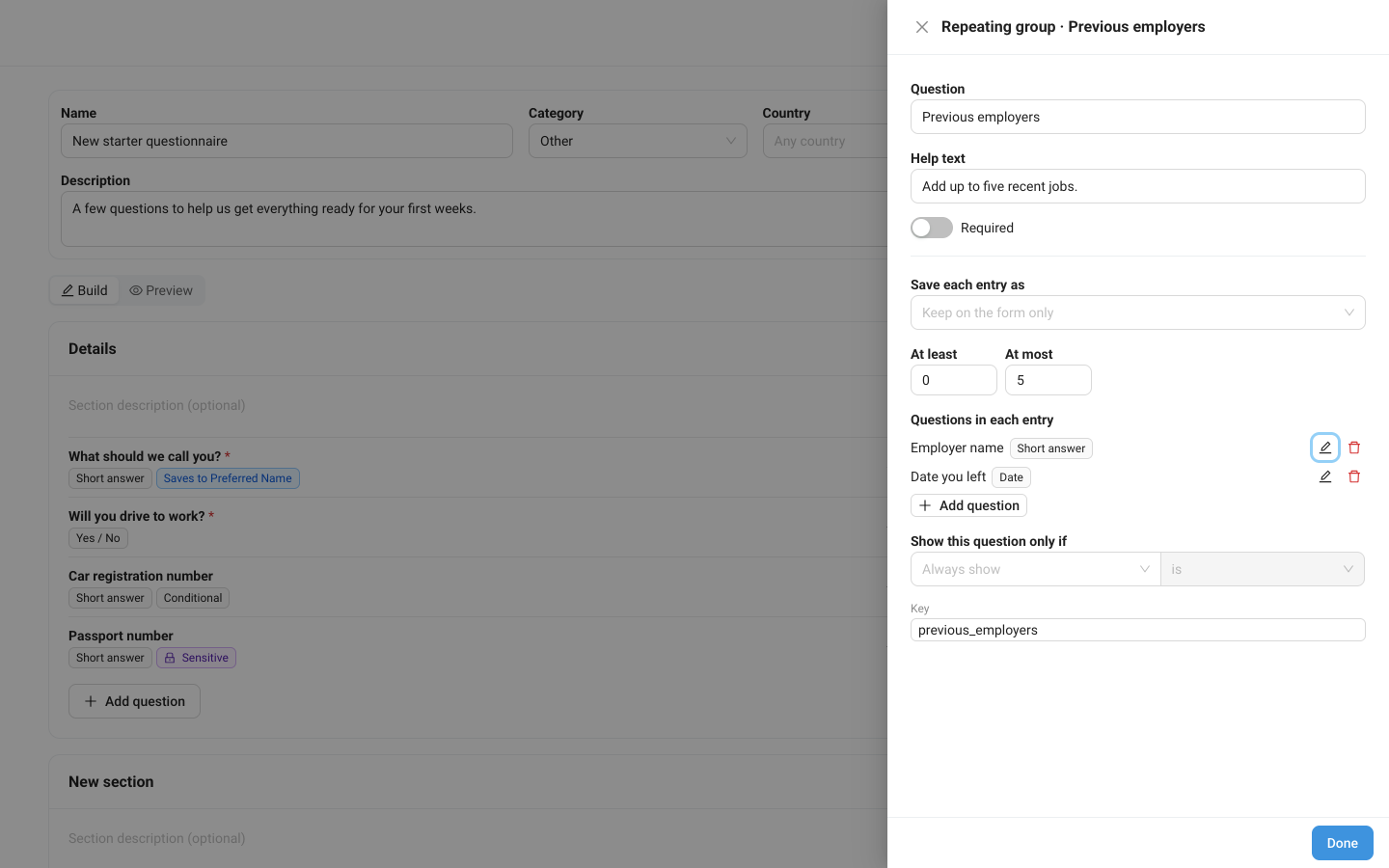
A repeating group lets employees add as many entries as they need, such as previous employers or emergency contacts.
- Add a Repeating group question and give it a name.
- Under Questions in each entry, add the questions each entry should have.
- Set At least and At most to limit how many entries the employee can add.
- Optionally, use Save each entry as to save every entry to the profile as an emergency contact, a dependent, or a bank account.
Signatures
A Signature question asks the employee to type their full name and tick I confirm this is my signature. Add one at the end of a form when you need the employee to confirm their answers.
Preview your form
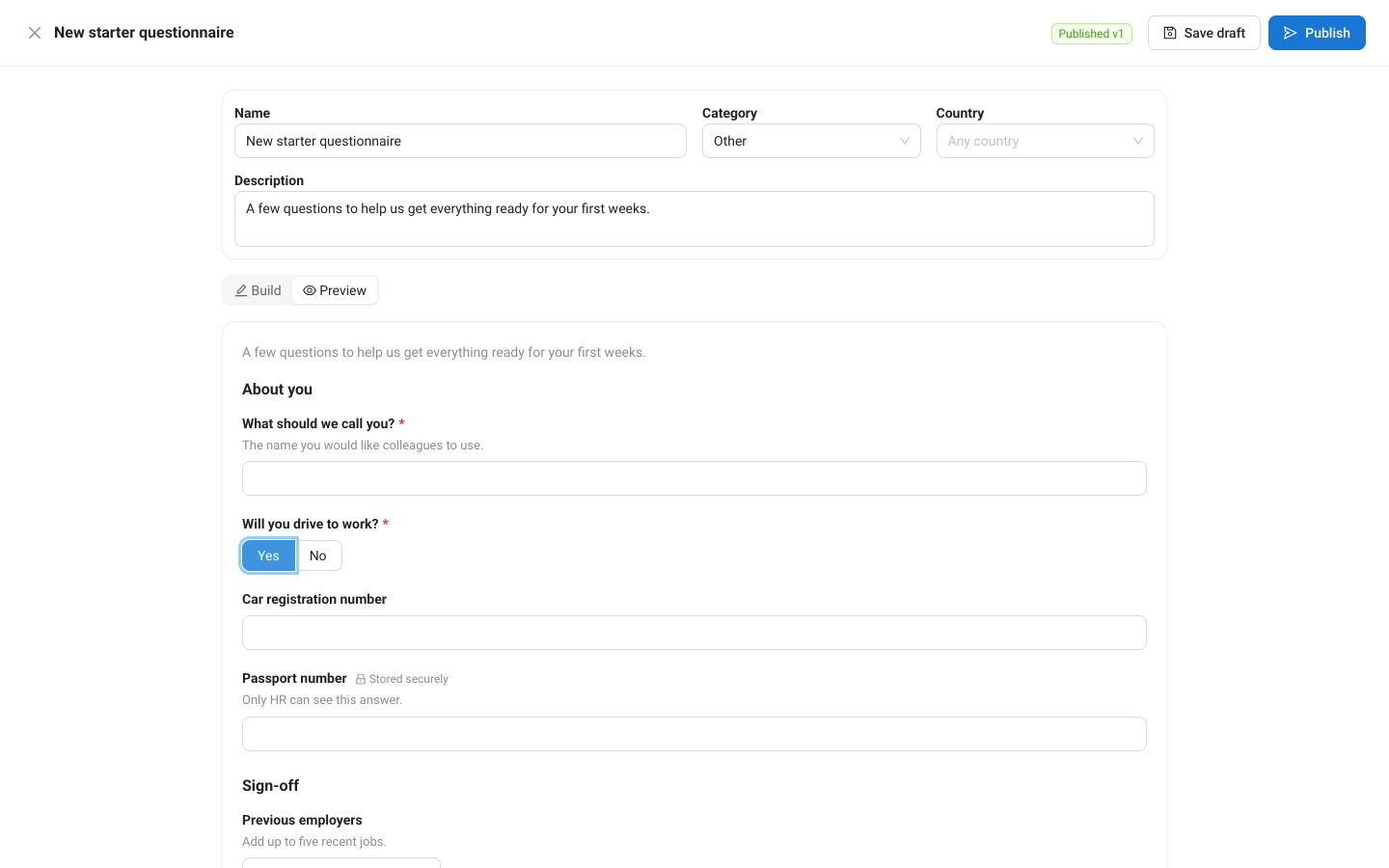
Click Preview above the questions to see the form the way employees will see it. You can try the answers, for example to check that a conditional question appears.
Publish and versions
A custom form must be published before you can send it.
- Click Publish. The tag changes to Published v1.
- If you change the questions later, the tag Unpublished changes appears. Your changes are not sent to anyone until you click Publish again. This creates a new version, such as Published v2.
- Forms that were already sent keep the version they were sent with. New sends use the latest version.
- Only the questions have versions. A change to the name, category, country or description is saved straight away and applies everywhere. If you click Publish when the questions have not changed, IceHrm saves your changes and tells you there is no new version to publish.
Manage your custom forms
Your forms are listed under Custom form templates, with their status, category, number of questions, and how many times they were sent.
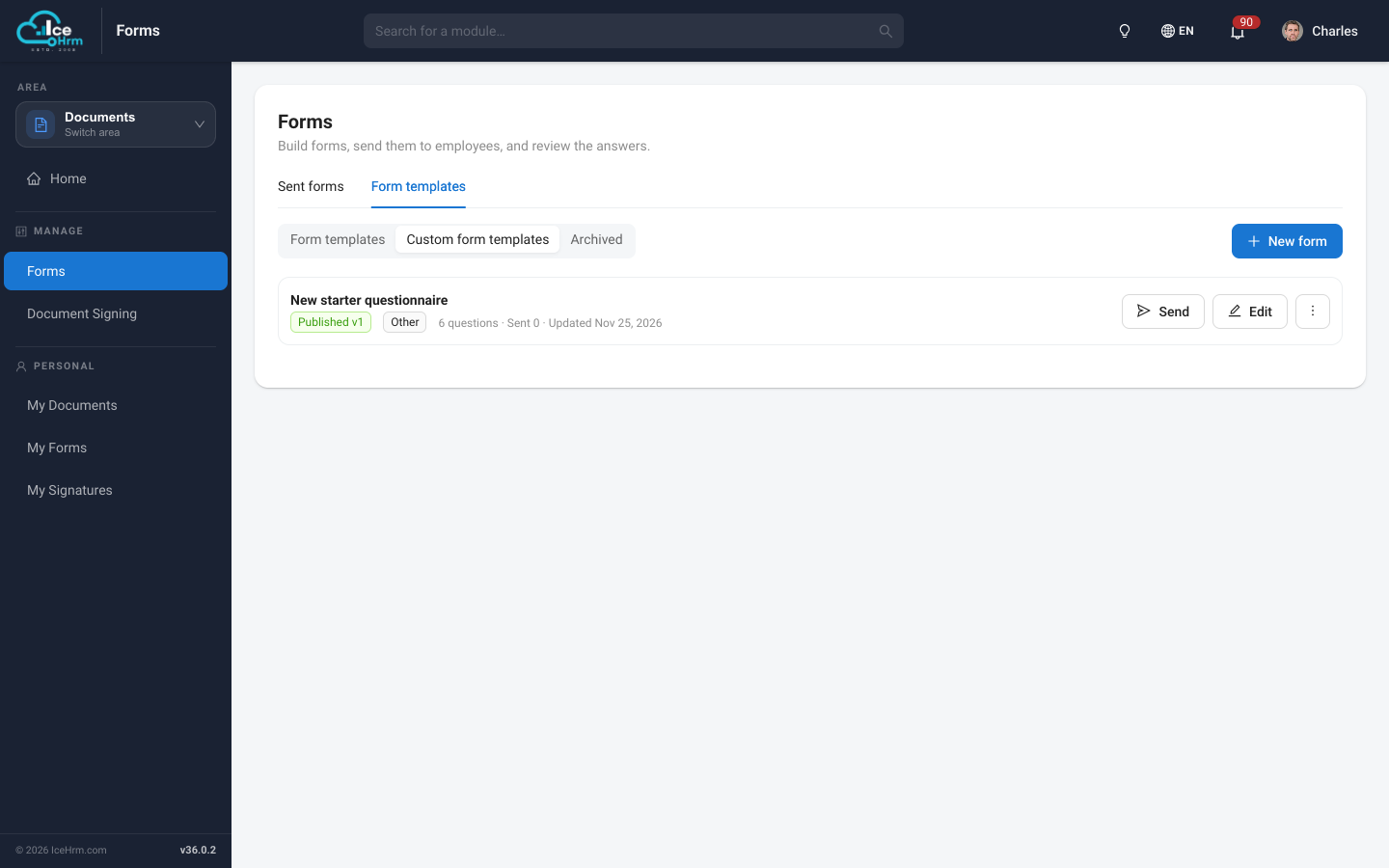
- Send: send a published form.
- Edit: open it in the builder.
- The ⋮ menu has more options:
- Clone makes a "Copy of …" draft.
- Archive hides the form. Find it under Archived and choose Restore to bring it back.
- Delete removes the form. This is only possible if the form was never sent.