Visibility of Employee Documents
Employee documents can hold sensitive information, so IceHrm controls access in two places that work together: the Visible To setting on each document, and the Share with Employee switch on the document type.
1. The "Visible To" setting
When you add or edit an employee document, the Visible To field sets who can open it.
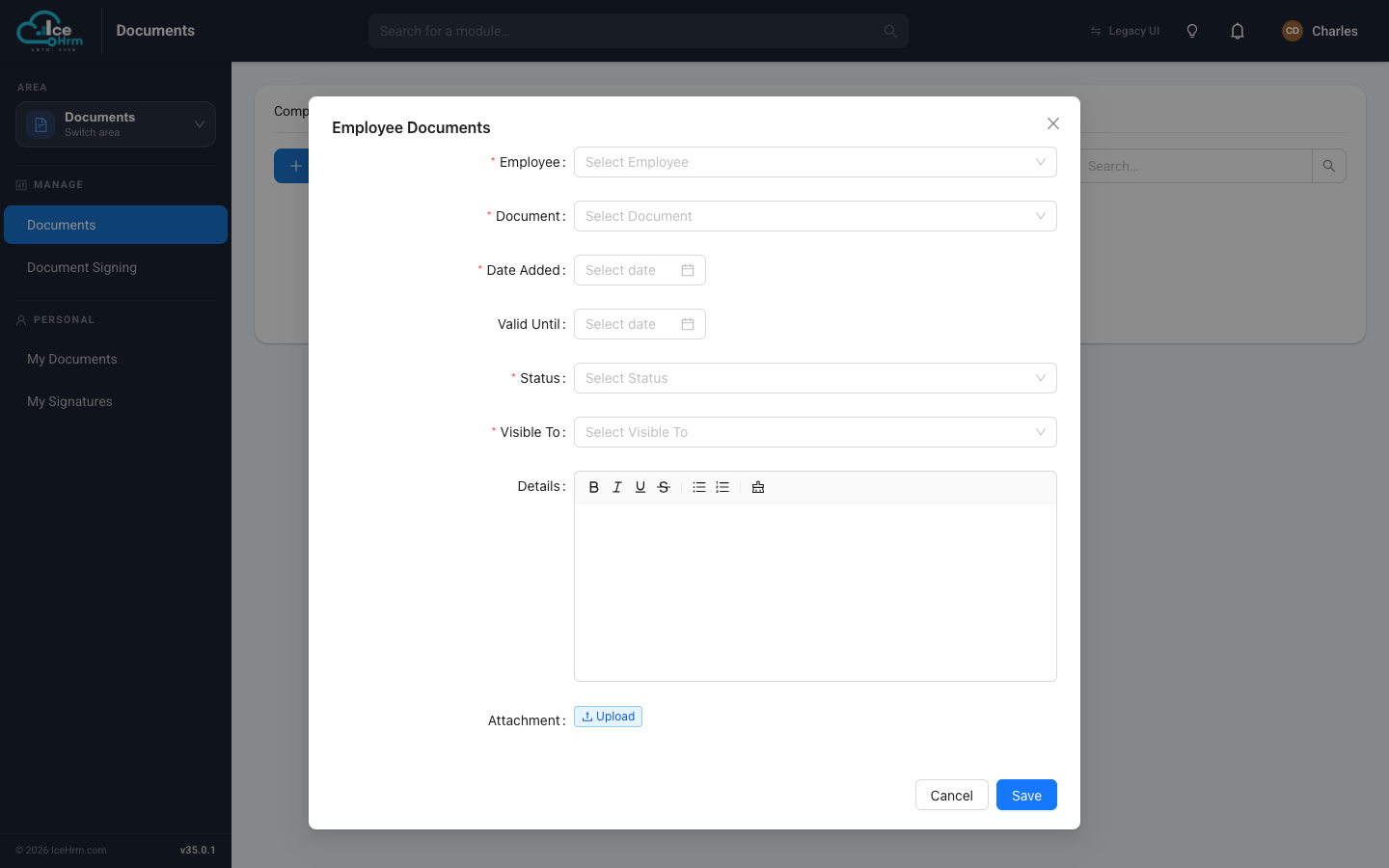
| Visible To | Who can view |
|---|---|
| Owner | The employee, their manager, and admins |
| Owner Only | The employee and admins (not the manager) |
| Manager | The manager and admins (not the employee) |
| Admin | Admins only |
At a glance:
| Visible To | Employee | Manager | Admin |
|---|---|---|---|
| Owner | ✓ | ✓ | ✓ |
| Owner Only | ✓ | ✗ | ✓ |
| Manager | ✗ | ✓ | ✓ |
| Admin | ✗ | ✗ | ✓ |
Rules of thumb:
- Owner — everyday documents the employee needs, like their contract.
- Owner Only — personal documents the manager needn't see.
- Manager — supervisory notes not meant for the employee.
- Admin — highly confidential HR records.
2. The document type's "Share with Employee" switch
There's a second, broader control on the document type itself (Documents → Document Types). Its Share with Employee setting decides whether employees can see documents of that type at all.
| Share with Employee | Effect |
|---|---|
| Yes | Employees can see documents of this type, subject to the Visible To setting above. |
| No | Employees can never see documents of this type — even if a document's Visible To is "Owner". |
The type wins
If a document type has Share with Employee = No, employees can't see any document of that type, regardless of its individual Visible To setting. Use this for whole categories of sensitive documents — for example a "Personnel File" type.
Tips
- Set Visible To per document for normal access control.
- Set Share with Employee = No on a document type to lock down an entire sensitive category in one move.