The Performance Review Workflow
This page walks through a complete performance review from start to finish, so you can see how the pieces fit together before diving into the detailed how-to pages. Each step links to a page with the full instructions.
A review moves through three statuses, and IceHrm fills in more of the picture at each stage:
| Status | What it means | What's filled in |
|---|---|---|
| Pending | Assigned, employee hasn't submitted yet | Goals set, peer feedback requested |
| Submitted | The employee has completed their self-assessment | Self-feedback answers, employee goal ratings, peer feedback coming in |
| Completed | The whole review is finished | Manager's reviewer feedback, manager goal ratings, everything visible to the employee |
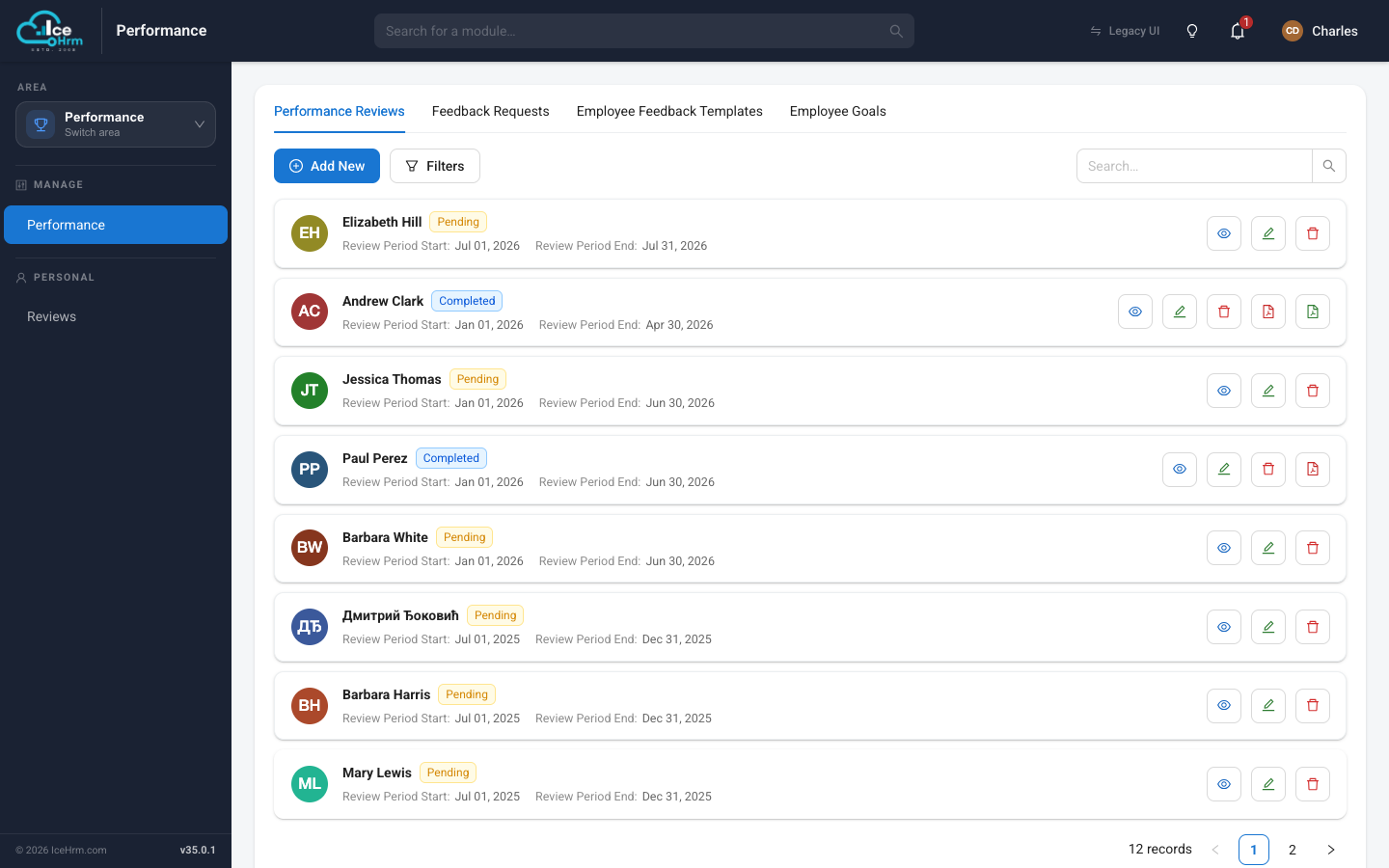
You can see this spread on the Performance Reviews list — every employee's review with its current status and 6-month review period.
Step 1 — Build a feedback template (once)
Everything starts with the questions. A feedback template is a reusable set of questions — IceHrm ships with an "Employee Self Feedback" template and a "Peer feedback" template you can use or adapt.
Step 2 — Assign a review
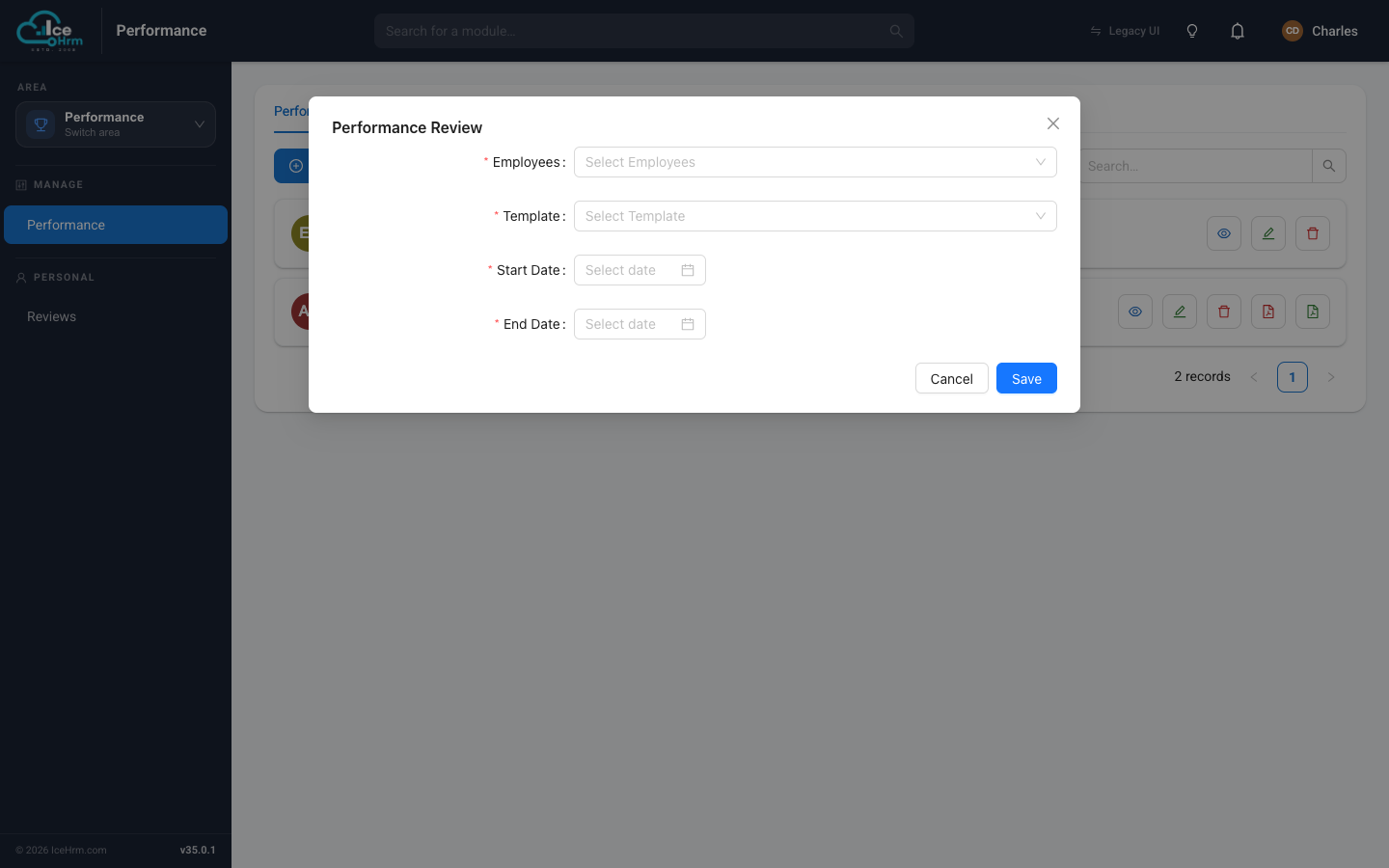
Open Performance Reviews → Add New, pick the employee(s), choose the template, and set the 6-month review period. The review starts life as Pending, and the employee is notified to complete it.
Step 3 — Set goals
Open the review and add 1–3 goals on the Goals tab. Each goal has two progress bars — one the employee updates, one the manager updates — so a review meeting can focus on any gaps between the two views.
Step 4 — The employee completes their self-assessment
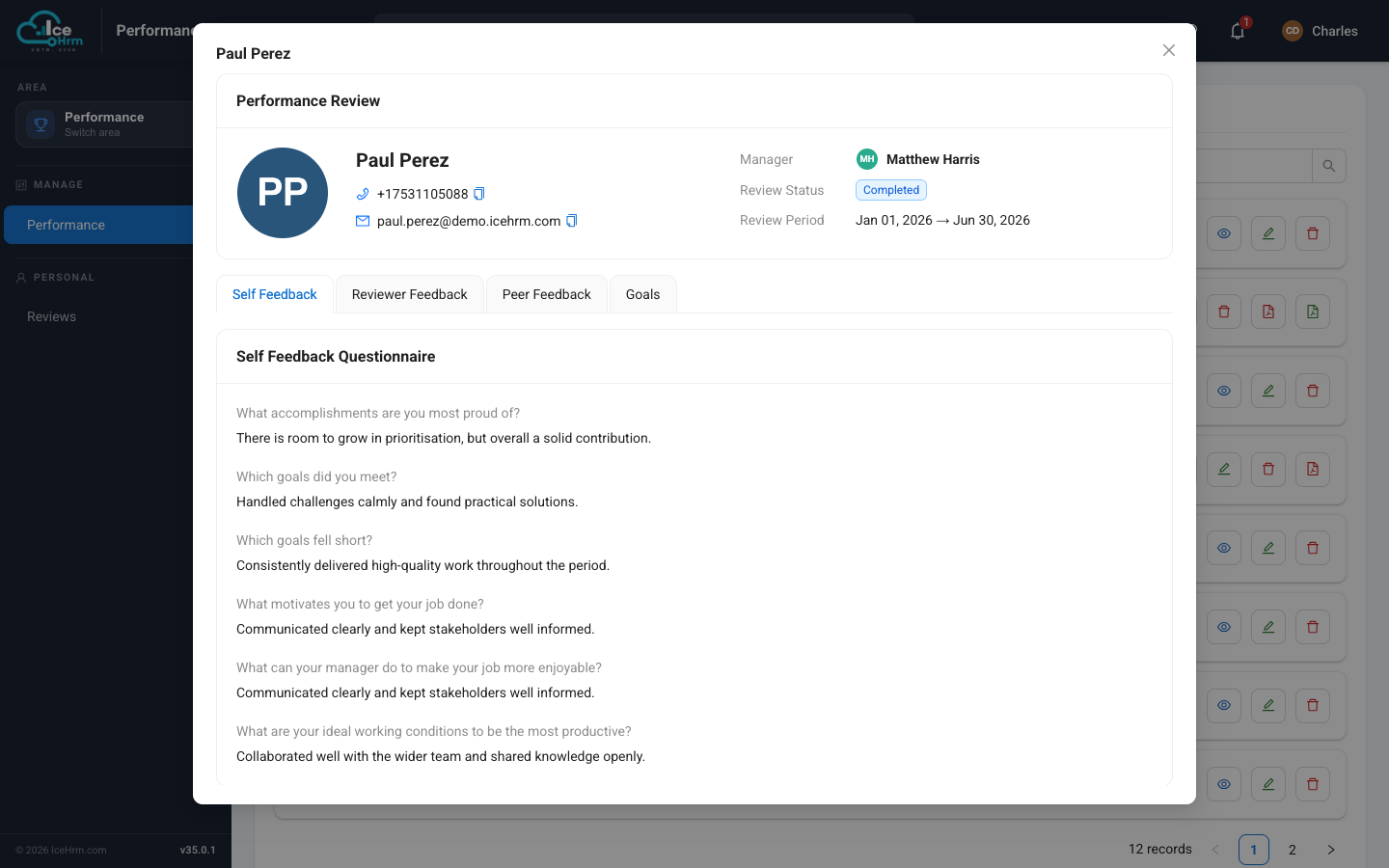
The employee opens their review under Reviews (Personal), answers the questionnaire, and rates their own progress on each goal. Once they submit, the review moves to Submitted and their answers appear on the Self Feedback tab.
→ Completing your review (employee)
Step 5 — Gather peer feedback
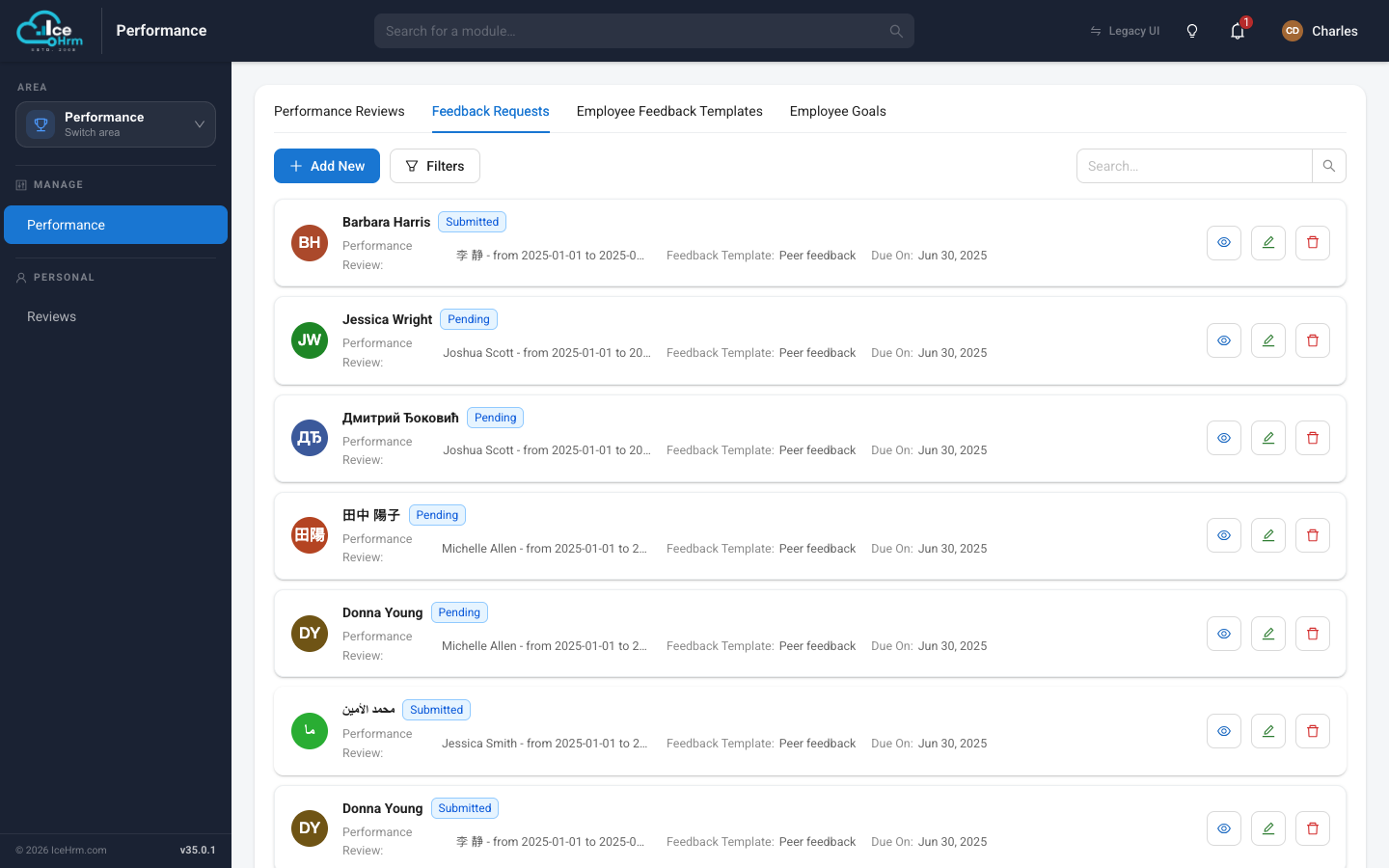
To get a rounded picture, request feedback from colleagues. Each request asks a named person to answer the peer-feedback template about the employee. You can see every request and its status on the Feedback Requests tab.
As peers respond, their feedback appears on the review's Peer Feedback tab, each card showing their comments and a star rating.
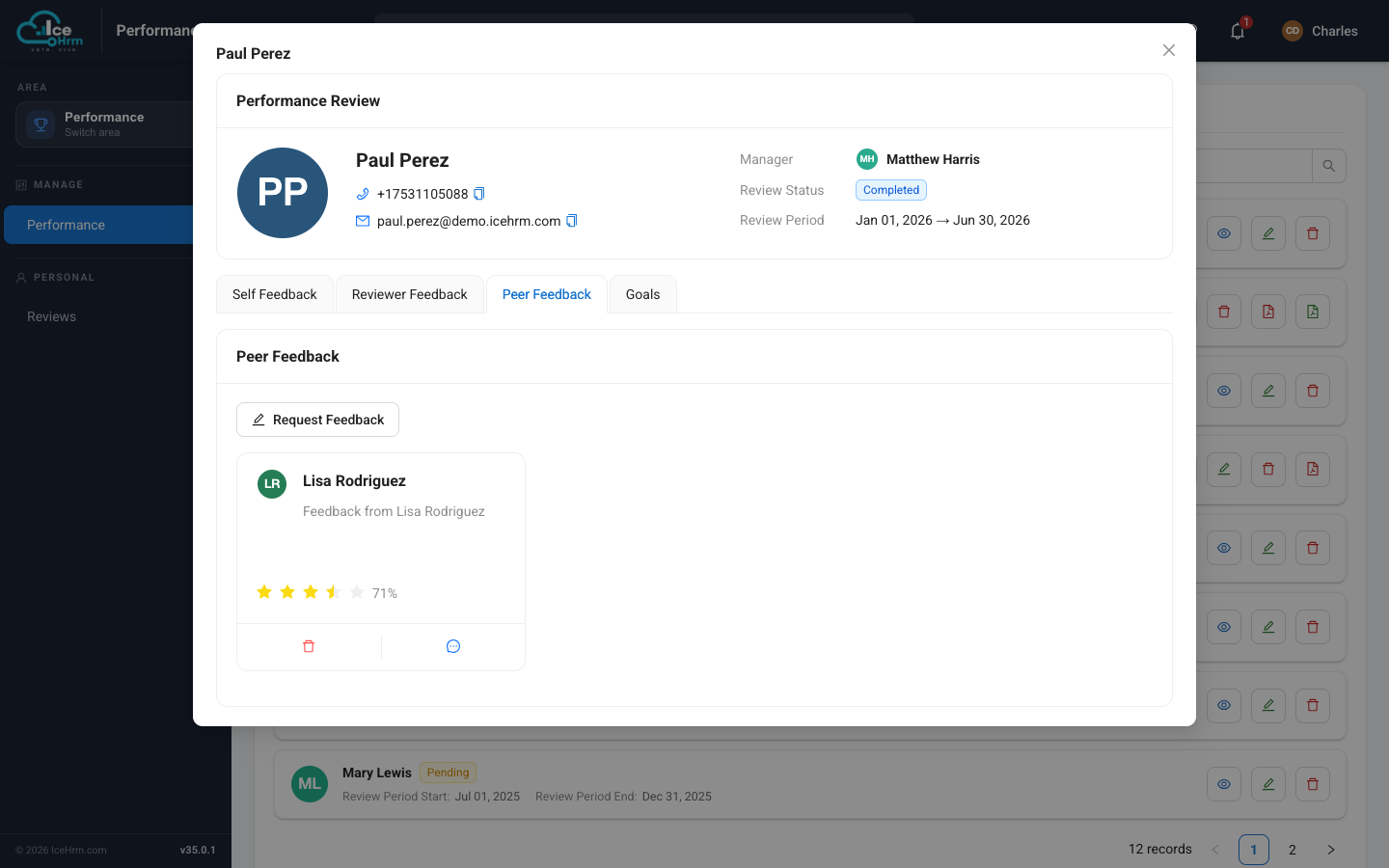
The Peer Feedback tab is only visible to the employee's manager, the review coordinator, and admins. The employee being reviewed never sees peer feedback (it's also left out of the review's PDF). See Who can see what.
→ Requesting peer feedback · Giving feedback (supervisor / peer)
Step 6 — Review the goals together
By now each goal shows both the employee's and the manager's assessment side by side, across the whole review and in the central Employee Goals tab.
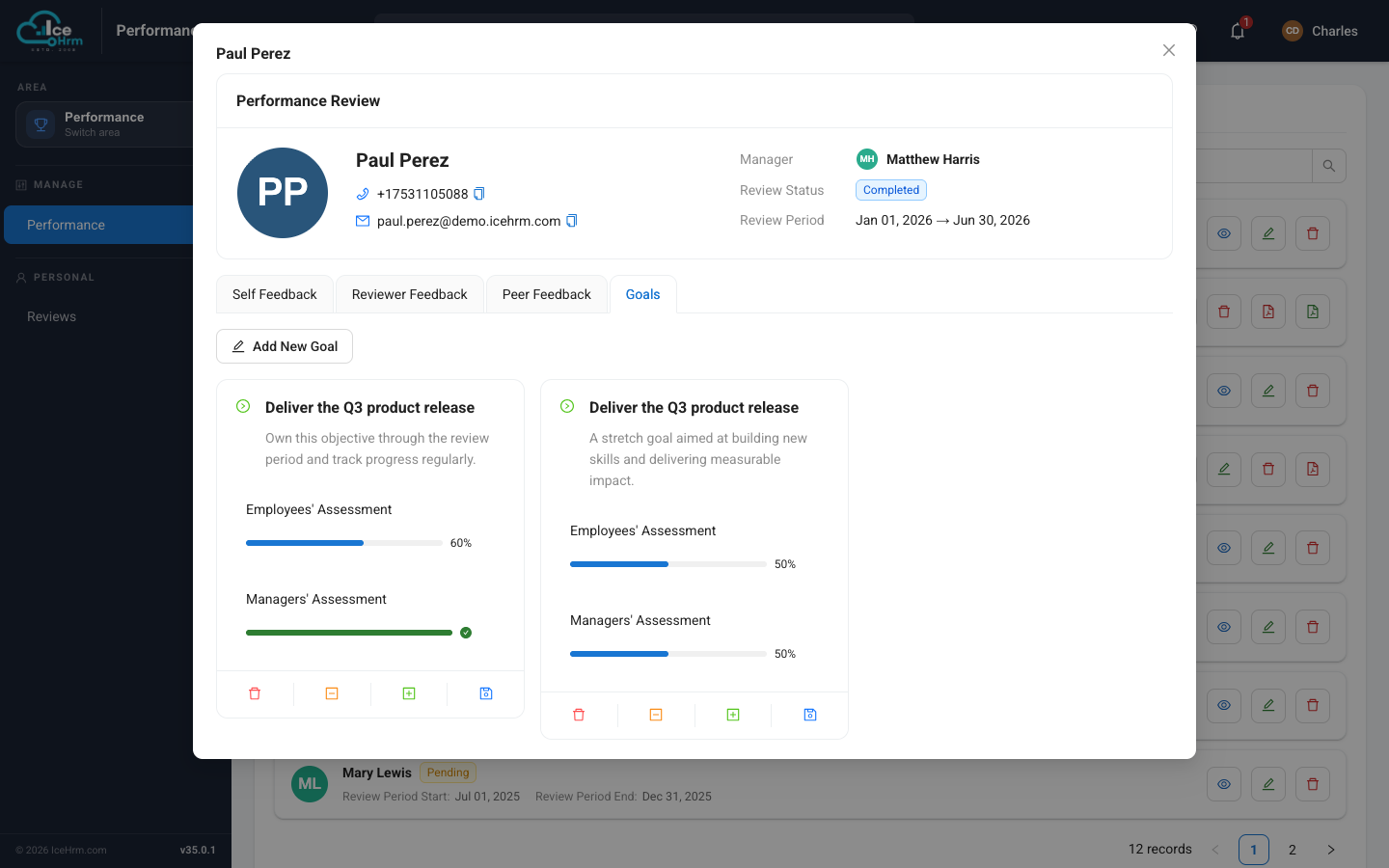
Step 7 — The manager writes their feedback
On the Reviewer Feedback tab the manager writes their overall assessment. The employee cannot see this while the review is in progress — it becomes visible to them only once the review is set to Completed (Step 8).
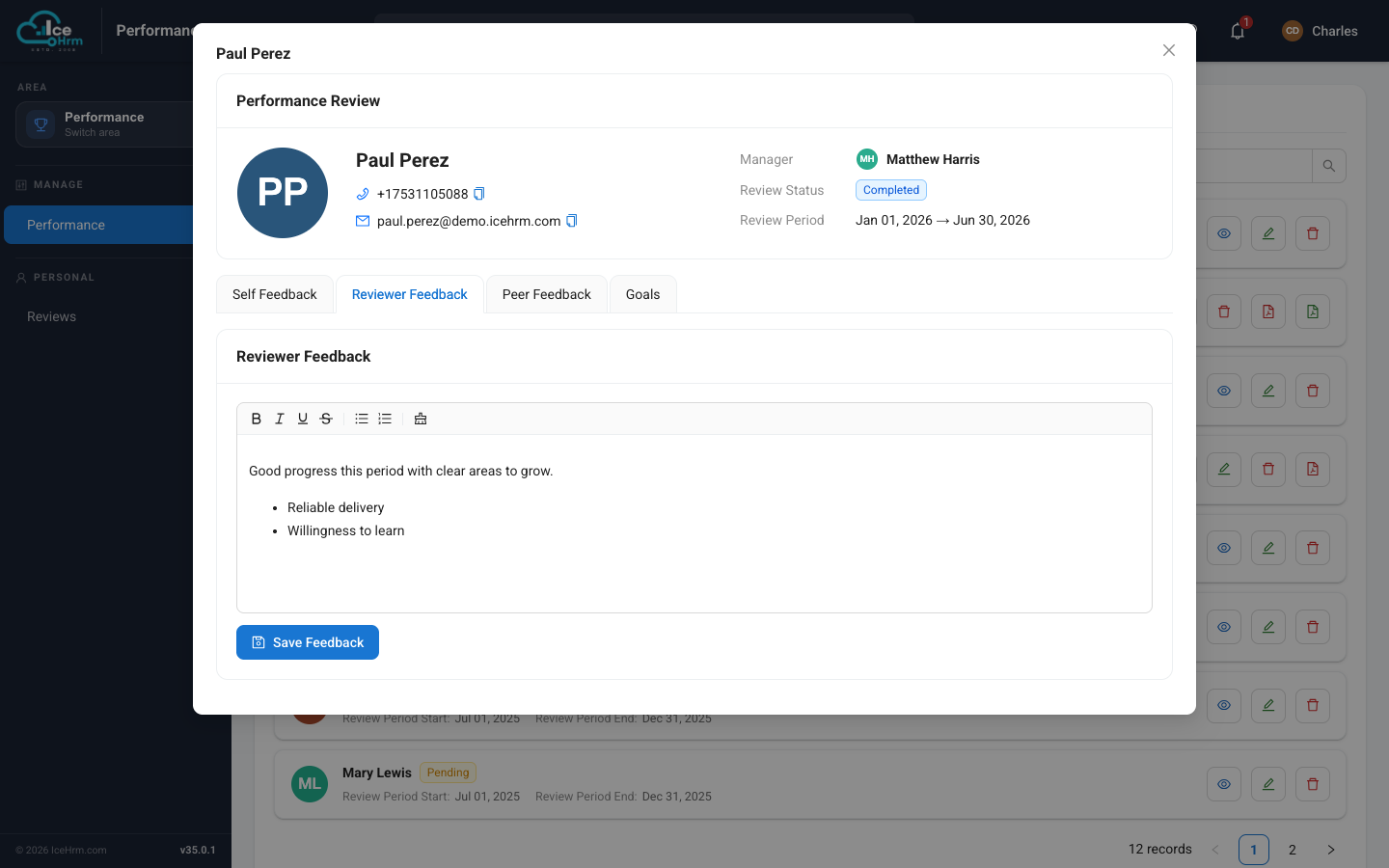
Step 8 — Complete the review
When everything is in, set the review to Completed. Only now can the employee see the manager's reviewer feedback and the final goal ratings (they still won't see peer feedback). A completed review can be exported as a PDF from the list — the PDF includes the self-feedback, goals, and reviewer feedback, but not peer feedback.
→ Viewing reviews (supervisor) · Who can see what
How it all links together
Feedback Template
      │  (questions)
      ▼
Performance Review ──────────► Employee Goals   (employee + manager ratings)
  (6-month period)      └────► Peer Feedback     (from colleagues, with ratings)
      │
      ├─ Self Feedback answers   (employee)
      └─ Reviewer Feedback       (manager)
Every goal and every piece of peer feedback is attached to a specific performance review, so opening one review gives you the whole story for that employee and period.
Generating sample reviews for a demo
If you're setting up a demo or test environment, the Demo Data Manager can create a batch of realistic performance reviews for existing employees — a mix of Pending, Submitted and Completed reviews, each with linked goals and peer feedback — so you can explore this workflow with data already in place.