Setting and Tracking Goals
Goals turn a review into a plan. Each goal has two progress bars — one the employee updates and one the manager updates — so you can compare how each side sees the progress.
Adding goals to a review
- Open the Performance area → Performance → Performance Reviews.
- Click View on the employee's review.
- Open the Goals tab and click Add New Goal.
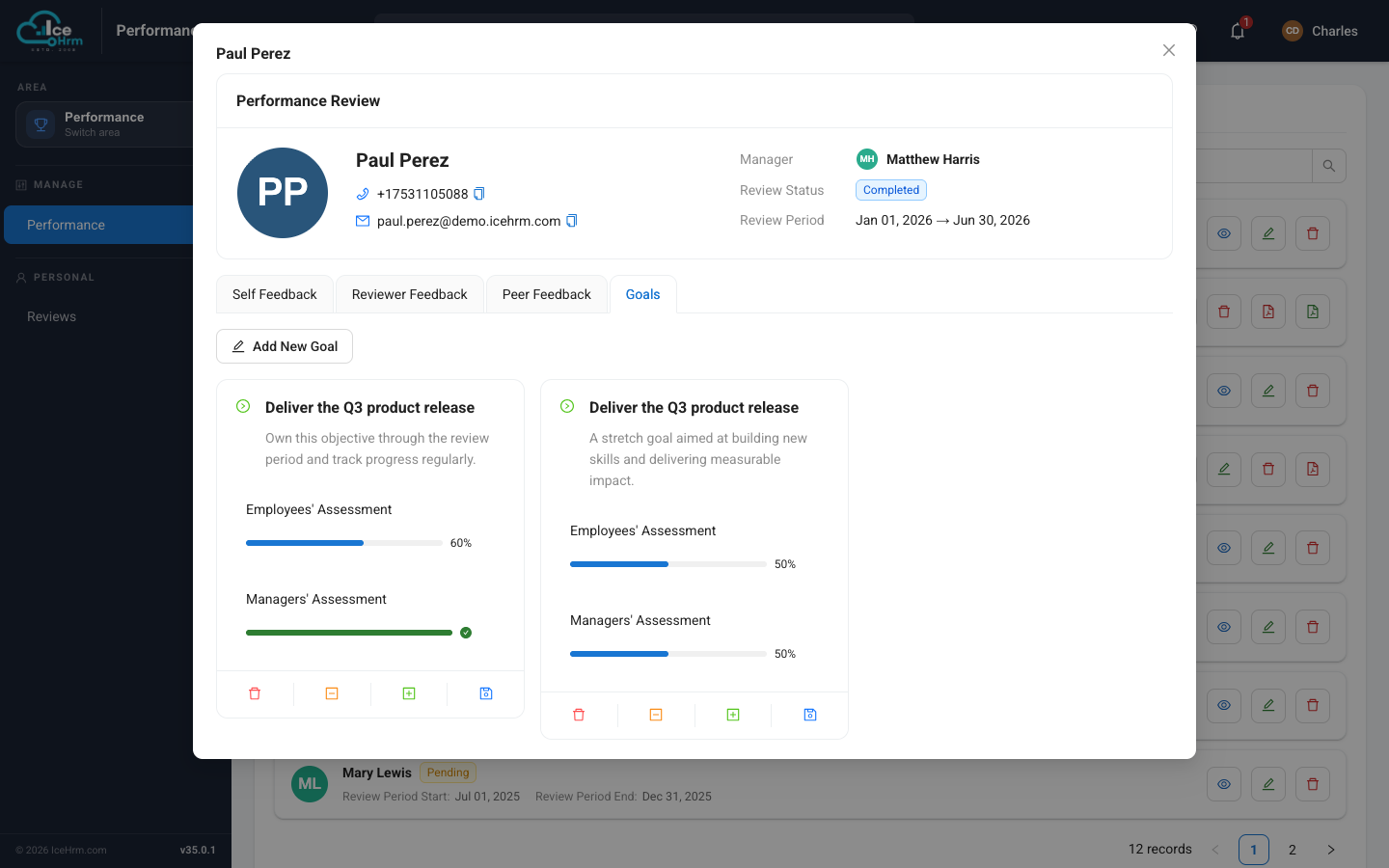
Each goal card shows:
- The goal title and its details.
- Employees' Assessment — the progress the employee reports.
- Managers' Assessment — the progress the manager records.
The small buttons under each card let you adjust the percentage up or down, save, and remove the goal. Because both sides are shown side by side, a review meeting can focus on any gaps between the two.
Seeing all goals in one place
To review goals across everyone rather than one review at a time, open the Employee Goals tab in the Performance module.
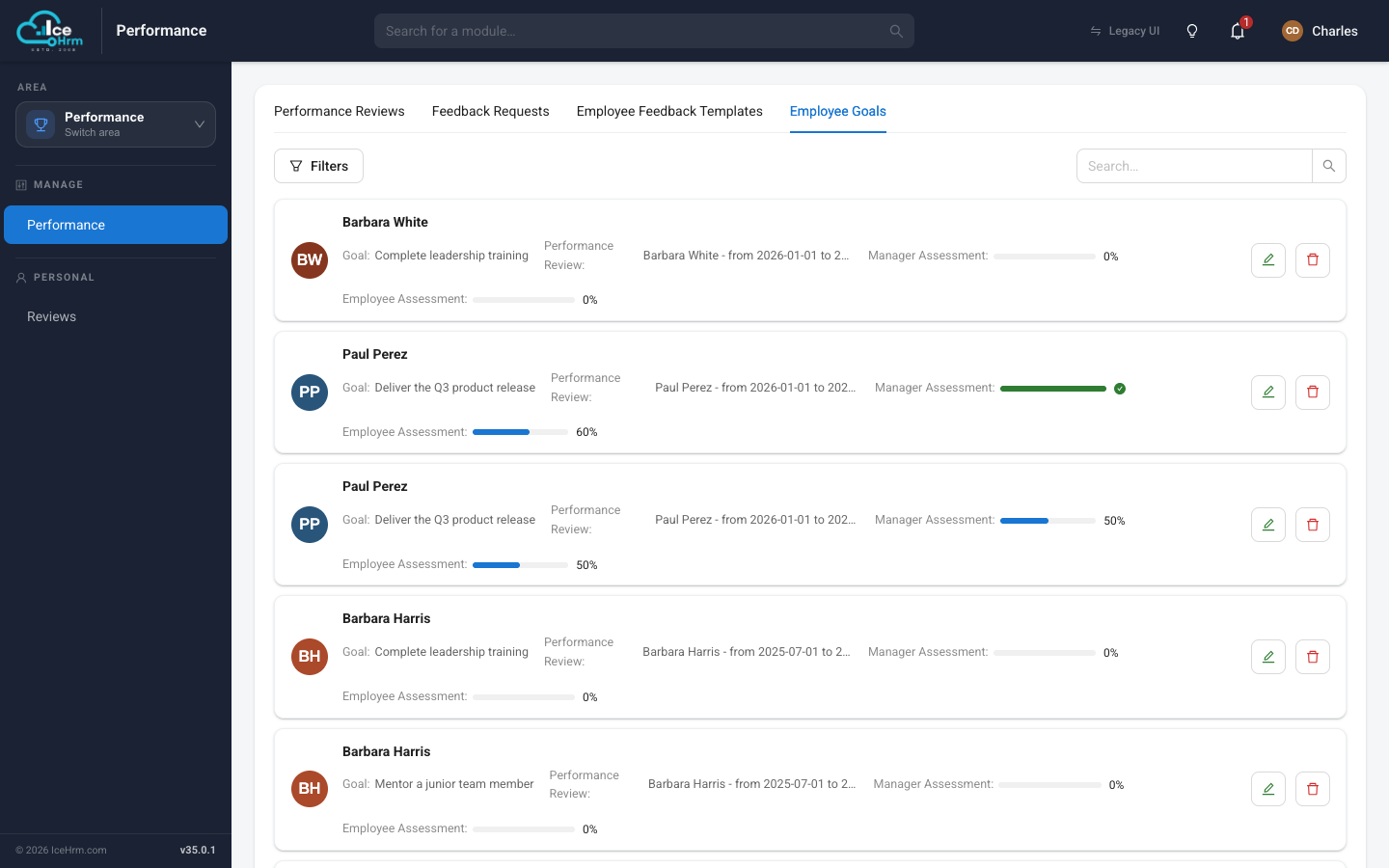
Each row shows the employee, the goal, which review it belongs to, and both the Manager and Employee assessment bars — a quick way to spot who is on track and who needs a conversation.
Tips for good goals
- Make them specific — "Ship the new onboarding flow" beats "do better".
- Keep the two ratings honest — the value is in comparing the employee's and manager's views, not in agreeing for the sake of it.
- Update as you go — nudge the percentages during the period, not just at the end.