Creating Feedback Templates
A feedback template is the set of questions a review is built from. You create a template once — for example "Employee Self Feedback" or "Peer feedback" — and reuse it every time you assign a review. This is the first thing to set up.
You need to be an Admin, Manager, or Supervisor to manage templates.
Where templates live
Open the Performance area and click Performance under Manage, then open the Employee Feedback Templates tab. IceHrm ships with two ready-made templates you can use or adapt.
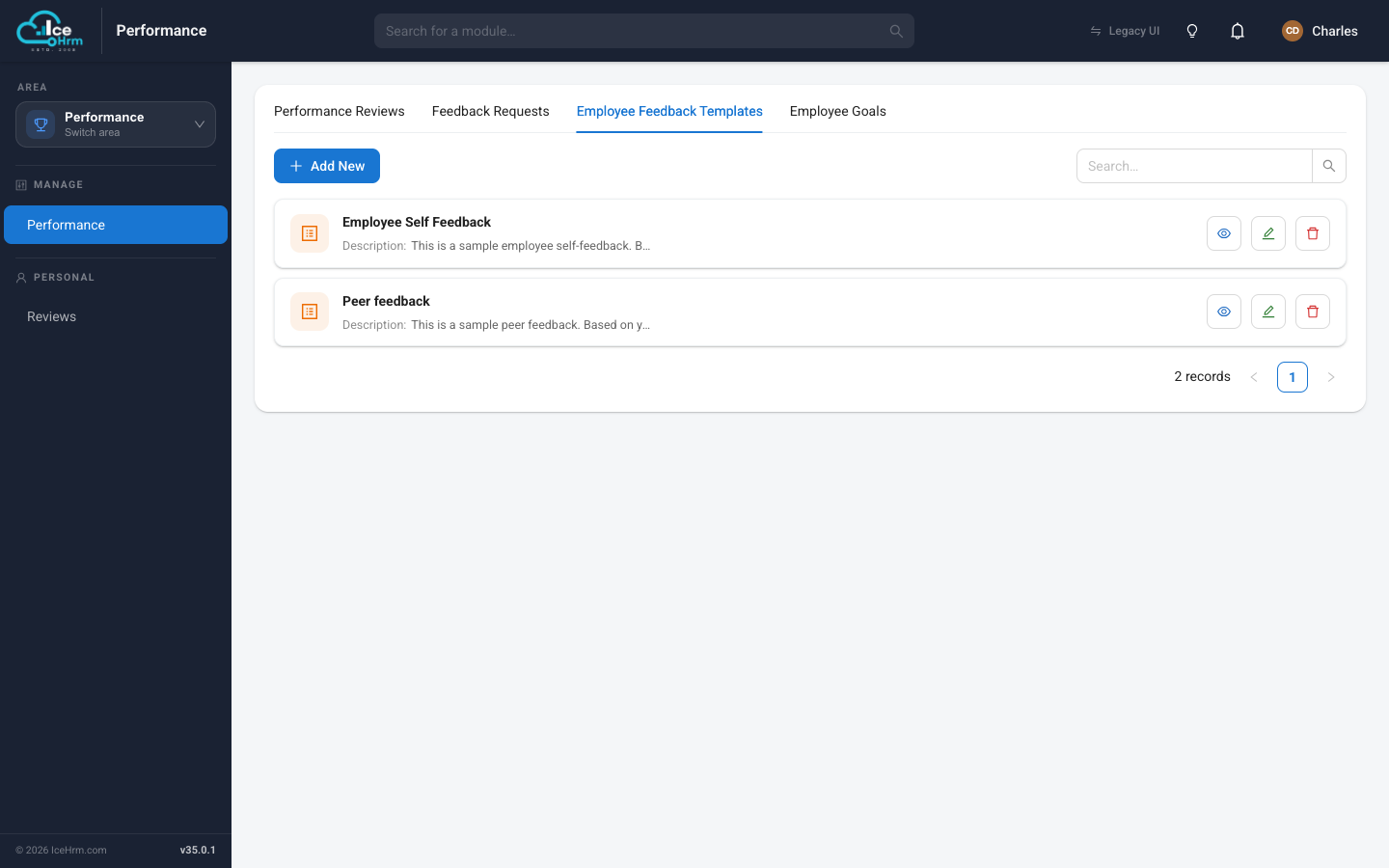
Each template row has View, Edit, and Delete buttons.
Creating or editing a template
Click + Add New to build a new template, or the Edit (pencil) button to change an existing one. Either way you get the template editor.
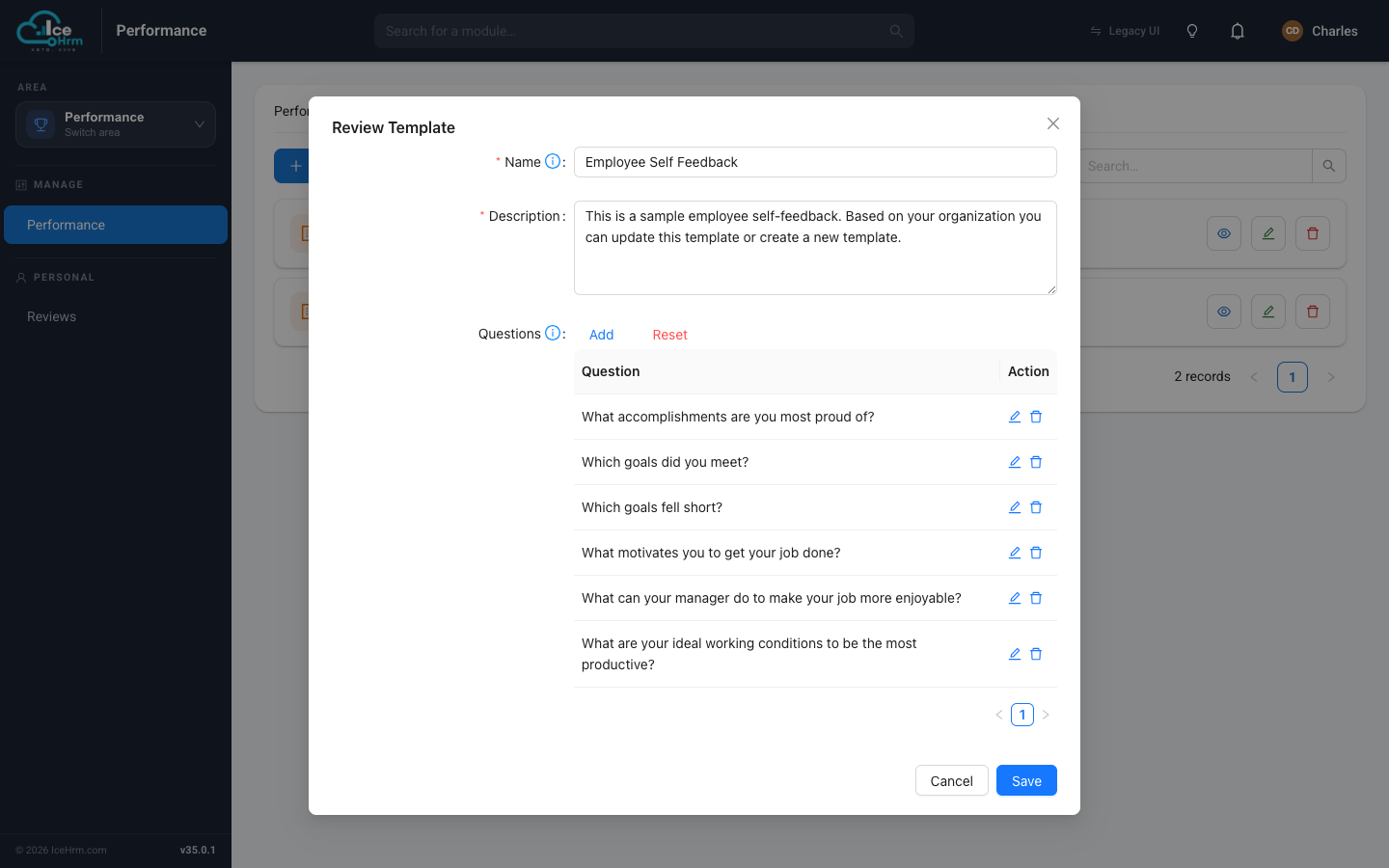
- Name — a clear title, e.g. "Manager Review 2026".
- Description — a sentence explaining what the template is for.
- Questions — the list of questions employees will answer. Use Add to add a question, the pencil to edit one, and the trash icon to remove one.
Click Save when you're done.
Question types
When you add a question you choose its field type, which controls how people answer it:
| Field type | Best for |
|---|---|
| Text Field | Short, one-line answers |
| Text Area | Longer, detailed answers |
| Select Options | Multiple choice — you define the choices |
| File Upload | Attaching a document |
| Date / Time | A date or time answer |
For Select Options, type the answer choices into the Options box — employees pick from those when they fill in the form.
A built-in safety net
If you edit a template that has already been used, IceHrm warns you first:
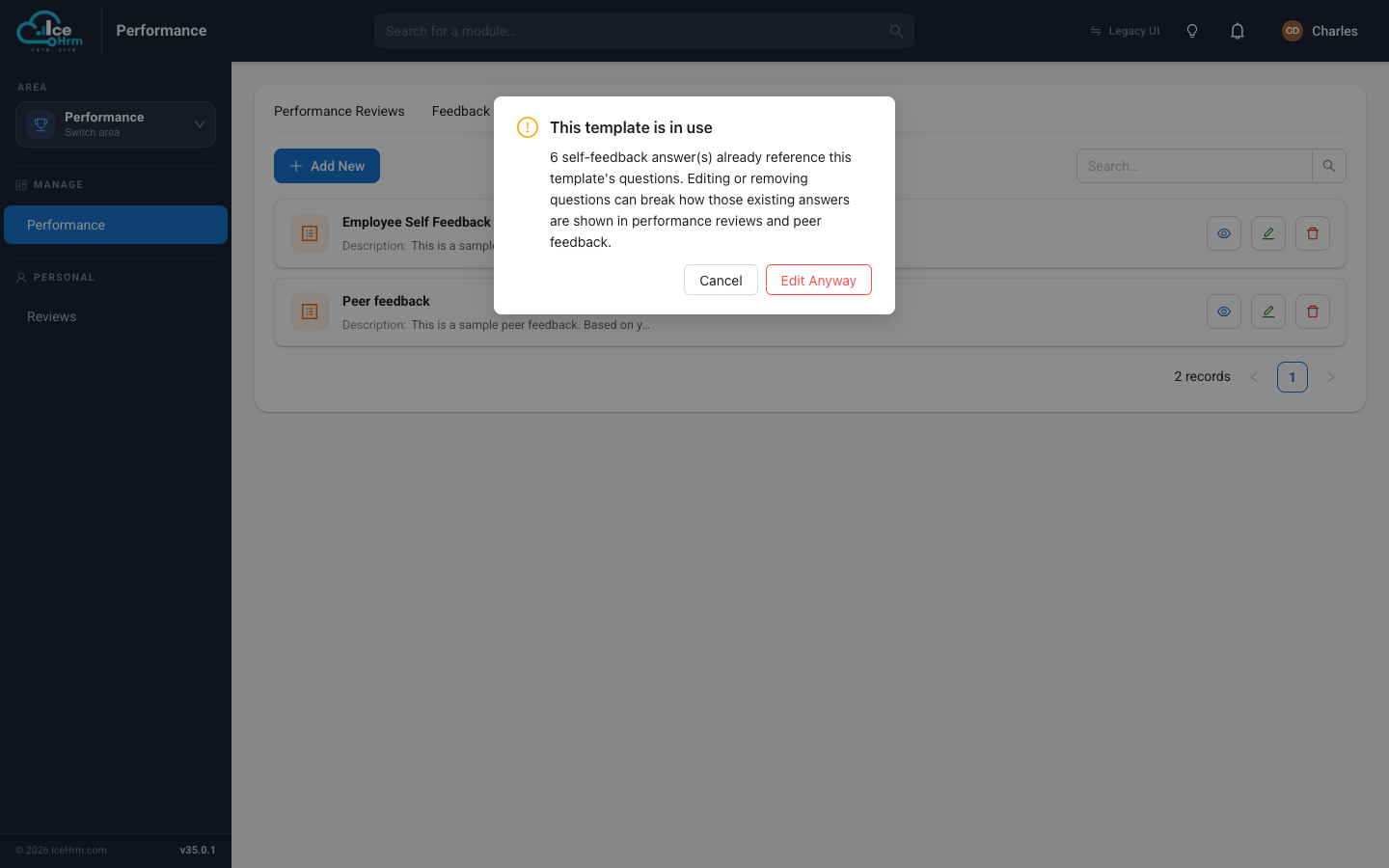
This is because changing or removing questions can affect how answers already given against that template are displayed. If you need a different set of questions for a new cycle, it's usually safer to create a new template than to rework one that existing reviews depend on.
Tips
- Keep questions clear — one idea per question.
- Mix question types — a rating (Select Options) plus a comment (Text Area) gives you both a score and the reasoning.
- Prefer a new template over heavily editing one that's already in use.
Next step
- Assign the template to employees as a performance review.