New Hire Onboarding
New Hire Onboarding gets a new hire ready for day one. You invite them before their start date, they complete a checklist, and you can see who is stuck on what.
This page explains how to invite a new hire, follow their progress, and complete, cancel or delete an onboarding.
Before you start
- Choose the workflow you want to use. IceHrm comes with five ready-made workflows, and you can make your own. See Onboarding workflows.
- Set up your job titles and departments, so you can pick them in the invitation.
Opening New Hire Onboarding
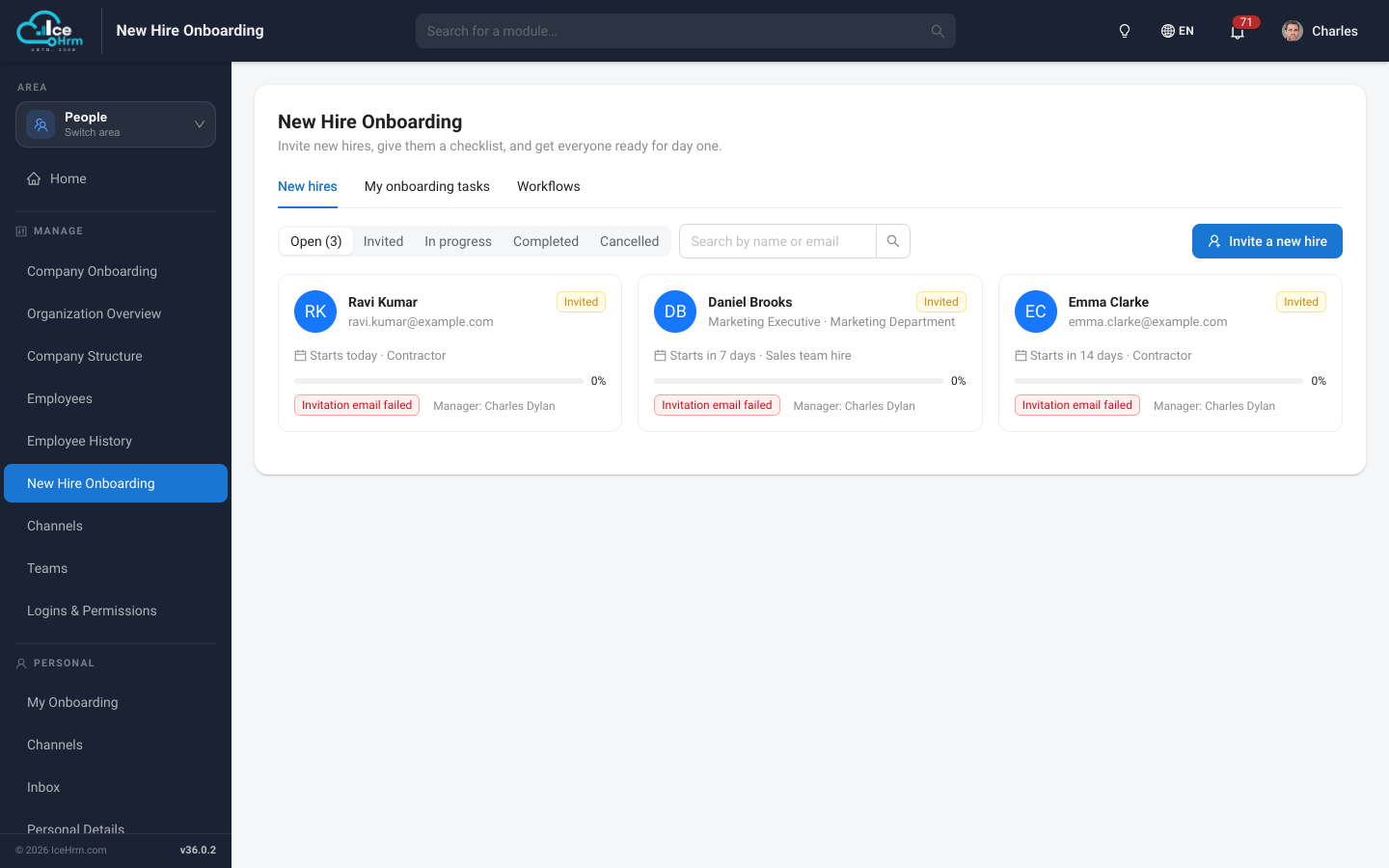
Go to People > Manage > New Hire Onboarding. You see three tabs:
- New hires - everyone you are onboarding.
- My onboarding tasks - steps that are waiting for you. See Reviewing an onboarding.
- Workflows - the checklists you can send. See Onboarding workflows.
Inviting a new hire
- Go to People > Manage > New Hire Onboarding.
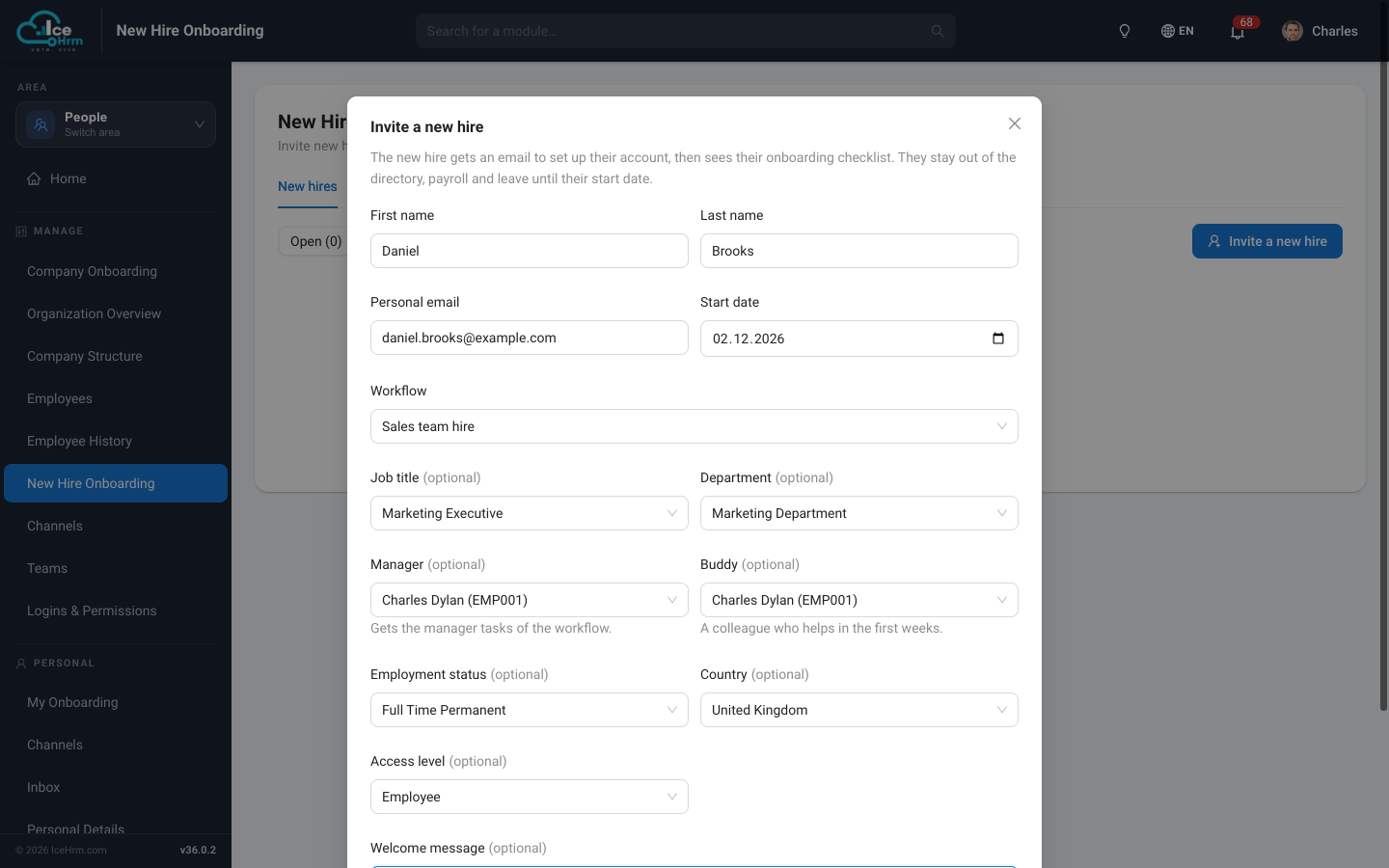
- Click Invite a new hire.
- Fill in the details:
- First name and Last name.
- Personal email - the new hire does not have a work email yet, so use their personal one. The invitation goes to this address.
- Start date - their first day.
- Workflow - the checklist they will get.
- Job title and Department (optional).
- Manager (optional) - the manager gets the manager tasks of the workflow.
- Buddy (optional) - a colleague who helps in the first weeks. The buddy gets the buddy tasks of the workflow.
- Employment status and Country (optional).
- Access level - Employee for most people.
- Welcome message (optional) - shown on the invitation page and at the top of the checklist. Leave it empty to use the message from the workflow.
- Click Send invitation.
On the Workflows tab, every workflow has an Invite button. It opens the same dialog with that workflow already chosen.
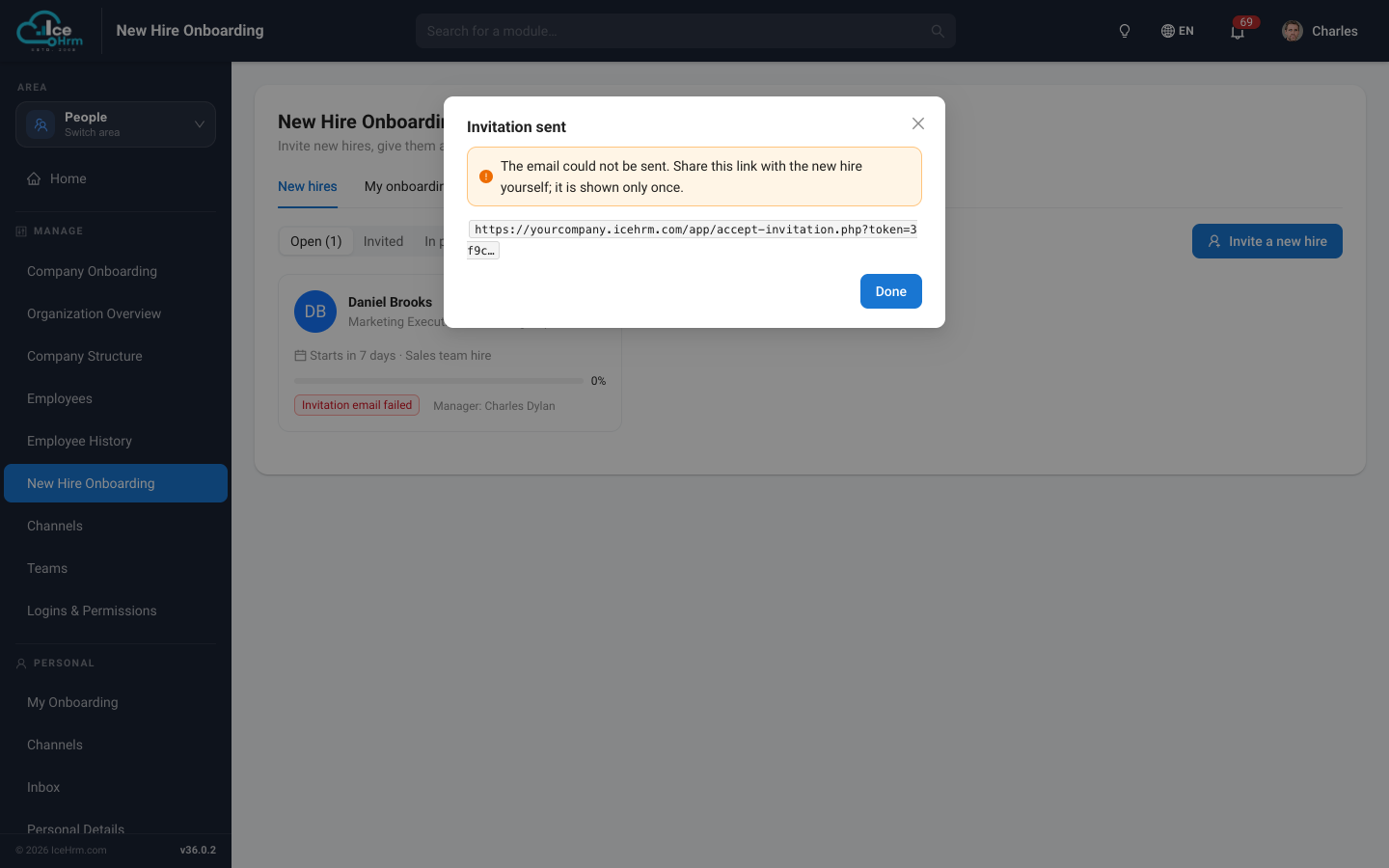
IceHrm emails the new hire a link to set up their account. The dialog also shows the link, so you can share it yourself, for example in a message. The link is shown only once.
If the email could not be sent, the dialog tells you so. Copy the link and send it to the new hire yourself.
A few things to know:
- The email address must not already belong to someone with a login in IceHrm.
- Nothing is added to your employee list yet. The employee record is created when the new hire accepts the invitation.
- The new hire stays out of the employee list, the directory, payroll and leave until their onboarding is complete.
Following your new hires
The New hires tab shows one card per new hire. Each card shows:
- The new hire's name, and their job title and department (or email).
- When they start, for example "Starts in 7 days", and the workflow.
- A progress bar with the share of steps that are done.
- A status: Invited, In progress, Completed or Cancelled.
- Extra tags when something needs your attention, such as 1 waiting for review or Invitation email failed.
To find someone:
- Use the filter above the cards: Open (everyone not completed or cancelled), Invited, In progress, Completed or Cancelled.
- Type a name or email in the Search by name or email box and press Enter.
Click a card to open the new hire's details. You can see all their steps, grouped by when they are due, and an Activity list of everything that happened. See Reviewing an onboarding.
Sending the invitation again
If the new hire lost the email, or the link stopped working:
- Open the new hire from the New hires tab.
- Click Resend invitation at the bottom.
IceHrm creates a new link and the old one stops working. If the email could not be sent, the new link is shown at the top of the details so you can share it yourself.
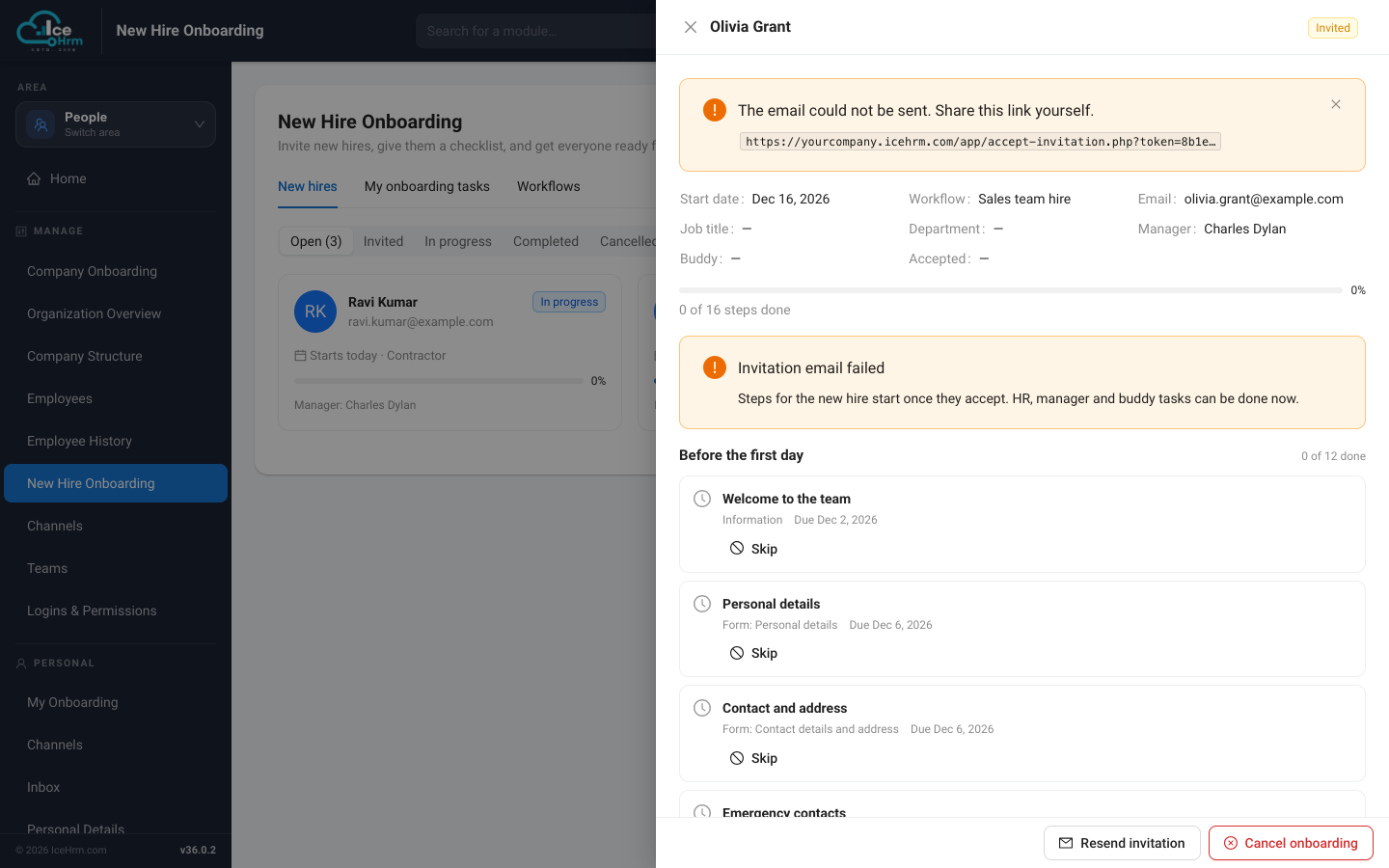
Resend invitation is only there while the new hire has not accepted yet.
Completing an onboarding
When the new hire is ready to start:
- Open the new hire from the New hires tab.
- Click Complete onboarding.
- Click Complete to confirm.
The employee becomes an active employee straight away, even before the start date. They get the full menu, and they show up in the employee list.
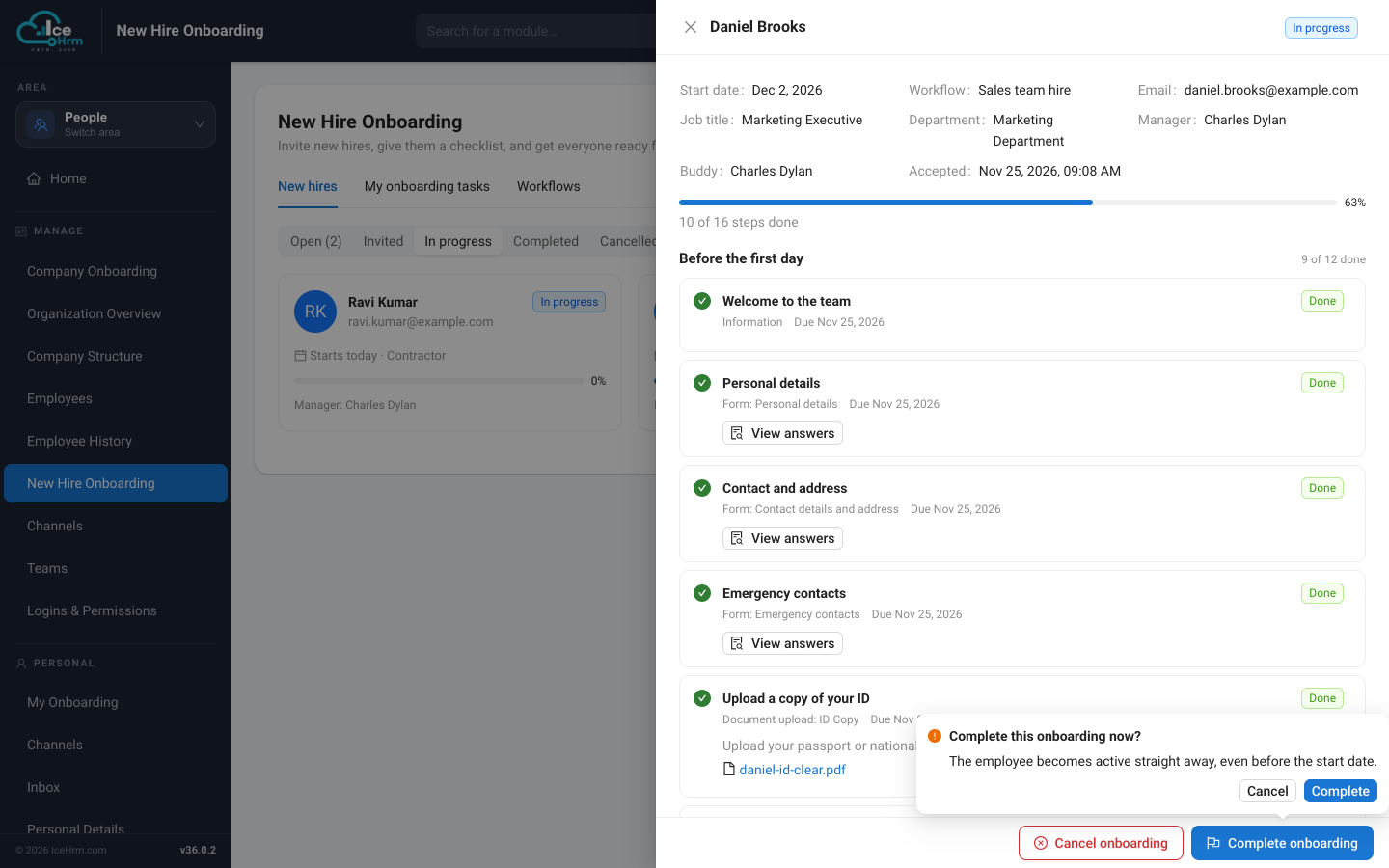
After you complete an onboarding:
- You can still open it and look at the answers with View answers.
- Documents you approved during onboarding show up in the employee's My Documents.
Cancelling an onboarding
If a new hire is not joining after all, cancel their onboarding.
- Open the new hire from the New hires tab.
- Click Cancel onboarding.
- Click Cancel onboarding again to confirm, or Keep to go back.
What happens depends on whether the new hire has accepted the invitation:
- Not accepted yet - the invitation link stops working. Anyone who opens it sees that the invitation was withdrawn.
- Already accepted - their login is removed and their employee record is marked as left. You find them at People > Employees > Resigned, with an Onboarding cancelled tag. Anything they uploaded is kept.
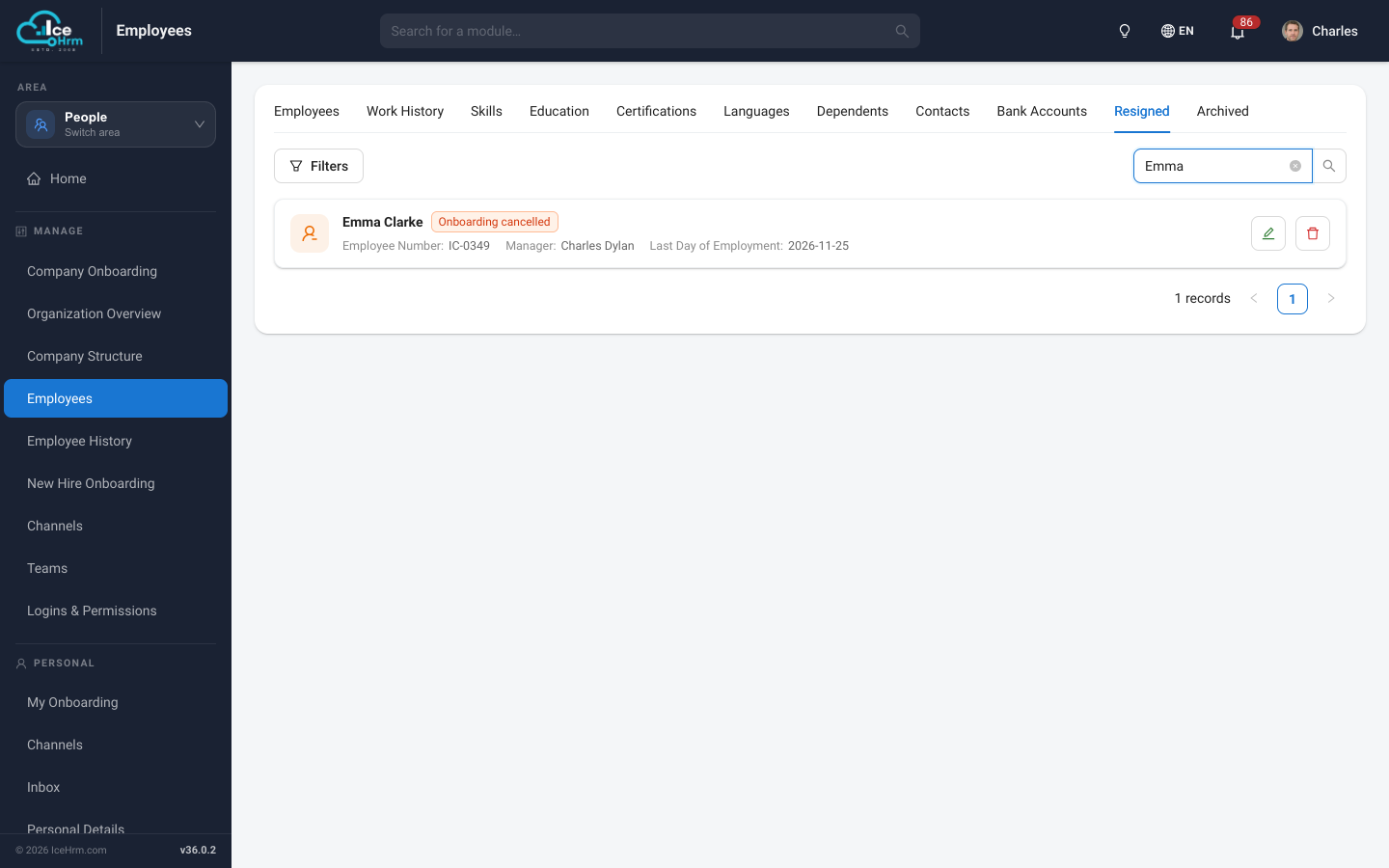
Cancelled onboardings move to the Cancelled filter on the New hires tab.
Deleting a cancelled onboarding
You can delete an onboarding after you cancel it. Use this when you do not want to keep anything about the person, for example someone who accepted the invitation and then turned the job down.
- Go to New hires and click the Cancelled filter.
- Open the new hire.
- Click Delete onboarding.
- Click Delete to confirm.
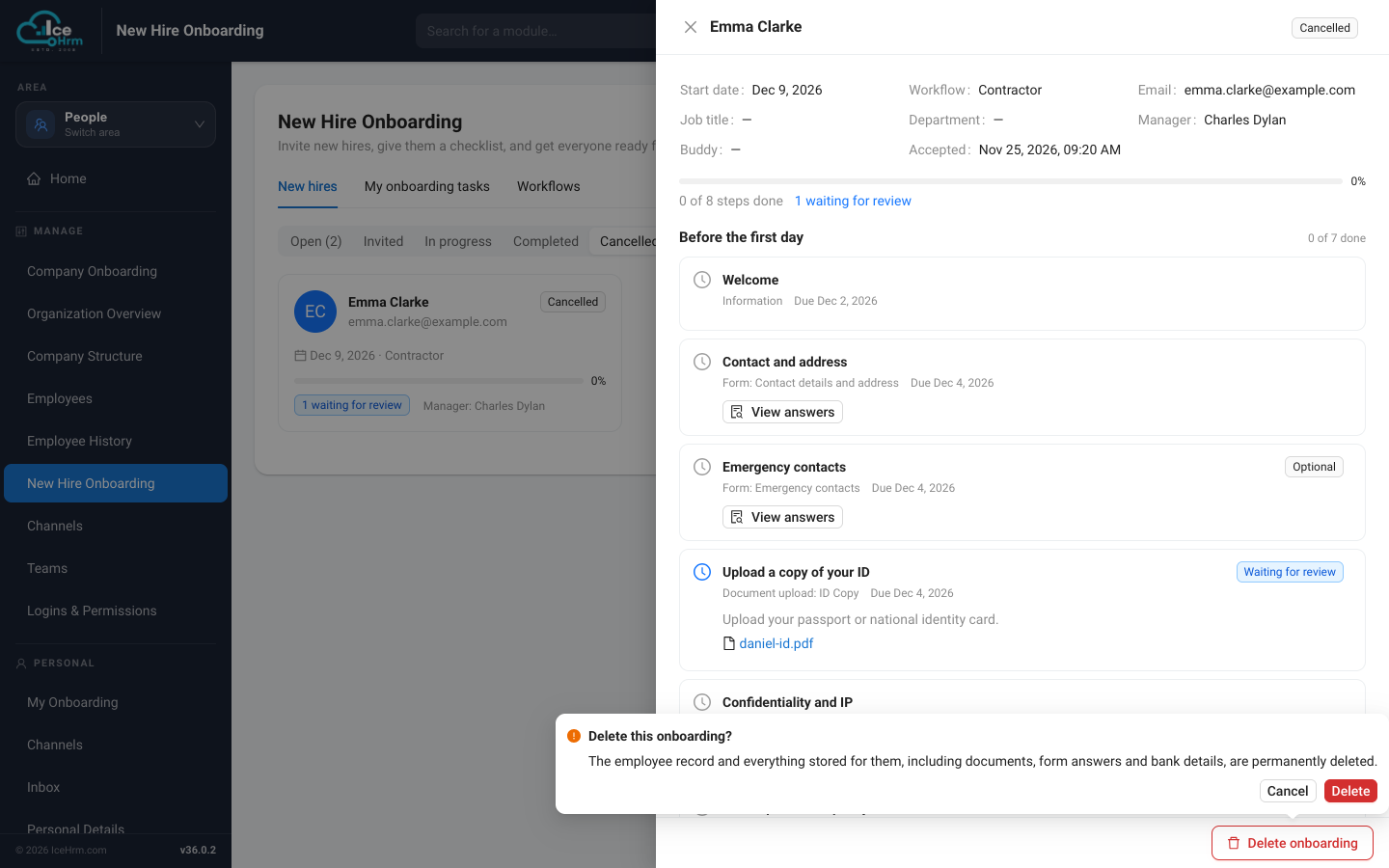
Deleting removes the onboarding and the employee record, with everything stored for them: their documents, form answers and bank details.
The Onboarding section on a profile
Every employee profile has an Onboarding section. Go to People > Employees, open the employee and click Onboarding.
It shows the workflow, the status, the start date and the steps. Click Open onboarding to open the full details.
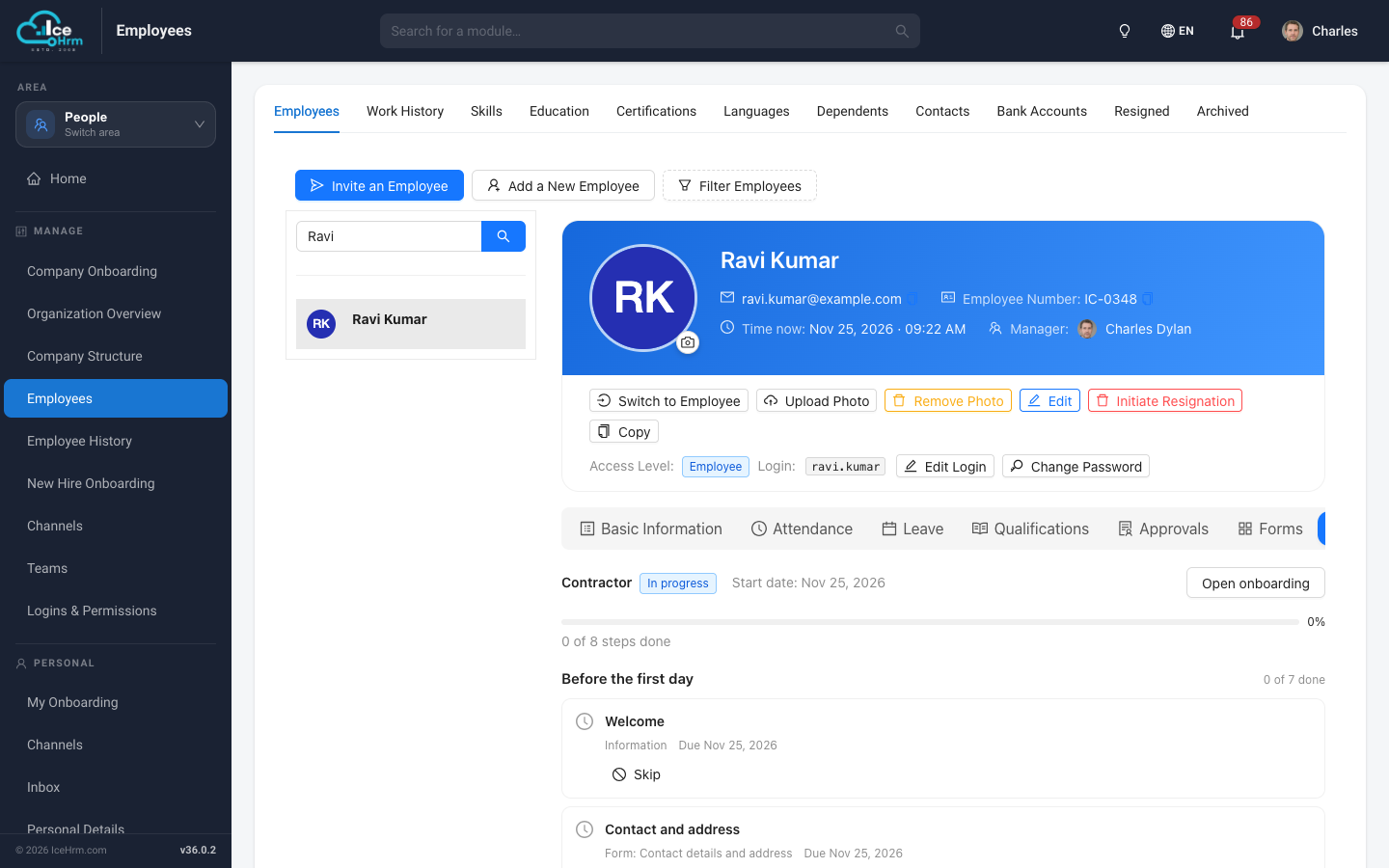
If the employee was not onboarded with a workflow, the section says so.
Who can use New Hire Onboarding
- Admins see and manage every new hire.
- Managers also have the New Hire Onboarding menu item.
- The new hire only sees their own checklist, under People > My Onboarding.