Reviewing an Onboarding
While a new hire works through their checklist, HR checks what they send and does the HR tasks. This page explains the new hire's details panel, how to review forms and documents, how to fill in a form for the new hire, and how to do tasks, hand over equipment and set the manager.
Opening a new hire
- Go to People > Manage > New Hire Onboarding.
- On the New hires tab, click the new hire's card.
A panel opens on the right.
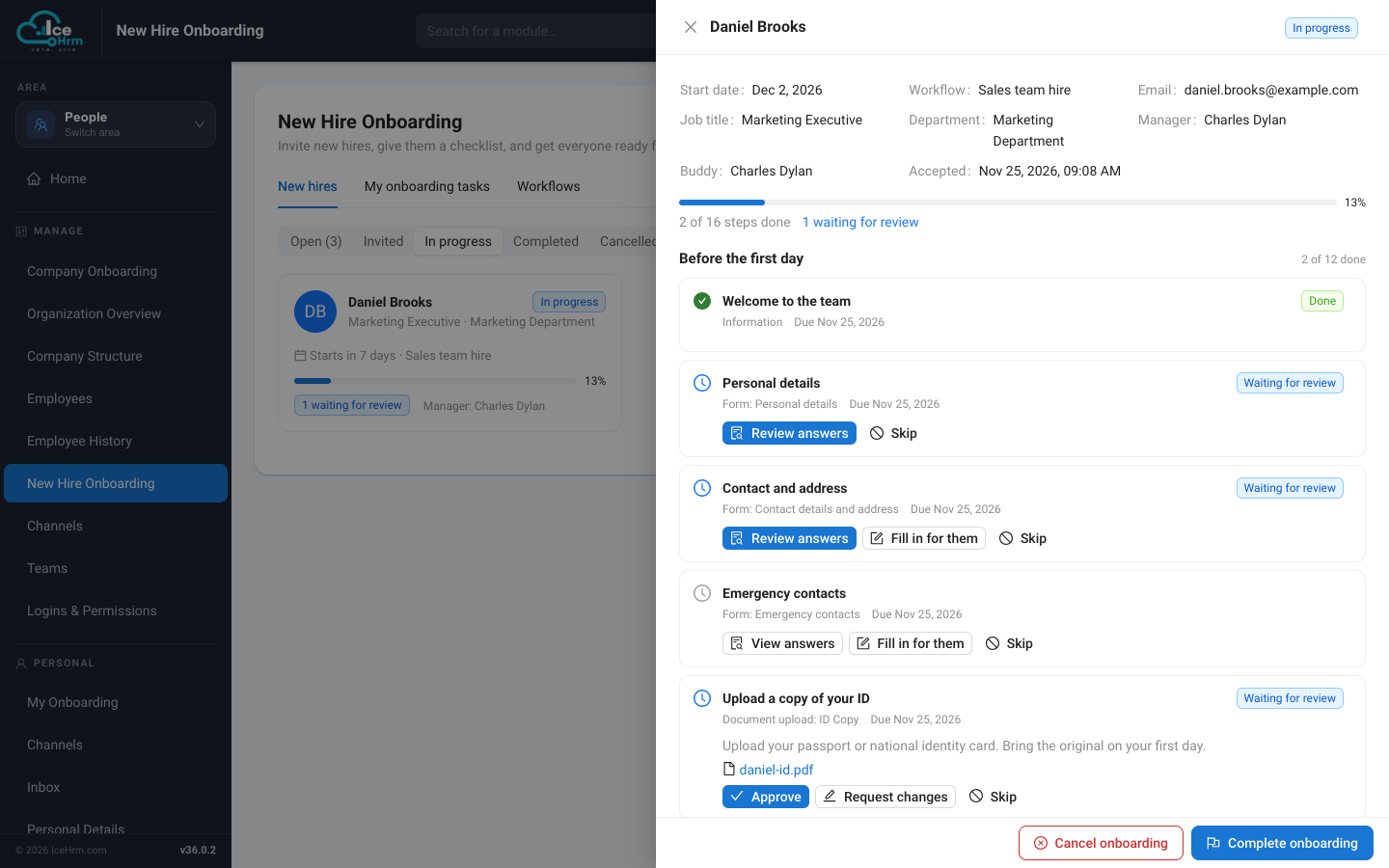
At the top you see the start date, workflow, email, job title, department, manager, buddy and when they accepted the invitation. Below that are the progress bar and the number of documents waiting for review.
The steps are grouped by when they are due: Before the first day, First day, First week and First 90 days. Each step shows its type, who does it, the due date and its status. At the bottom, Activity lists everything that happened, such as "Accepted the invitation" or "Submitted for review".
Until the new hire accepts the invitation, the panel says that their steps start once they accept. HR, manager and buddy tasks can already be done.
Reviewing form answers
When the new hire submits a form, the step shows Waiting for review.
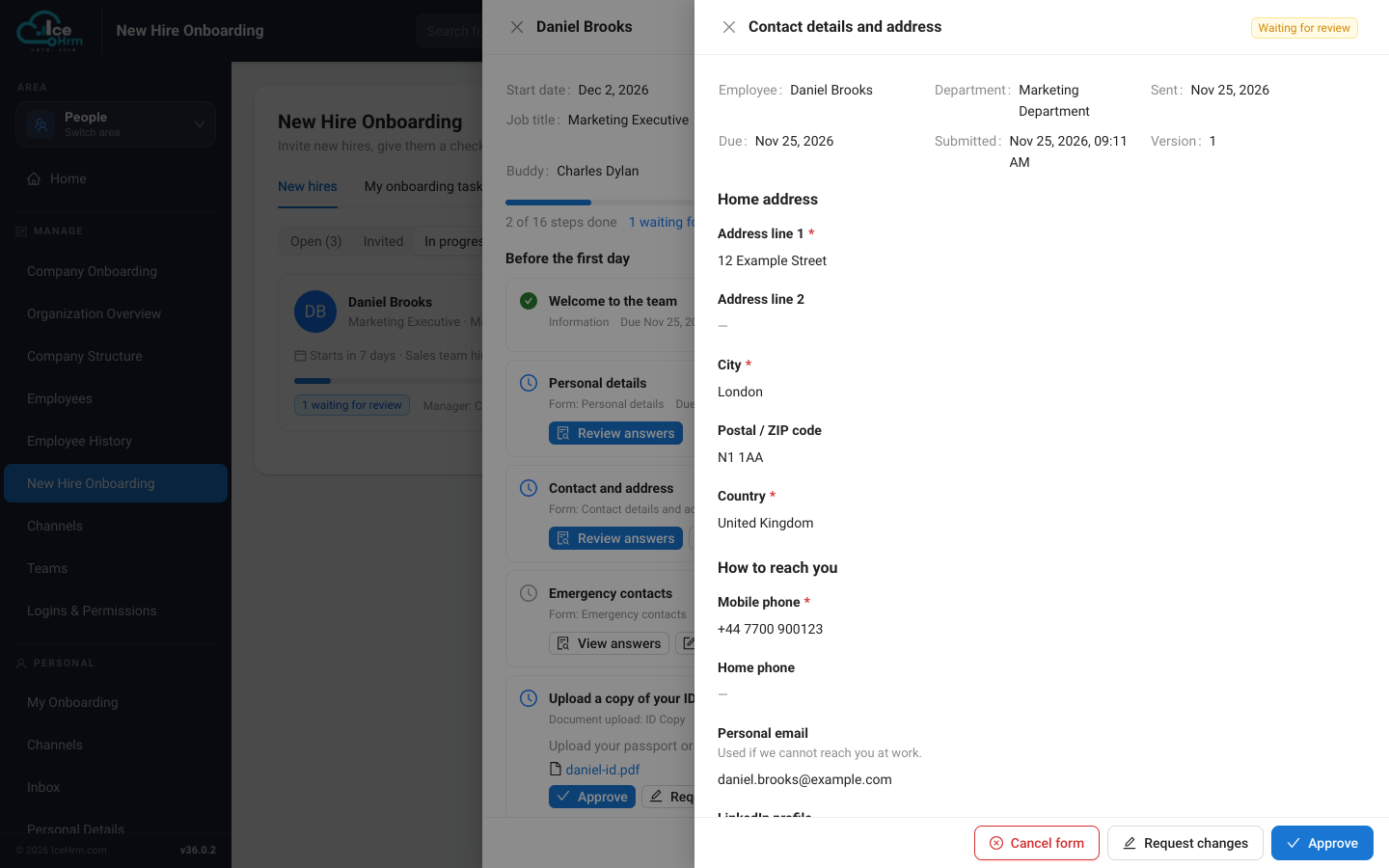
- Click Review answers on the step. The answers open in a second panel.
- Check the answers.
- Click Approve. The answers are saved to the employee's profile.
The panel also has Request changes and Cancel form buttons. They work the same way as for any form in the Forms module.
After you approve, the panel shows Saved to the profile and lists the profile fields that were updated, such as the address and mobile phone. The step is marked Done.
To look at answers without reviewing them, click View answers.
Filling in a form for the new hire
Sometimes it is quicker for HR to fill in a form, for example when the new hire phones in their emergency contact.
- Click Fill in for them on the form step.
- Fill in the form. The panel reminds you who you are filling it in for.
- Click Save and approve, then Save and approve again to confirm.
The answers are saved to the employee's profile and the step is marked Done.
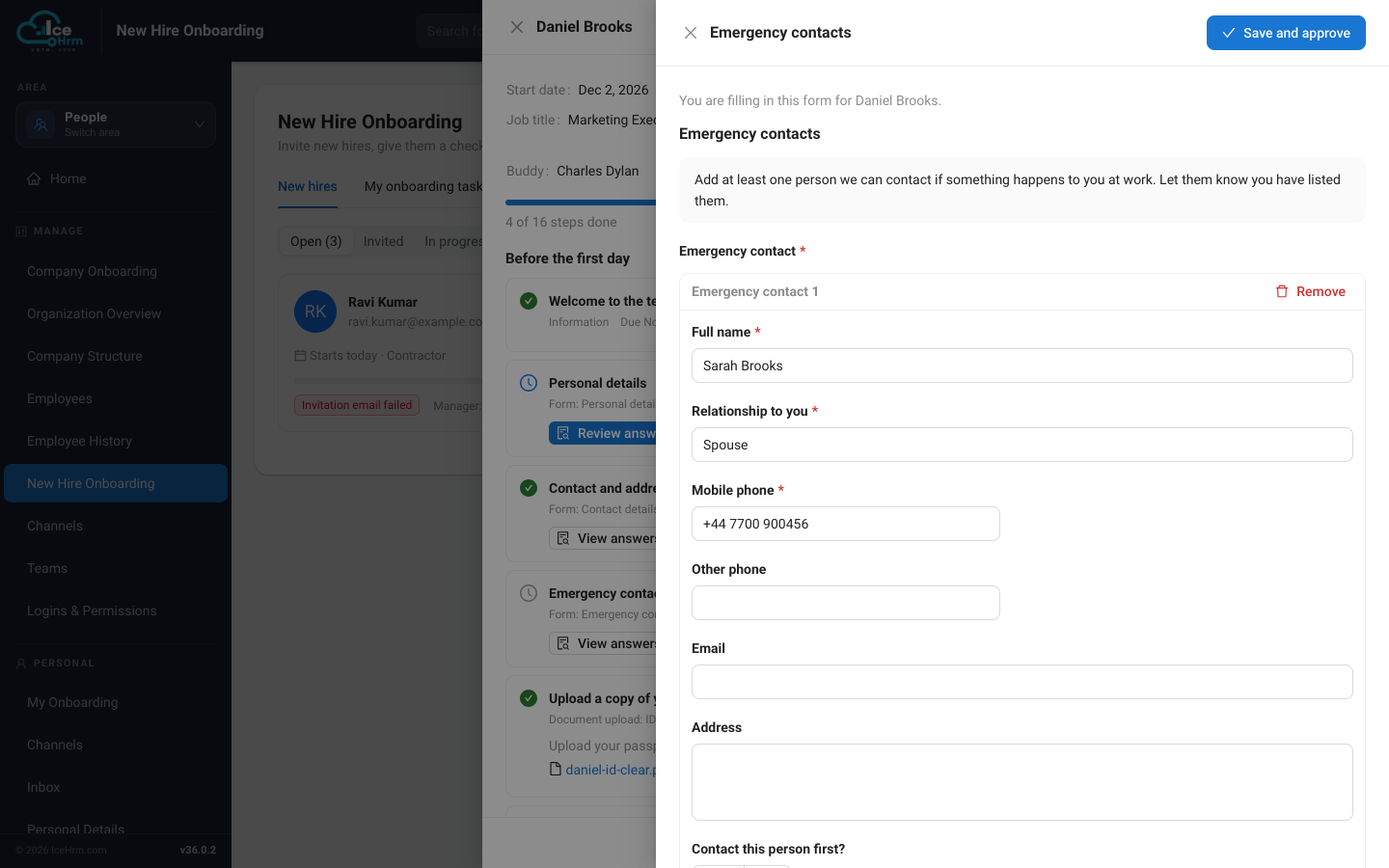
Fill in for them is only offered for forms without a signature and without fields that are stored securely. For example, you can fill in Contact details and address and Emergency contacts, but not Personal details, which the new hire signs and which holds their ID numbers.
Reviewing documents
When the new hire uploads a document, the step shows Waiting for review and a link to the file. Click the file name to look at it, then:
- Click Approve to accept it. The step is marked Done.
- Click Request changes, write what needs to change and click Send back. The new hire sees your note and can upload a new file.
Approved documents are added to the employee's documents. The employee sees them in My Documents once the onboarding is completed.
Tasks for HR, the manager and the buddy
Task steps show who does them: HR, the manager, the buddy or a named person.
- Click Mark as done on the task.
- Add a note if it helps, for example "Email account and SSO created".
- Click Mark as done.
My onboarding tasks
The My onboarding tasks tab lists every onboarding step that is waiting for you, grouped by new hire. You can do them here without opening each new hire.
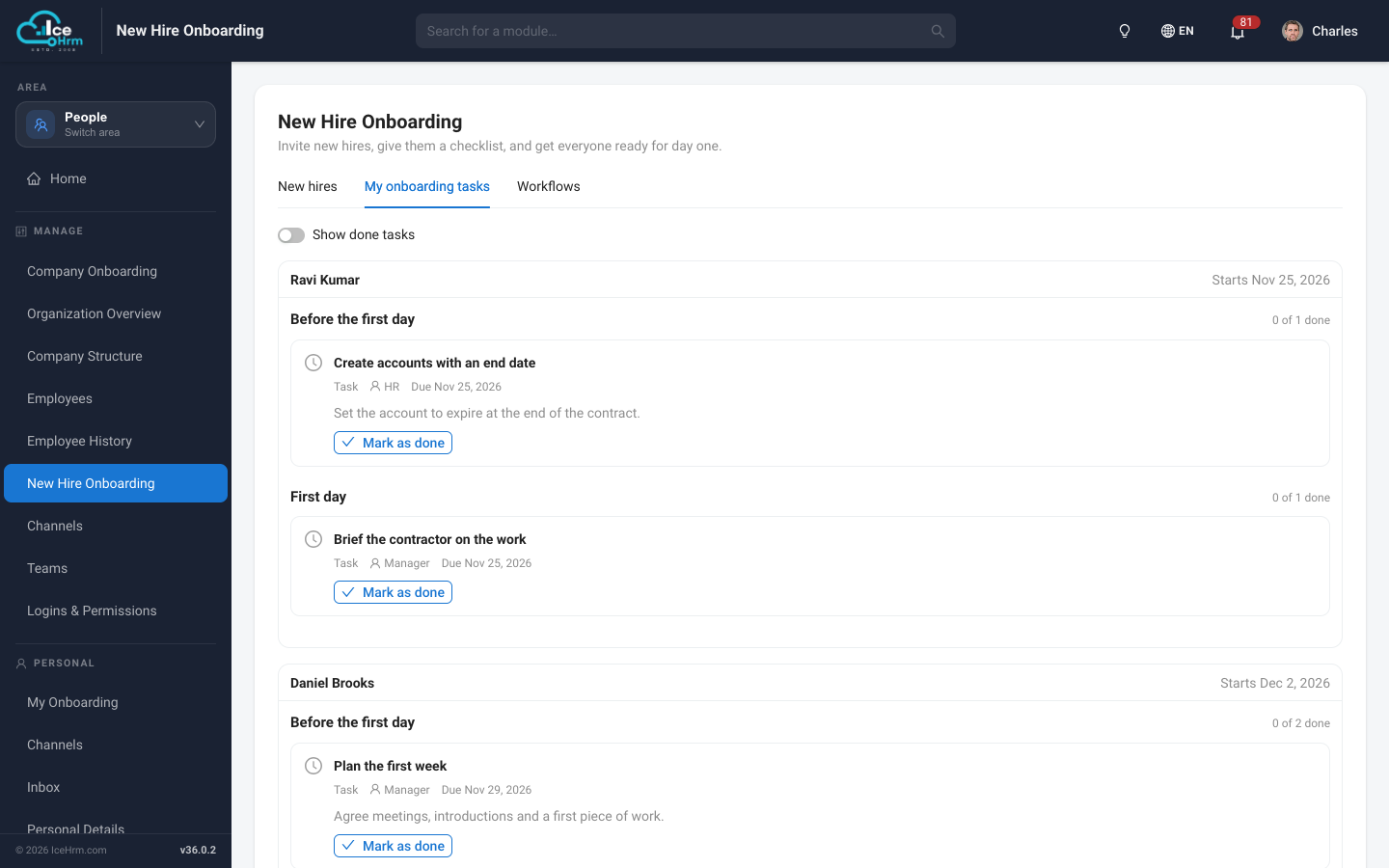
Turn on Show done tasks to see the tasks you already finished.
Handing over an asset
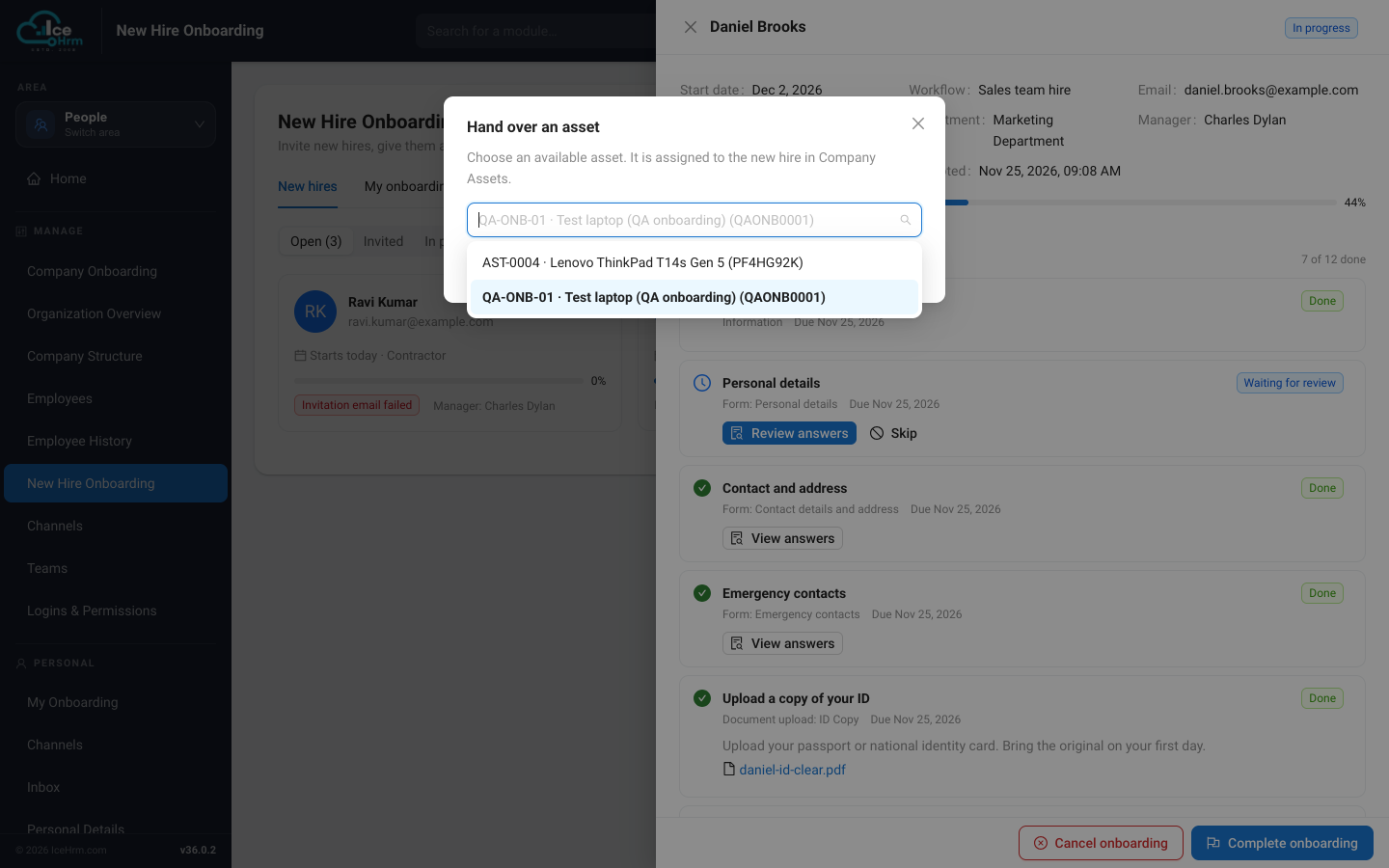
A Hand over an asset step lets HR give the new hire equipment from Company Assets, such as a laptop.
- Click Hand over on the step.
- Choose an available asset from the list.
- Add a note if it helps.
- Click Hand over.
The asset is assigned to the employee in Company Assets and the step is marked Done.
Setting the manager
A Set manager step lets HR choose who the new hire reports to. It can only be done after the new hire accepts the invitation. Before that, the step says "Can be done once the invitation is accepted."
- Click Set manager on the step.
- Choose the manager. Type a name to search.
- Click Set manager.
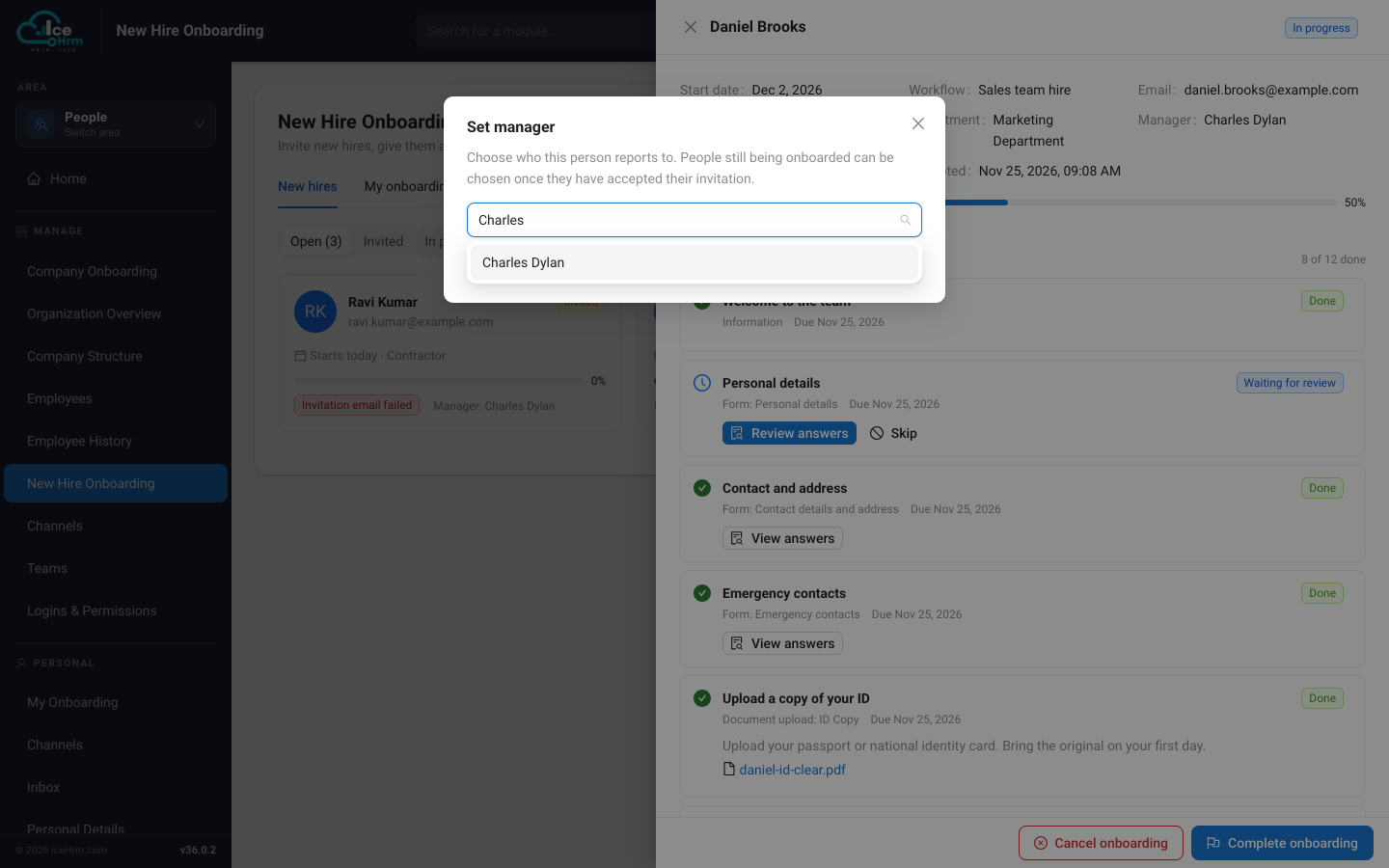
The list shows your active employees and people who are being onboarded, marked Onboarding. People who were invited but have not accepted yet are shown with Hasn't accepted yet and cannot be chosen.
When a step could not be started
Form, e-signature and course steps are started for the new hire when they accept the invitation. If IceHrm could not start one, the step shows the reason and a Try again button. Click Try again to start it again.
Skipping a step
If a step does not apply to this new hire, click Skip on the step and confirm. The step is marked Skipped and no longer counts towards the progress. If the step was a form, the form is withdrawn.