Posting a Job
A Job Position is a single job advert. Once you save and activate it, IceHrm gives it its own public web page that candidates can apply through, and every application lands automatically under Candidates.
Open the Recruitment area and click Job Positions in the sidebar. You'll see the jobs you've already created, each showing its title, job code, a short summary, and the department.
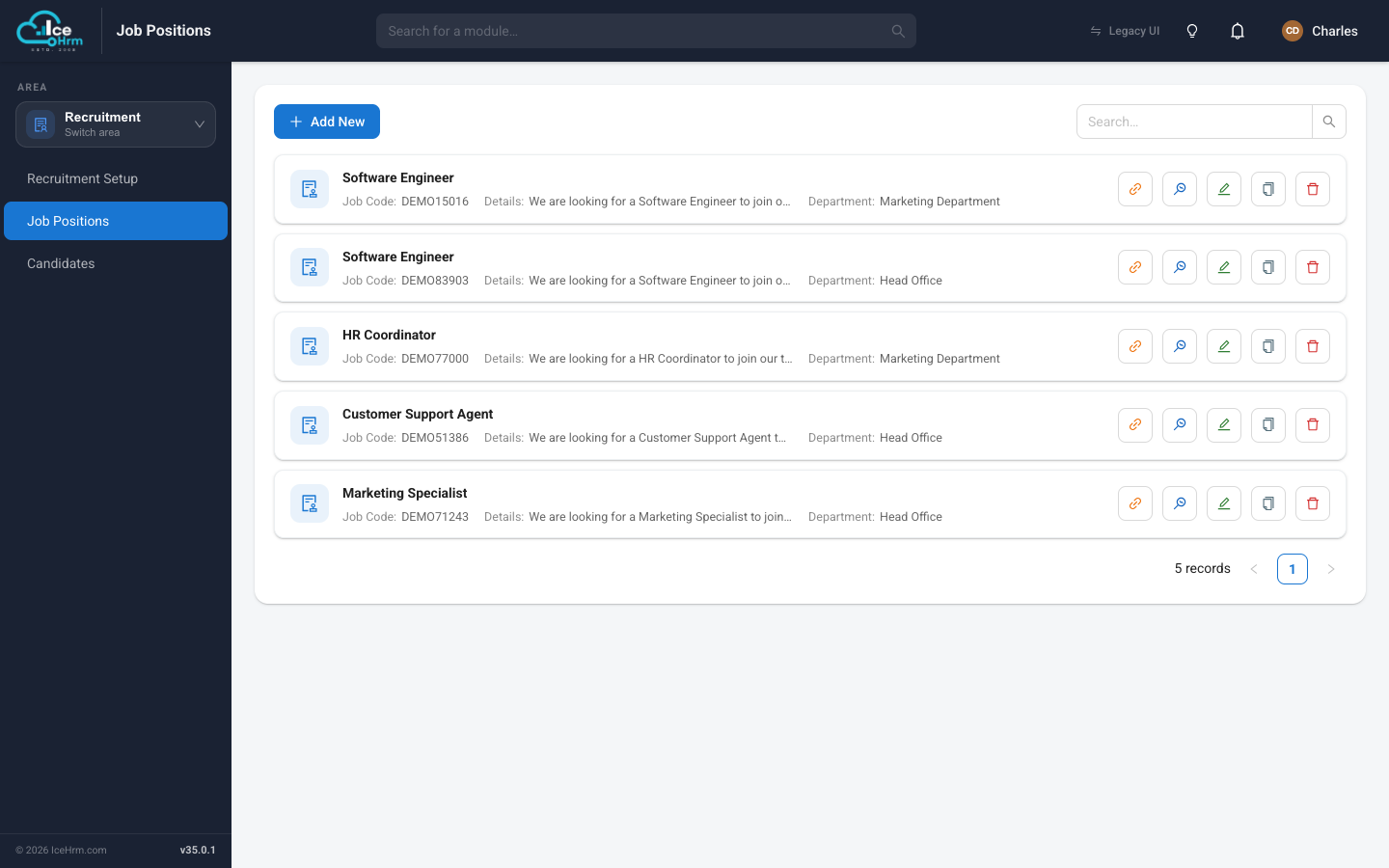
To create a new advert, click the blue + Add New button. A five-step wizard opens, with the steps shown across the top: Basic → Details → Requirements → Location → Listing. Fill in each step and click Next to move along; you can click Previous to go back at any time.
Step 1 — Basic
The essential facts about the role.
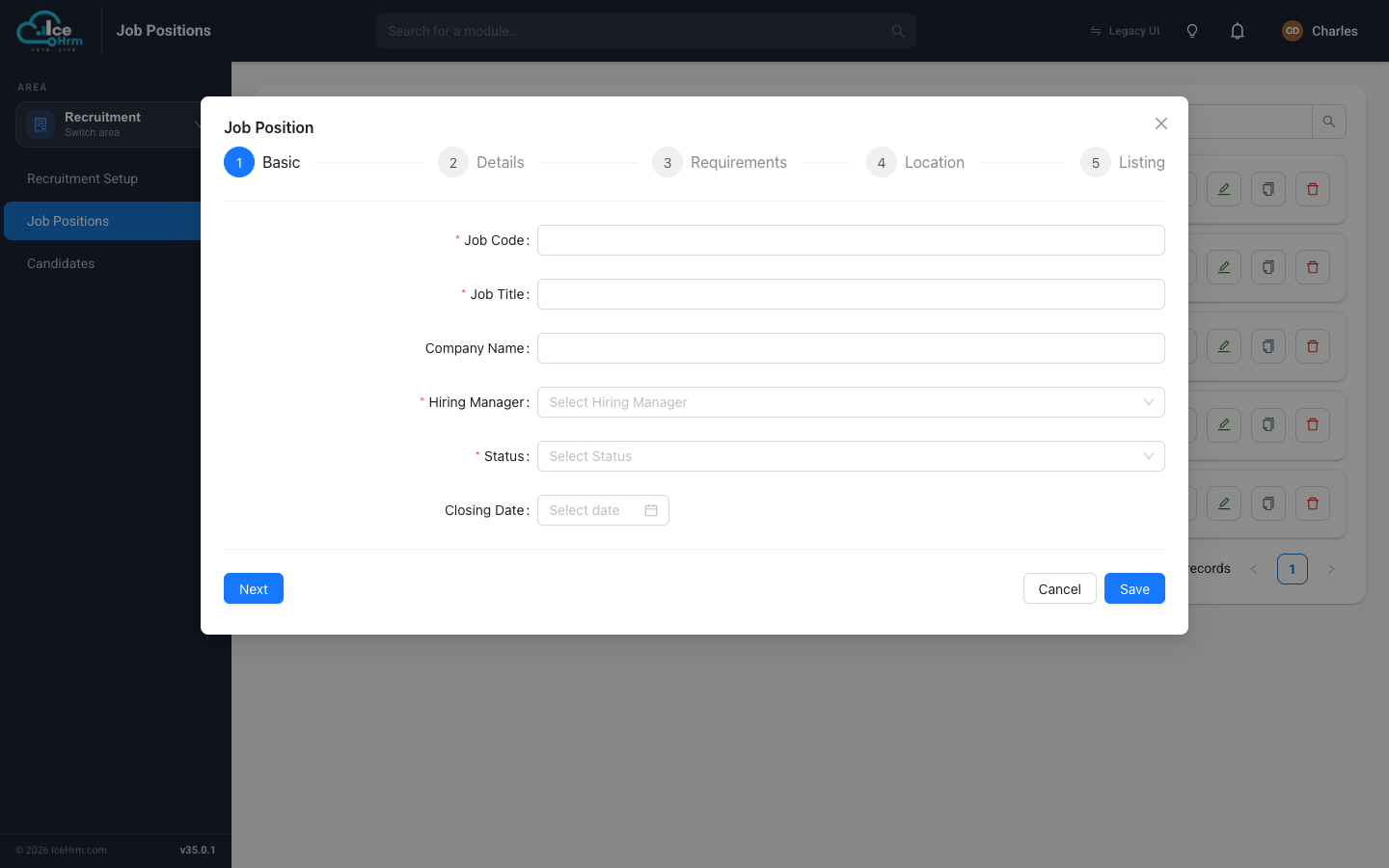
| Field | What to enter |
|---|---|
| Job Code | A short unique code for the job (used in the application link). For example ENG-001. |
| Job Title | The role name candidates will see, e.g. "Software Engineer". |
| Company Name | The hiring company (useful if you recruit for more than one). |
| Hiring Manager | The employee responsible for this hire. |
| Status | Set to Active when you're ready to accept applications. |
| Closing Date | The last day applications are accepted (optional). |
Step 2 — Details
The wording candidates read on the advert.
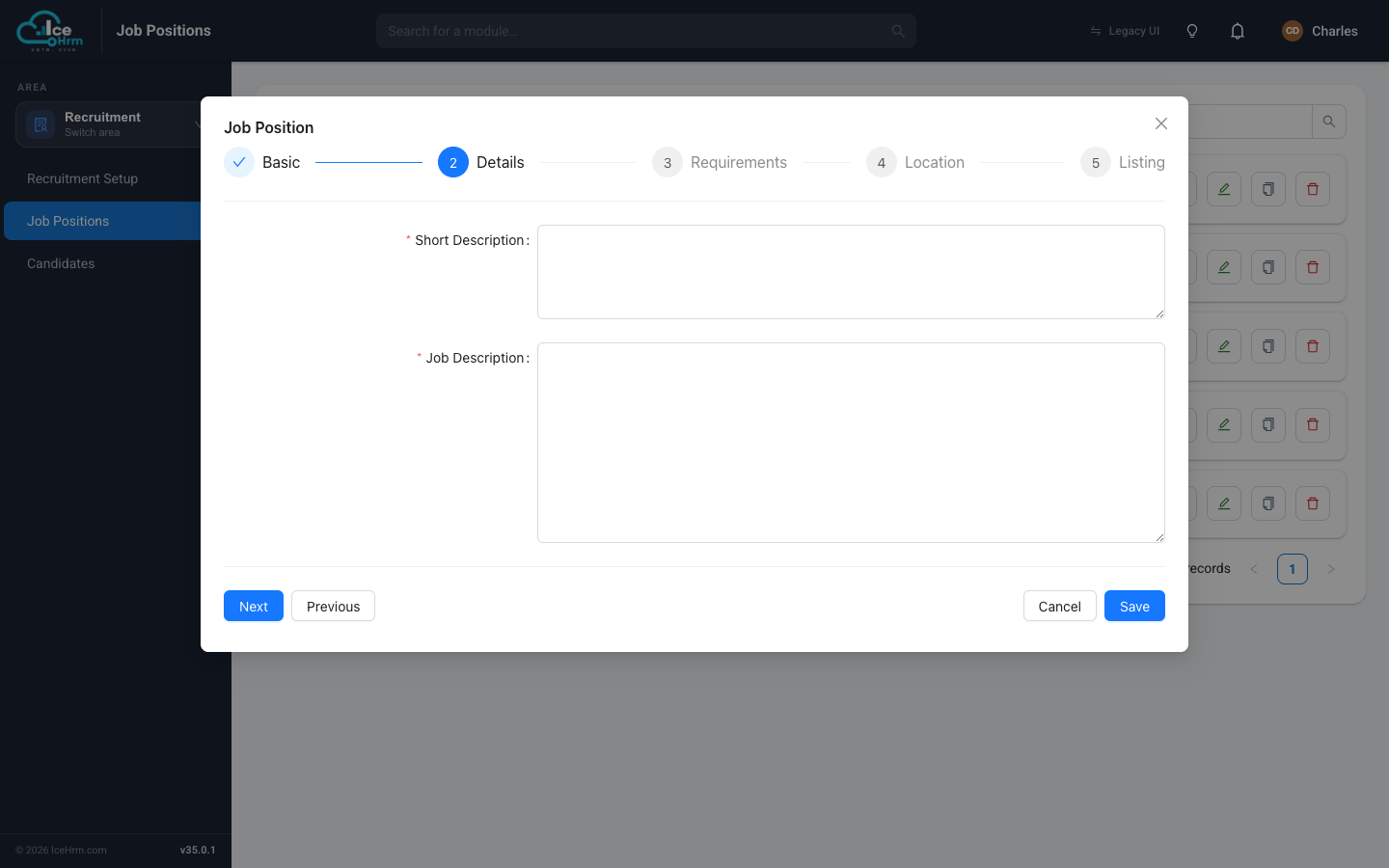
- Short Description — one or two sentences shown in listings and previews.
- Job Description — the full write-up: responsibilities, what a typical day looks like, and what you're looking for.
Step 3 — Requirements
Here you tag the role using the lists you built in Recruitment Setup. Each drop-down is filled from those lists.
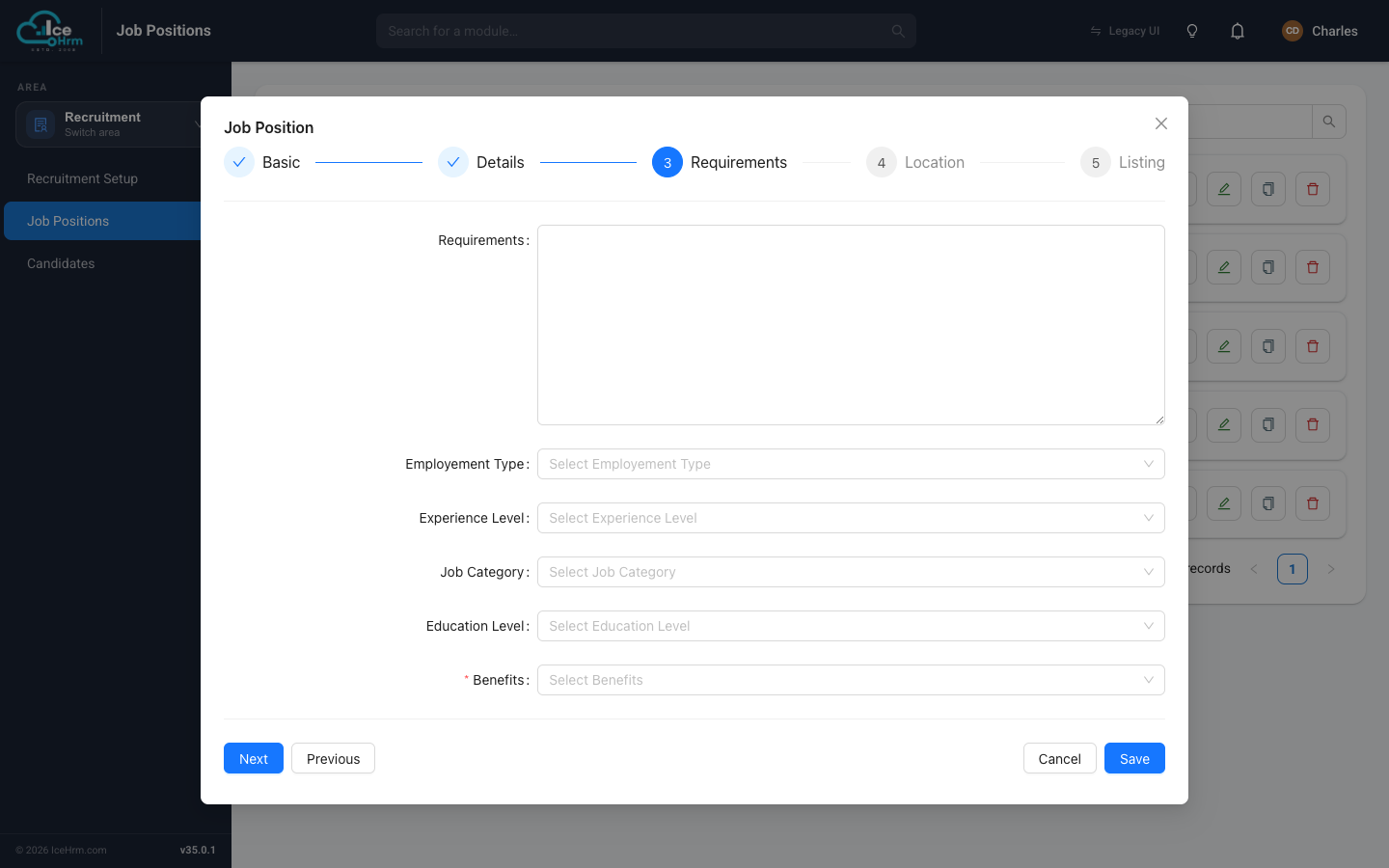
| Field | Comes from |
|---|---|
| Requirements | Free text — the skills and experience needed. |
| Employment Type | Employment Types tab |
| Experience Level | Experience Levels tab |
| Job Category | Job Functions tab |
| Education Level | Education Levels tab |
| Benefits | Benefits tab |
If a drop-down here is empty or missing an option, add it first in Recruitment Setup, then come back to the job.
Steps 4 and 5 — Location and Listing
- Location — where the role is based.
- Listing — final options that control how the advert appears publicly, such as whether to show the salary.
When you've finished, click Save. Your new job appears in the Job Positions list.
What candidates see
Once a job is Active, it has its own public application page with your logo, the job details, and an apply form. This is the page candidates reach when you share the job link.
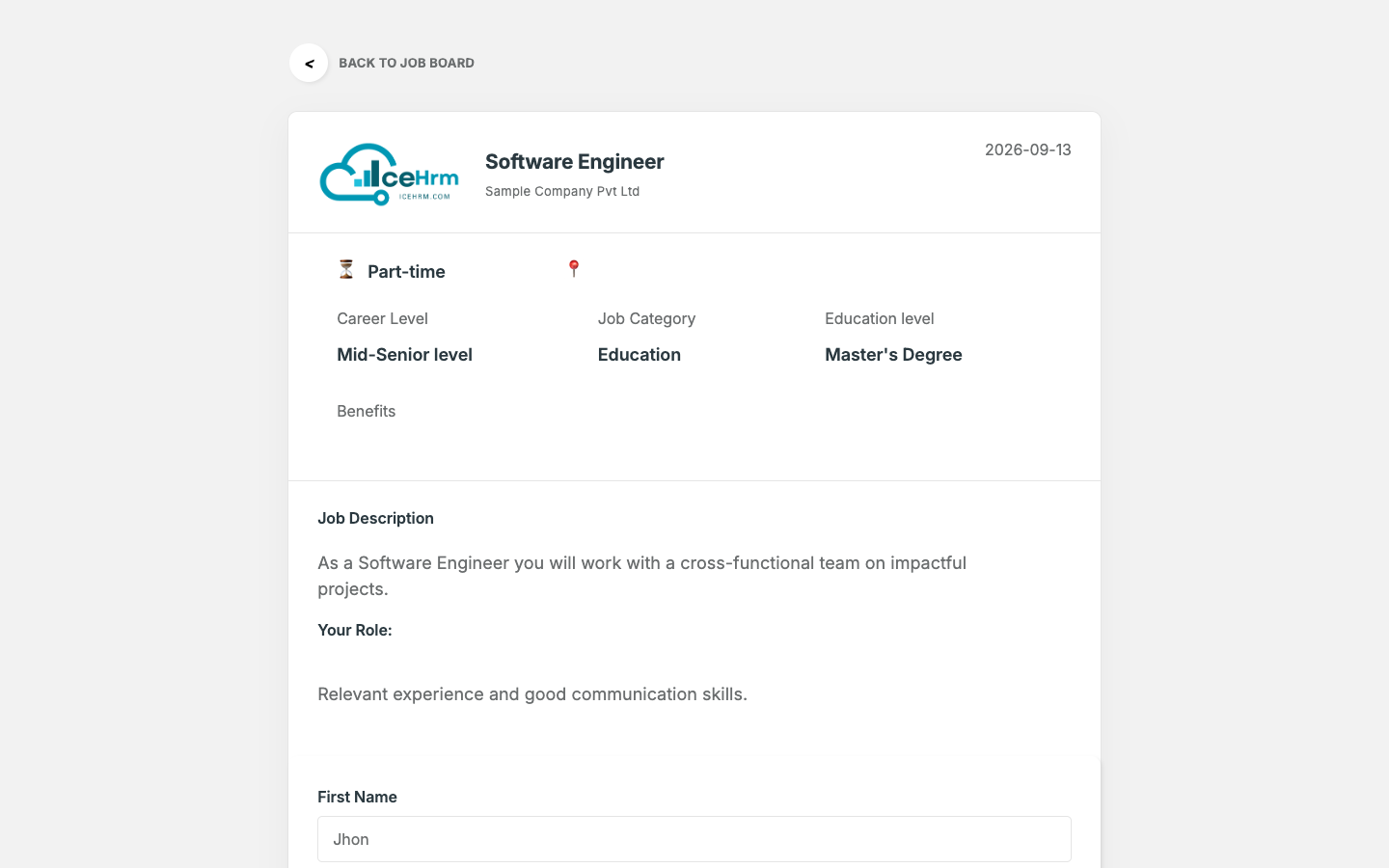
Only jobs set to Active appear publicly. Set a job to Inactive to take it down without deleting it.
Next steps
- Share the job link so candidates can find and apply.
- Manage the candidates who apply.