This documentation is relevant only to self-hosted installations of IceHrmPro or IceHrm Community.
Upgrading from Community edition to IceHrm Pro
The same updater moves an IceHrm Community (open source) installation to IceHrm Pro. You keep your settings, uploads and data, and the previous version is backed up so the upgrade can be undone.
Step 1: Purchase IceHrm Pro
Buy an IceHrm Pro subscription on icehrm.com using the same email address as your icehrm.com account. Your installation needs to be connected to icehrm.com to see the purchase. Once the purchase is complete, your Community installation detects that you own a Pro licence and shows a notice at the top of the admin panel. It lists the modules your subscription covers, such as Leave Management, Recruitment, Expenses, Performance, Payroll and Insights.

The notice has three buttons:
- What's New shows what the Pro edition adds
- Get Download Link opens your icehrm.com account so you can copy the release link
- Upgrade to Pro opens the IceHrm Updater
Step 2: Copy your download link
The updater needs a download link for the Pro release. This link is tied to your licence, so it is not public.
- Sign in to your icehrm.com account with the email address you used to make the purchase. The Get Download Link button in the notice takes you there.
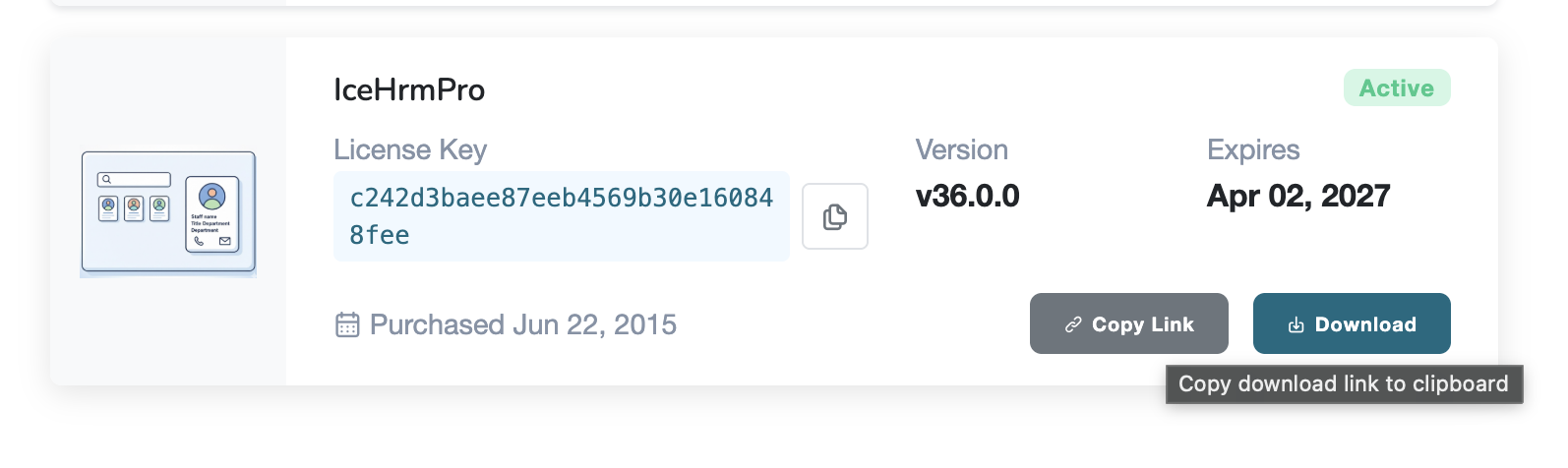
- Find the IceHrmPro licence in your purchases. It shows your licence key, the version and the expiry date.
- Click Copy Link to copy the download link to your clipboard.
Step 3: Start the upgrade
Back in IceHrm, click Upgrade to Pro in the notice. The updater opens and asks you to sign in as an administrator, then runs the same pre-update checks as a regular update. When prompted, paste the download link you copied from icehrm.com.
The updater downloads the Pro release and shows a Ready to update screen that summarises what will happen:
- Your current
core/,web/,app/,bin/and extension directories are moved into a backup insideupdater/data/, not deleted - Your settings and uploads are kept.
app/config.php,app/data/andapp/cache/are never replaced - Extensions you installed yourself are left in place
- The paid modules are installed into
extensions-pro/and become available once you sign back in
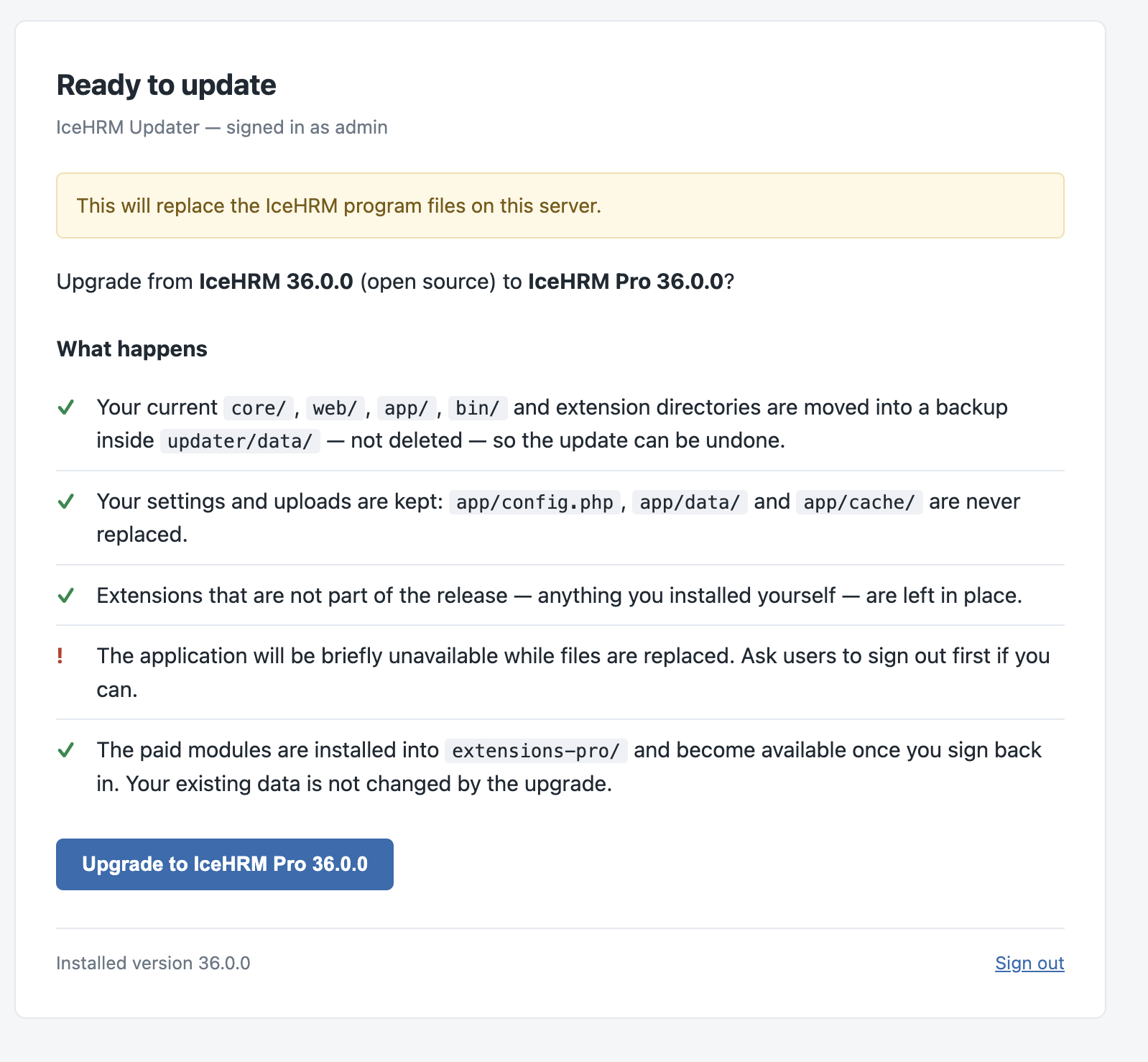
IceHrm is briefly unavailable while files are replaced, so ask users to sign out first if you can. Click Upgrade to IceHRM Pro to confirm.
Step 4: Finish the upgrade
Finish exactly as you would for a regular update. Sign in to IceHrm as an administrator in another tab so any database changes are applied, then return to the updater and click I have signed in — check IceHRM. Once the check passes, the backup is removed and the Pro modules appear in the admin panel.
Future updates on IceHrm Pro
After the upgrade, IceHrm Pro notifies you of new releases in the same way as the Community edition, and the updater handles them the same way. Your Pro subscription must be active for the updater to download Pro releases, so renew it before it expires.