Expense Management
The IceHrm mobile app allows employees to submit and track expense claims on the go, including uploading receipt photos directly from their device.
Viewing Expenses
- Open the IceHrm mobile app and tap Expenses from the dashboard
- The expenses screen shows your total expenses and a summary of total, pending, and approved claims
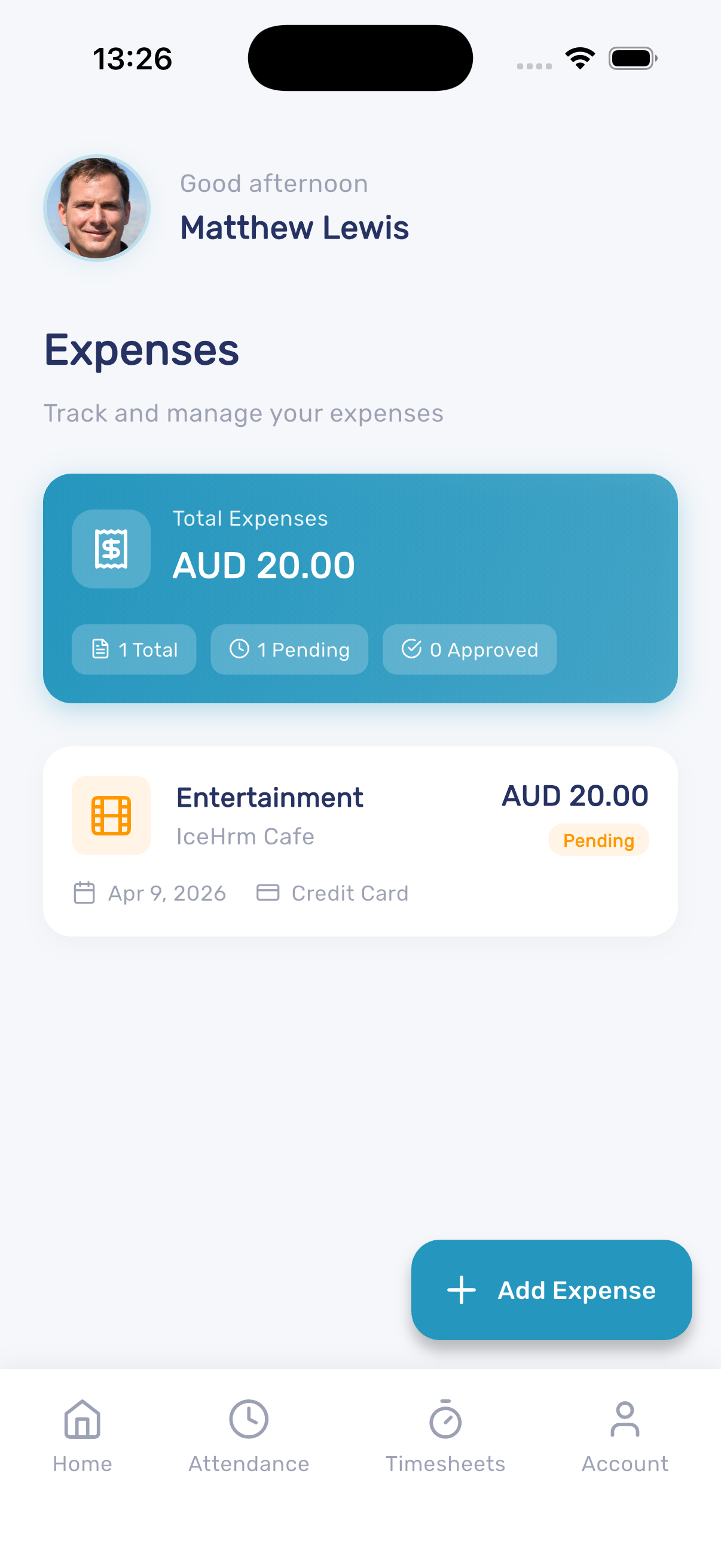
Each expense entry displays:
- Expense category (Entertainment, Travel, etc.)
- Payee name
- Amount and currency
- Date and payment method
- Current status (Pending, Approved)
Adding an Expense
- Tap the + Add Expense button
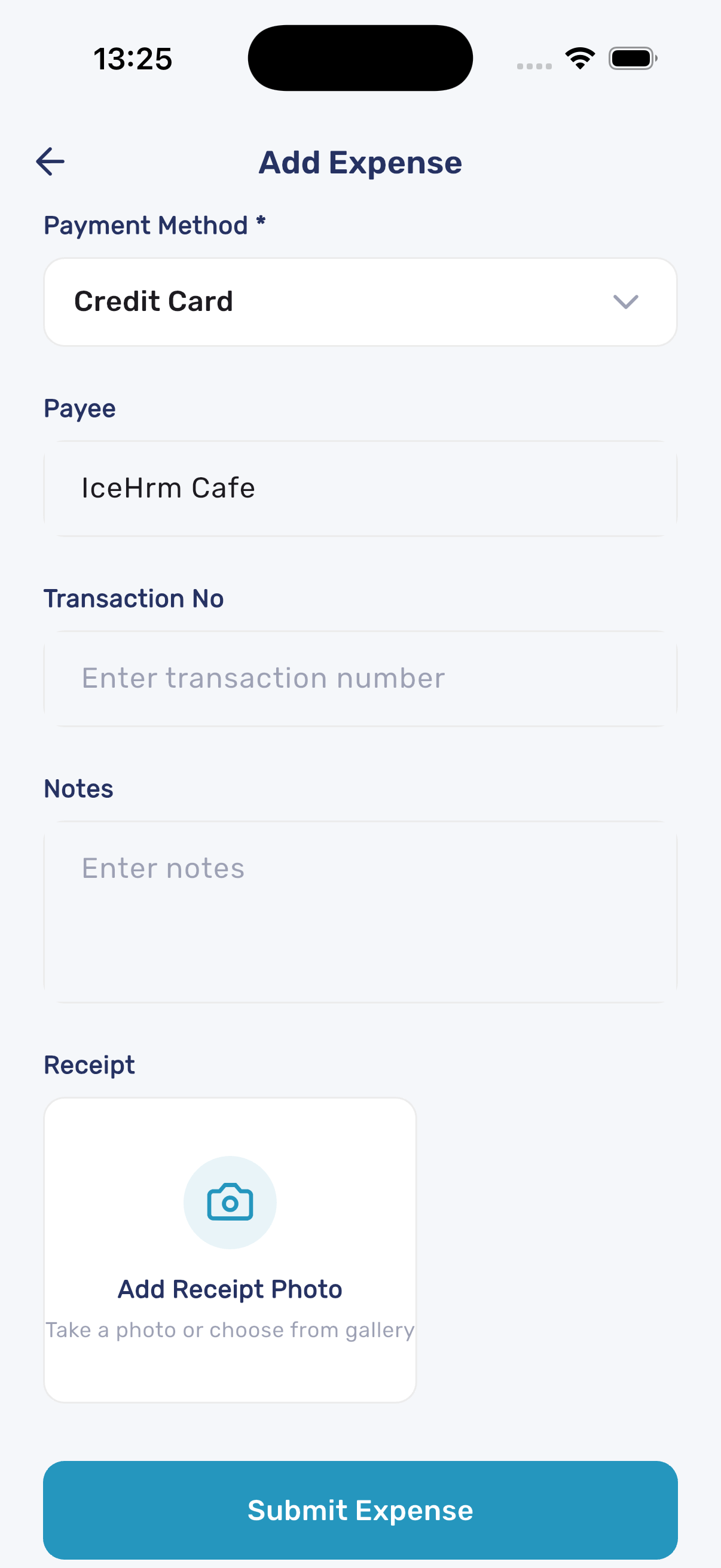
- Fill in the expense details:
- Payment Method - Select from available options (Credit Card, Cash, etc.)
- Payee - Enter the payee name
- Transaction No - Optional transaction reference number
- Notes - Add any additional details
- Upload a receipt photo by tapping Add Receipt Photo - you can take a new photo or choose from your gallery
- Tap Submit Expense to submit the claim