Attendance Tracking
The IceHrm mobile app supports tracking GPS location along with attendance, providing a convenient solution for remote workers and field staff to log their work hours.
Enabling GPS Location for Attendance
To enable GPS location tracking for mobile attendance:
- Log in as an administrator
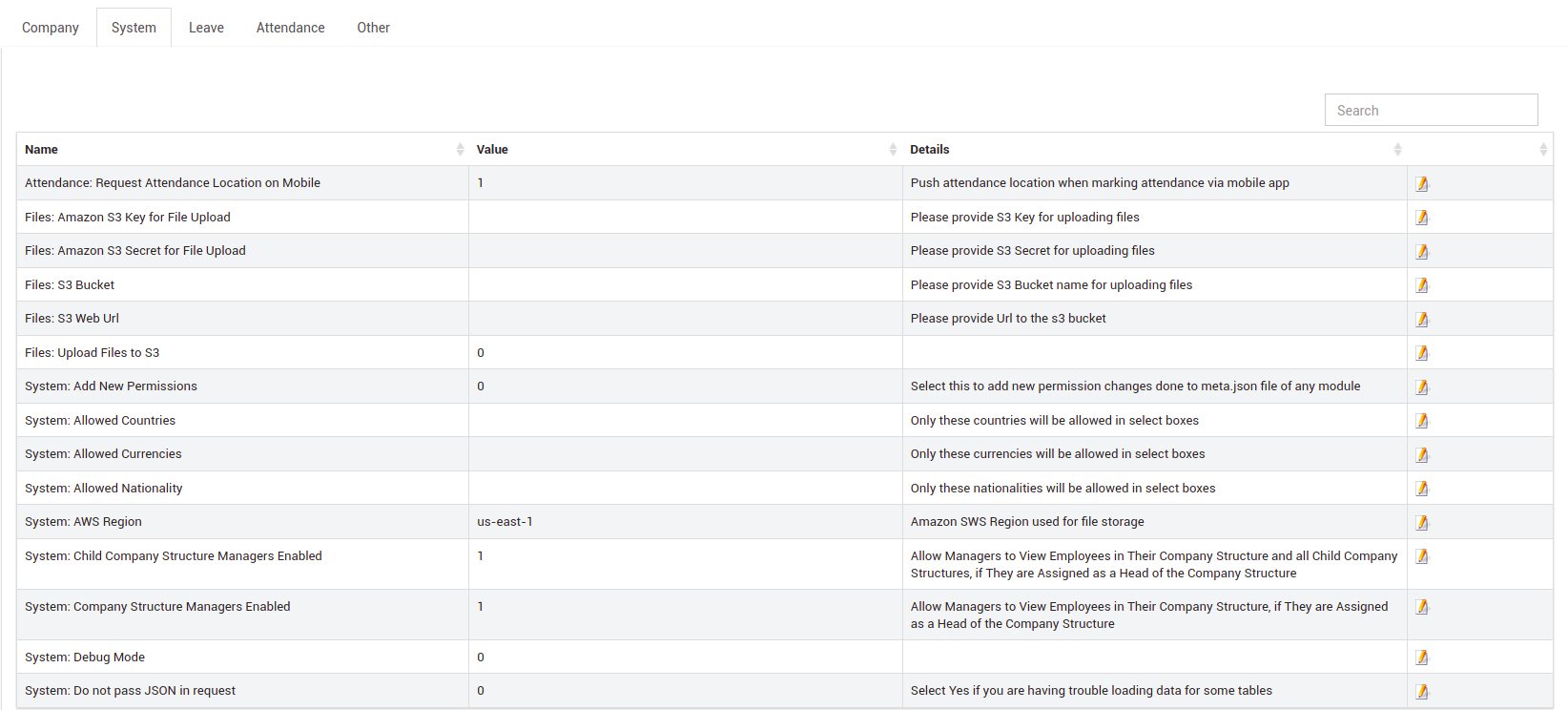
- Navigate to System -> Settings -> System
- Find Attendance: Request Attendance Location on Mobile and enable it
- Configure System: Google Maps Api Key in the same settings area
info
To obtain a Google Maps API key, follow Google's documentation for Maps JavaScript API.
Marking Attendance via Mobile App
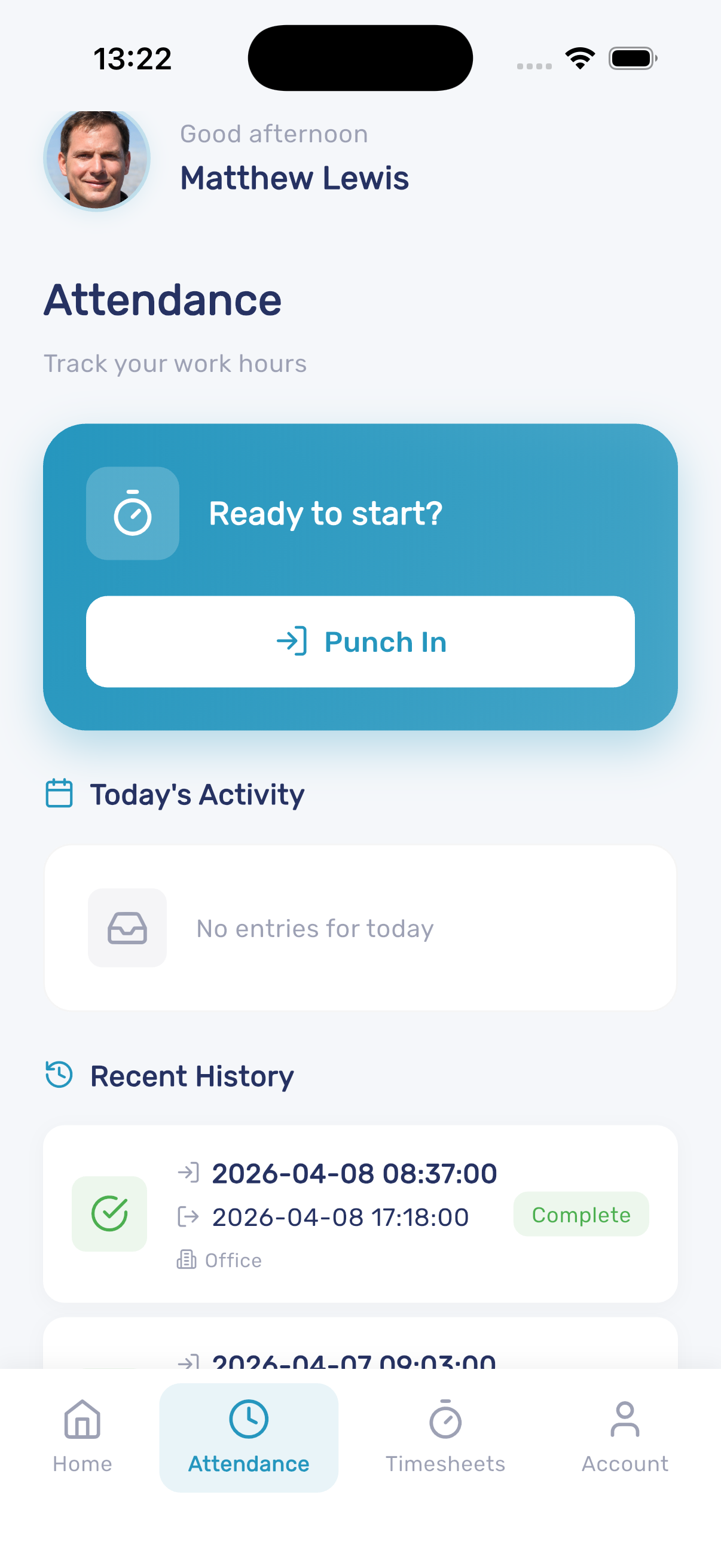
- Open the IceHrm mobile app and tap Attendance from the dashboard or bottom navigation
- The attendance screen shows a Punch In button, today's activity, and recent attendance history
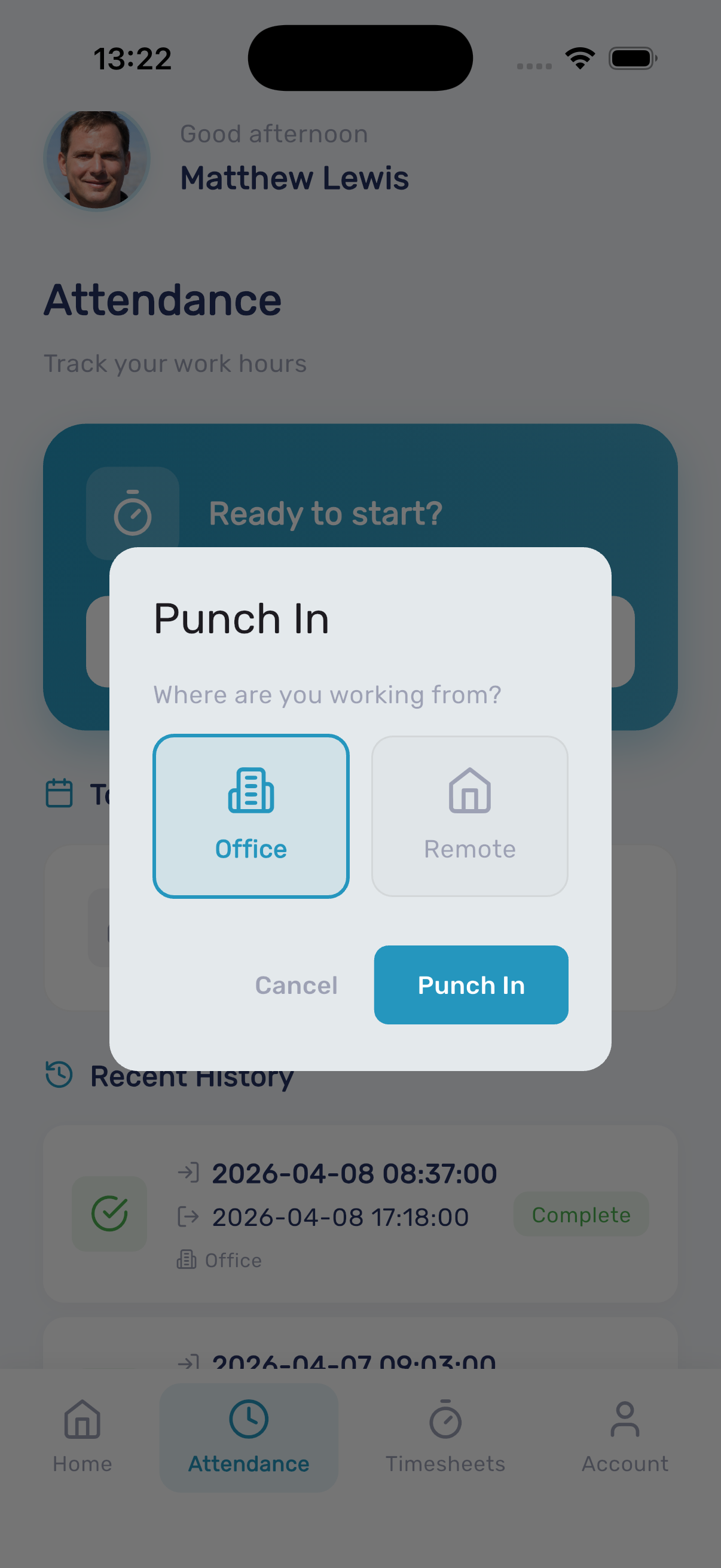
- Tap Punch In and select your work location (Office or Remote)
- Tap Punch In to confirm
- When leaving, tap the Punch Out button to record your departure
- Your total working hours are calculated automatically and shown in the recent history
Viewing Employee Attendance with Location
Administrators can view employee attendance records with location data:
- Log in to IceHrm as an administrator
- Navigate to Manage -> Attendance or click Attendance Module on the Dashboard
- Select Monitor Attendance
- Click the view icon next to an employee's attendance record
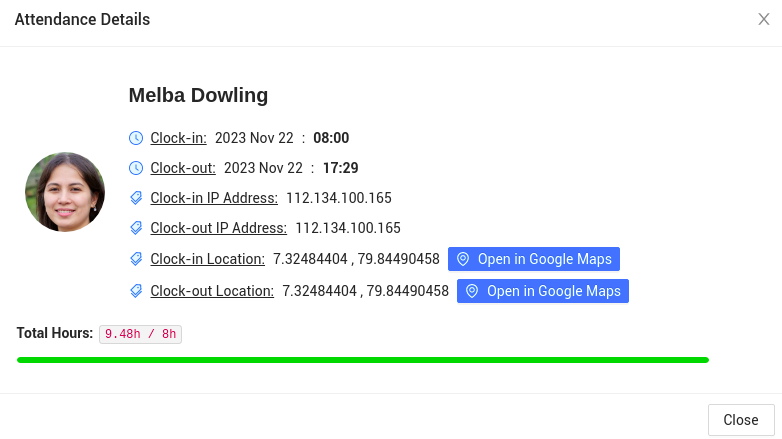
The attendance details include:
- Punch-in and punch-out times
- IP address
- GPS coordinates
- A Google Maps link showing the exact location
Troubleshooting
Location not captured:
- Ensure GPS is enabled on the mobile device
- Grant location permission to the IceHrm app
- Check that the admin setting is enabled
Map not displaying:
- Verify the Google Maps API key is configured correctly
- Ensure the API key has Maps JavaScript API enabled