Multi-Level Approval
For larger expenses, one approval may not be enough — you might want a manager to approve first, then finance to sign off before the claim is paid. IceHrm supports this by moving a claim through a series of statuses.
How it works
Each expense claim carries a status. Reviewers change it step by step using the status dialog (the settings button on a claim):
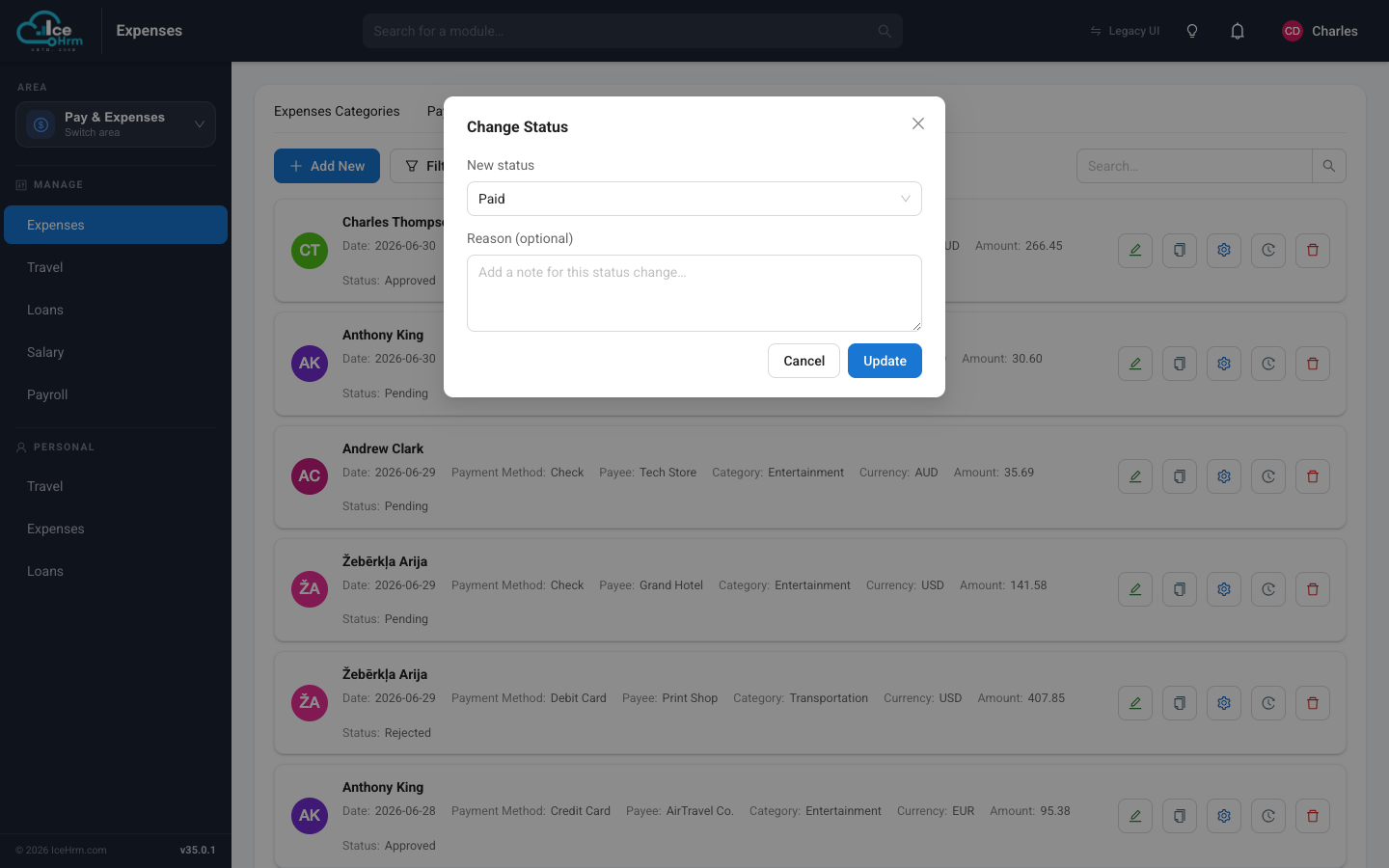
A common two-step flow is:
- Pending — the employee has submitted the claim.
- Approved — the direct manager confirms the expense is legitimate.
- Paid — finance settles it and marks it paid.
At any step a reviewer can set the status to Rejected and add a reason, which notifies the employee. Because a reason is required on every status change, each step leaves a clear note behind.
Following the approval trail
Open any claim and check the Status History panel on the right of the expense dialog. It combines two things into one timeline, newest first:
- Normal status changes — Pending → Approved → Paid, and so on, each with the reason the reviewer entered.
- Multi-level approval decisions — when multi-level approvals are enabled, each approval level shows its decision (Approved, Rejected, or still Pending) and who signed off at that level.
This gives you a single, chronological record of who did what and why, without digging through a separate approvals screen.
Multi-level approval steps only appear when the Expense: Enable Multi Level Approvals setting is turned on. With it off, you still get the normal status-change history in the same panel.
Who can approve
Managers see claims from their own team; admins see every claim across the company. By splitting "Approved" (manager) and "Paid" (finance), you get a clear two-level sign-off without any extra configuration. Marking a claim Paid is reserved for admins, so finance keeps the final say on settlement.