Adding Expense Categories

This guide explains how administrators can create and manage expense categories in IceHrm to organize employee expense claims.

Overview

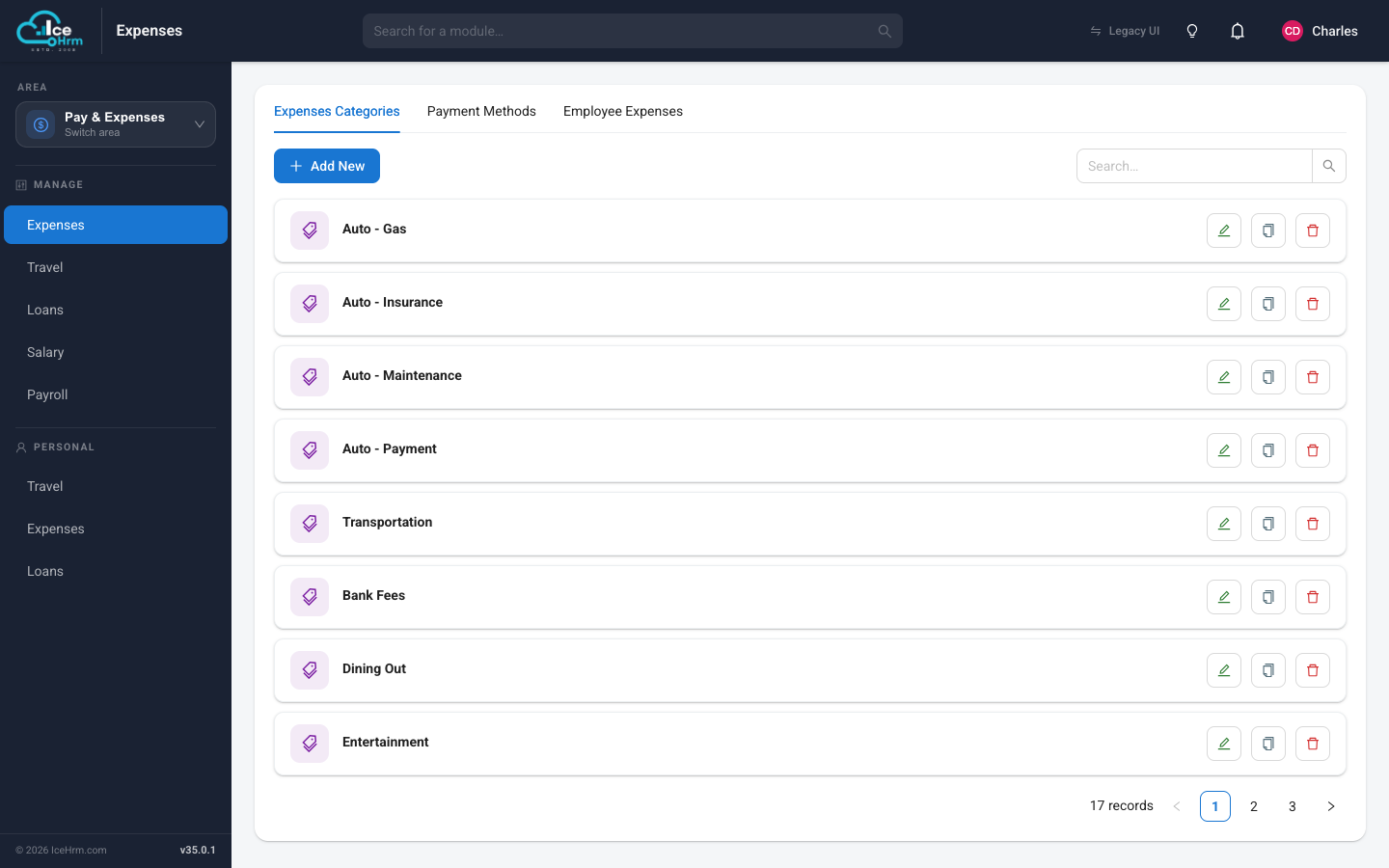
Expense categories help organize and classify employee expense claims. Before employees can submit expenses, administrators need to configure the appropriate expense categories.

Expense Categories

note

Administrative access is required to add or modify expense categories.

Accessing Expense Categories

You can access expense categories through either of the following methods:

  1. From the main dashboard, select Expense Management
  2. Or navigate to Manage -> Expense module

Within the Expense Management area, click on the Expense Categories tab.

Adding a New Expense Category

Step 1: Navigate to Expense Categories

  1. Go to Manage -> Expense
  2. Click on the Expense Categories tab

Step 2: Add New Category

  1. Click the Add New button under Expense Categories
  2. The system will display a form to enter category details

Step 3: Enter Category Name

Enter a descriptive name for the category.

Step 4: Save the Category

  1. Review the entered information
  2. Click Save to create the category
  3. The new category will appear in the list and be available for employees to use

Editing a Category

  1. Navigate to Manage -> Expense -> Expense Categories
  2. Click on the category you want to edit
  3. Modify the required fields
  4. Click Save to update

Best Practices

  • Use clear names: Choose descriptive category names that employees can easily understand
  • Avoid overlap: Ensure categories are distinct and don't overlap in purpose
  • Keep it simple: Limit the number of categories to make expense submission easier
  • Review regularly: Periodically review categories to ensure they meet organizational needs