Training Sessions
A training session is a scheduled, instructor-led event — a workshop, a webinar, or a classroom class — that happens at a fixed date and time. Setting one up has two sides: an administrator creates and schedules it, then employees sign up to attend.
Part 1 — Setting up sessions (administrator)
Open the Learning area and click Training Sessions under Manage. This module has three tabs.
The session course
The Courses tab holds your catalogue of session courses. Each one has a Coordinator (who organises it) and a Trainer (who delivers it).
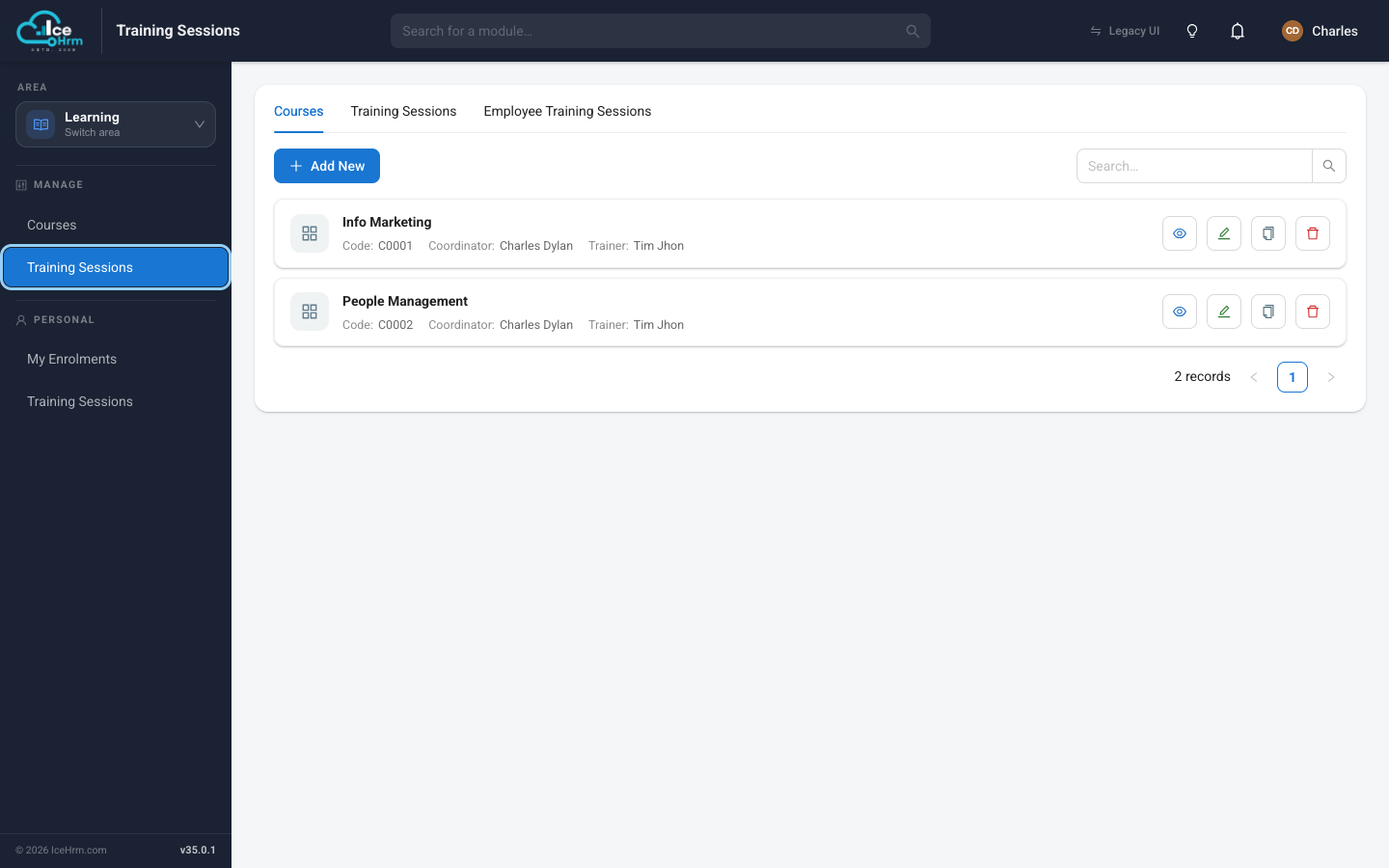
Click + Add New to create a session course, then give it a code, a coordinator, and a trainer.
Scheduling a session
The Training Sessions tab is where a course becomes a real, dated event.
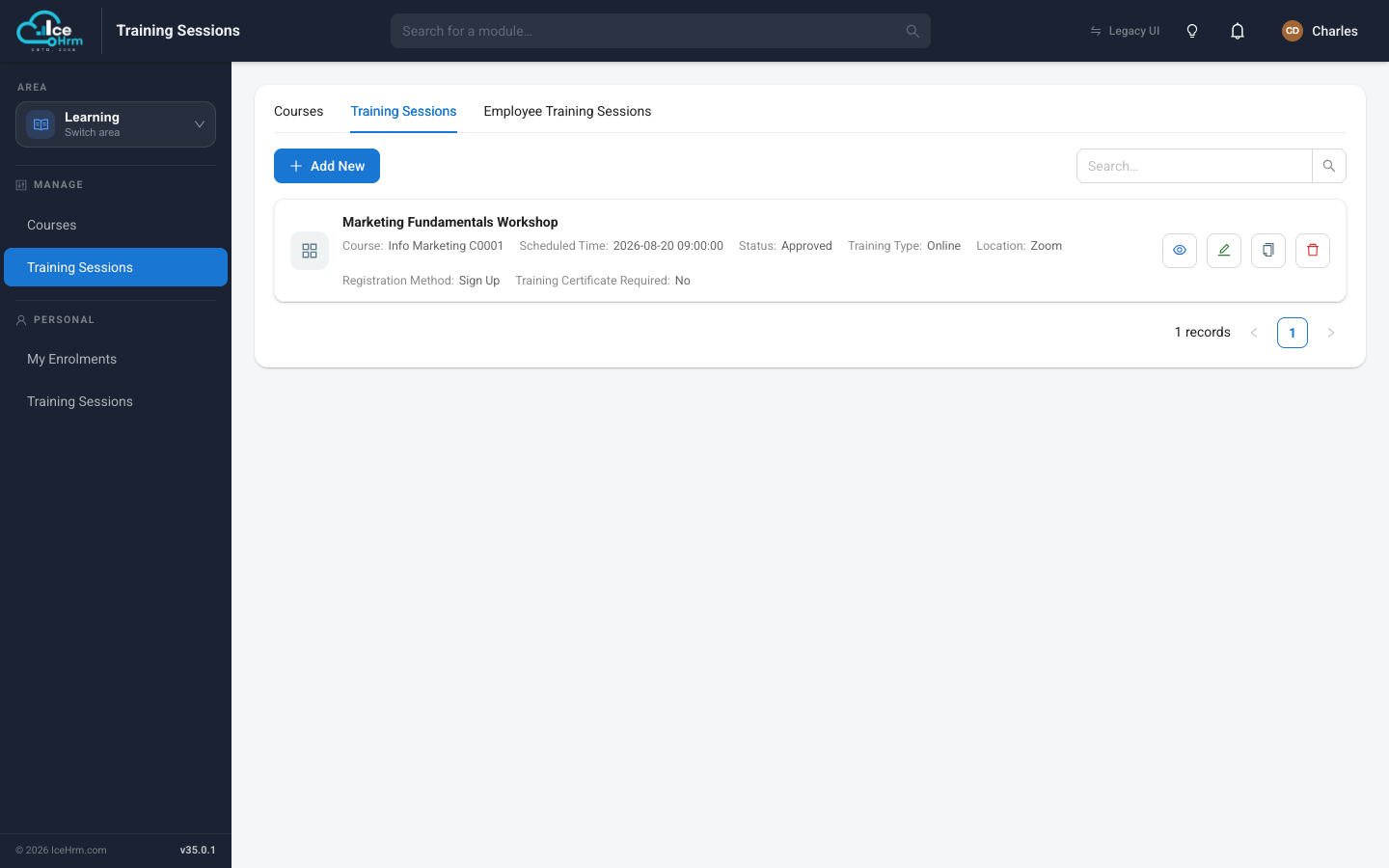
Each session records the course it belongs to, the scheduled time, the training type (for example Online), the location (such as a Zoom link), and the registration method:
| Registration method | Meaning |
|---|---|
| Sign Up | Employees choose to sign up themselves. |
| Assigned | Only employees the administrator assigns can attend. |
Assigning employees
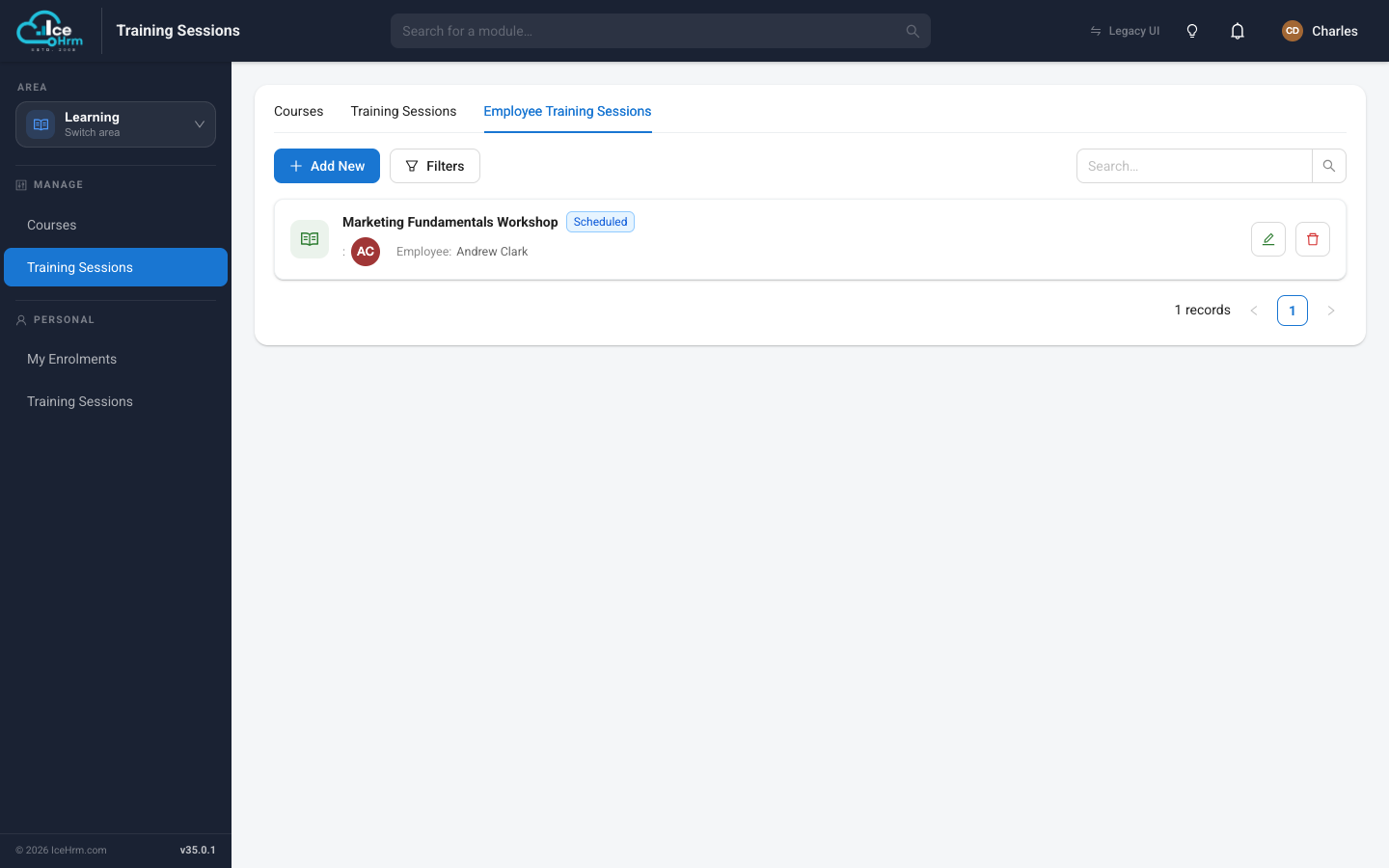
The Employee Training Sessions tab lists which employees are booked onto which sessions — either because they signed up, or because you assigned them.
Part 2 — Signing up (employee)
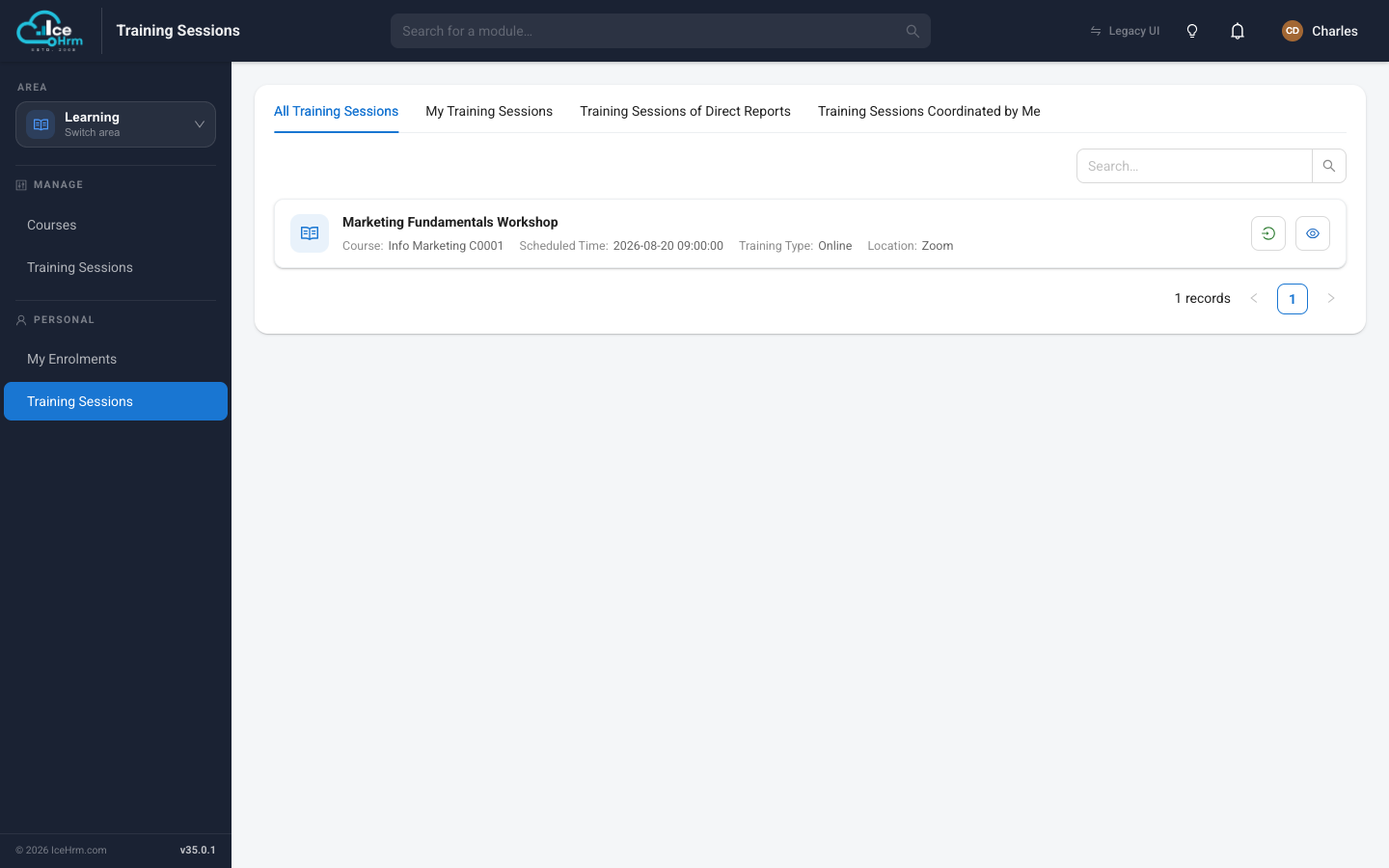
Open the Learning area and click Training Sessions under Personal. This view has four tabs: All Training Sessions, My Training Sessions, Training Sessions of Direct Reports, and Training Sessions Coordinated by Me.
Sign up for a session
On the All Training Sessions tab, find the session you want and click the sign-up button on its row.
IceHrm asks you to confirm.
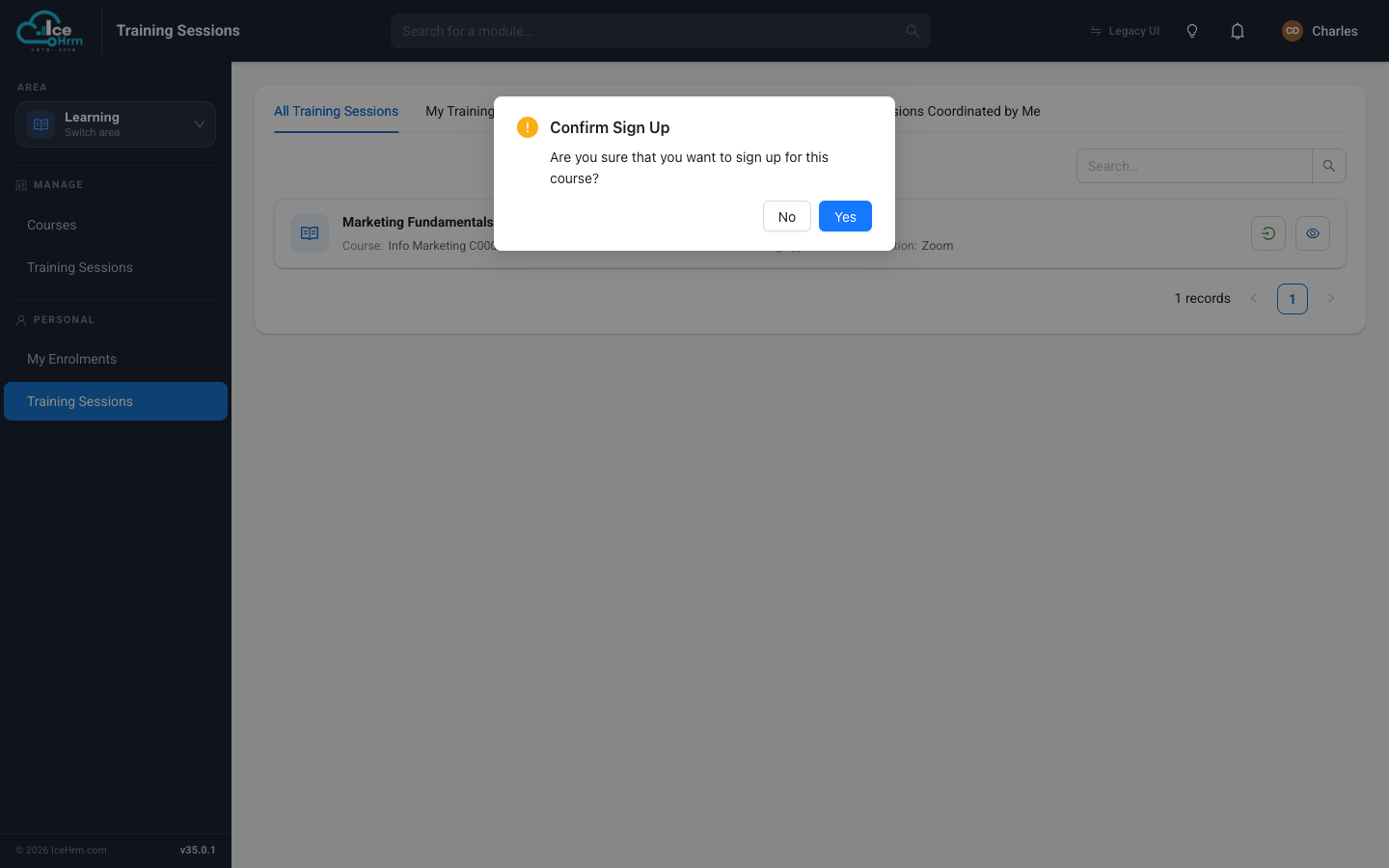
Click Yes and you're registered — the session now appears under My Training Sessions.
You can only sign yourself up for sessions whose registration method is Sign Up. Sessions marked Assigned are added for you by an administrator.
After you attend
Once the session has taken place, open My Training Sessions, find the session, and mark it as complete. If your company requires evidence, use Edit on the session to attach a proof-of-completion document before submitting.
Marking a session complete sends it to your manager for approval — see Approving a training session.
Online course or training session?
| Training Session | Online Course | |
|---|---|---|
| Schedule | Fixed date and time | Anytime, self-paced |
| Instructor | Led by a trainer | Self-guided |
| Where | In person or virtual | On screen |
| Sign-up | Sign Up or Assigned | Enroll yourself |
Tips
- Sign up early — sessions can have limited seats.
- Note the location — check whether it's in person or a video link.
- Mark complete promptly — so your manager can approve it while it's fresh.
- Keep your proof — save any certificate or attendance record you're asked for.