Payroll Employees

The Payroll Employees section allows administrators to manage which employees are included in the payroll process.


Overview

Before processing payroll, you need to add employees to the payroll system. This ensures that only eligible employees are included in payroll calculations.


Payroll Employees Tab Layout

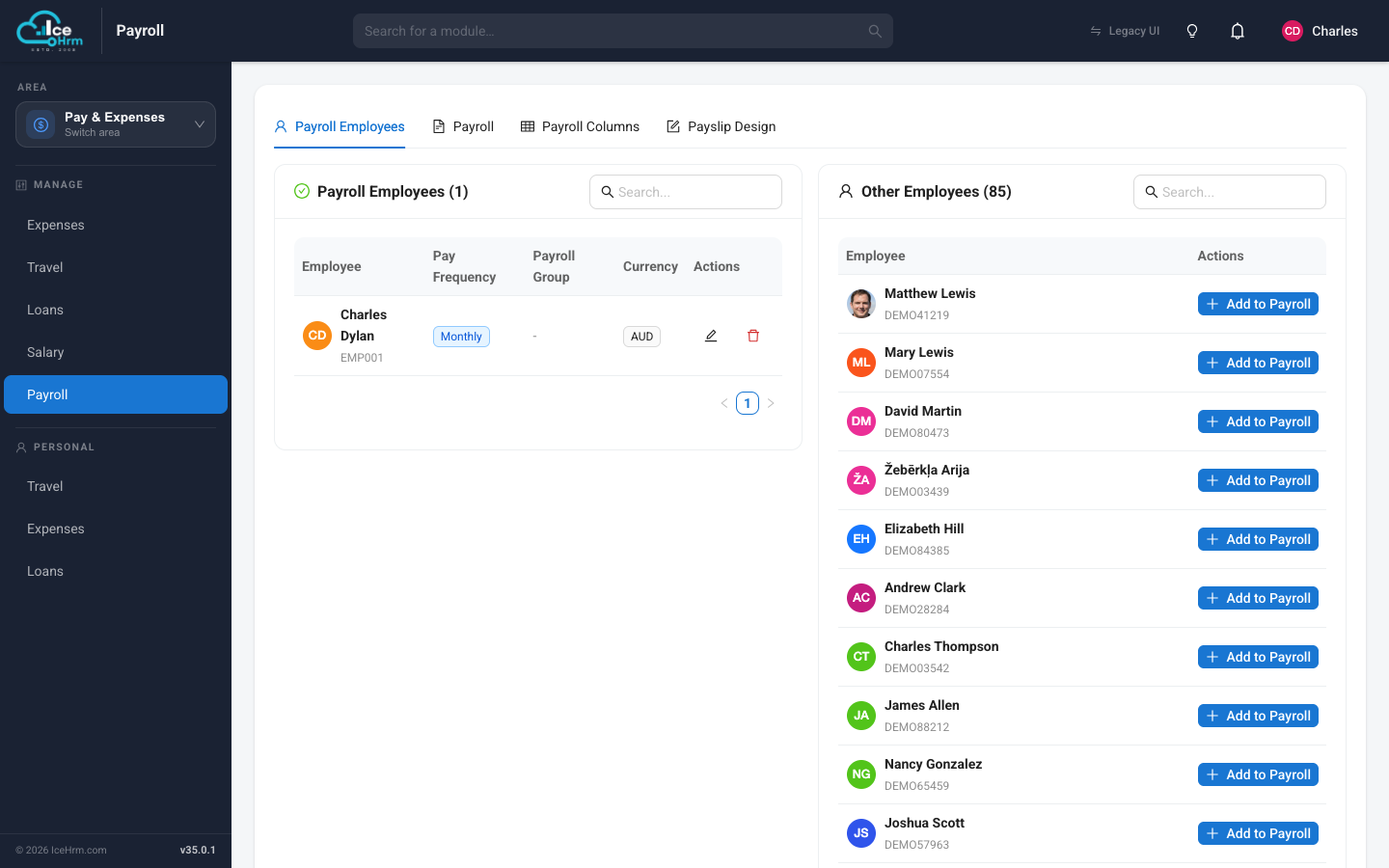
The Payroll Employees tab is divided into two sections:

  • Left side - Displays employees already added to a payroll
  • Right side - Displays employees not yet added to a payroll (Other Employees)

payroll-employee-list.jpg


How to Add Employees to Payroll

  1. Go to Admin > Payroll > Payroll Employees

  2. Find the employee in the Other Employees section on the right side

  3. Click to add the employee

  4. Fill in the required fields:

    • Payment Currency - Select the currency for paying the employee
    • Payroll Group - Select a payroll group (optional)
  5. Click Save

add-payroll-employee.jpg

Payroll Groups

Only use payroll groups if you need to run multiple payrolls for different employee categories (e.g., one for weekly-paid employees and another for monthly-paid employees). If you run a single payroll for all employees, leave the Payroll Group field empty.


Best Practices

  1. Verify Eligibility - Ensure employees have completed onboarding before adding to payroll
  2. Check Salary Setup - Confirm salary details are configured before adding employees
  3. Select Correct Currency - Choose the appropriate payment currency for each employee
  4. Use Groups Wisely - Only create payroll groups if you need separate payroll runs
  5. Review Regularly - Update the list when employees join or leave the organization