Overtime Requests and Approval
This page covers submitting an overtime request as an employee, and reviewing requests as a manager or admin.
Submitting a request (employees)
- Open the Time and Work area and choose Overtime Requests in the Personal section.
- Click Add New.
- Fill in the start and end time of the extra work, pick the overtime category, and link a project if the extra hours were project work.
- Save — the request goes to your manager with the status Pending.
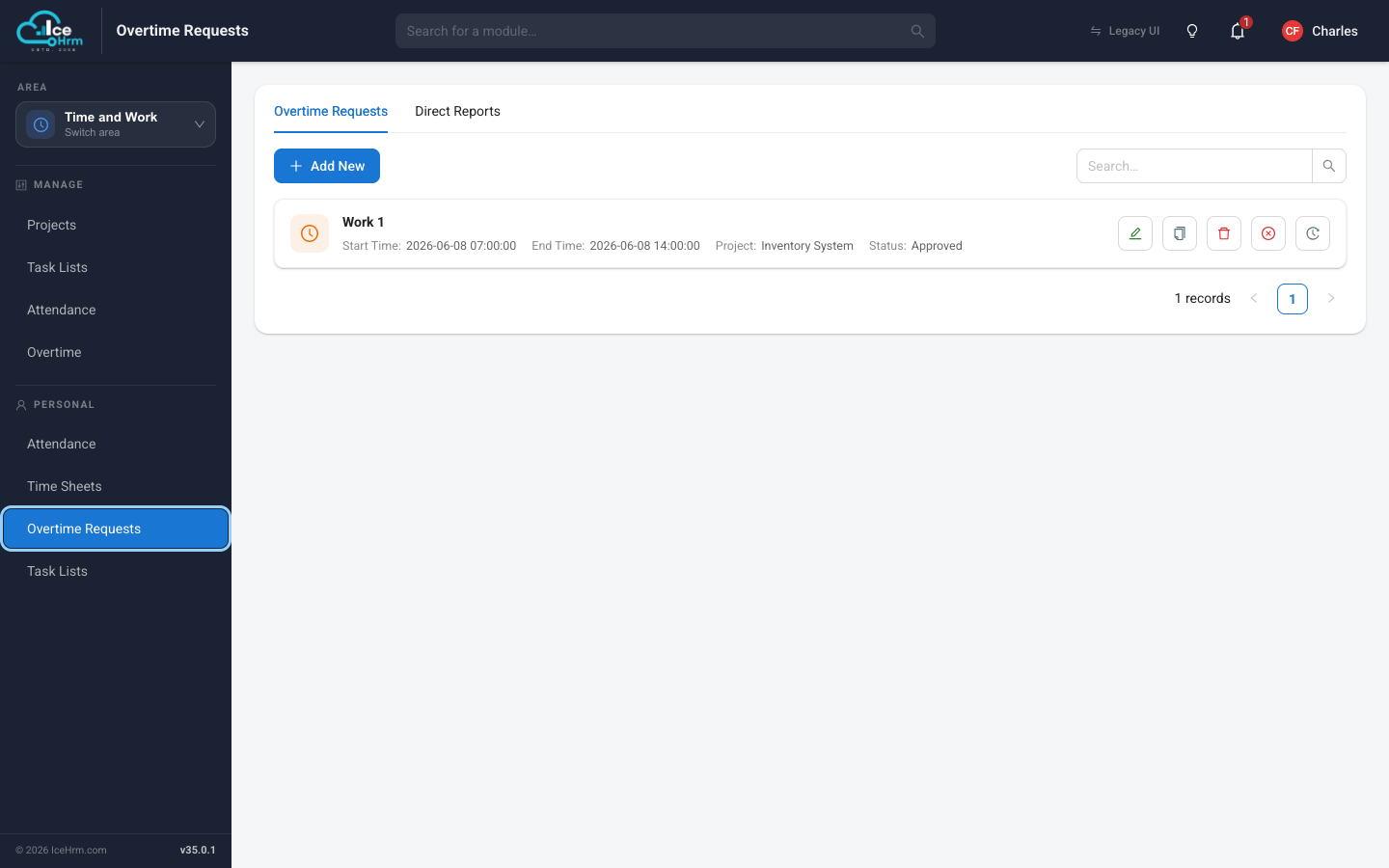
You can follow the status on the same page. Managers also get a Direct Reports tab here to handle their team's requests.
Request statuses
- Pending — waiting for review
- Approved — the overtime is accepted
- Rejected — the overtime was declined
- Cancelled — you withdrew the request
Reviewing requests (admins)
Admins see every request across the company:
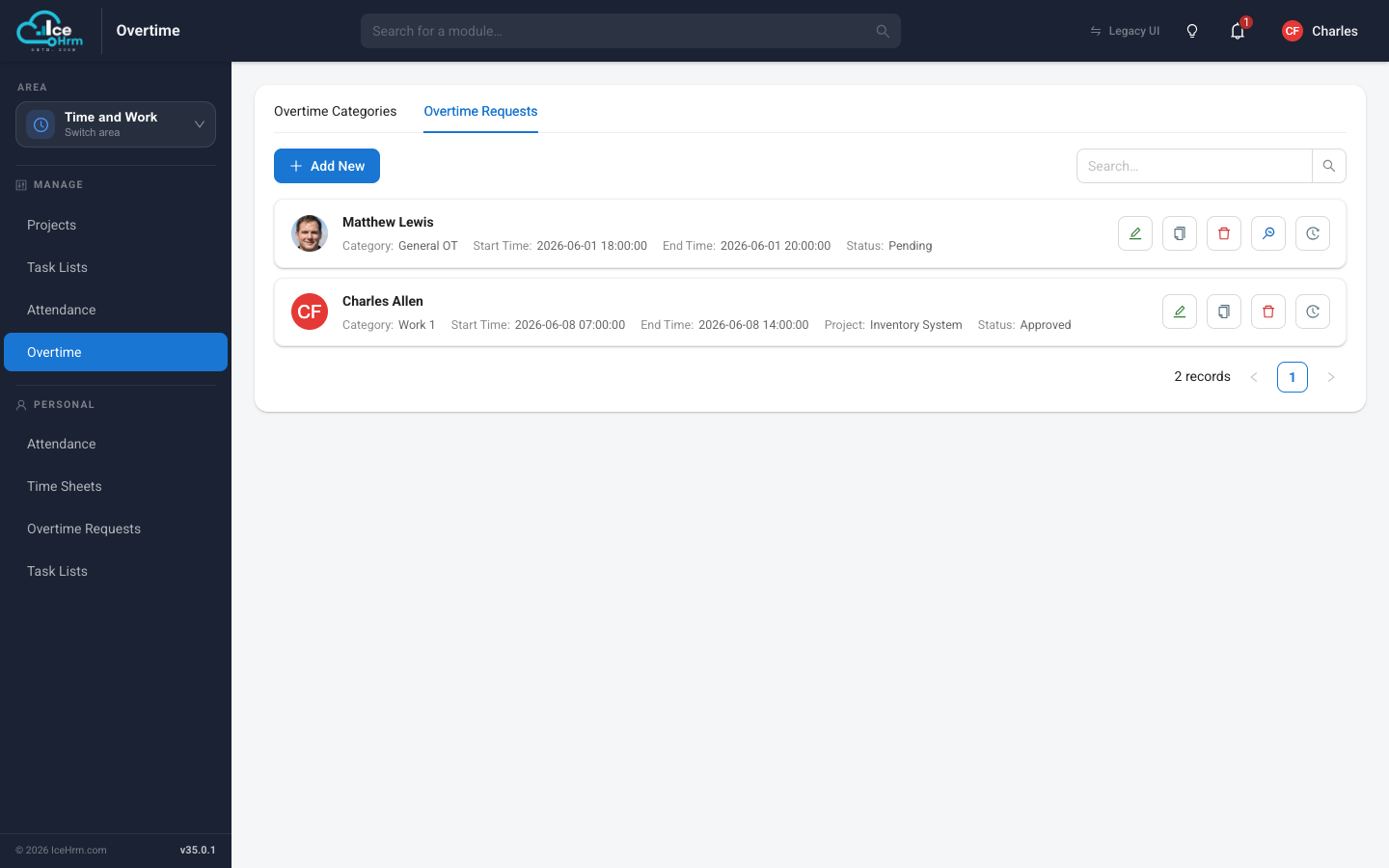
- Go to Time and Work > Overtime (Manage section).
- Open the Overtime Requests tab.
- Approve or reject each request with the buttons on its row — the employee is notified automatically.
Good habits
- Employees — submit requests promptly and give a clear reason; link the right project so time can be billed correctly.
- Managers — respond within a day or two, and explain rejections; watch for patterns of frequent overtime.