Company Assets
Create and manage individual company assets, assign them to employees, and track their status.
Overview
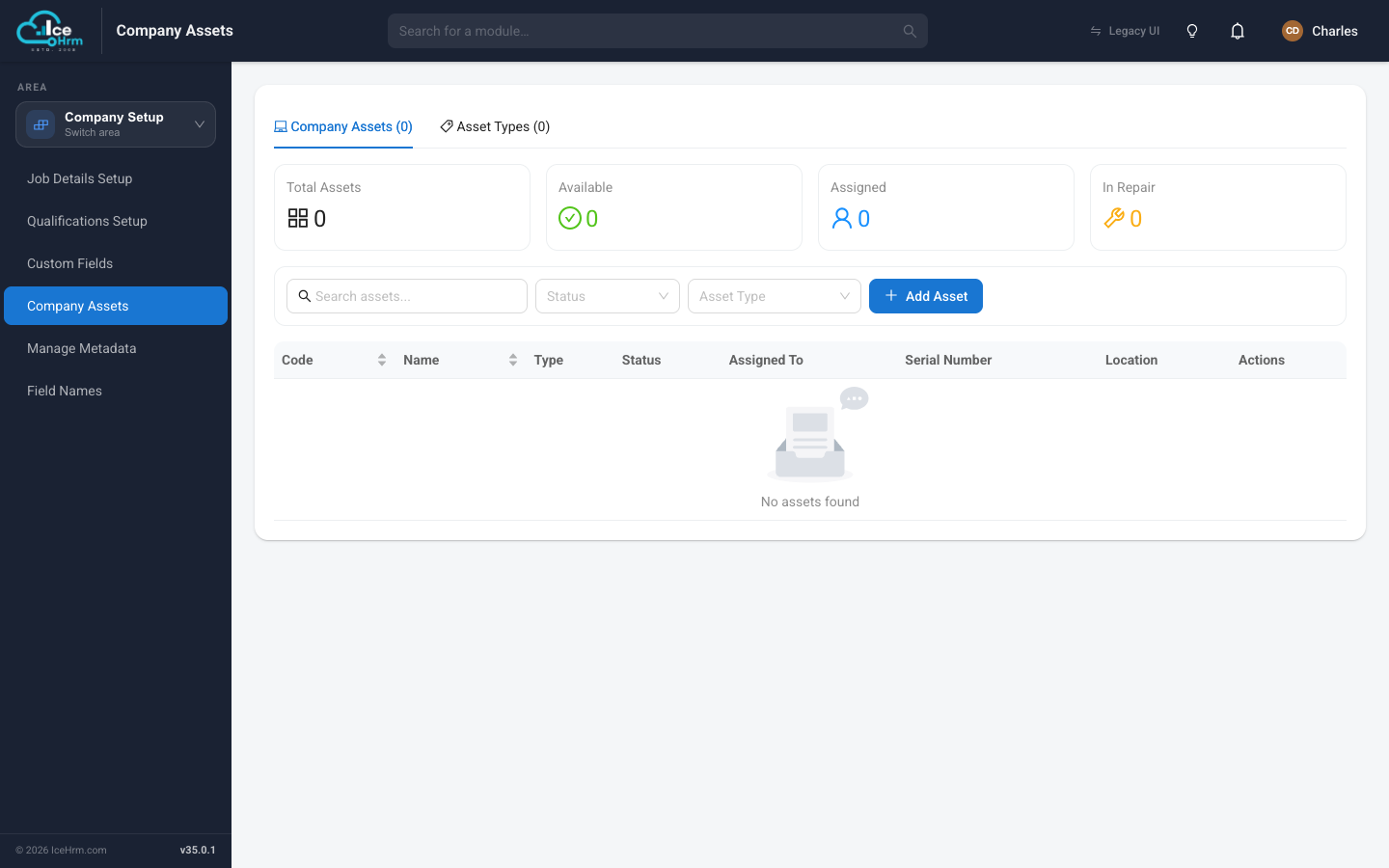
Company assets are the actual items owned by your organization. Each asset belongs to an asset type and can be assigned to employees. The Company Assets view provides a dashboard showing asset statistics and a searchable list of all assets.
Asset Dashboard
At the top of the Company Assets tab, you'll see summary cards showing:
- Total Assets: Total number of assets in the system
- Available: Assets not currently assigned to anyone
- Assigned: Assets currently assigned to employees
- In Repair: Assets marked as being repaired
Viewing Company Assets
- Open the Company Setup area and click Company Assets
- The Company Assets tab displays all assets with:
- Code: Unique identifier for the asset
- Name: Name or description of the asset
- Type: The asset type (e.g., Cars, Land)
- Status: Current status (Available, Assigned, In Repair)
- Assigned To: Employee who has the asset (if assigned)
- Serial Number: Asset serial number
- Location: Physical location of the asset
- Actions: Edit or delete the asset
Filtering Assets
Use the filter options to find specific assets:
- Search: Search by asset code or name
- Status: Filter by Available, Assigned, or In Repair
- Asset Type: Filter by specific asset type
Adding a Company Asset
- Open the Company Setup area and click Company Assets
- Click the Add Asset button
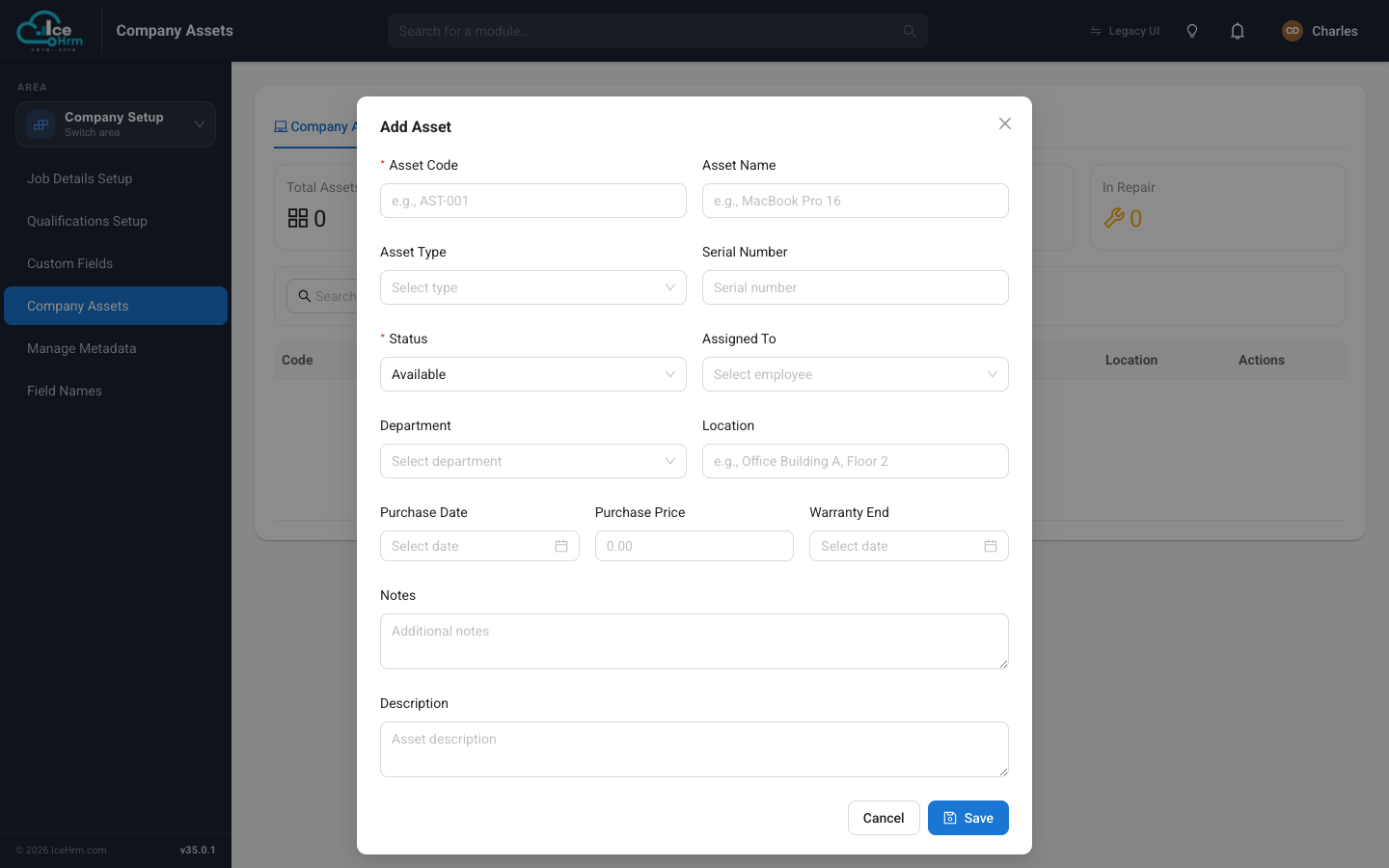
- Fill in the asset details
Asset Fields
- Asset Code (required): A unique identifier for the asset (e.g., AST-001, CAR-001)
- Asset Name: A descriptive name for the asset (e.g., MacBook Pro 16)
- Asset Type: Select from your defined asset types
- Serial Number: Manufacturer's serial number
- Status (required): Current status of the asset
- Available: Asset is ready to be assigned
- Assigned: Asset is currently with an employee
- In Repair: Asset is being repaired
- Assigned To: Select an employee if the asset is being assigned
- Department: Department the asset belongs to
- Location: Physical location (e.g., Office Building A, Floor 2)
- Purchase Date: When the asset was purchased
- Purchase Price: Cost of the asset
- Warranty End: Warranty expiration date
- Notes: Additional notes about the asset
- Description: Detailed description of the asset
- Click Save to create the asset
Editing a Company Asset
- Find the asset in the list
- Click the edit icon in the Actions column
- Modify the asset details as needed
The edit form is the same as the add form shown above, with a Custom Fields section at the bottom for any fields defined by the asset type.
Custom Fields
When editing an asset, you'll see a Custom Fields section at the bottom of the form. These fields are defined by the asset type and allow you to capture type-specific information.
For example, if the asset is a Car, you might see custom fields like:
- Engine: Enter the engine type (e.g., TSI, V6, Electric)
Fill in the custom fields relevant to your asset and click Save.
Assigning an Asset to an Employee
- Edit the asset
- Change the Status to Assigned
- Select the employee in the Assigned To field
- Optionally select the Department
- Click Save
The asset will now show as assigned in the asset list, and the Assigned count in the dashboard will update.
Marking an Asset for Repair
- Edit the asset
- Change the Status to In Repair
- Add any relevant notes about the repair
- Click Save
Deleting a Company Asset
- Find the asset in the list
- Click the delete icon in the Actions column
- Confirm the deletion