Creating a Travel Request

Employees can submit travel requests through IceHrm to request approval for business trips. This guide explains how to create and submit a travel request.


Adding a Travel Project

A travel project is a way to categorize all travel requests for a given project. As an admin, you can create travel projects and view all travel requests submitted by employees under Manage > Travel.

travel-project.png

How to Create a Travel Request as an Employee

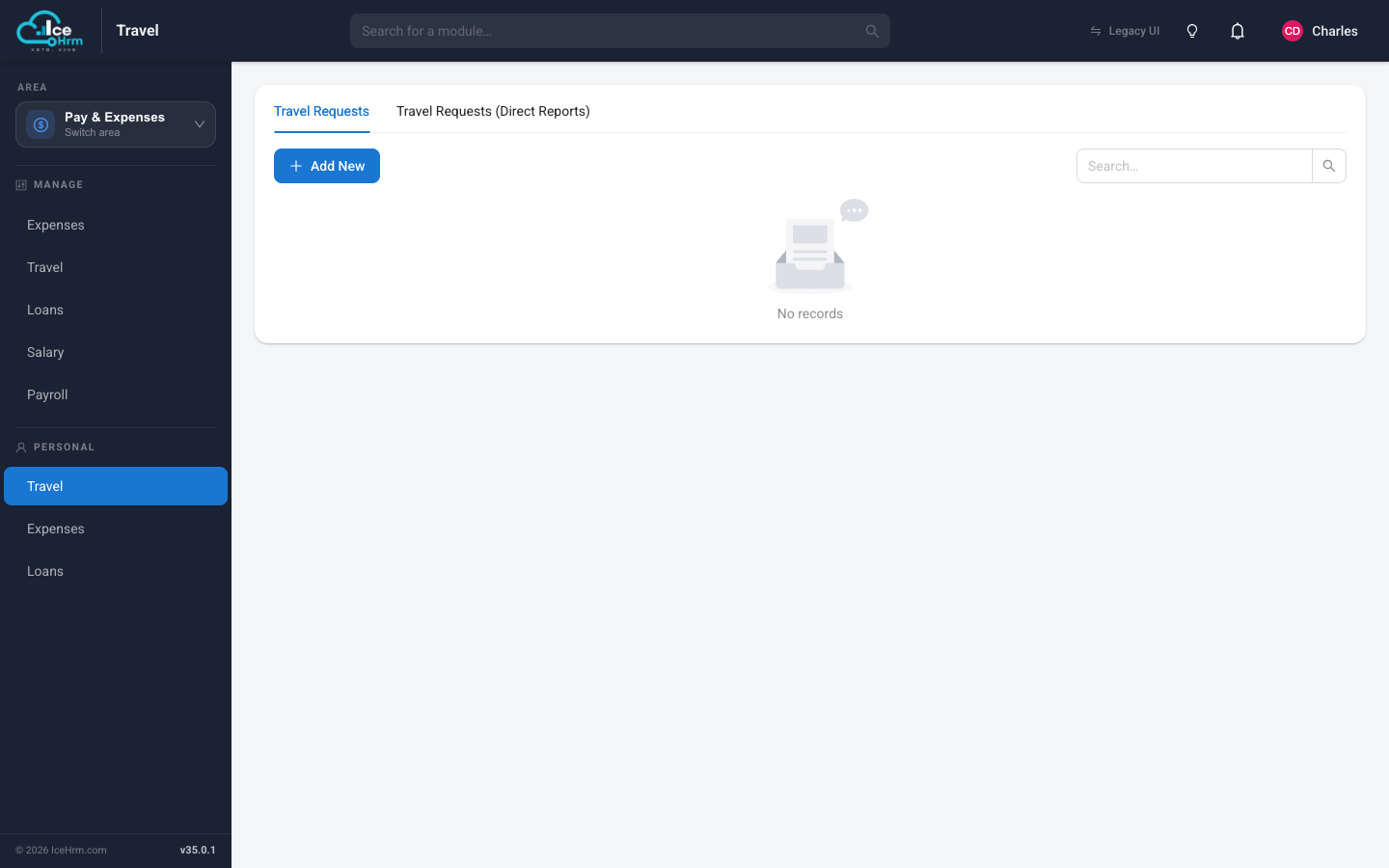
  1. Go to Travel Management > Travel Request

  2. Click Add New

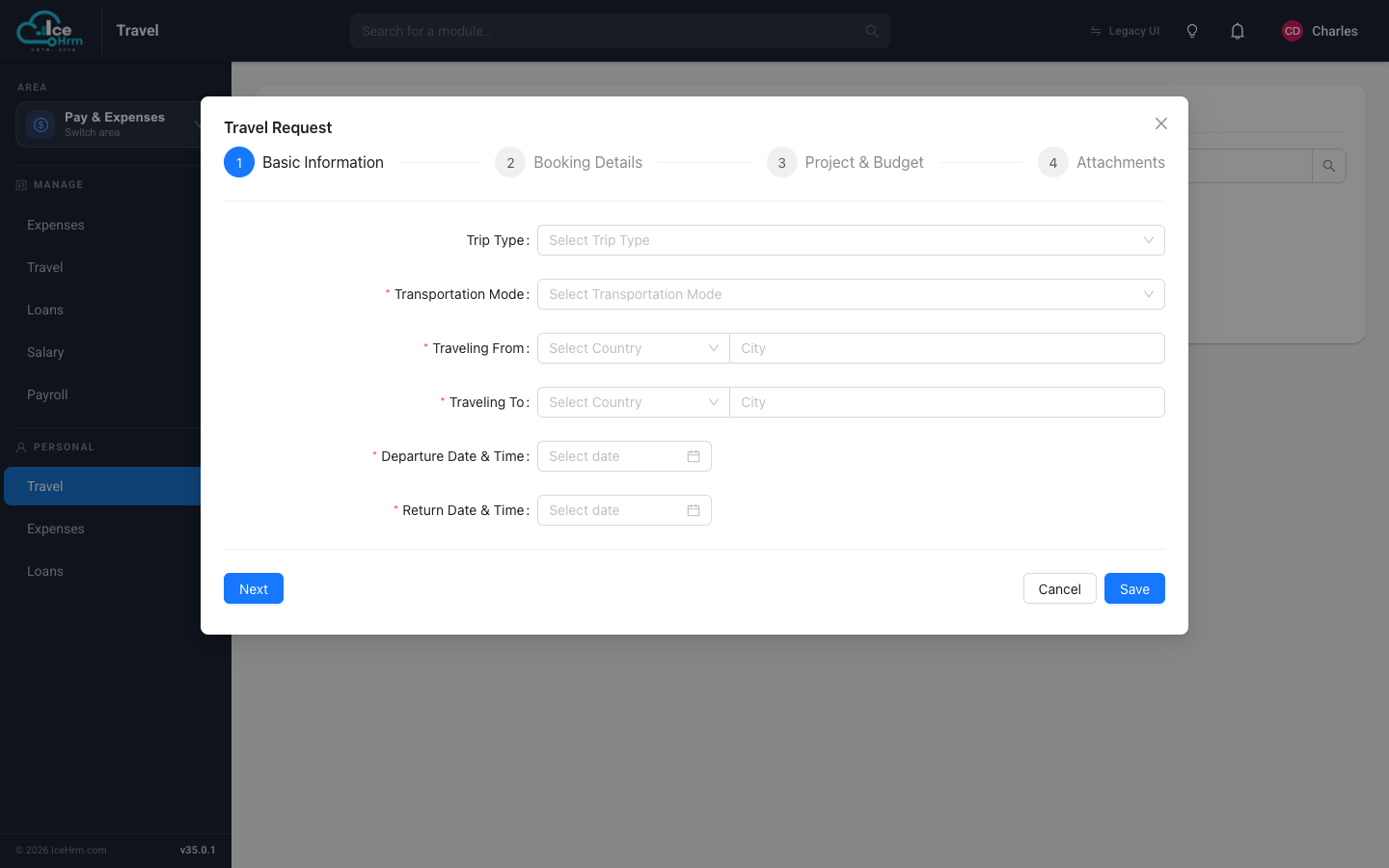
Travel Request Form

  1. Fill in the required fields:
FieldDescription
Means of TransportationSelect your preferred travel method
Purpose of TravelEnter a detailed description of why you are traveling
Travel FromSpecify your departure location
Travel ToSpecify your destination
Travel DateEnter the journey start date
Return DateEnter the journey end date
CurrencyChoose the currency for payment
Total Funding ProposedEnter the exact or estimated travel expenses
  1. Click Save to submit the request

Attaching Proof of Expenses

IceHrm allows you to attach proof documents for your manager or admin to verify actual costs.

How to Attach Documents

  1. Scroll to the Attachments section

  2. Click Add Attachment

  3. Select the file from your computer

  4. Add a description if needed

  5. Save

Supported Documents

  • Flight/train tickets
  • Hotel booking confirmations
  • Expense receipts
  • Event registrations
  • Meeting invitations

Notification Process

Once you submit a travel request, your supervisor automatically receives a notification to review and approve it.


Request Status

StatusDescription
PendingAwaiting supervisor approval
ApprovedRequest approved for travel
RejectedRequest denied
CancelledCancelled by employee

Quick Reference

TaskLocation
Create travel requestTravel Management > Travel Request > Add New
View my requestsTravel Management > Travel Request
Attach documentsOpen request > Add Attachment

Best Practices

  1. Be Detailed - Provide a clear purpose description for faster approval
  2. Estimate Accurately - Include realistic cost estimates
  3. Attach Proof - Include supporting documents when available
  4. Submit Early - Allow adequate time for the approval process
  5. Check Status - Monitor your request status regularly