Email Log
The Email Log tracks all emails sent by IceHrm, allowing administrators to monitor email communications and troubleshoot delivery issues.
Overview
IceHrm automatically sends emails for various events such as leave applications, approvals, recruitment notifications, and more. The Email Log records every email sent by the system, including the content and delivery status.
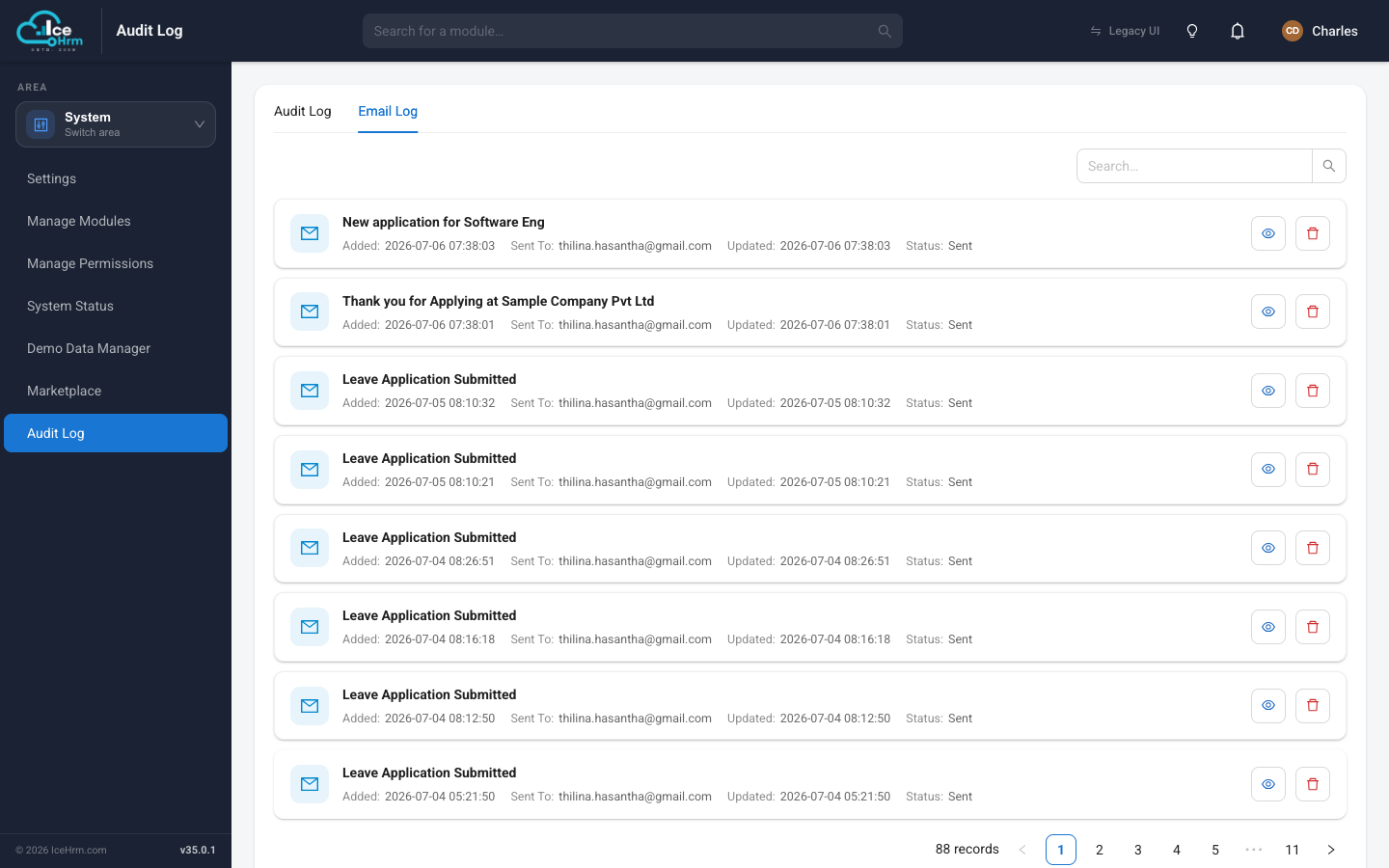
Accessing the Email Log
- Open the System area and click Audit Log.
- Click the Email Log tab at the top.
- Browse the list of sent emails.
Understanding the Email Log
Each email entry contains the following information:
- Added: The date and time when the email was created
- Subject: The email subject line
- Sent To: The recipient's email address
- Updated: The last update time for the email status
- Status: The delivery status of the email (e.g., "Sent")
- Actions: View the email content or delete the entry
Common Email Types
The Email Log captures various types of system-generated emails:
- Leave Application Submitted: Sent when an employee submits a leave request
- Leave Application Approved: Sent when a leave request is approved
- Leave Application Received: Sent to managers when they receive a leave request
- New application for [Position]: Recruitment notifications for new job applications
- Thank you for Applying: Confirmation emails sent to job applicants
Viewing Email Content
To view the full content of an email:
- Find the email in the list
- Click View in the Actions column
- A modal will display the complete email
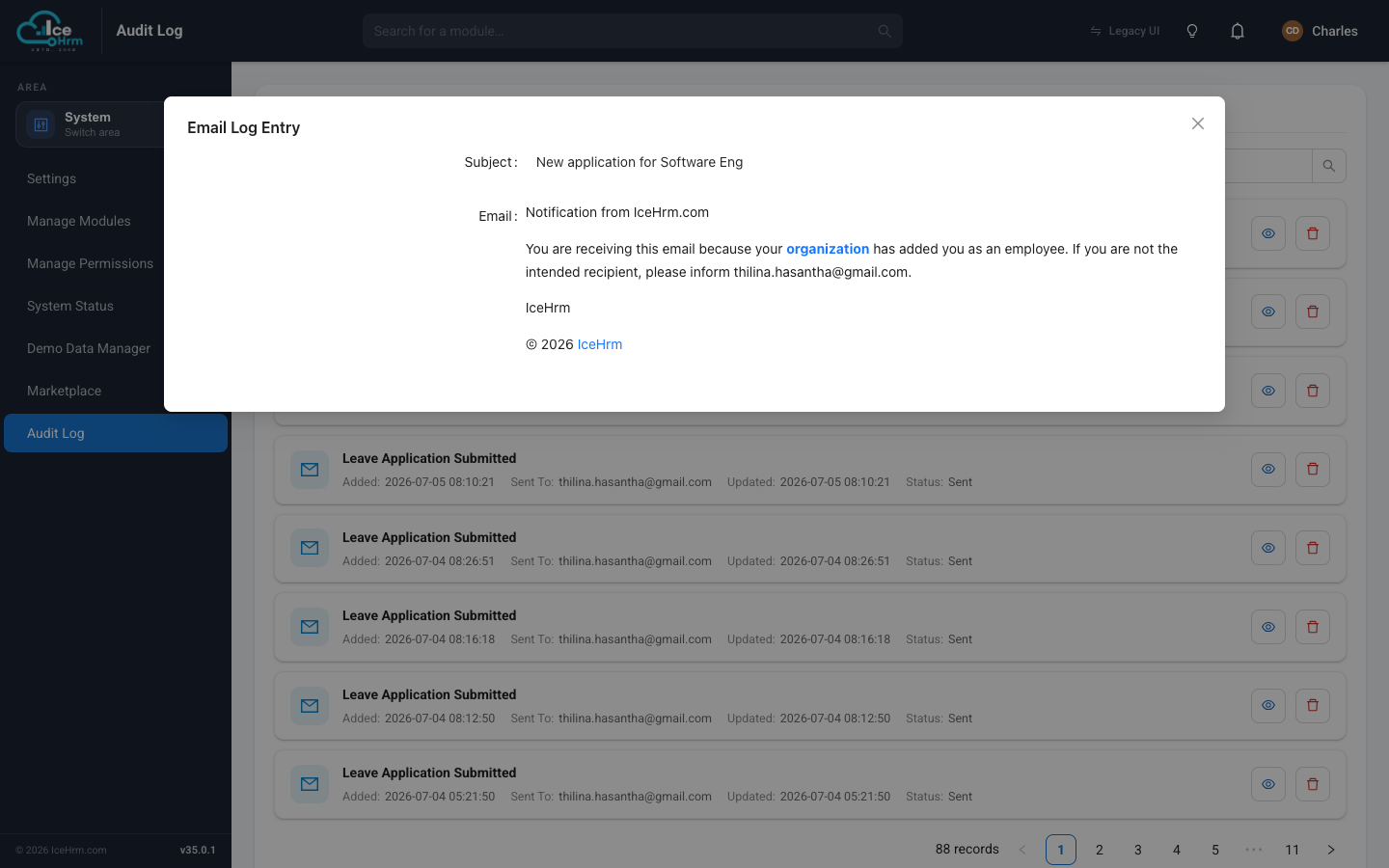
The email preview shows:
- Subject: The email subject line
- Email: The full HTML content of the email as it was sent to the recipient
This includes the IceHrm branding, the message body, and any relevant details such as leave dates, application information, or approval status.
Searching Emails
Use the search box in the top right corner to find specific emails:
- Search by subject line
- Search by recipient email address
- Search by date
Click Search to apply your search criteria.
Deleting Email Logs
To remove an email log entry:
- Find the email in the list
- Click Delete in the Actions column
- Confirm the deletion
Deleting an email log entry only removes the record from the log. It does not affect the actual email that was sent to the recipient.
Troubleshooting Email Issues
Email Not Received
If an employee reports not receiving an email:
- Search for the email in the Email Log
- Check if the email exists and has "Sent" status
- Verify the recipient email address is correct
- Ask the employee to check their spam/junk folder
Email Shows Wrong Information
If an email contains incorrect information:
- View the email content in the log
- Check when the email was sent
- Verify the source data was correct at the time of sending