Asset Types
Asset types allow you to categorize company assets and define custom fields specific to each category.
Overview
Before creating company assets, you should set up asset types. Each asset type can have its own set of custom fields that capture information relevant to that type of asset. For example:
- A Cars asset type might have custom fields for engine type, fuel type, or license plate
- A Laptops asset type might have custom fields for RAM, storage capacity, or processor
- A Land asset type might have custom fields for area size or property registration number
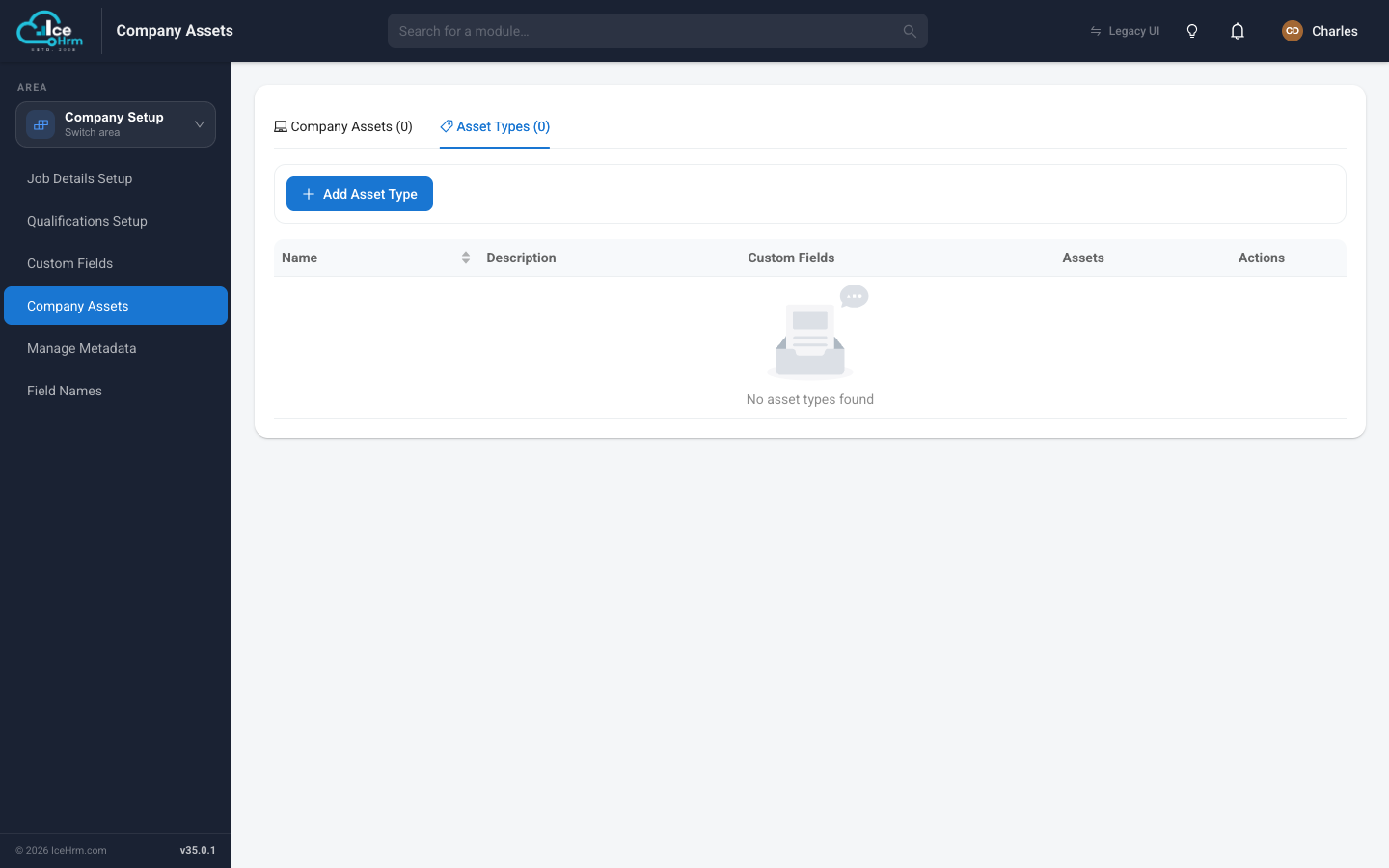
Viewing Asset Types
- Open the Company Setup area and click Company Assets
- Click on the Asset Types tab
- You'll see a list of all asset types with:
- Name: The asset type name
- Description: A brief description of the asset type
- Custom Fields: Number of custom fields defined for this type
- Assets: Number of assets created under this type
- Actions: Edit or delete the asset type
Adding an Asset Type
- Open the Company Setup area and click Company Assets
- Click on the Asset Types tab
- Click the Add Asset Type button
- Fill in the asset type details:
- Type Name (required): Enter a name for the asset type (e.g., Cars, Laptops, Phones)
- Description: Add a description to help identify this asset type
Adding Custom Fields
Custom fields allow you to capture additional information specific to each asset type.
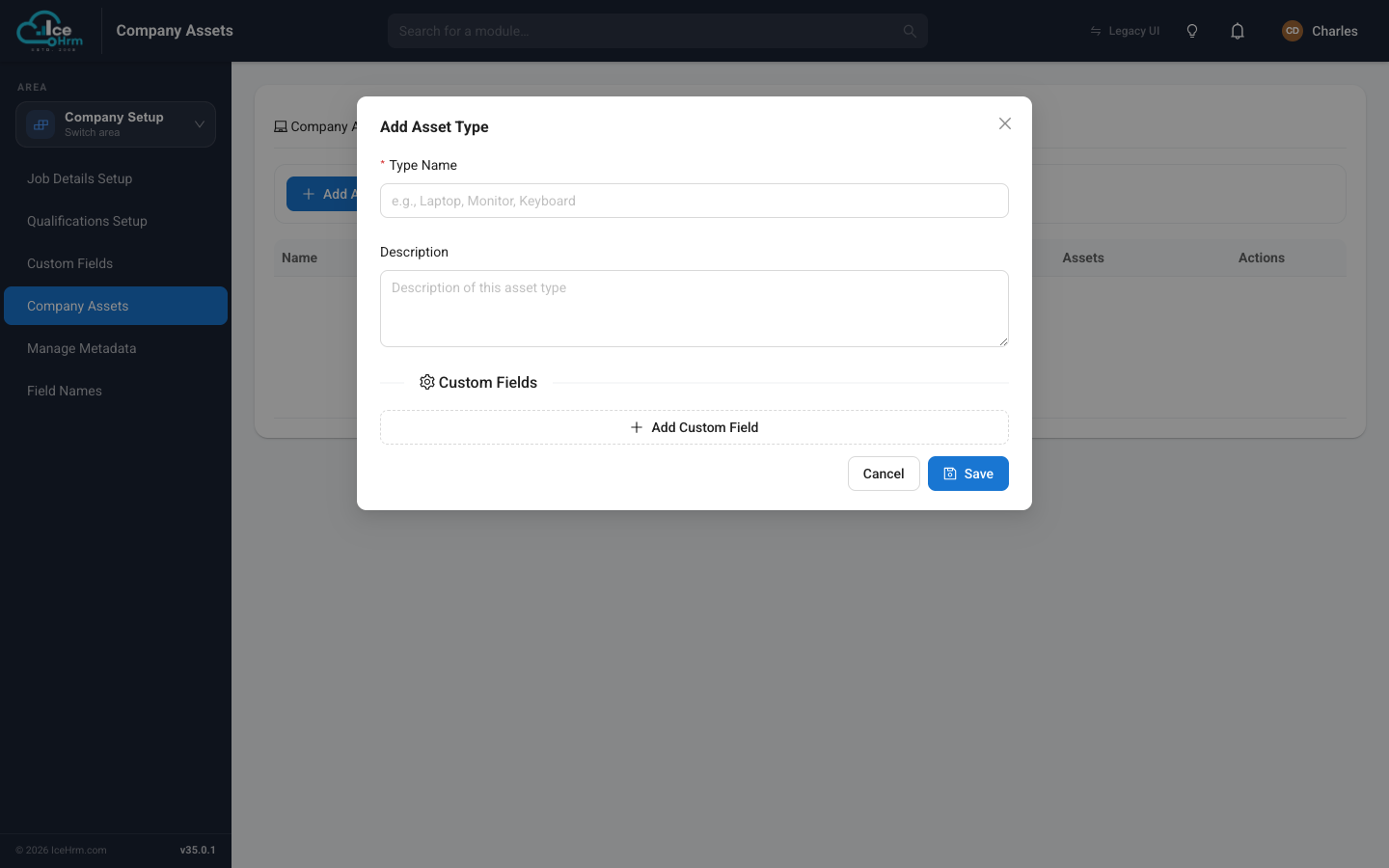
- In the Custom Fields section, click Add Custom Field
- For each custom field, configure:
- Field Name: Internal identifier for the field (e.g.,
engine_type) - Label: Display name shown to users (e.g., "Engine")
- Type: Select the field type (Text, Number, Date, etc.)
- Required field: Toggle on if this field must be filled when creating assets
- Field Name: Internal identifier for the field (e.g.,
- Add as many custom fields as needed
- Click Save to create the asset type
Editing an Asset Type
- Find the asset type in the list
- Click the edit icon in the Actions column
- Modify the type name, description, or custom fields
- Click Save to apply changes
info
Changes to custom fields will affect how assets of this type are displayed and edited. Existing assets will show the updated fields.
Deleting an Asset Type
- Find the asset type in the list
- Click the delete icon in the Actions column
- Confirm the deletion
warning
You cannot delete an asset type that has assets associated with it. You must first delete or reassign all assets of that type.