Check Assigned Tasks
When someone assigns you to a task list, you'll get a notification in IceHrm — and the list appears on your own Task Lists page.
Finding your tasks
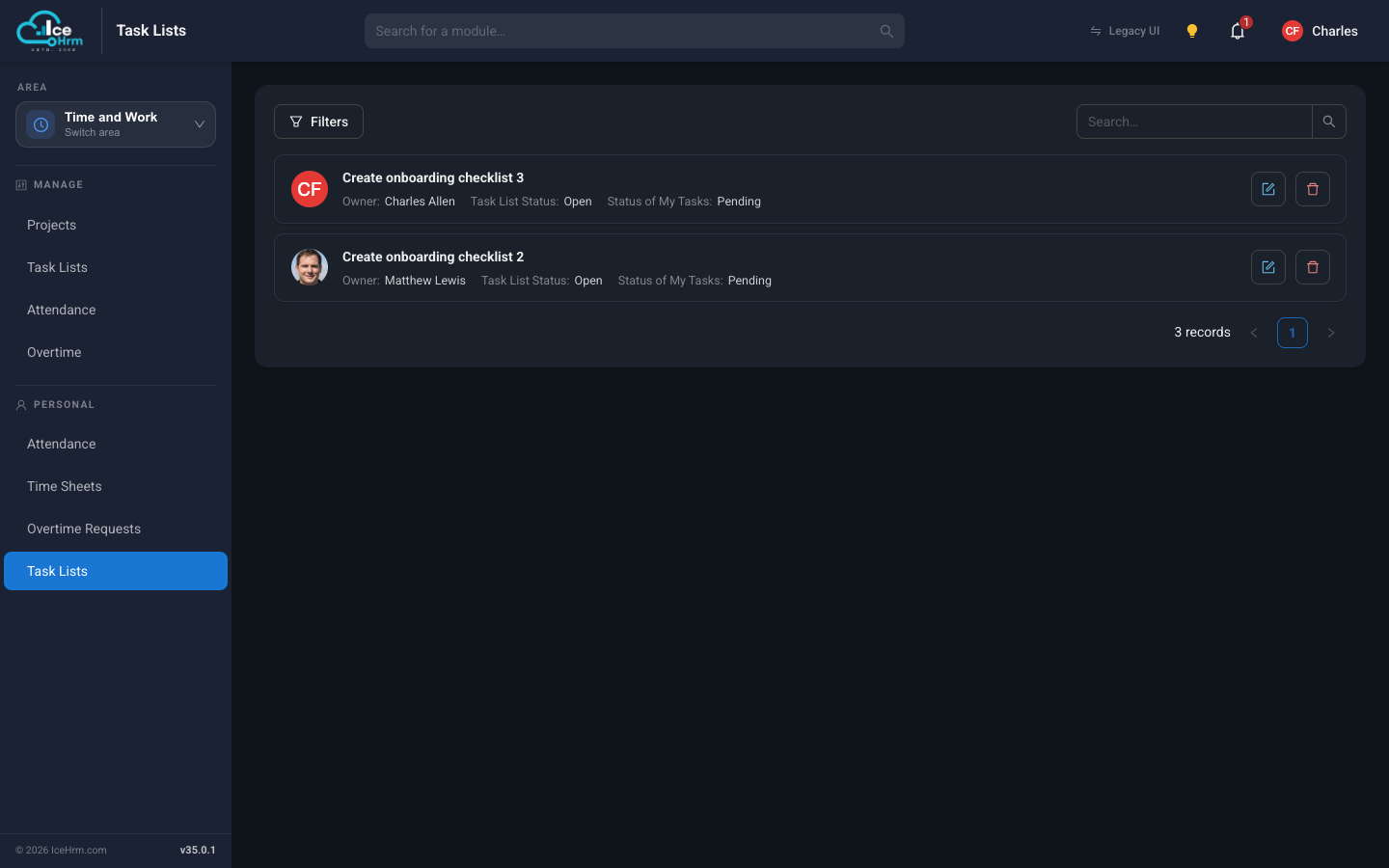
Open the Time and Work area and choose Task Lists in the Personal section of the menu. Each card shows the list's name, its owner, the overall status, and the status of your tasks in it.
Completing your tasks
- Open a task list using the form button on its card.
- Your tasks are the ones marked with your profile photo.
- Tick the checkbox next to each task as you complete it.
- Click Save to record your progress.
The list's owner sees your progress immediately — there's nothing else you need to send.
tip
Check your notifications (the bell icon in the top bar) regularly so newly assigned task lists don't sit unnoticed.